
There is no single ideal capacity for everyone. However, there is a fairly simple way to work out how much cloud storage you should choose.
You do not need to plan several years of storage in advance. Unlike an SSD that you buy with a fixed capacity, a cloud subscription can be upgraded when you start running out of space.
In this article
Measure what you want to back up on your PC
If you mainly use a Windows PC and a smartphone, you can work out how much cloud storage you need fairly easily.
On Windows, open your user folder here: C:UsersYourName
In my case, this is C:UsersAdrien.
Inside it, you will find your Documents, Pictures, Videos, Music, Desktop and Downloads folders.
Do not select the entire user folder. AppData contains a lot of data used by Windows and your software that does not need to be stored in your cloud. You should also avoid counting OneDrive, Nextcloud, Dropbox or other cloud-service folders a second time if their files are already included elsewhere in your calculation.
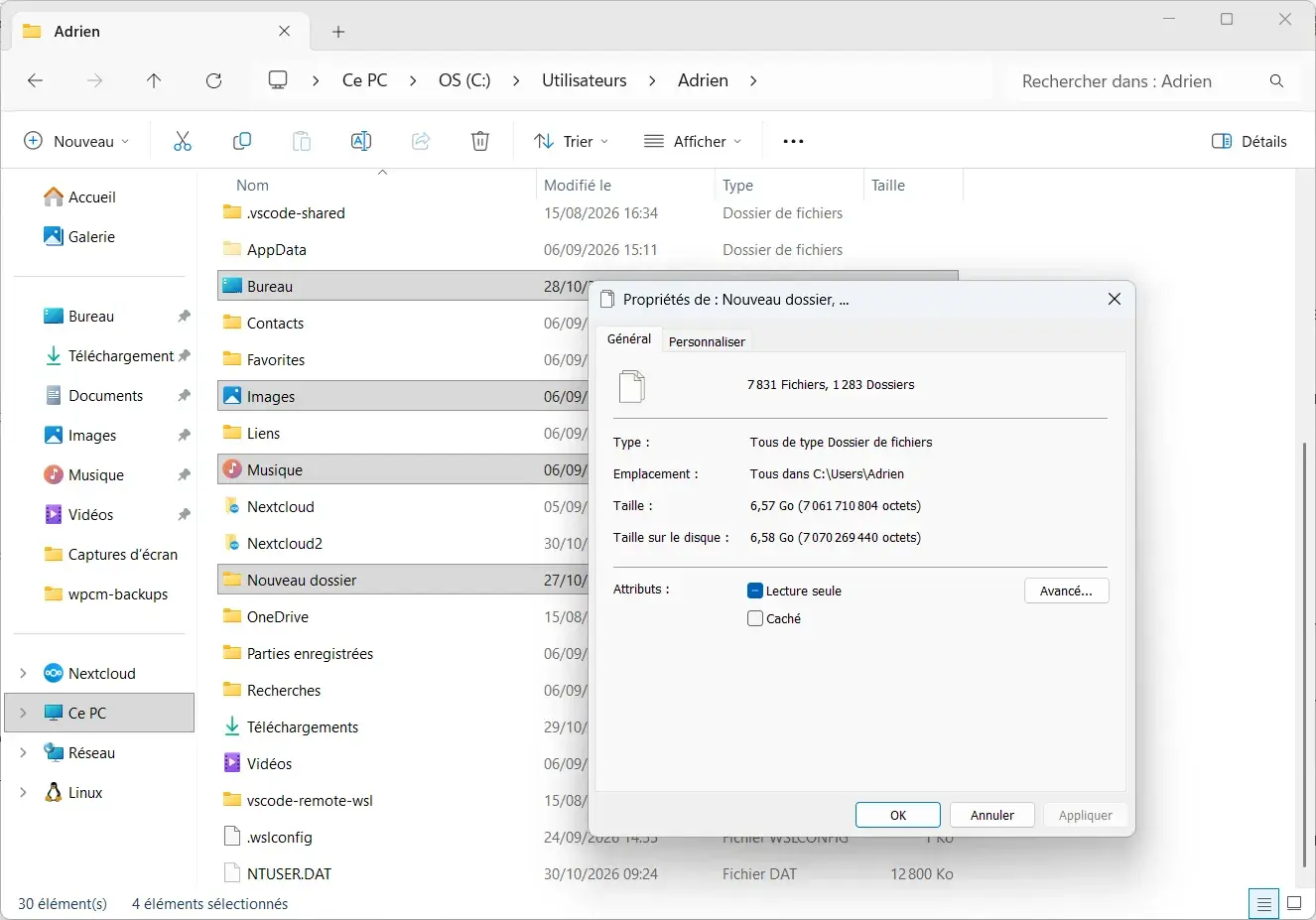
Select the folders containing the files you want to keep, right-click them and open Properties.
In the screenshot above, I selected several personal folders and Windows calculated their total size directly. Here, they represent around 6.57 GB.
You can do the same with Documents, Pictures, Videos, Desktop and any other folders you want to include.
The Downloads folder may contain important documents, but also several gigabytes of installers, archives or files that can be downloaded again. It is therefore not necessarily useful to back up everything in it.
At this point, you already have an estimate of the amount of data coming from your PC.
Then add the photos and videos from your smartphone
My smartphone shows that 73.9 GB are being used out of 128 GB. However, it would be wrong to add those 73.9 GB directly to the 6.57 GB from my PC.
A large part of that space is taken up by items that do not need to be backed up to my cloud. In my case, apps alone account for 41.42 GB and the system uses 14.71 GB.
By opening the storage details, Android lets you see more precisely what is taking up space.
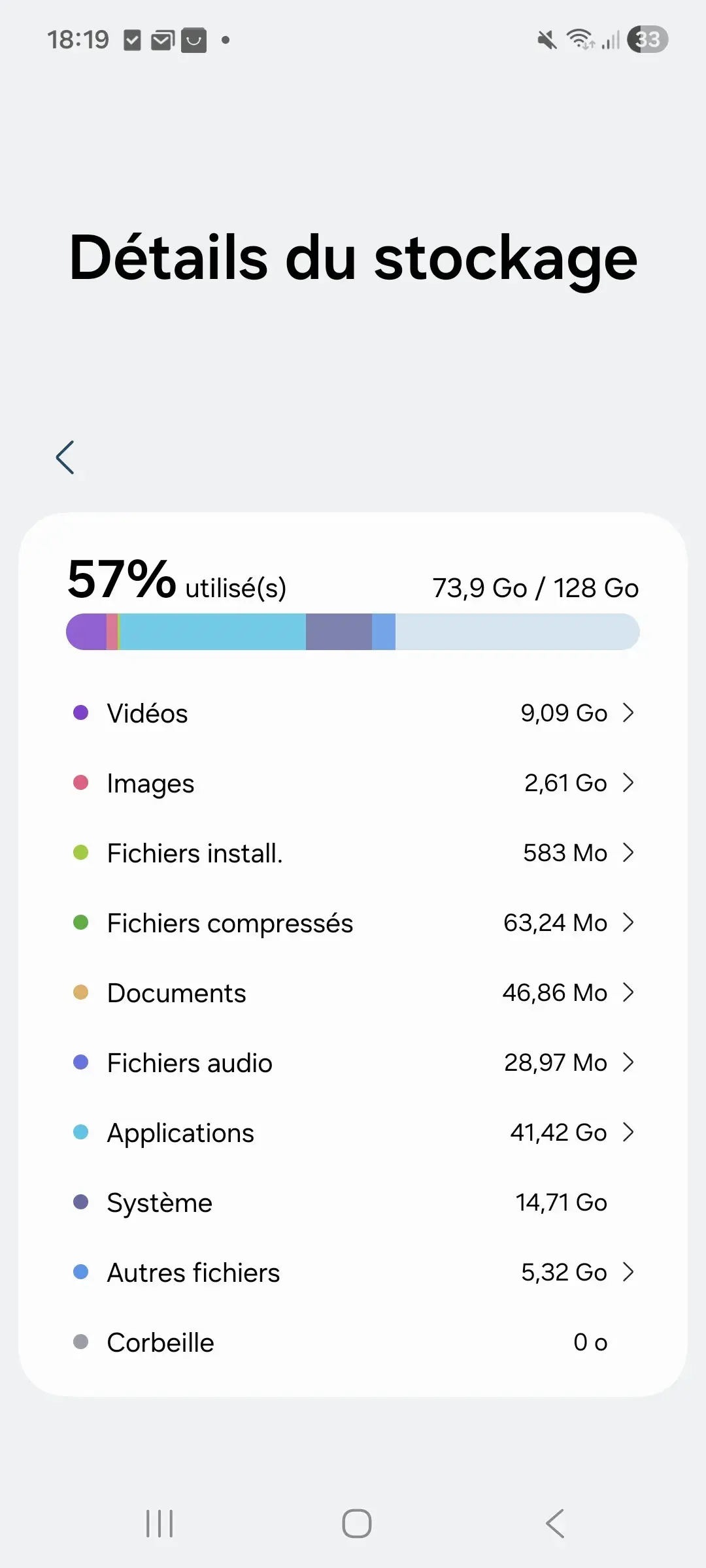
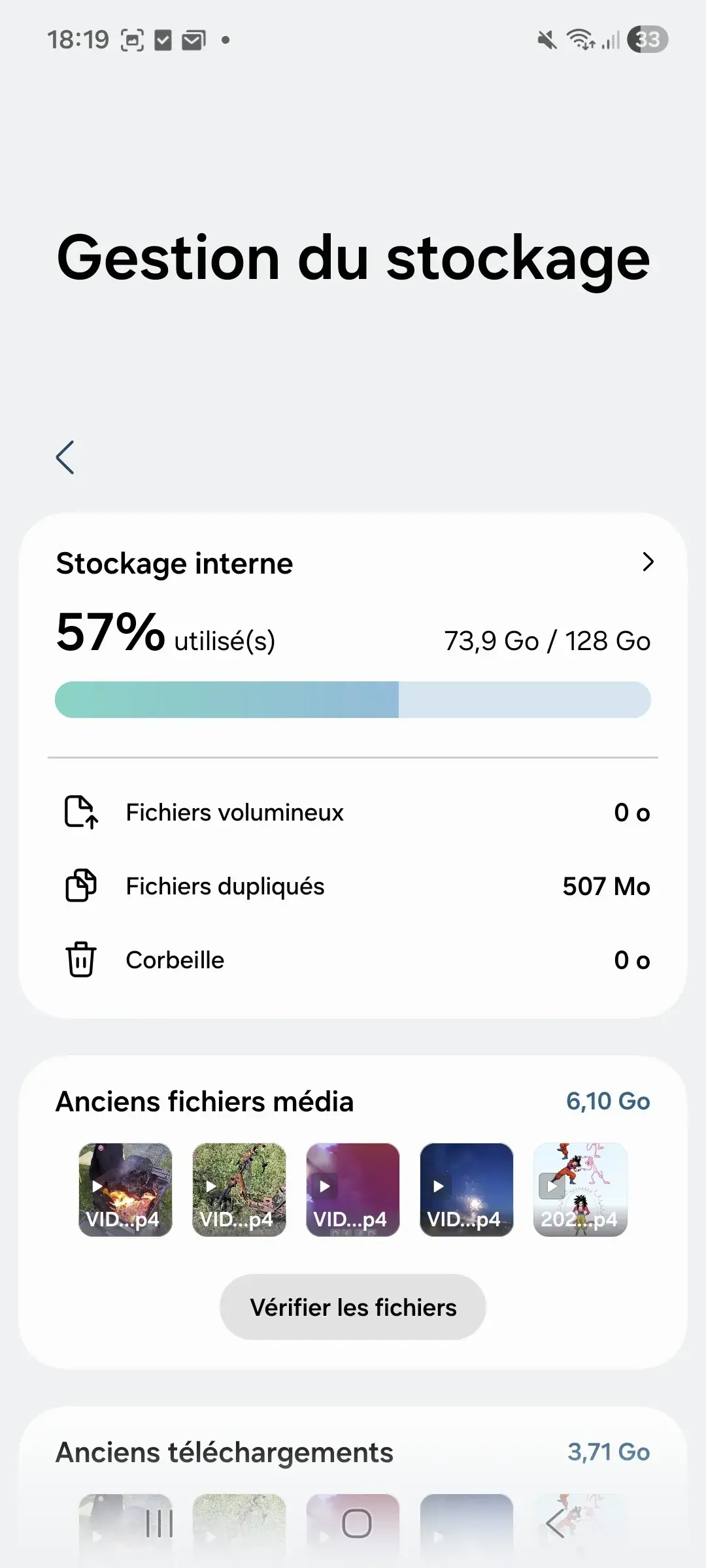
My phone contains 9.09 GB of videos and 2.61 GB of images. If my goal is to back up the photos and videos on my phone, they currently represent around 11.70 GB.
I can now add them to the 6.57 GB from my computer.
6.57 GB + 11.70 GB = 18.27 GB
There is no need to arbitrarily add 20 or 30% or try to predict what you will store three years from now.
With a 100 GB cloud storage plan, my 18.27 GB fits comfortably and leaves around 81.73 GB. When that space starts to run out, you can move to the next plan.
On Android, the storage settings show how much space is occupied by photos and videos. If you already use Google Photos with items that are no longer stored locally, also check the space used directly in your Google account.
On an iPhone, pay attention to iCloud Photos. When storage optimisation is enabled, the originals may remain in iCloud while the iPhone keeps smaller versions. In that case, the size shown on the iPhone may be smaller than the size of your photo library.
Which cloud storage capacity should you choose?
Once you know how much data you need to store, you can choose a capacity that suits your current usage.
Small plans from 5 to 100 GB are mainly suitable for documents, photos and a few videos. From 200 or 500 GB upwards, you can start bringing together a sizeable photo library, several devices or an older cloud space that is already quite full.
| Amount to store | Capacity | Typical use |
|---|---|---|
| Up to 5 GB | 5 GB | Documents, PDFs, a few photos and small files |
| Between 5 and 50 GB | 50 GB | Personal documents, a small photo library and a few videos |
| Between 50 and 100 GB | 100 GB | Personal PC files, smartphone photos and a few videos |
| Between 100 and 200 GB | 200 GB | A sizeable photo library, smartphone backup and files from several devices |
| Between 200 and 500 GB | 500 GB | Lots of photos and videos, several devices or an older cloud space that is already quite full |
| Between 500 GB and 1 TB | 1 TB | A large amount of multimedia, several computers or professional work with large files |
| Between 1 and 2 TB | 2 TB | Businesses, content creators, photographers, videographers or large archives |
Capacities of 1 TB and 2 TB are more suitable for large amounts of data. They are useful for businesses, photographers, videographers, content creators or anyone who keeps a lot of archives.
Cloud storage does not replace a backup
Storing your files in the cloud keeps a copy on a provider’s servers, but that does not mean you have a proper backup.
Most cloud services use redundancy to prevent a hardware failure on one server from causing your files to be lost. This is an important point to check before choosing a provider, but this redundancy mainly protects the provider’s infrastructure.
It does not protect you from accidental deletion, a corrupted file, losing access to your account or a change synchronised across all your devices.
If you delete a file in a synchronised folder, that deletion may be propagated to the cloud and then to your other devices. The recycle bin and version history may help you recover the file, but how long they retain it depends on the service you use.
For files you really care about, I recommend keeping a local copy as well.
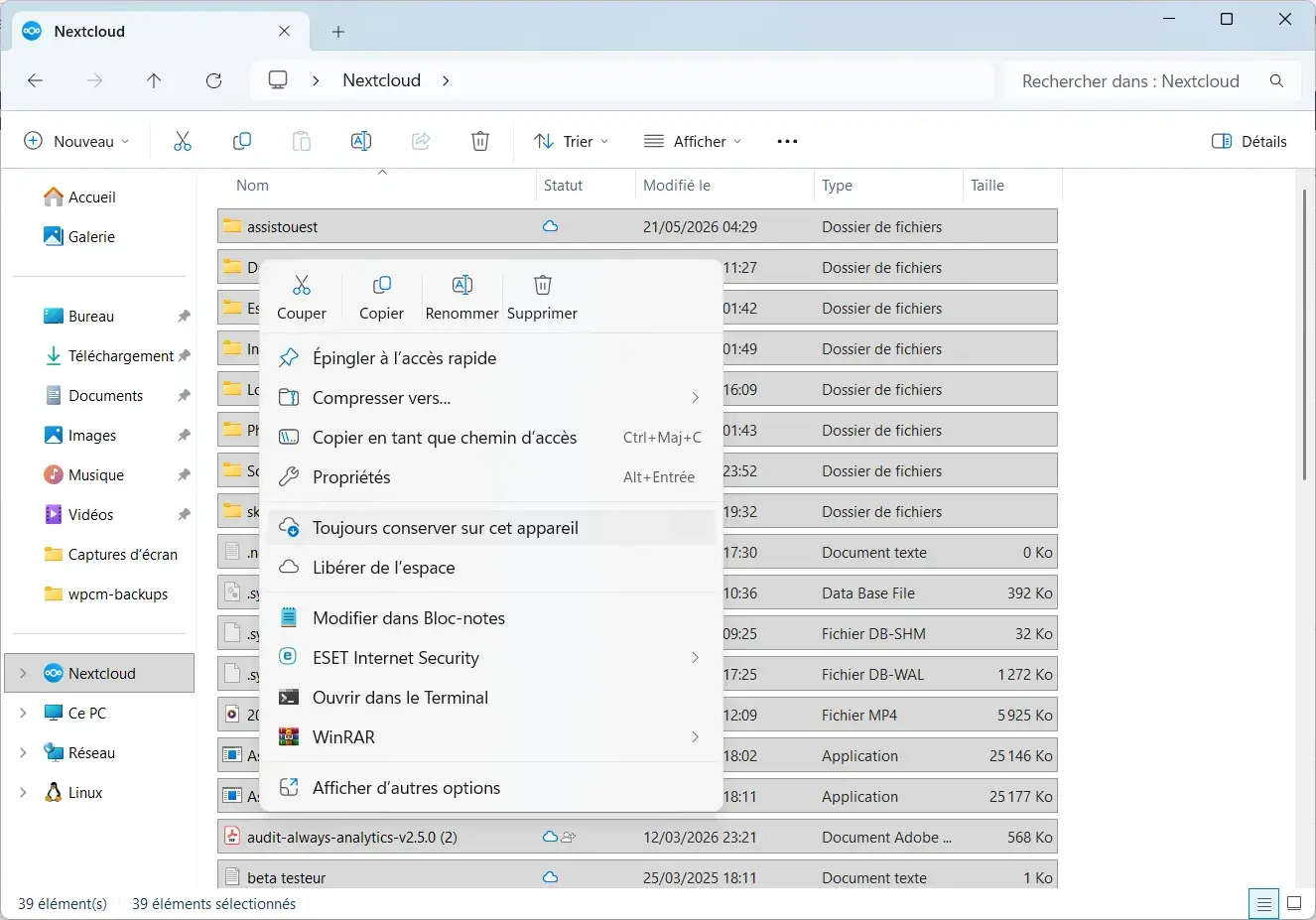
On your PC, you can ask your cloud service to keep certain folders always available on the device instead of leaving them online only. This gives you a complete copy on your drive while still benefiting from cloud synchronisation.
On a smartphone, photo-backup apps can send the originals to the cloud and then offer to free up local space. Before using this feature, make sure you have another copy of your photos if you want to avoid relying solely on the provider.
For truly important data, you can go further by keeping one copy on your computer, another on an external drive and a third in the cloud.

 assistouest.fr
The provider’s redundancy protects its infrastructure. Synchronisation makes your files easy to access. An additional backup protects you when the problem comes from your account, your device or a mistake.
We allow some readers to view our articles for free with an ad blocker. However, their number is currently too high for us to keep this access available to everyone.
You can disable your ad blocker to continue reading immediately, subscribe to enjoy all our content without ads, or come back a little later when the pressure has eased.
Access will be restored automatically as soon as the situation allows.