You are typing an urgent message, a month-end report or an email to your team when, all of a sudden, nothing happens. The Enter key stops responding and stubbornly stays silent.
Before ordering a replacement keyboard or shaking your workstation, pause and check the cause. A crumb under a key, a driver issue after an update or a loose cable can be enough to stop a keyboard working. With a few quick checks, you can often find the problem in less than five minutes.
Use the steps below to identify the cause, then clean, configure or repair your keyboard without spending money unnecessarily.
1. Restart your computer
A restart may be all it takes to fix a keyboard that has stopped responding. Shutting down and turning your computer back on resets connected devices, reloads drivers and restarts the services they need. Try this before moving on to more involved troubleshooting.
2. Turn off Sticky Keys and other accessibility options
Sticky Keys is a Windows accessibility feature that lets you use shortcuts such as Ctrl + S by pressing one key at a time instead of holding several keys together. If it is enabled accidentally, shortcuts may trigger unexpectedly or keys may seem stuck.
To check Sticky Keys in Windows:
- Open the Start menu and select Settings.
- Select Accessibility, then Keyboard.
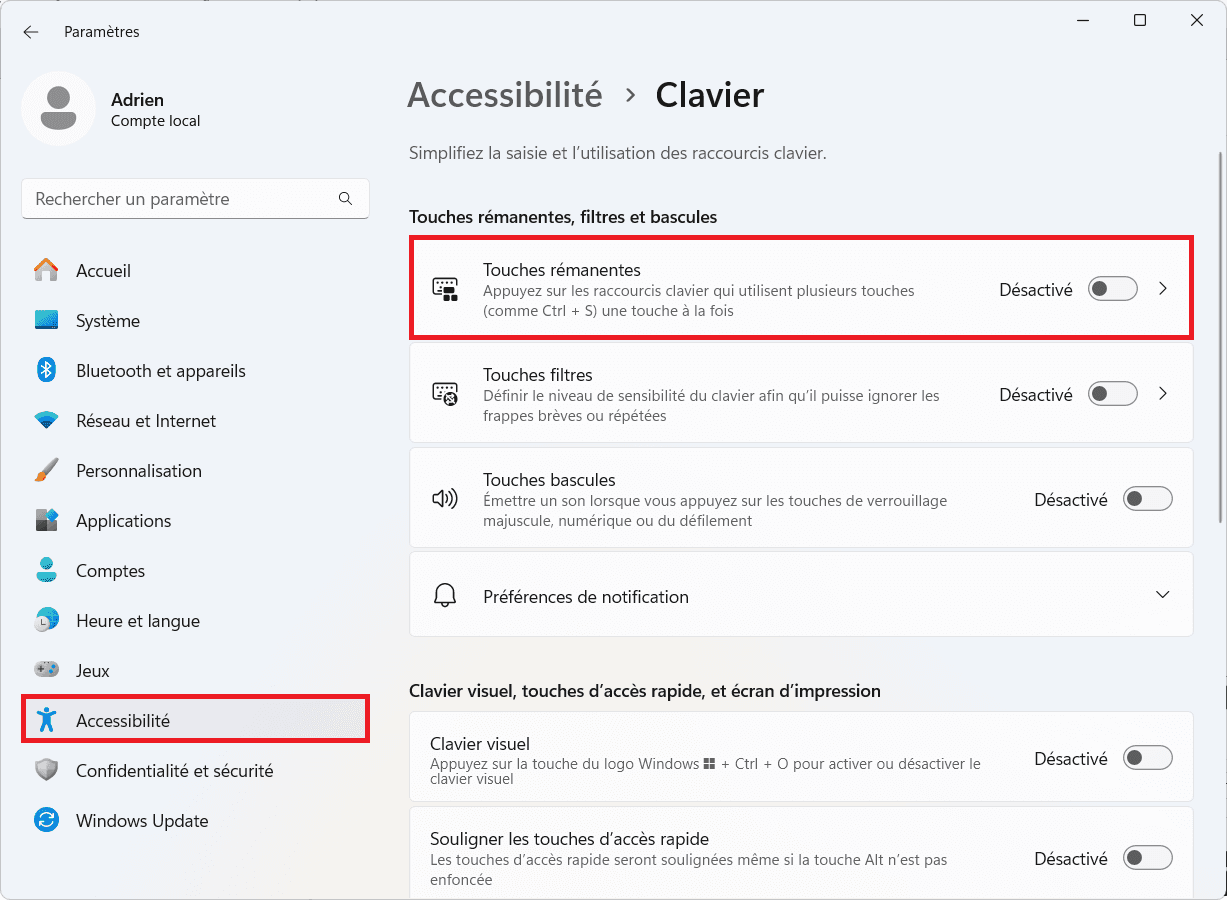
- Find Sticky Keys and make sure its switch is set to Off.
Also check Filter Keys, which can change how the keyboard responds. Turn it off if enabled and see whether normal typing returns.

 assistouest.fr
3. Check the keyboard connection
For a wired or USB keyboard, unplug it and reconnect it, preferably to a different USB port. If possible, try it on another device to see whether it works there.
For a wireless keyboard, check the batteries or charge level, make sure its USB receiver is firmly connected and confirm that the power switch is on. If the connection is intermittent, check whether a USB 3.0 flash drive or external drive is close to the receiver. Some USB devices can cause interference in the 2.4 GHz band and disrupt wireless reception.
4. Update or reinstall the keyboard driver
Windows and macOS use software called a driver to communicate with the keyboard. An outdated, damaged or incorrectly configured driver can stop it working properly. Updating or reinstalling the driver may fix the issue.
On Windows, follow our guide to update your drivers:
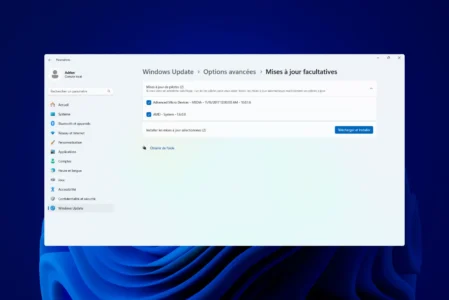
Restart your computer after updating or reinstalling the driver so Windows can apply the changes and detect the keyboard again.
5. Clean a laptop keyboard
Dust, crumbs and other debris can get between laptop keys and interfere with them. Use a can of compressed air to dislodge trapped particles, tilting the laptop slightly so the debris can fall out.

Highlights :
Drawbacks :
On Amazon right now:
Never spray liquid directly onto the keyboard; moisture can damage its internal circuits. If needed, wipe the key surfaces with a microfibre cloth that is only slightly damp, and keep water from getting inside. Regular cleaning can prevent many dirt-related problems.
Check whether the keyboard works in BIOS or UEFI
To find out whether the problem comes from Windows or the keyboard itself, test the keyboard in your computer’s BIOS or UEFI. This environment starts before Windows, so it lets you check the keyboard independently of the operating system.
Restart your computer and press the key shown at startup for your manufacturer.

If you can navigate the BIOS with the keyboard, it works at least partly and the cause may be Windows, its settings or a driver. If it does not respond in the BIOS either, a hardware fault is possible.
Test the keyboard on another computer
Connect a USB or wireless keyboard to another computer. If it still does not work, the keyboard, its cable or its receiver is probably faulty.
You can also connect another keyboard to your PC. If the second one works, the fault is probably limited to the first keyboard. If neither works, check the USB ports, Windows settings or drivers.
When to call a professional
If the keyboard still will not work after these checks, the problem may be hardware-related. Broken keys, keys that remain pressed, or damage caused by a knock or spilled liquid are signs that software changes will not be enough.
A technician can diagnose the fault and determine whether a part can be replaced or the whole keyboard needs to be changed. Replacing a laptop keyboard may require taking the computer apart, so a qualified technician can carry out the repair without causing further damage.