
Test several environments to rule out false positives
When nothing indicates an OpenAI outage, it is useful to test GPT-5 from another environment. Opening a private session, changing browser, using another device or switching to a different connection helps clarify the situation. If the service becomes responsive again elsewhere, the problem does not come from OpenAI’s servers but from the user’s environment. This simple check prevents confusion and helps identify the real cause of the blockage more quickly.
In this article
2. Fix problems caused by the browser
When GPT-5 is down, the browser is often the first suspect. Many blockages attributed to OpenAI are actually caused by local data, intrusive extensions or a session that has become unstable.
2.1 Start a new chat to solve slowdowns or freezes
GPT-5 can become slow, less responsive or even freeze for no obvious reason. This does not necessarily mean there is an outage or a problem on OpenAI’s side. In many cases, the cause is the conversation itself. As instructions, corrections, different contexts and successive requests accumulate, the thread can become overloaded. Older instructions may then conflict with newer ones and confuse the model, eventually causing visible slowdowns.

The longer a conversation continues, the heavier its context memory becomes. The model has to process a complex thread, revisit previous information and handle nuances that may not be compatible. This artificial cognitive overload is not visible to the user, but it affects the model’s ability to respond quickly.
Simply create a new chat to start with a clean context. The model no longer has to juggle old constraints and immediately becomes responsive again. In some cases, a simple page refresh is also enough to reset the local environment and eliminate slowdowns.
2.2 Restore the page by clearing the cache and cookies
The cache plays an essential role in how websites work, but it can also cause many malfunctions. When an outdated file remains stored locally, the browser may continue using it instead of loading the updated version supplied by OpenAI. This can cause frozen screens, requests that never finish or the impression of a general outage.

A hard refresh can bypass the problem because it forces the browser to ignore locally stored files. If the issue continues, deleting the site’s temporary data or clearing the browser cache completely can restore ChatGPT. These quick, safe actions are among the most effective ways to resolve common freezes.
2.3 Identify extensions that interfere with GPT-5
Browser extensions provide many useful features, but some of them directly interfere with ChatGPT. Ad blockers may filter scripts, automation tools can change how the page behaves and VPN or proxy extensions may redirect traffic unpredictably. These interferences often make it look as if GPT-5 no longer works, when the real cause is local.

To find out whether one of these extensions is responsible, open ChatGPT in a private window. This mode disables extensions and quickly isolates the source of the blockage. If everything works normally in private browsing, disable the extensions one by one until you find the one disrupting GPT-5.
2.4 Fully refresh the user session
Even when the browser is configured correctly, a user session can degrade over time. An expired token, a partial connection or a tab left open for too long may be enough to cause repeated errors. The result can be conversations that suddenly freeze or incomplete access to model features.
In this situation, the simplest solution is to sign out and sign back in. This completely resets the session, renews permissions and fixes many authentication-related problems. It is a quick step that can restore GPT-5’s responsiveness within seconds.
3. Try another model to rule out a targeted outage
When GPT-5 behaves unpredictably, it can be difficult to tell whether the outage comes from OpenAI or is limited to the model you are using. GPT-5 relies on a set of separate services, and one of them may degrade without affecting the others. A simple slowdown, incomplete answer or search that returns nothing may indicate a disruption isolated to the model itself.

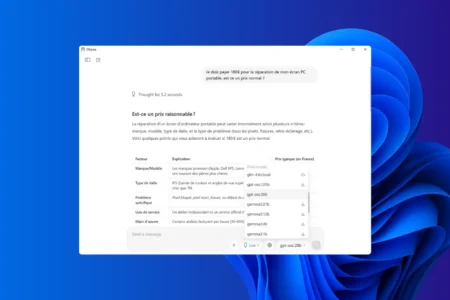
The quickest way to understand what is happening is to temporarily switch models. Move to GPT-4o or GPT-4.1 to see whether the problem occurs again. If the conversation becomes smooth with one of these models, the issue does not affect ChatGPT as a whole but only GPT-5. This lets you continue working without waiting for the situation to stabilize while OpenAI adjusts or repairs the affected service.
Limits and slowdowns on free accounts
Users who access GPT-5 with a free plan may sometimes feel that the model slows down for no apparent reason, refuses certain requests or is less available than usual. These changes do not necessarily indicate an outage. They are related to the implicit limits that govern free use of the service.
During periods of heavy traffic, OpenAI prioritizes paying subscribers. Free accounts may then experience noticeable slowdowns, a temporary reduction in the model’s capabilities or restrictions on features such as search and web analysis. This is especially visible when new features launch and millions of users rush to test them at the same time. The pressure on the infrastructure then leads to a temporary reduction in the resources allocated to free accounts.
These limitations are not always announced and take the form of invisible quotas, adaptive caps or progressive degradation when demand exceeds capacity. The model may seem hesitant, produce shorter answers or stop halfway through its reasoning. During a prolonged outage, an alternative is to switch to an older ChatGPT model that is still available.
We allow some readers to view our articles for free with an ad blocker. However, their number is currently too high for us to keep this access available to everyone.
You can disable your ad blocker to continue reading immediately, subscribe to enjoy all our content without ads, or come back a little later when the pressure has eased.
Access will be restored automatically as soon as the situation allows.