Linux server administration has long relied on the command line, a powerful tool that can be demanding when you need to monitor a system in real time. It can be hard to get an overview or react quickly to an issue. As clarity and responsiveness become more important, a lightweight, secure web interface that gives administrators a broad view is becoming part of everyday operations. Cockpit fits this role: its dashboard displays server resources, makes critical services easier to access and complements the command line.
In this article
Cockpit: a web interface for managing your servers
Cockpit is a web interface designed to make Linux server administration more intuitive by bringing essential system information together in one place. It lets you monitor a server in real time, manage services and open a terminal without entering a series of separate commands. This makes routine administration easier while preserving the freedom Linux users expect.
Originally developed in the Red Hat ecosystem, where it integrates naturally, Cockpit is now available on most common distributions. Ubuntu, Debian, Fedora, AlmaLinux and Rocky Linux can all run it, making it suitable for a new server as well as an existing production environment. Support across these systems also makes it easier to keep familiar workflows when you change distributions.

Cockpit uses the system’s own components to manage services, collect logs and provide live statistics. Its modular design lets you add features as needed, such as managing containers and virtual machines with Docker, administering storage or monitoring the network. This versatility makes it useful for experienced administrators, technicians in training, small businesses looking for accessible monitoring and homelab enthusiasts who want to manage their machines from one place.
Install the Cockpit web interface on Ubuntu 22.04.5 LTS
Installing Cockpit on Ubuntu is quick and straightforward, even on a fresh system. A few commands are enough to install the web interface and access it from a browser.
- Update your system to make sure all packages are up to date.
It is always a good idea to refresh the packages on your server first. This gives Cockpit a clean, up-to-date environment.
sudo apt update && sudo apt upgradeUbuntu includes Cockpit in its official repositories, which makes installation straightforward.
- Install Cockpit from Ubuntu’s official repositories.
Cockpit is available in the standard repositories. The following command installs the web interface and its essential modules.
sudo apt install cockpit- Enable the Cockpit service so that it starts automatically.
Cockpit installs a systemd socket that remains inactive until enabled. Once enabled, it starts automatically whenever the server boots, so you do not have to start it manually after a restart.
sudo systemctl enable --now cockpit.socket- Open the access port if UFW is enabled.
By default, Cockpit listens on port 9090.
If you have configured a firewall with UFW, allow this port so you can access the interface:
sudo ufw allow 9090/tcp- Open the web interface in your browser.
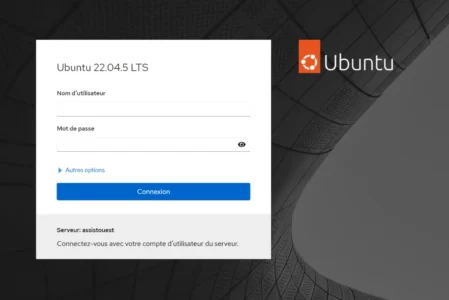
Installation is complete. Open Cockpit by entering your server’s IP address followed by the access port. The first connection displays a self-signed certificate warning, which is normal on a newly configured server.
https://[your_server_IP_address]:9090You can now use Cockpit to monitor your machine, read logs, track resources and work directly in the built-in terminal.
A built-in terminal that preserves the freedom of the command line
Cockpit includes a full terminal that you can open in your browser. It gives you the familiar Linux administration environment straight away. The interactive console works like a standard SSH session: you can run your usual commands, use apt, edit files and launch advanced scripts.

With this integration, Cockpit combines the clarity of a modern dashboard with the precision of the command line. You can handle complex operations in the terminal while using the interface to find important system information quickly. This combination makes server monitoring more intuitive without giving up Linux’s flexibility.
How Cockpit changes day-to-day administration
Before Cockpit, monitoring an Ubuntu server meant opening several SSH sessions and running commands such as htop, journalctl and systemctl status to keep track of services. Now, that information is gathered in a dashboard available from a browser. You can quickly view critical alerts, pending updates and system issues without searching through logs by hand.
There is no need to remember exact service names or check their status one by one. Cockpit shows each active service in real time and lets you restart, stop or start it immediately. This is especially useful during urgent work, when administering several servers or when working remotely.
Cockpit also simplifies access to logs through a systemd journal interface. Dynamic filters, quick searches and sorting by date or unit help you find a fault without wasting time in a terminal. This immediate visibility can speed up diagnosis when a bug or suspicious behavior appears.
CPU, memory and storage monitoring are built into Cockpit. There is no need to install third-party tools: its charts are integrated and updated in real time. You can spot excessive RAM use, anticipate a full disk or check system load from one place.
We allow some readers to view our articles for free with an ad blocker. However, their number is currently too high for us to keep this access available to everyone.
You can disable your ad blocker to continue reading immediately, subscribe to enjoy all our content without ads, or come back a little later when the pressure has eased.
Access will be restored automatically as soon as the situation allows.