
ChromeOS can run Linux apps through an integrated Debian environment. You can use LibreOffice and many other programs directly on your computer while keeping ChromeOS as your main operating system.
However, files downloaded in Chrome are not automatically available in Debian. The two environments use separate storage, and ChromeOS controls which folders Linux apps can access.
In this article
Why are ChromeOS and Linux files kept separate?
When you enable Linux on ChromeOS, the system installs a Debian environment in a virtual machine. This lets another operating system run with its own software, resources, and storage without replacing ChromeOS.
Since ChromeOS 147, new Linux installations use the Baguette architecture. Debian runs directly in a virtual machine with its own file system. Linux apps appear on the ChromeOS desktop, but they remain separate from the main system.
This isolation also applies to documents. ChromeOS has its own folders, including Downloads, and a file manager that can access Google Drive and USB devices. Debian has its own home directory, usually located at /home/username/.
This separation also helps protect your data. A Linux app does not automatically have access to all your personal documents. ChromeOS lets you choose which folders Debian can access.
How to share a ChromeOS folder with Linux
ChromeOS includes a feature that lets you give Debian direct access to selected folders. You do not need to install extra software or change the virtual machine configuration.
For this example, we will share the Downloads folder so we can open a workbook downloaded in Chrome with LibreOffice Calc.
Give Linux access to the Downloads folder
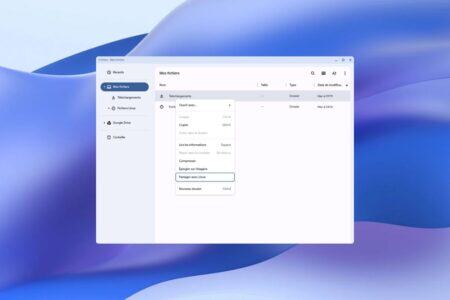
- Start by opening the Files app in ChromeOS, then find Downloads in the left-hand column.
- Right-click the folder and choose Share with Linux from the context menu.
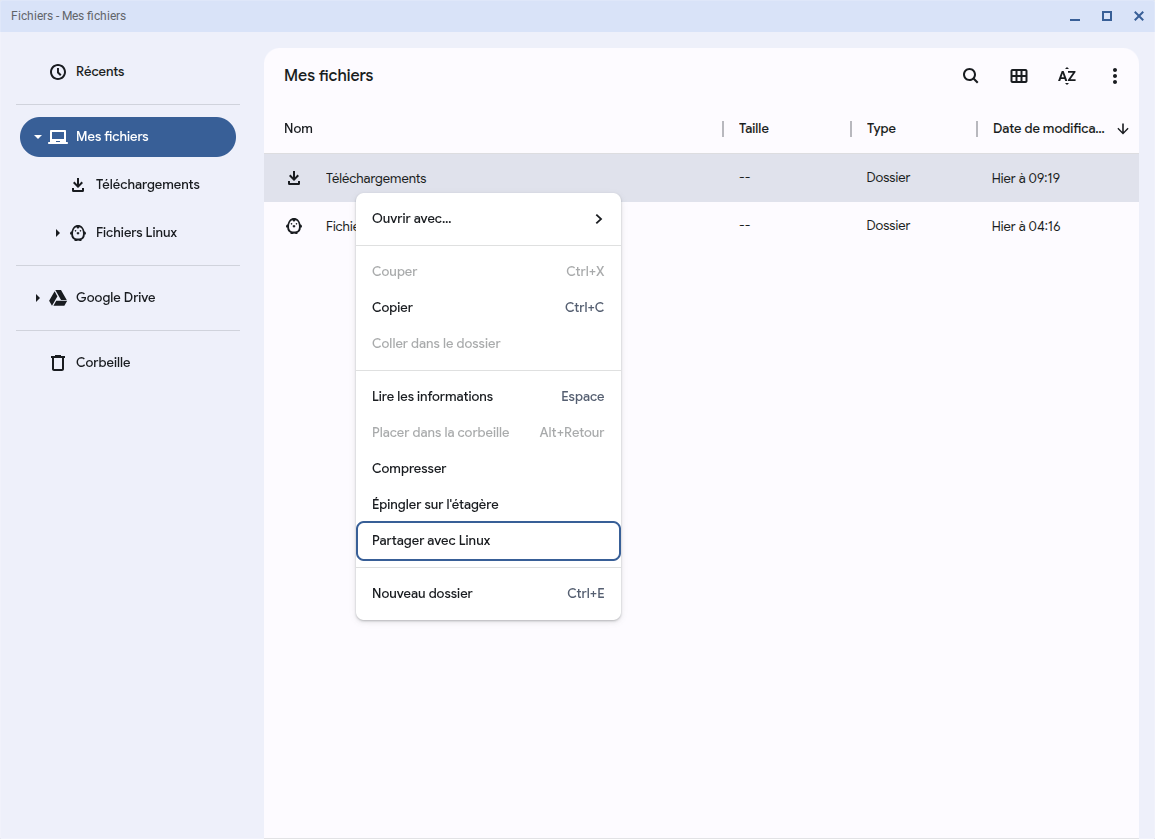
ChromeOS saves the permission and makes the folder contents available to Debian. The documents stay in their original location instead of being copied into Linux storage.
Sharing also covers subfolders and new files you download in Chrome. You do not need to repeat the process for each document.
This permission gives Linux access to the entire folder. To limit which documents are available, create a dedicated folder in My files, move the documents you want to share into it, and enable sharing for that folder in the same way.
Check and remove shared-folder permissions in Linux settings
ChromeOS also lets you review all folders shared with Debian in the system settings.
To find these permissions, open ChromeOS Settings, then go to Developers > Linux development environment > Manage shared folders. Depending on your version, Developers may be listed under About ChromeOS.
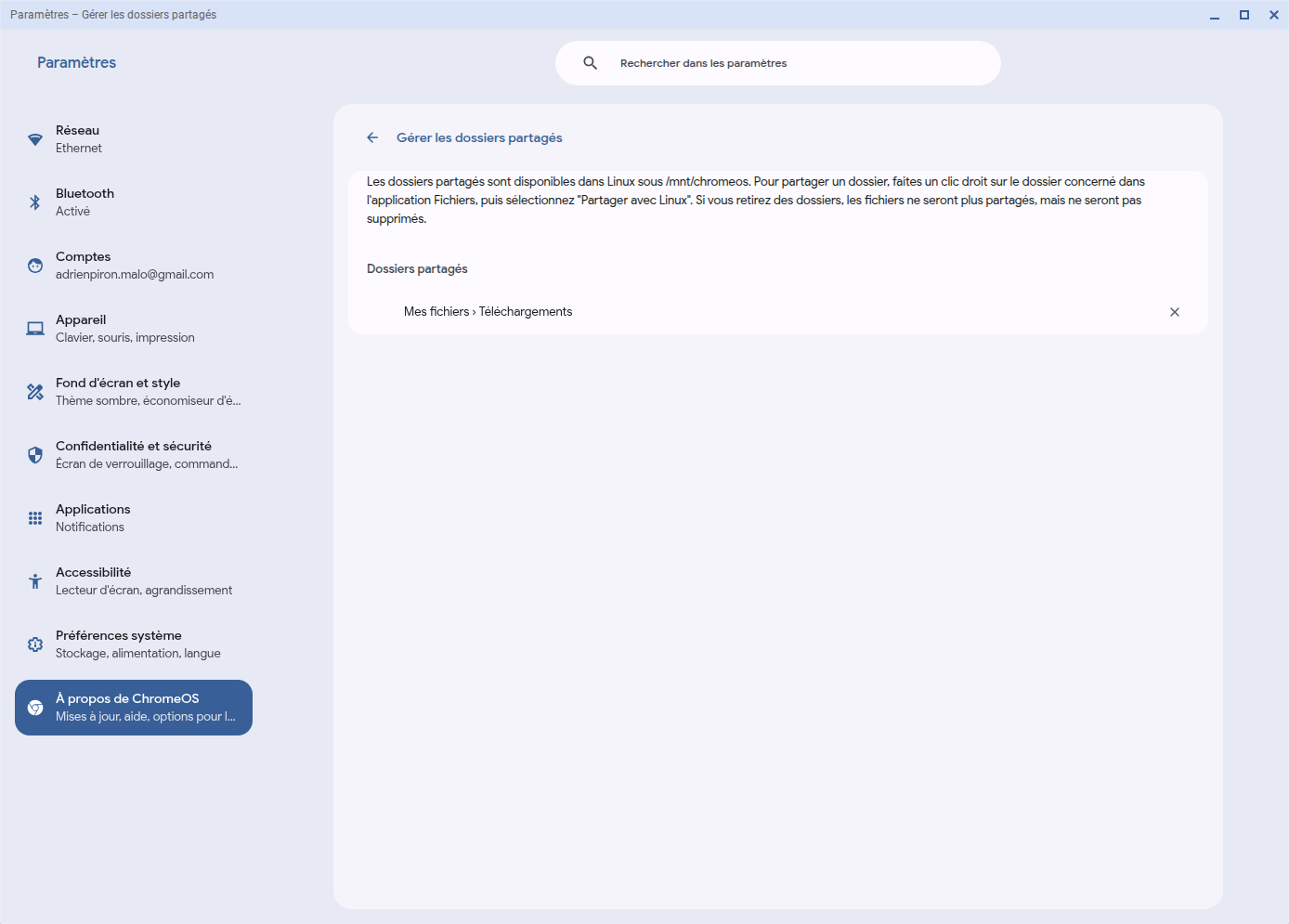
This screen lists the folders Linux is allowed to access. The Downloads folder you just shared should now appear in the list.
You can review active permissions and stop sharing a folder when you no longer need it. Removing a permission does not delete any documents in the folder; it simply prevents Debian from accessing them through this share.
If a file is still open in a Linux app, save your changes before removing the permission so you do not interrupt your work.
Open an Excel workbook downloaded with LibreOffice Calc
Now that Downloads is shared, let us check that a Linux app can open a ChromeOS document and save changes to its original location.
In Chrome, download a monthly budget template in Excel .xls format. For this example, we will call the file modele-budget.xls.
The workbook is saved in the ChromeOS Downloads folder. Since we shared it with Debian, LibreOffice Calc can access it directly.
Open LibreOffice Calc from the ChromeOS app launcher, then select File > Open.
If you have not installed LibreOffice yet, see my guide to installing Linux apps and Flathub on ChromeOS.
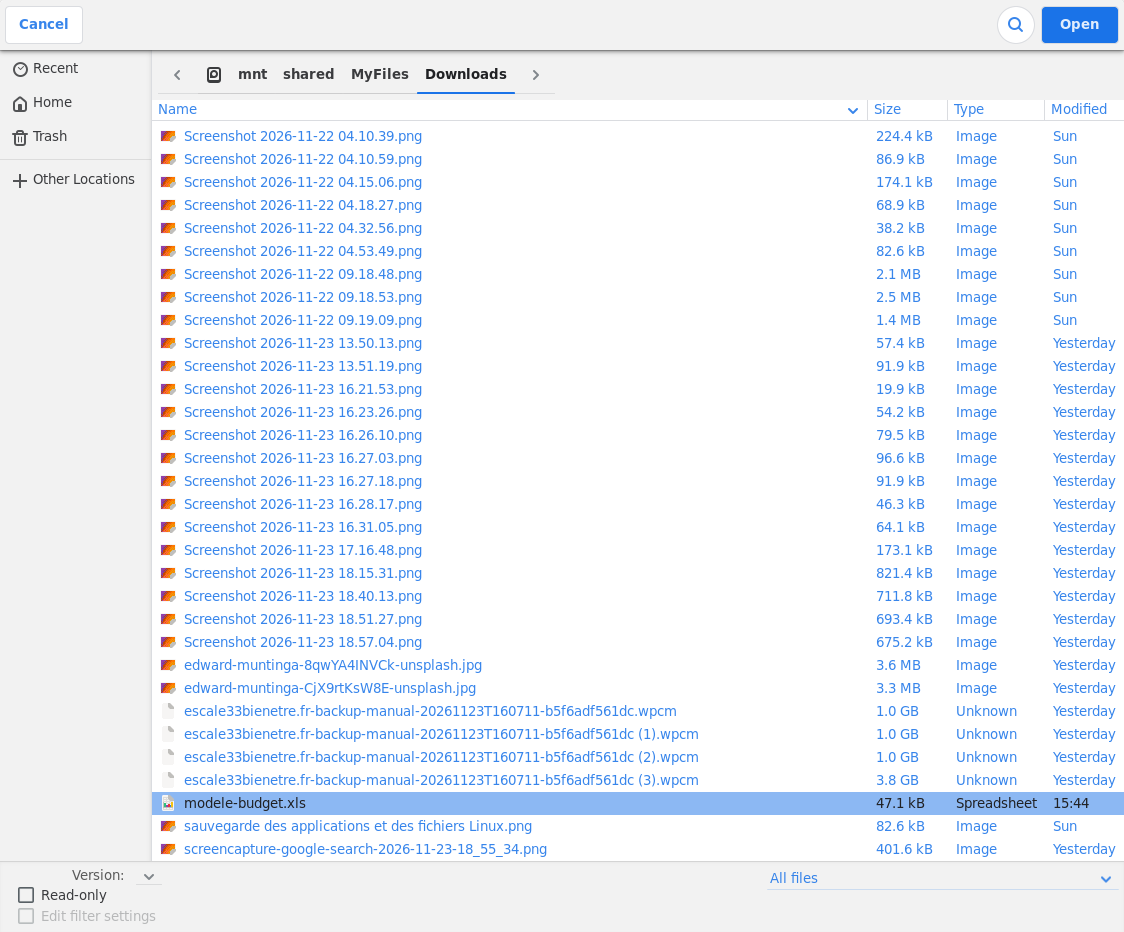
In the file picker, find the Downloads folder shared by ChromeOS. It is available through a Linux directory under /mnt, which we will explain in the next section.
The usual path to your downloads is:
/mnt/chromeos/shared/MyFiles/DownloadsOn recent installations using Baguette, shared files are also available under /mnt/shared. Open the folder, select modele-budget.xlsx, and open it in LibreOffice Calc.
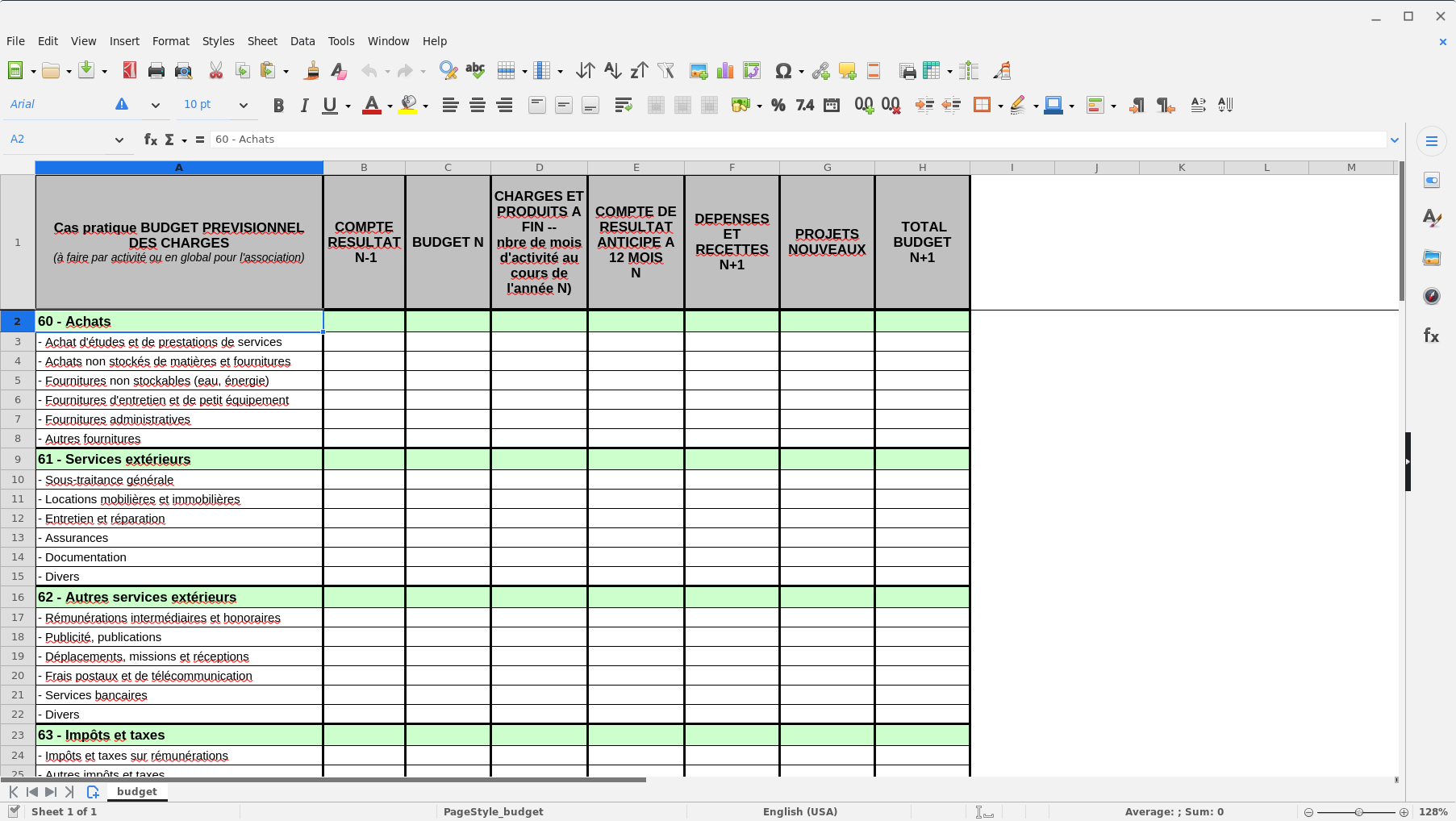
The workbook opens in the spreadsheet app. You can fill in cells, change amounts, add formulas, or adjust its layout.
Save the workbook to its original location
When you have finished your budget, save your changes with Ctrl + S.
LibreOffice may display a message about the file format because the workbook uses Excel’s .xlsx format rather than LibreOffice Calc’s OpenDocument .ods format.
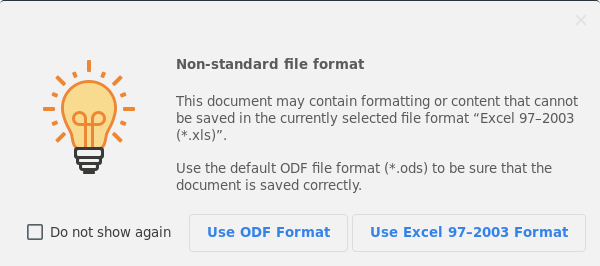
To keep the workbook in Excel format, choose the option to use the current format. Some advanced features may work differently in LibreOffice and Microsoft Excel.
Close LibreOffice Calc, then return to the ChromeOS Files app.
Your workbook is still in Downloads. Open it again to see the changes you saved from Debian.
The document was not duplicated. LibreOffice edited the file stored in ChromeOS directly using the sharing permission.
Understand the role of Linux mount points
On Linux, the /mnt directory is used for mount points. A mount point is a location in the Linux file tree that provides access to a separate file system or storage area.
For example, when an external drive is mounted in Linux, its files become available in a directory. ChromeOS uses a similar approach to make its folders available to Debian. The documents remain stored and managed by ChromeOS, but appear in the Linux file tree at a dedicated location.
Open the Linux Terminal and run this command:
ls -la /mntThis command lists the files and folders in /mnt, along with their permissions and any symbolic links.
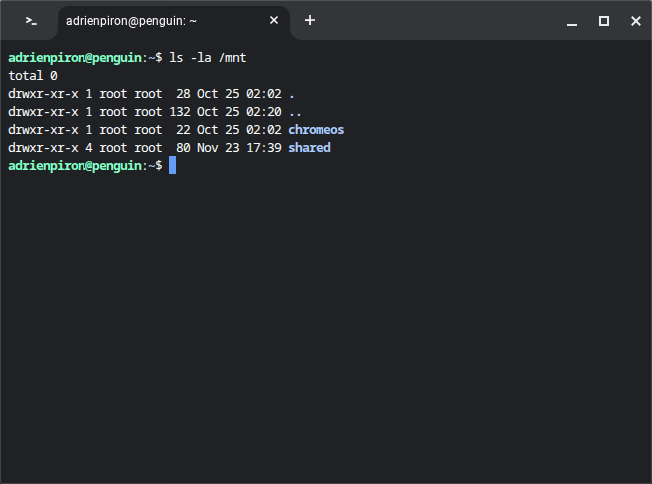
On recent installations using Baguette, ChromeOS uses /mnt/shared to share files.
You can inspect its contents with:
ls -la /mnt/sharedDepending on the folders you have shared and how the mounts are arranged, you will see a directory tree that provides access to files shared by ChromeOS.