Before anything appears on your screen, an invisible program is already at work. Without it, no operating system can start and no display can turn on. That program is the BIOS. Found in every PC, it works behind the scenes at every startup to check that everything works, initialize the components, and prepare the system. It is the first thing your computer runs, long before Windows, Linux, or macOS.
In this article
What is the BIOS?
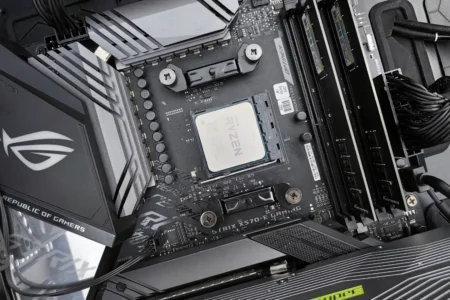
BIOS, short for Basic Input/Output System, is a small program built directly into your computer’s motherboard. It starts automatically as soon as you press the power button, well before Windows, Linux, or macOS begin loading. Its main job is to detect, test, and configure the computer’s key components (processor, memory, drive, keyboard, and more) so the system can start reliably.
How the BIOS works when you turn on your computer
Every time you turn on your computer, the BIOS starts working before anything appears on the screen. It initializes the system’s essential components: processor, memory (RAM), graphics card (GPU), storage drives, keyboard, USB ports, and more. This step checks that all the hardware is working properly and ready to use.

Once the components are recognized, the BIOS runs a procedure called POST (Power-On Self Test). It is a series of quick tests that check the hardware: available RAM, whether the processor is working, whether a drive is detected, and more. If it detects a critical problem (such as faulty RAM or a missing graphics card), the BIOS stops and reports an error with beeps or an on-screen message.
If everything is working, the BIOS then hands control to the operating system. It looks for a boot device (hard drive, SSD, USB drive, and so on) containing a usable operating system, then starts the bootloader, the small program that loads Windows, Linux, or another OS. Only then does the operating system take control of the computer.
BIOS: The firmware that launched the PC era
BIOS is firmware from the early days of personal computing. Introduced with the IBM PC in 1981, it aimed to standardize how operating systems communicated with hardware. Stored on a motherboard chip, it could initialize a computer’s key components and start the operating system, whatever it was. For decades, this minimal code was the starting point for almost every PC.

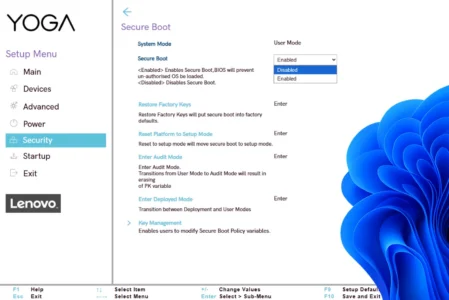
As hardware and user needs evolved, however, BIOS began to show its limitations. It could not manage drives larger than 2 TB, started slowly, and had no full graphical interface. It was gradually replaced by a more modern alternative: UEFI (Unified Extensible Firmware Interface), where you can, for example, turn off Secure Boot. Introduced in the 2010s, UEFI offers a more user-friendly interface, faster startup, improved security (with Secure Boot), and support for newer hardware.
BIOS has not disappeared entirely, though. Many users still refer to it, and some motherboards still offer Legacy BIOS for compatibility. It remains familiar to users and is still relevant in a few specific cases. In most cases, however, UEFI now handles startup on modern computers, even though many people still call it BIOS out of habit.
BIOS settings: what you can customize
BIOS—or rather its modern successor, UEFI—does more than start the computer: it also provides advanced customization options, especially for experienced users. Common settings include control over processor frequencies, voltages and fan speeds. These settings can be used to overclock your CPU or improve cooling, as long as you understand your hardware’s limits.
Beyond performance, BIOS also lets you enable or disable certain built-in ports and devices, such as USB ports, the audio controller, or the network adapter. This can help improve security, stability, or free up system resources. Some BIOS versions even let you set detailed boot priorities or configure hardware RAID for storage drives.
Warning: changing these settings without understanding them can make a system unstable or prevent it from booting.
We allow some readers to view our articles for free with an ad blocker. However, their number is currently too high for us to keep this access available to everyone.
You can disable your ad blocker to continue reading immediately, subscribe to enjoy all our content without ads, or come back a little later when the pressure has eased.
Access will be restored automatically as soon as the situation allows.