How do I get my folder windows back after restarting my PC?

When restarting your computer, it can be frustrating to have to manually reopen all previously used File Explorer windows. Fortunately, Windows includes an option to automatically restore these folders on restart. This handy feature improves work continuity and saves time by avoiding unnecessary manipulations. Find out how to activate this option in just a few steps.

How do I get my folder windows back after restarting my PC?

How do I activate Windows Explorer window restoration?

When you restart your computer, all File Explorer windows open before shutdown are usually closed. If you’re working on several folders simultaneously, it can be tedious to have to reopen them one by one each time you restart. Fortunately, Windows offers an option to automatically restore these windows when you reopen your session.

Enable automatic restoration of folder windows on Windows 11

To have Windows automatically keep and reopen your File Explorer windows after a restart, follow these steps:

OpenFile Explorer and access Folder Options.
Enable automatic restoration of folder windows on Windows 11
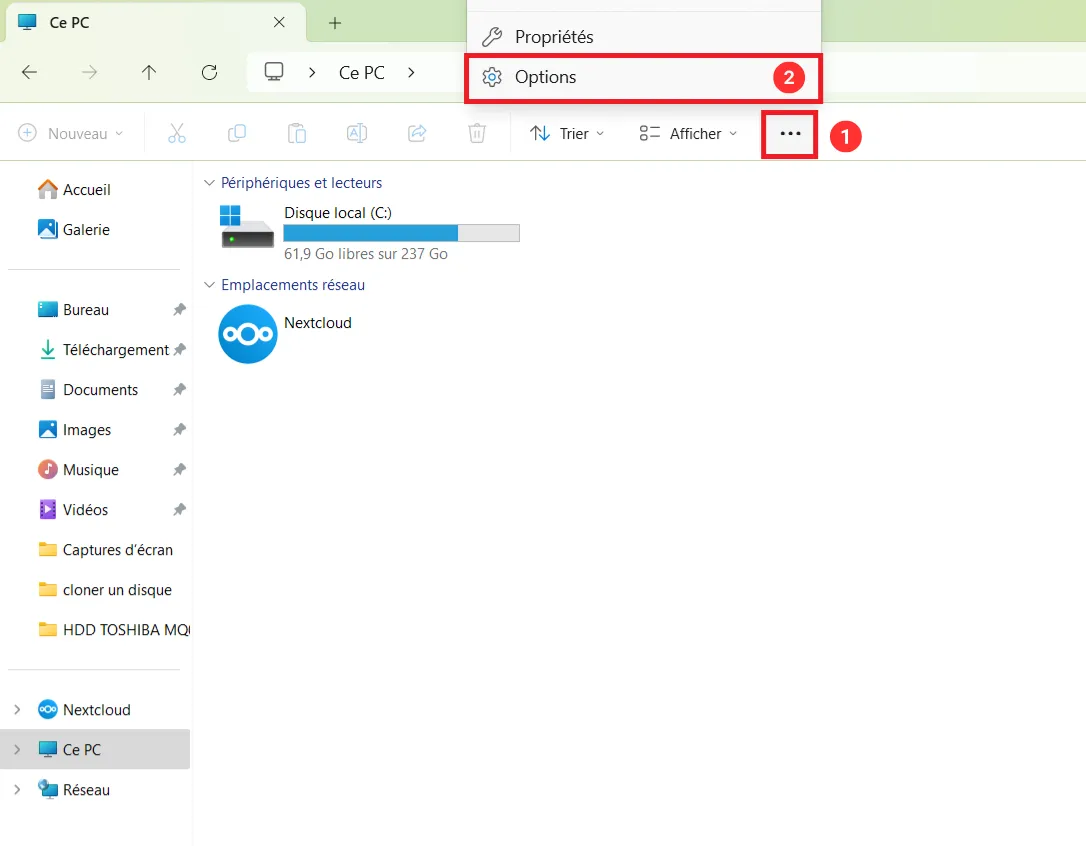
Access folder options in Windows File Explorer.

Click on the three dots at the top right of the File Explorer and select Options.
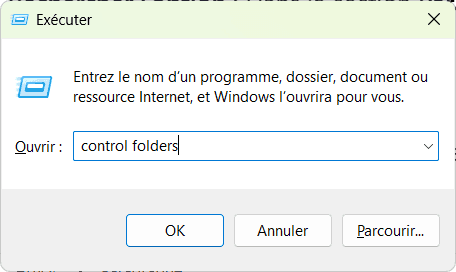
control folders windows 11
Open folder options from Run.

Alternatively, use the shortcut Win + R, type control folders and press Enter.

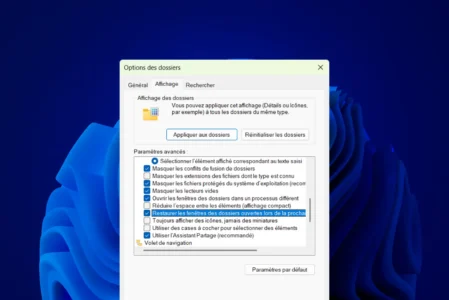
Go to the View tab and look for the checkbox Restore open folder windows on next login.
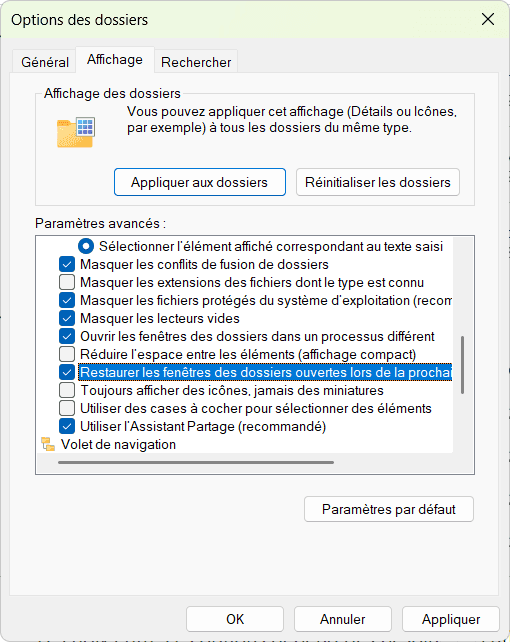
Keep folder windows open after restarting your computer

Click Apply, then OK to save changes.

Does window restoration work with software other than File Explorer?

The ability to restore windows after a restart is specific to Windows File Explorer. It does not automatically apply to other programs, unless they incorporate their own session restoration mechanism, such as web browsers or text editors.

Les articles que tout le monde lit en ce moment

Install Windows 11 without a Microsoft account in 2025

Install Windows 11 without a Microsoft account in 2025

Find out how to install Windows 11 without a Microsoft account and bypass the login requirement. A practical guide to unrestricted local installation.

Découvrir
Install and activate gpedit.msc Group Policy on Windows 11 Home

Install and activate gpedit.msc Group Policy on Windows 11 Home

Find out how to activate gpedit.msc on a Windows Home edition, unlock features and customize your system.

Découvrir
Installing and activating Hyper-V on Windows 11 Home with PowerShell

Installing and activating Hyper-V on Windows 11 Home with PowerShell

Find out how to activate Hyper-V on Windows 11/10 Home with PowerShell. Follow our guide to using virtualization without upgrading to Windows Pro.

Découvrir
Hyper-V is a type 1 hypervisor, not a type 2 hypervisor

Hyper-V is a type 1 hypervisor, not a type 2 hypervisor

Hyper-V is often mistaken for a type 2 hypervisor. Find out why it's actually a type 1, integrated into Windows but running on hardware.

Découvrir
5 free alternatives to Word and Office on a Windows PC in 2025

5 free alternatives to Word and Office on a Windows PC in 2025

Tired of paying for Microsoft Office 365? Here are 5 free alternatives for 2024: modern, high-performance office tools for all your needs.

Découvrir
Windows 10: ESU now available to consumers after the end of support in 2025

Windows 10: ESU now available to consumers after the end of support in 2025

Windows 10: everything you need to know about the ESU program to keep receiving security updates and avoid vulnerability risks.

FlyOOBE: migrate to Windows 11 if your PC is not compatible without reinstallation

FlyOOBE: migrate to Windows 11 if your PC is not compatible without reinstallation

Flyoobe lets you migrate to Windows 11 on a non-compatible PC, without reinstalling or losing data. See how it's done with a local ISO.