
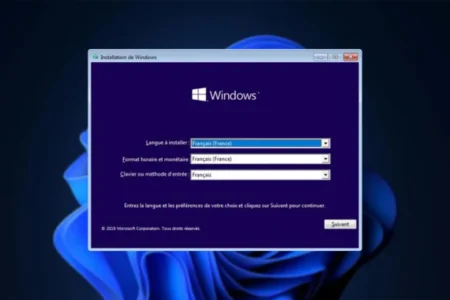
Would you like to install Windows 10 on your computer? This comprehensive guide will take you step by step, from creating installation media to the final configuration of your system.
In this article
Download Windows 10 with the official Microsoft tool
- Visit the official Microsoft website to download the latest version of Windows with thesupport creation tool.
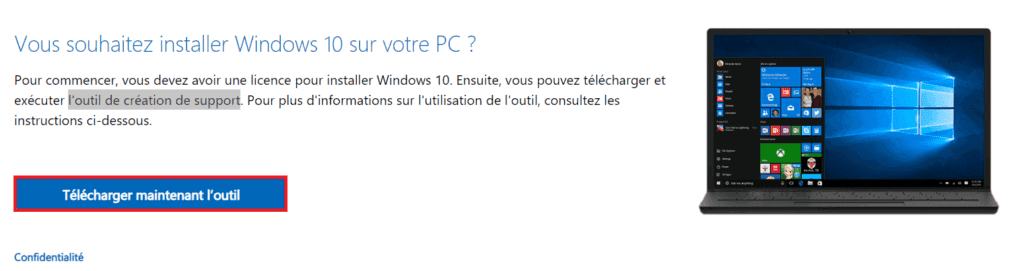
- Open the utility (MediaCreationTool_22H2.exe). It will load the files needed to create a new Windows 10 installation.
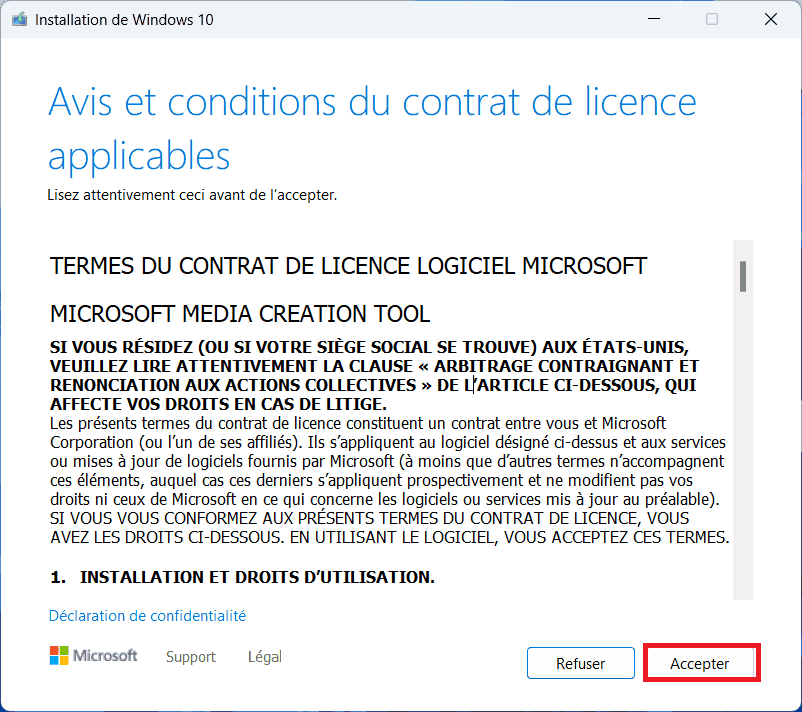
- Accept the utility conditions.
- Choose Create installation media (USB key, DVD or ISO file) for another PC.
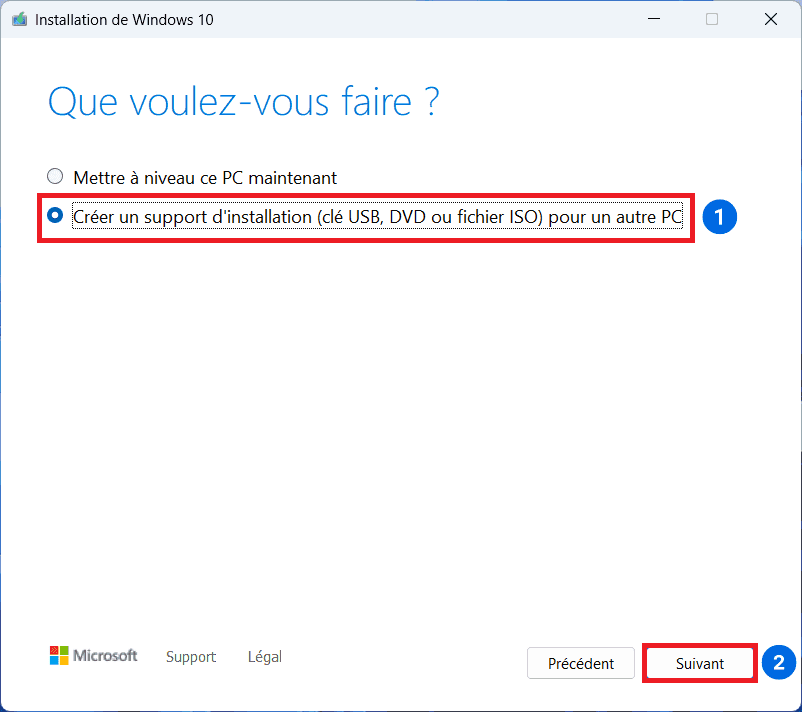
- You will then be taken to the Windows image customization window. Several options are available, depending on your configuration.
- Language: Select your preferred language
- Edition: Windows 10
- Architecture: Select 64-bit (x64) if your PC was purchased after 2015.
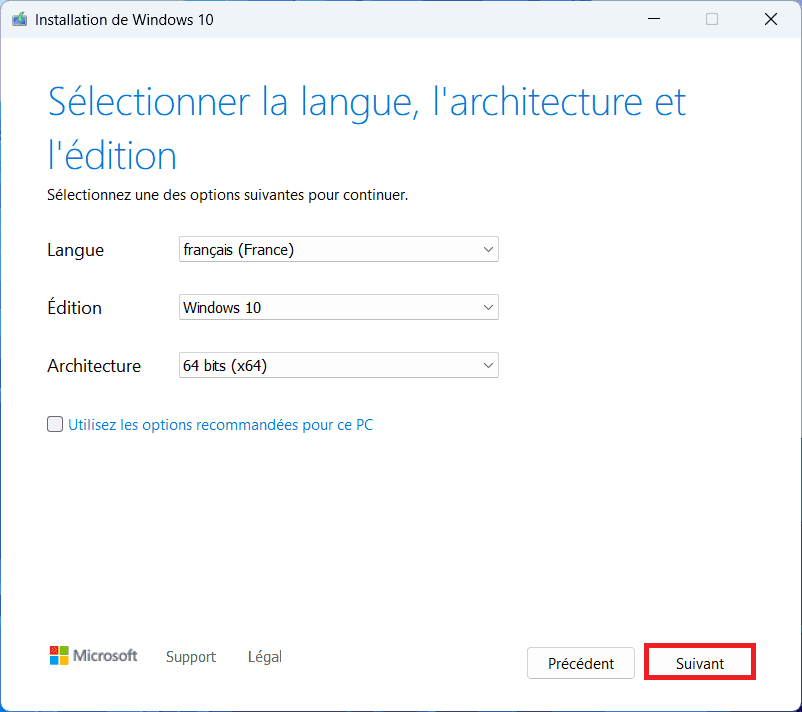
- Then select ISO File and click Next.
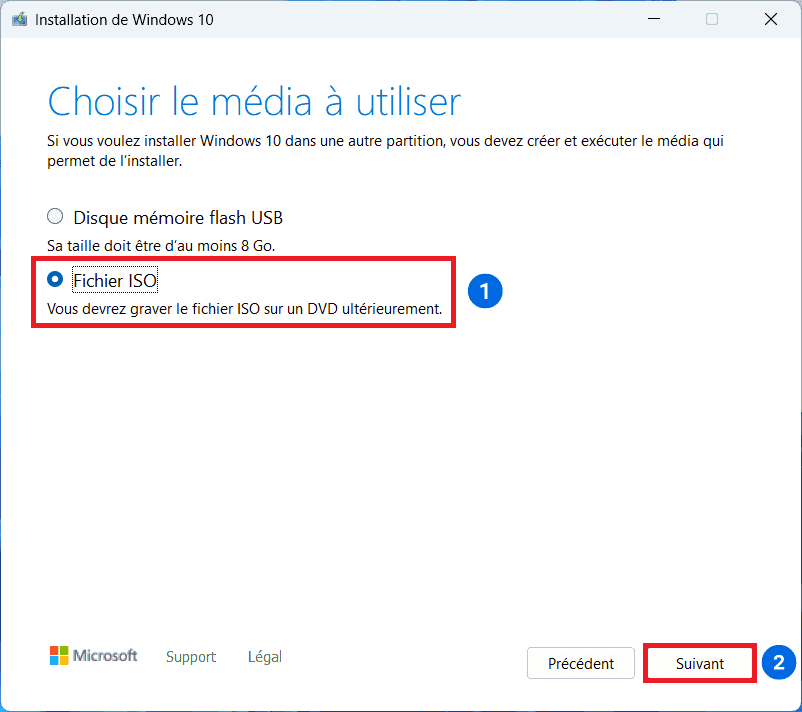
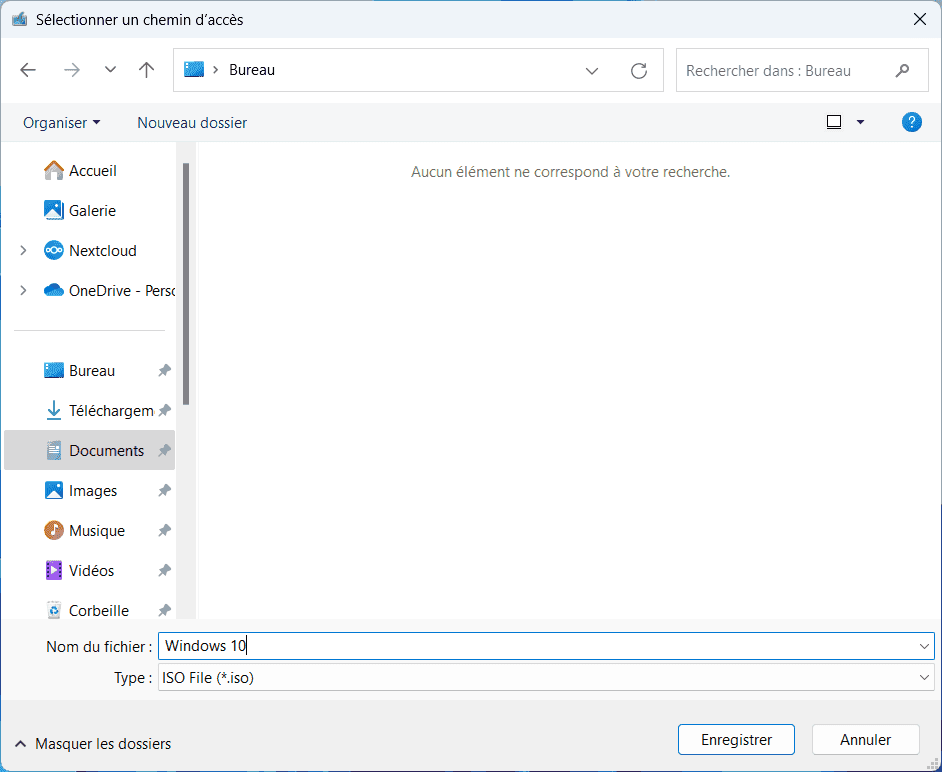
- You are then prompted to save the Windows 10 ISO image to your computer, save it to the desktop and rename it Windows 10.
- The utility will then download and save the Windows 10 ISO image to your computer. This may take some time, depending on your Internet connection.
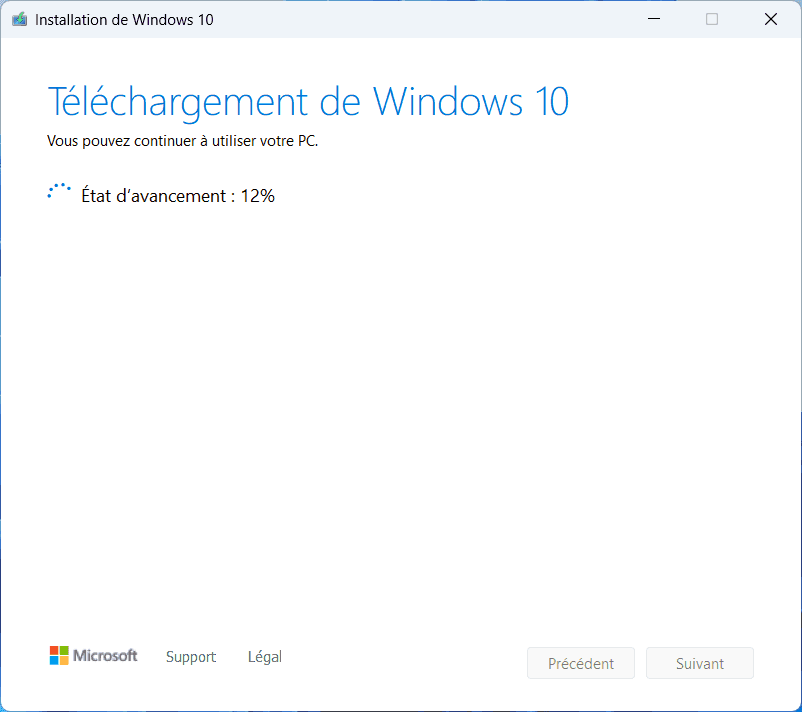
- When finished, click on Finish. The utility will then clean up the temporary files and close itself.
Write the Windows 10 image to a USB key
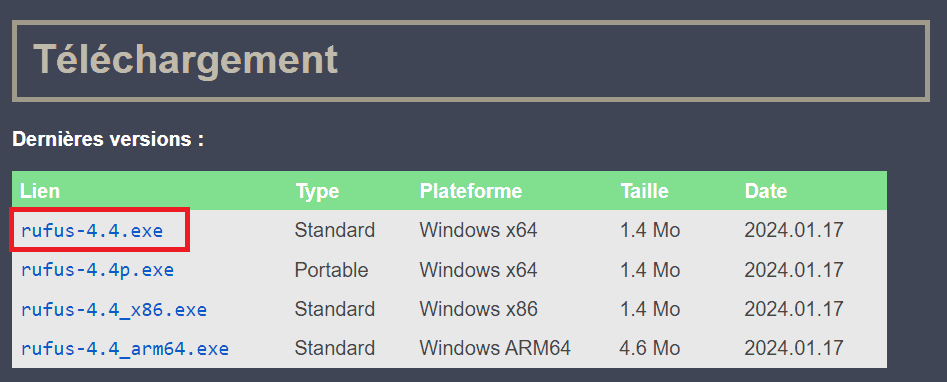
- Download the Rufus utility from the official website here.
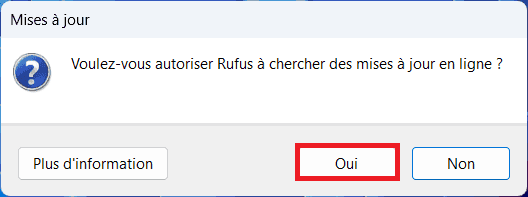
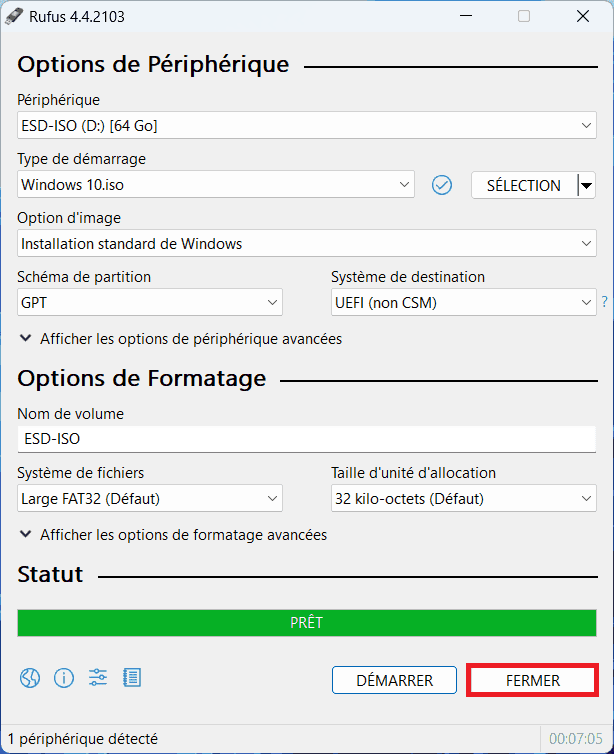
- Open the utility and allow Rufus to check for updates when it is launched.
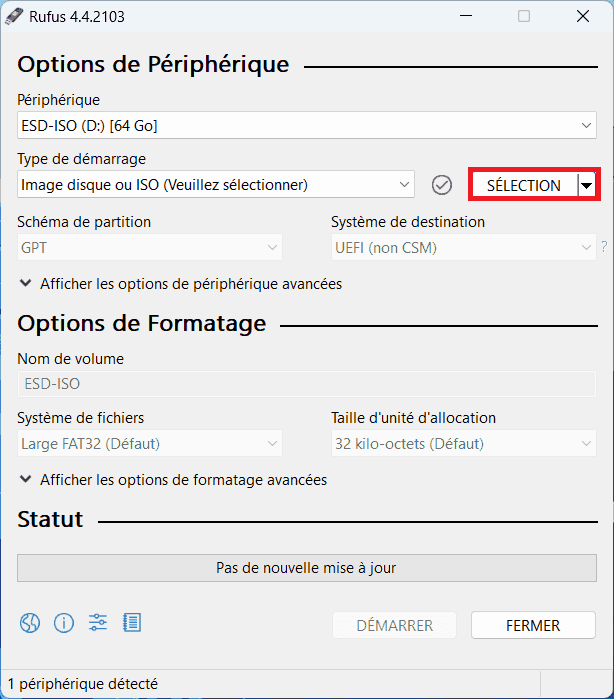
3. in the utility, click on Select and open the Windows 10 image previously saved on the desktop.
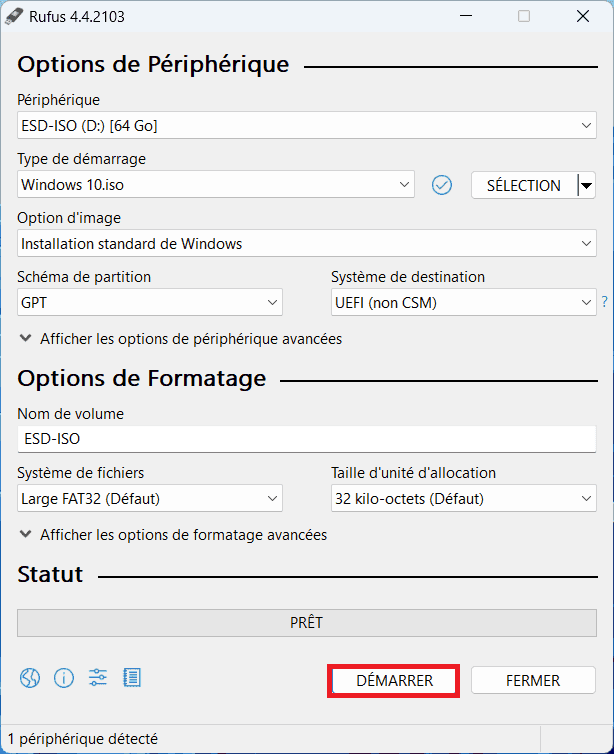
- Insert your USB key(it will be detected automatically) and click on Start.
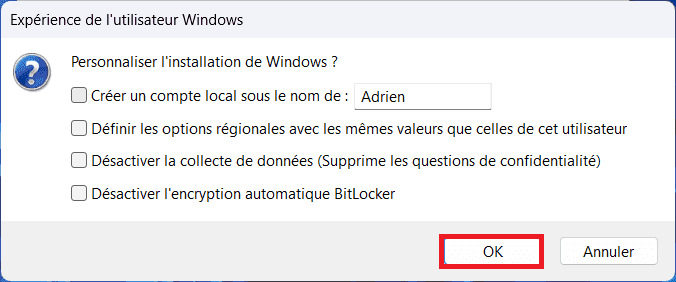
- A window will open to customize the Windows 10 installation:
- Create a local account: Create a user account without going through Microsoft.
- Set regional options: Set the same language as the current computer.
- Disable data collection: Disables certain error reports.
- Disable BitLocker automatic encryption: Disables data encryption.
These options can be applied according to your preferences.
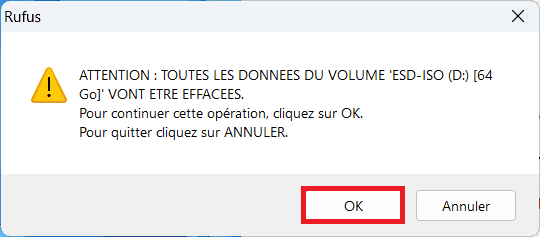
- A warning window will open to inform you that the USB key will be completely erased for writing the Windows 10 image. Click on OK.
The USB key will open automatically before the process is complete, so close Explorer to avoid any errors. The Windows 10 image will be written to the USB stick. This may take some time, depending on your computer’s performance.
- Once the image has been written, simply close the software.
Disable Secure Boot to install Windows 10
- Access your computer’s BIOS by pressing ESC or DEL from boot-up (refer to your PC manual for BIOS access shortcuts).
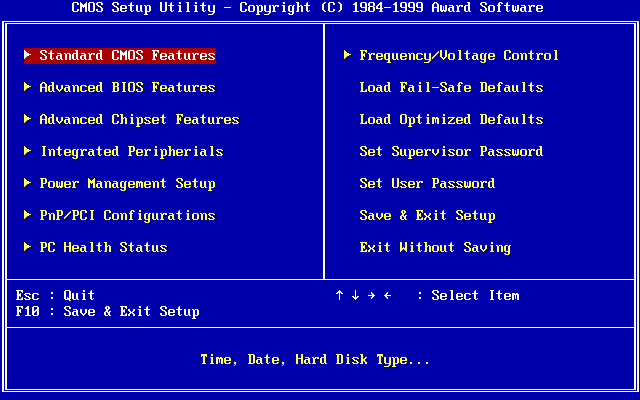
- Look for Secure Boot in the or Security tab and disable the option.
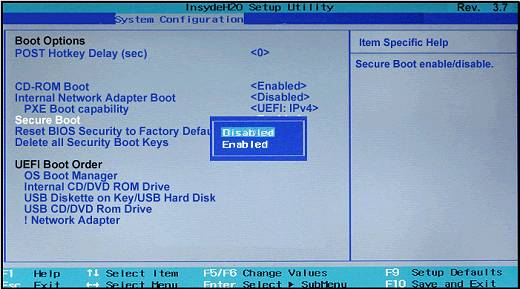
Booting on a Windows 10 USB stick
- Access your computer’s Boot Menu by pressing F10 or F12 from startup (refer to your PC manual for Boot Menu shortcuts).
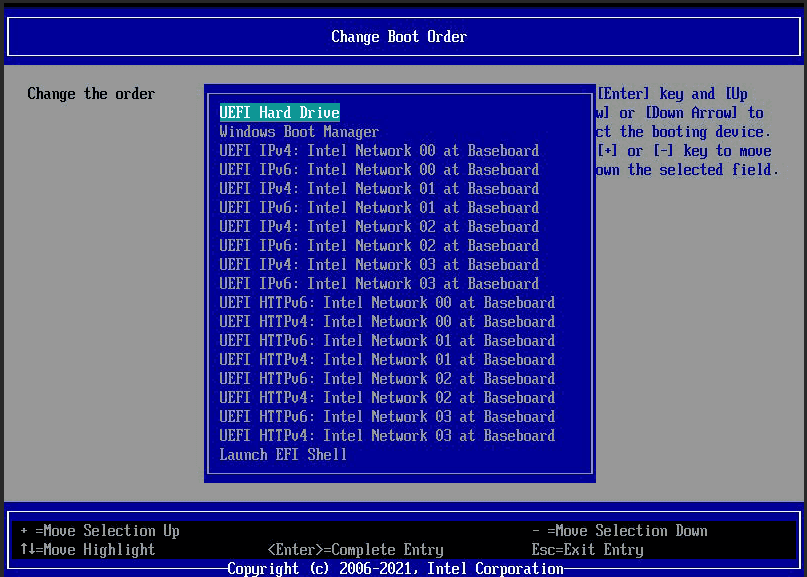
- Select your USB key to launch the Windows 10 installer.
Installing Windows 10 from a USB stick
- Once the installation program has started, select your language and click Next.
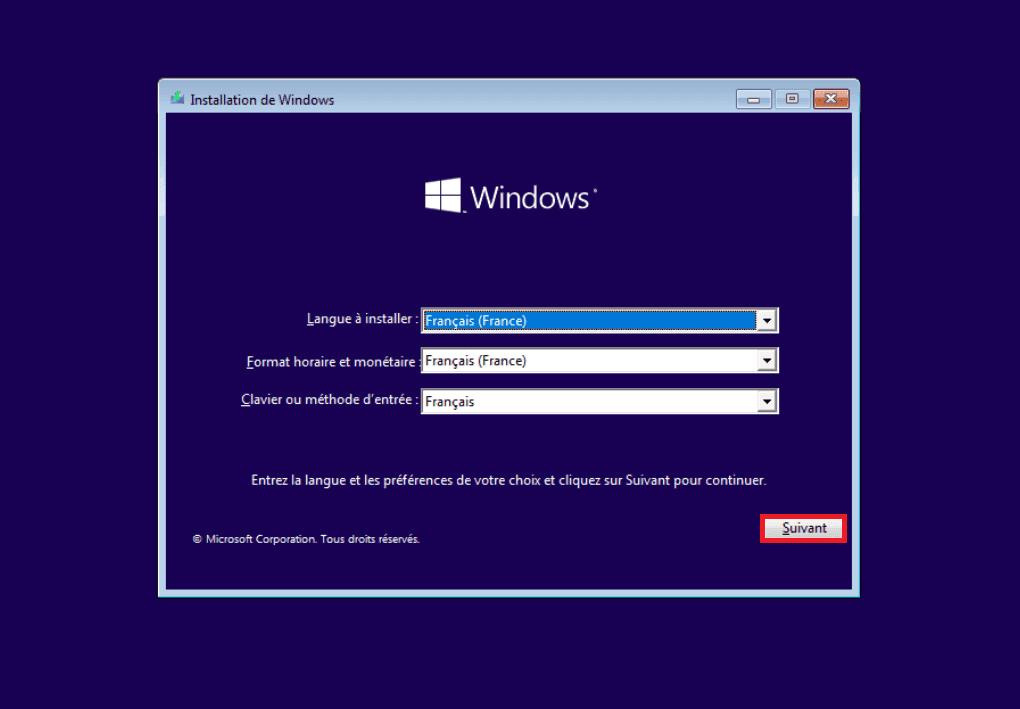
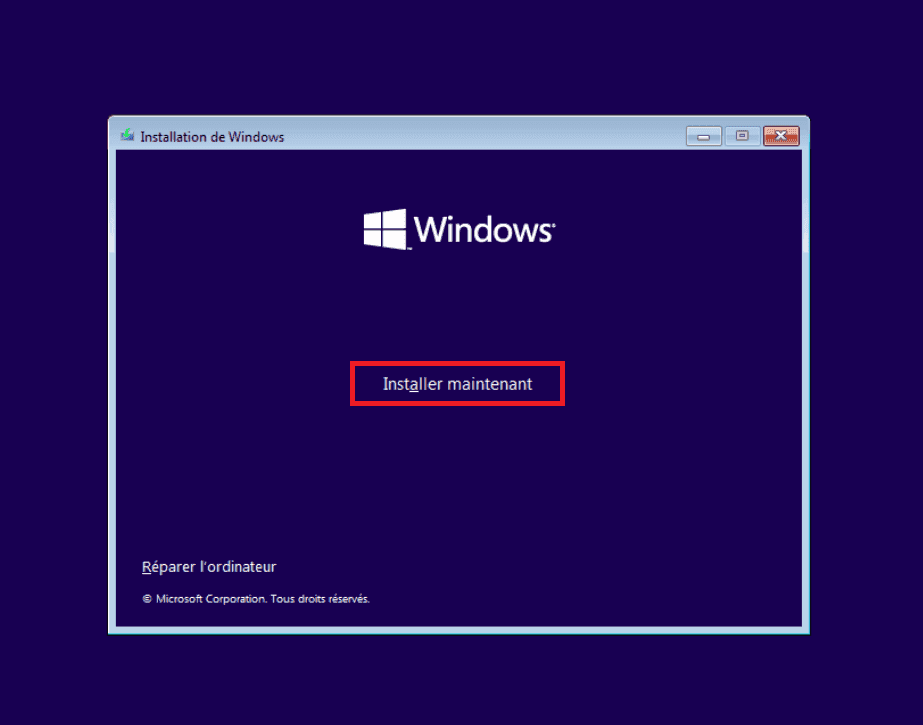
- Then click on Install now .
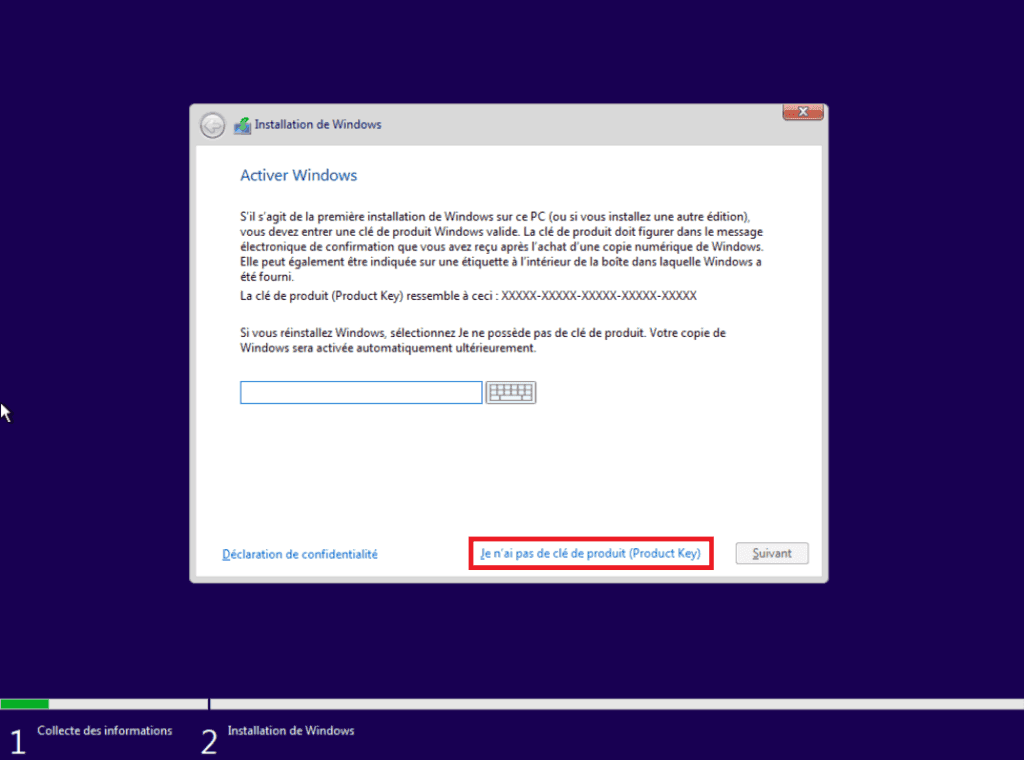
- Then click on I don’t have a product key. This step is currently not necessary.
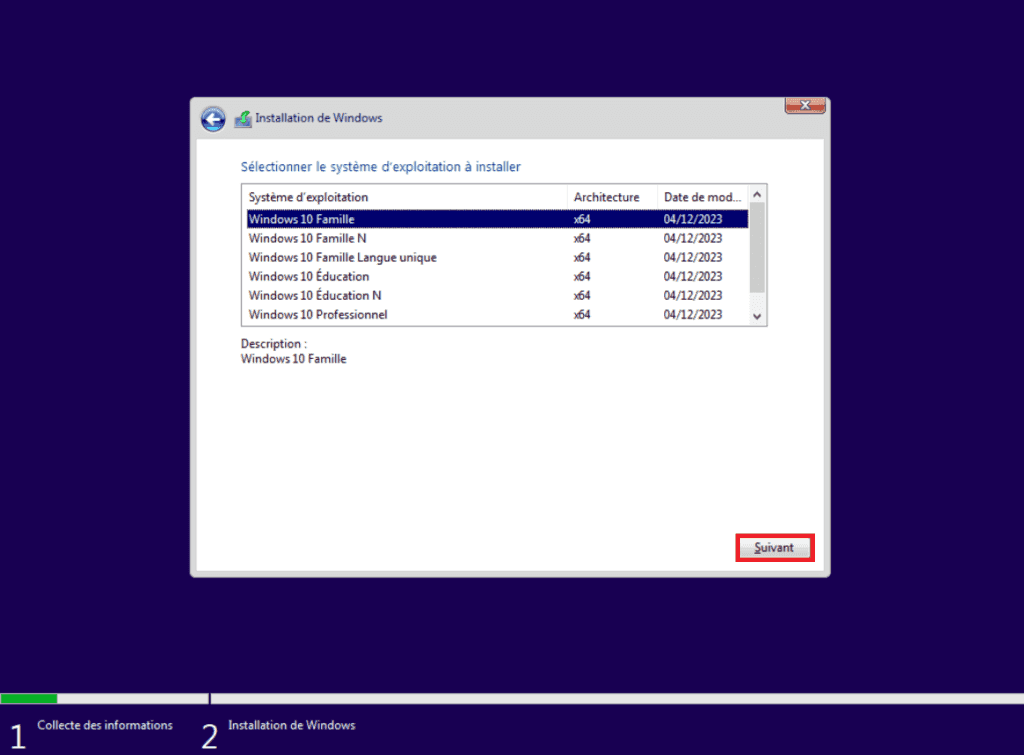
- Then select the Windows 10Edition you have purchased (usually Windows 10 Home) and click Next.
You haven’t purchased your license yet: Buy a Windows 10 license key
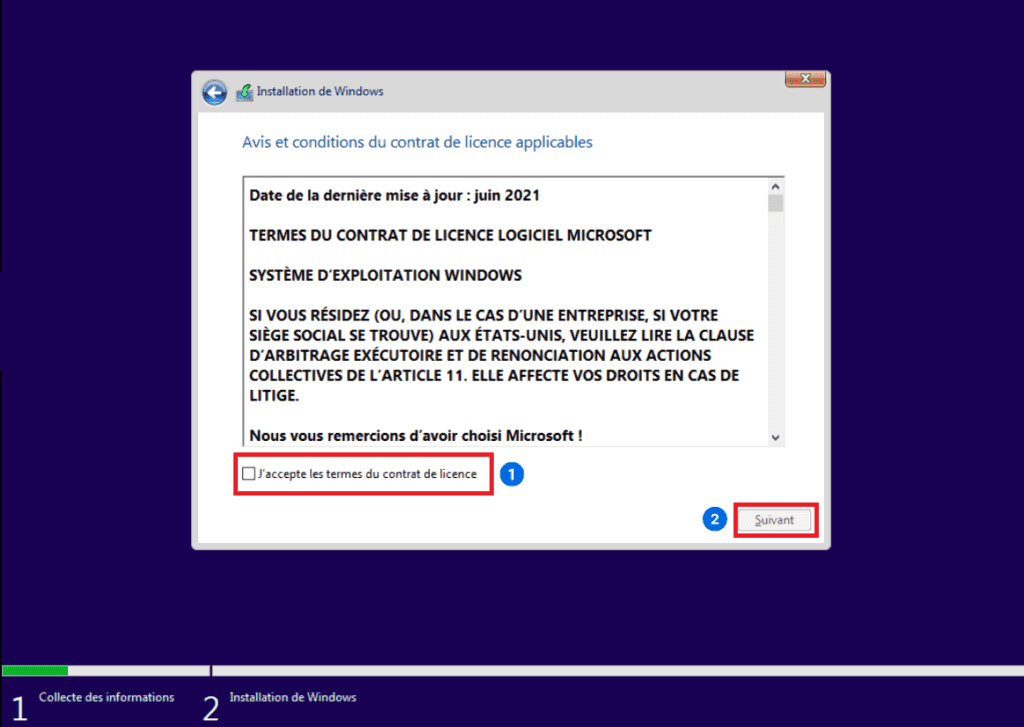
- Accept the user agreement.
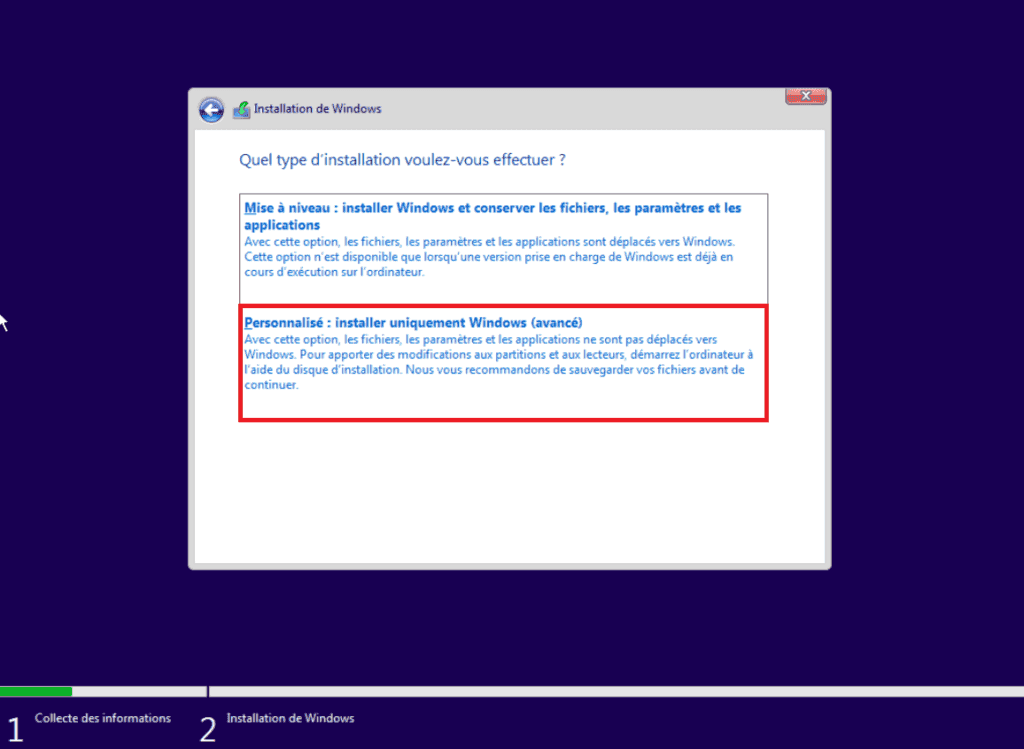
- Click on Custom to access the installation options.
- Next, select the hard disk on which you want to install Windows. This disk must be empty; if you have several partitions, delete them. This action is irreversible.
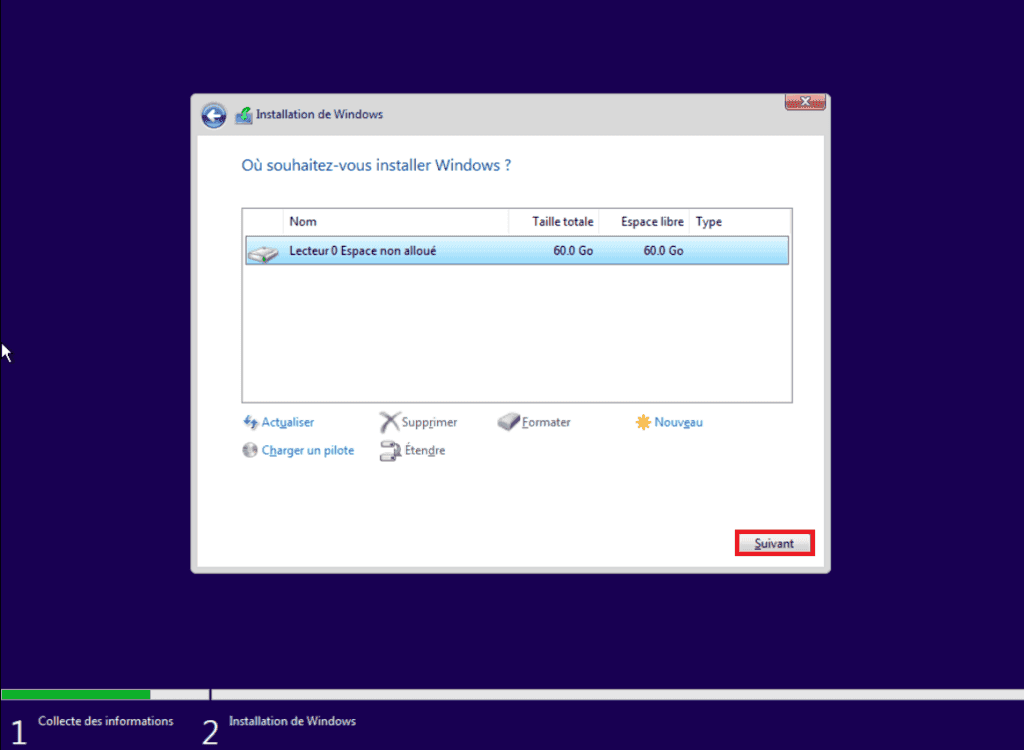
Windows 10 will install itself on the computer and restart.
Configuring Windows 10 for a new installation
- Select your region (country) and click Yes.
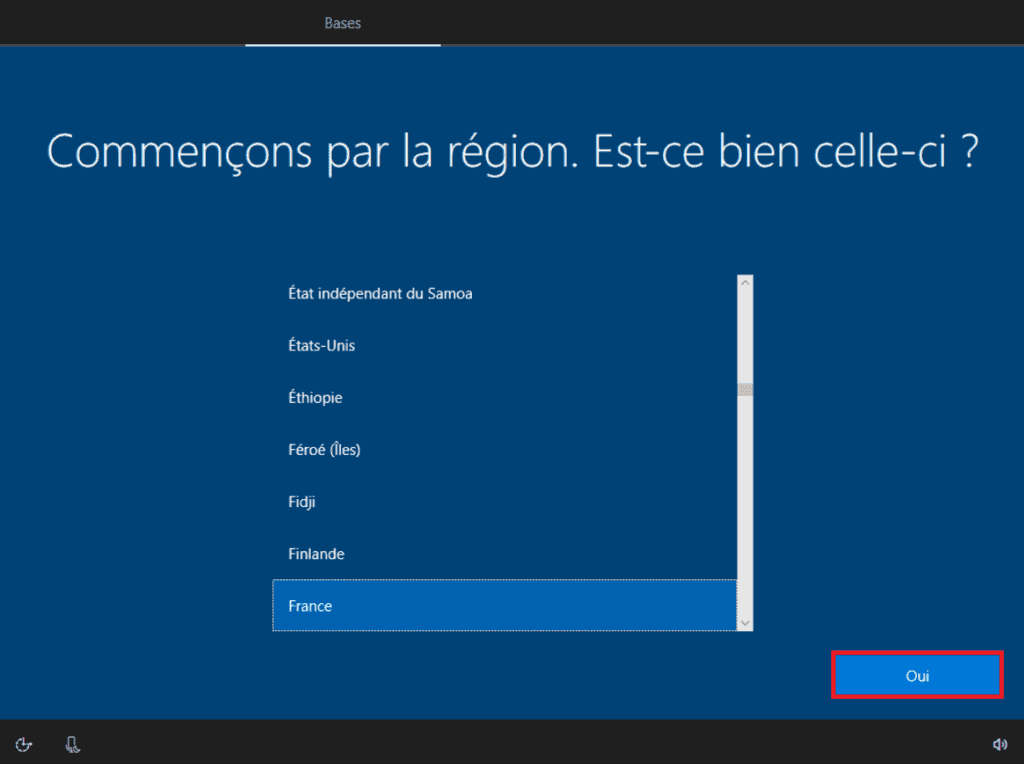
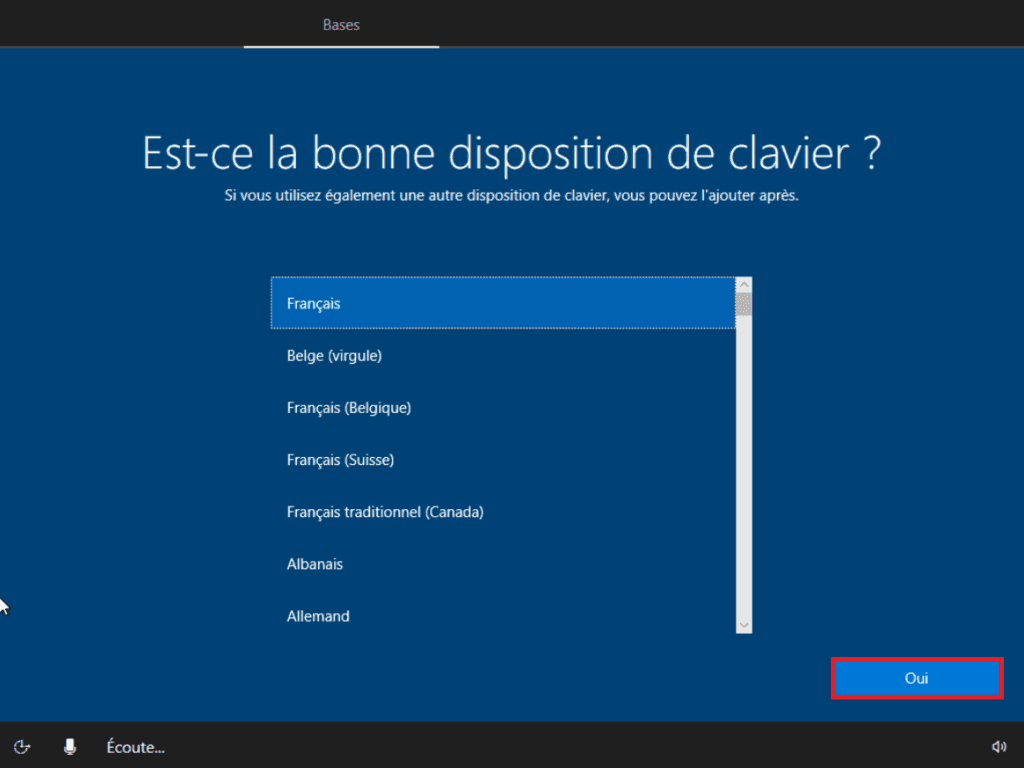
- Select the language used by the keyboard and click Yes.
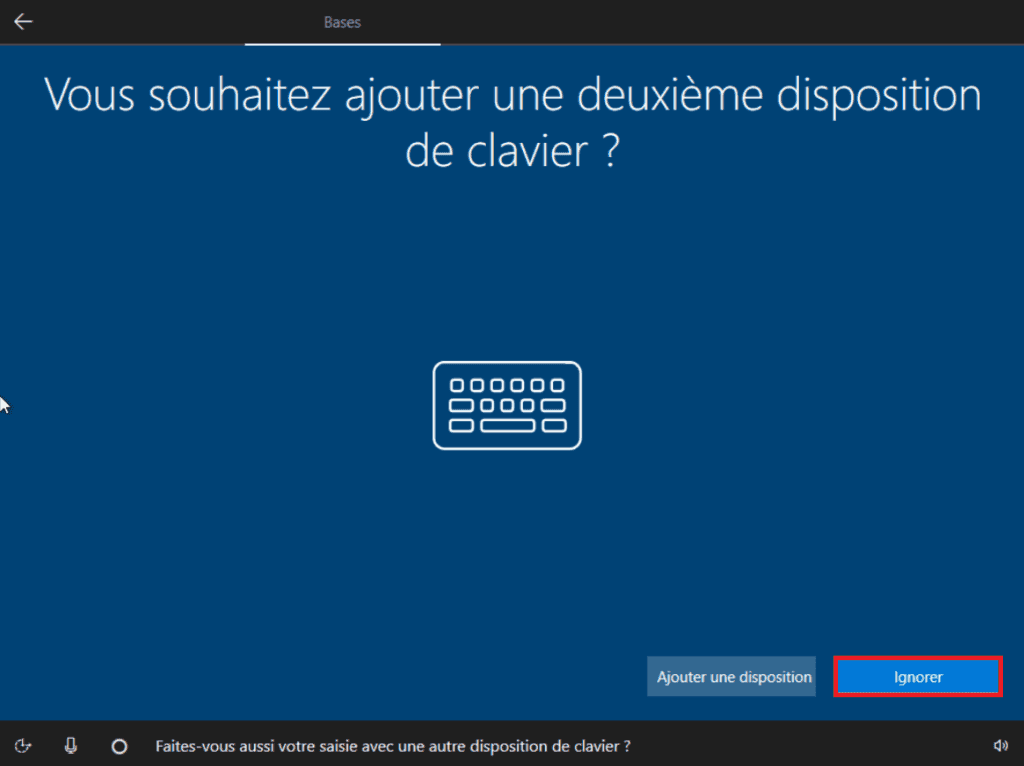
- You will then be prompted to set a secondary language for the keyboard, click Ignore. You can always configure another language later.
- If you have a Wi-Fi connection, you will be prompted to connect to a network. If you have a wired connection, Windows will automatically recognize it.
- Windows will then start configuring the system.
Configuring Windows 10 with a local user account
- You will then be prompted to enter a Microsoft account. Enter your details if you have one.
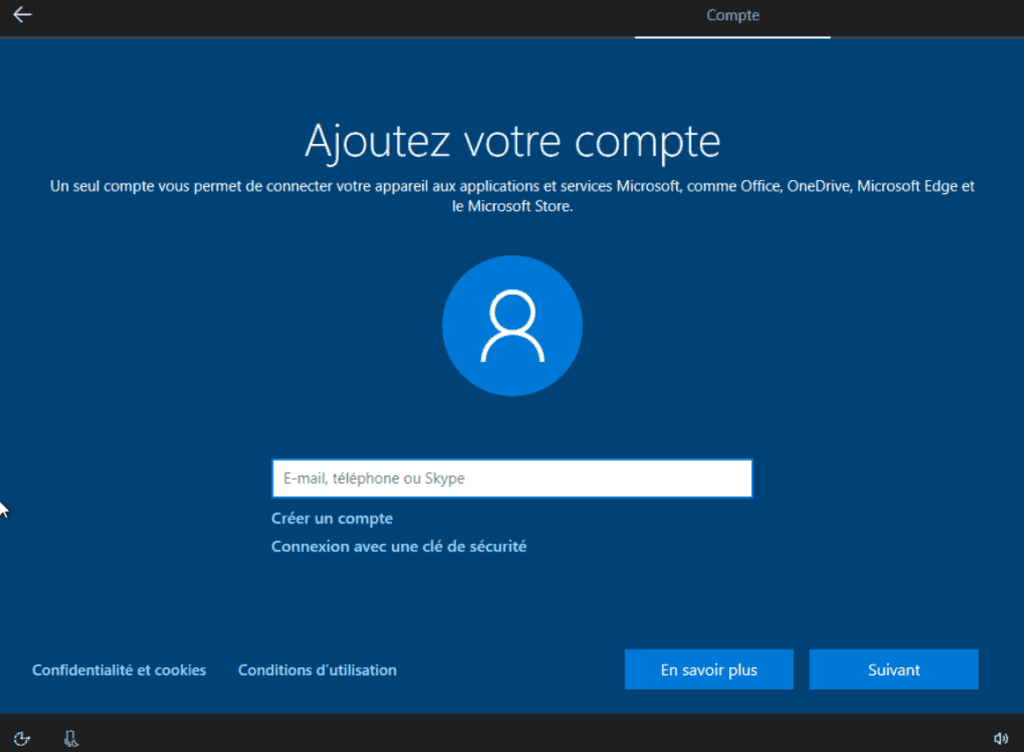
- If you don’t have one, you can use a local account, by entering a false e-mail address ending in “outlook.fr” and a false password. This will generate an error and prompt you to create a new session.
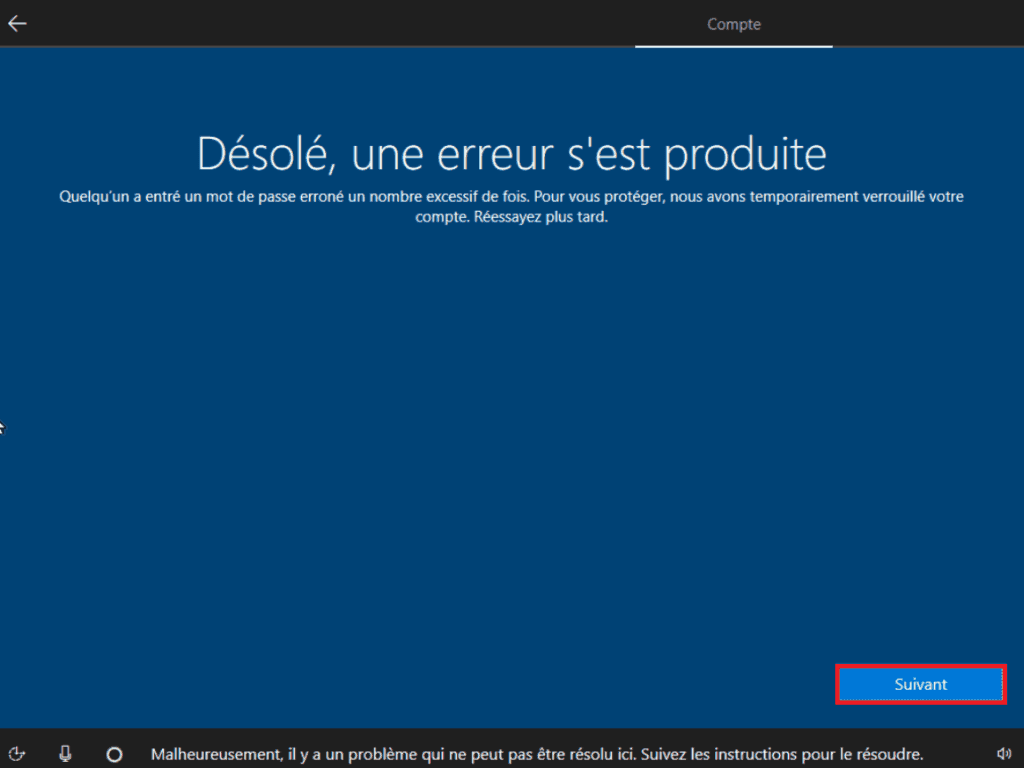
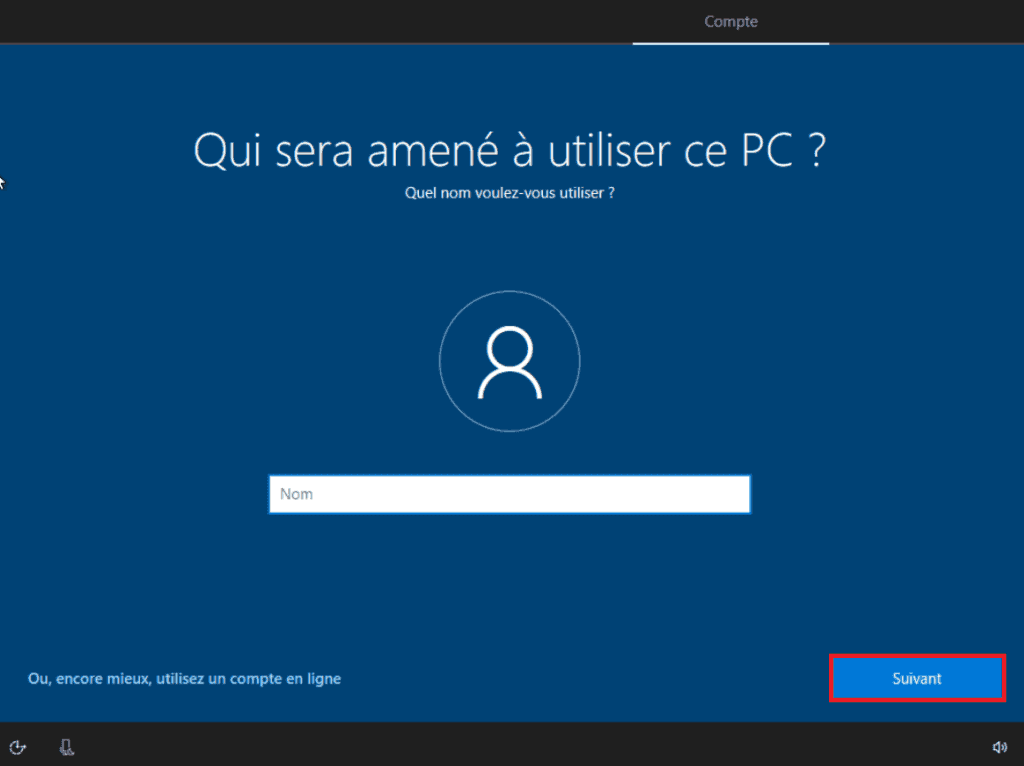
- Then enter your username.
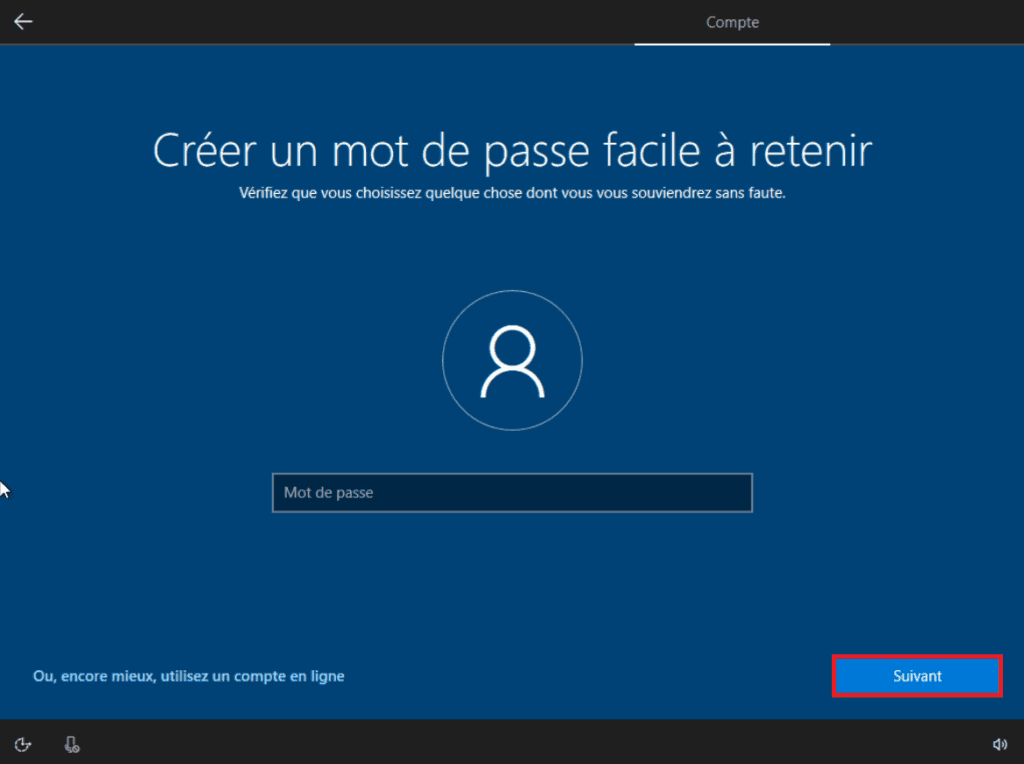
- Then enter a new password for your session.
- You will then be prompted to configure certain parameters.
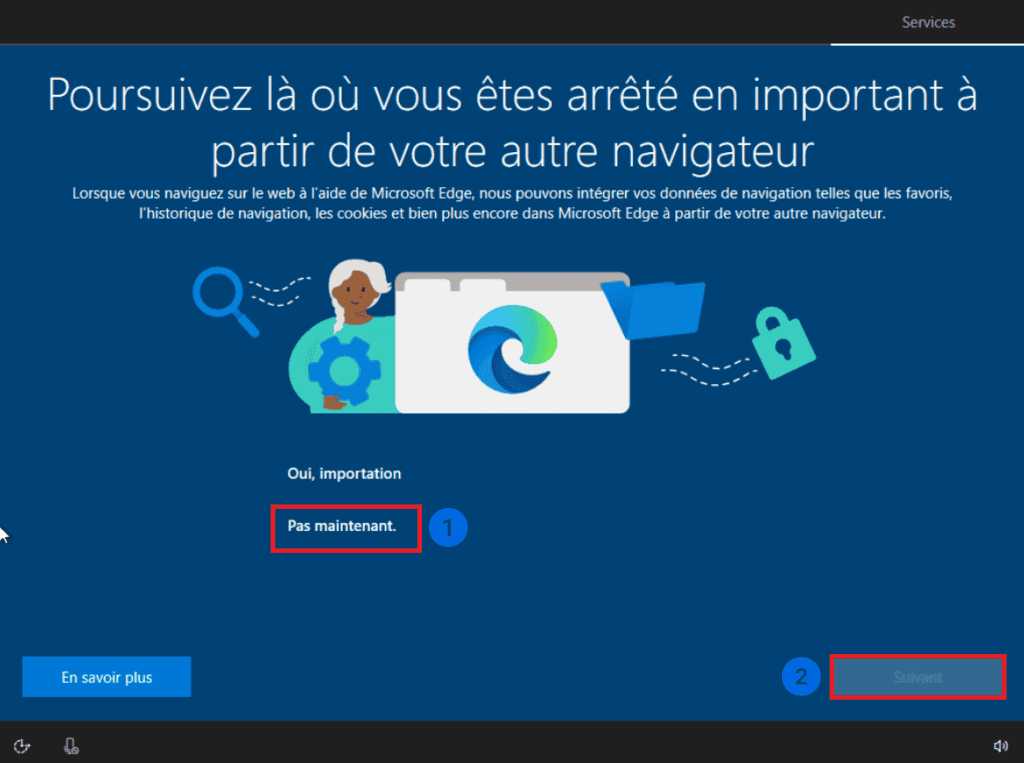
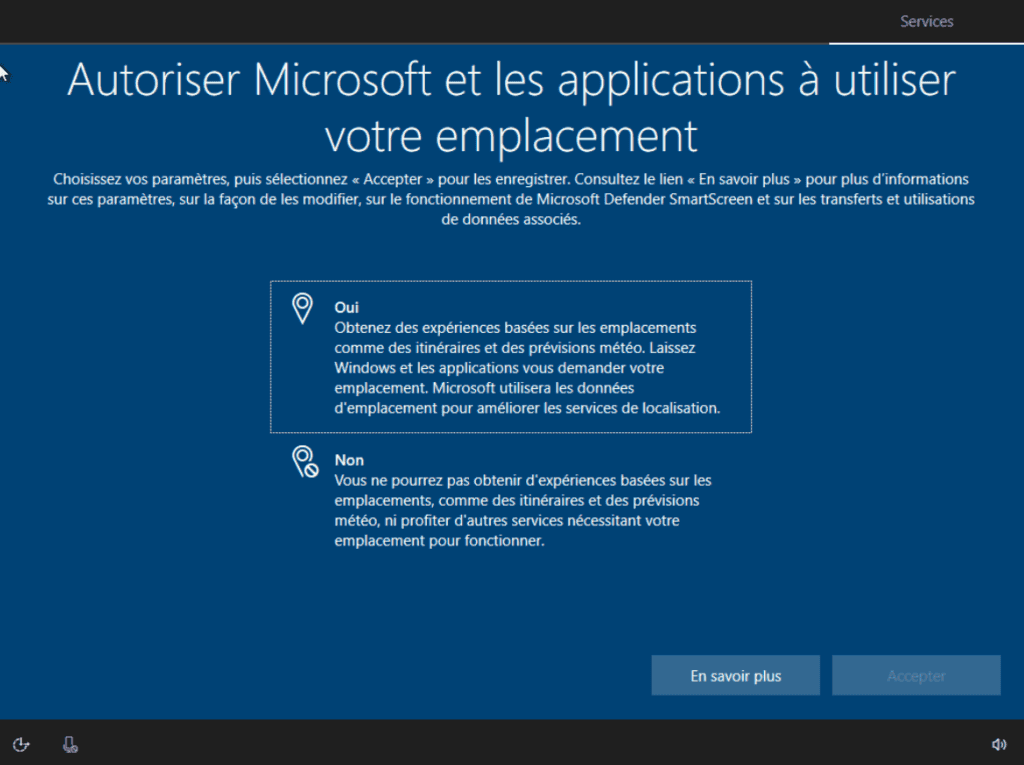
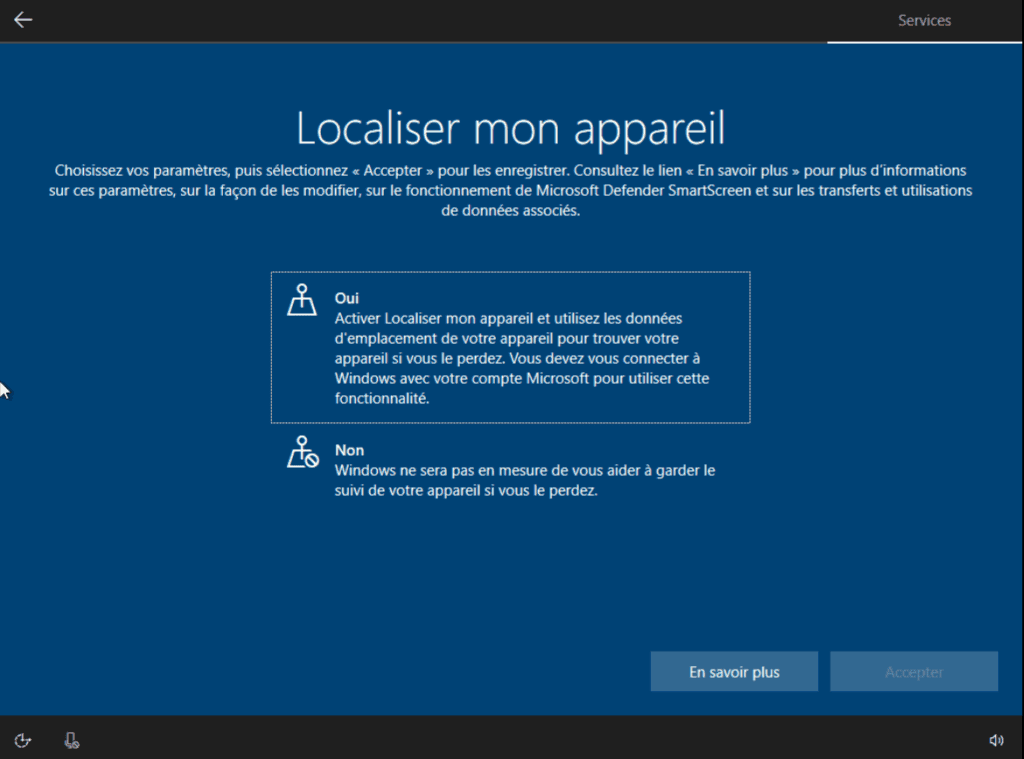
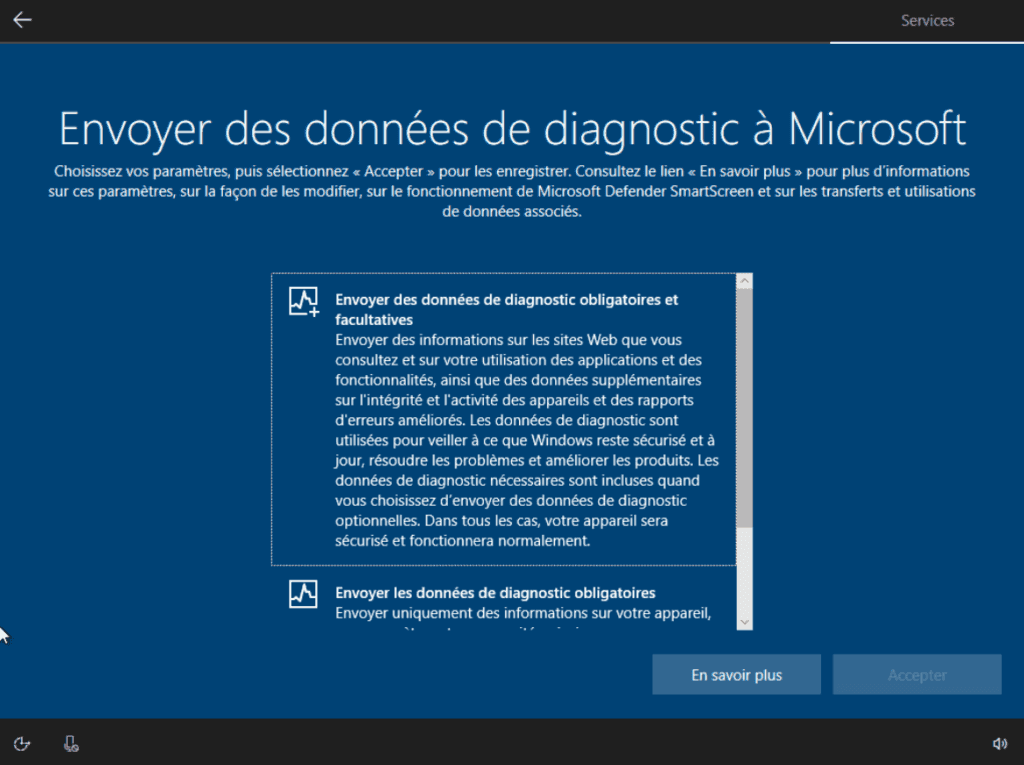
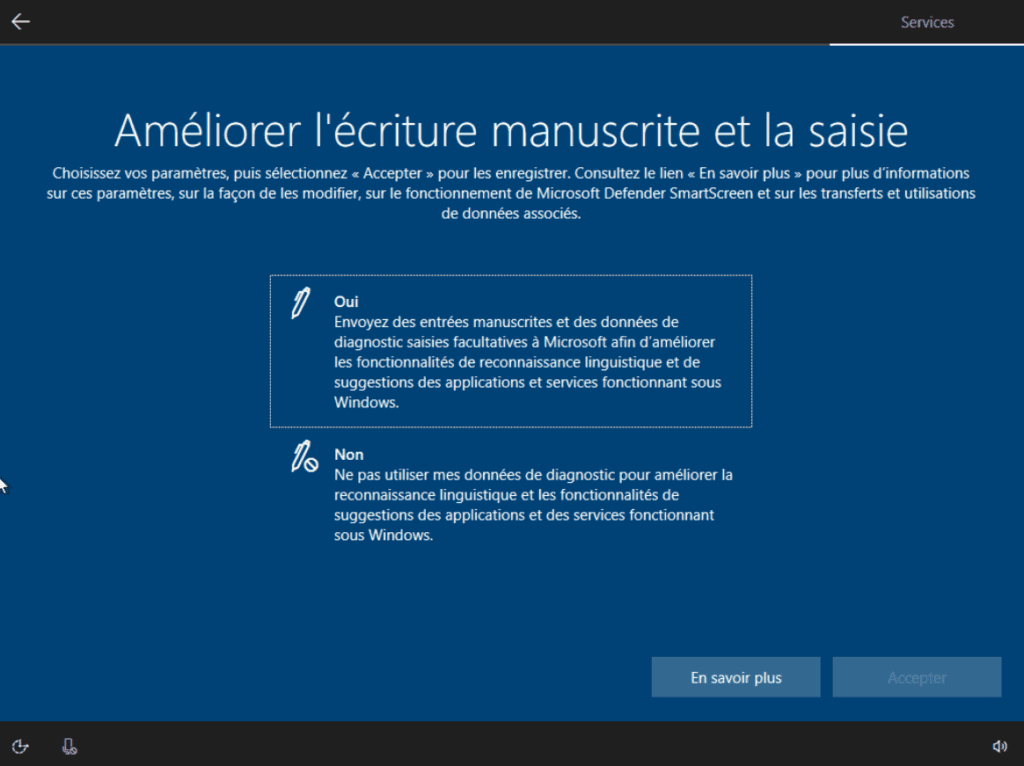
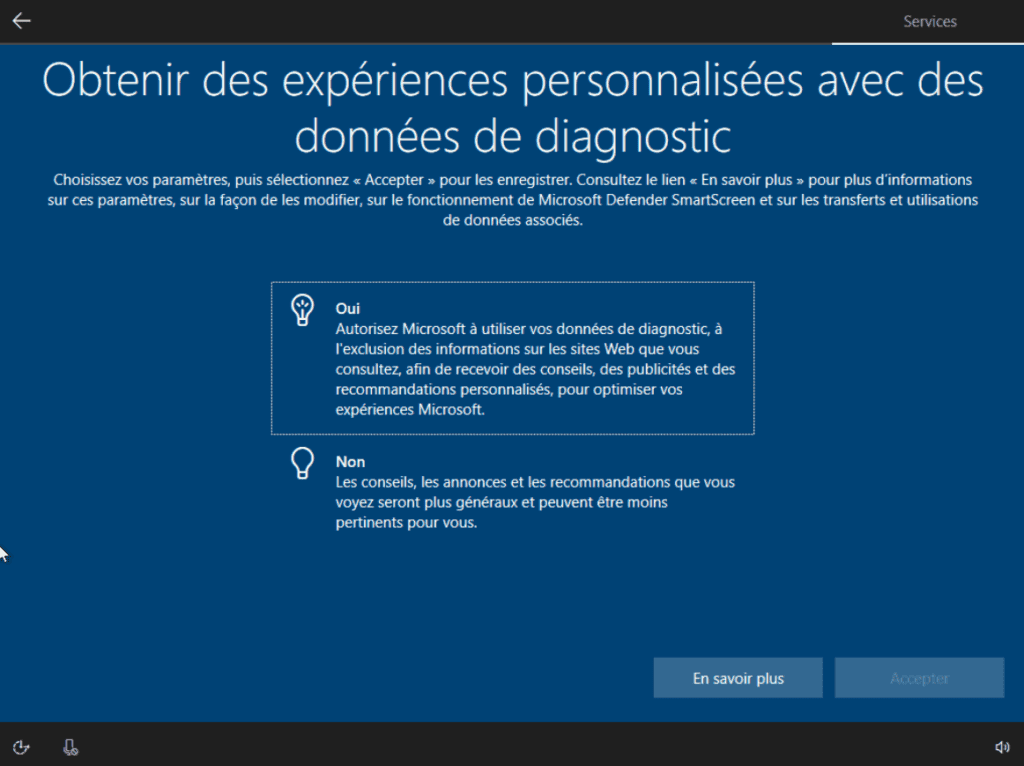
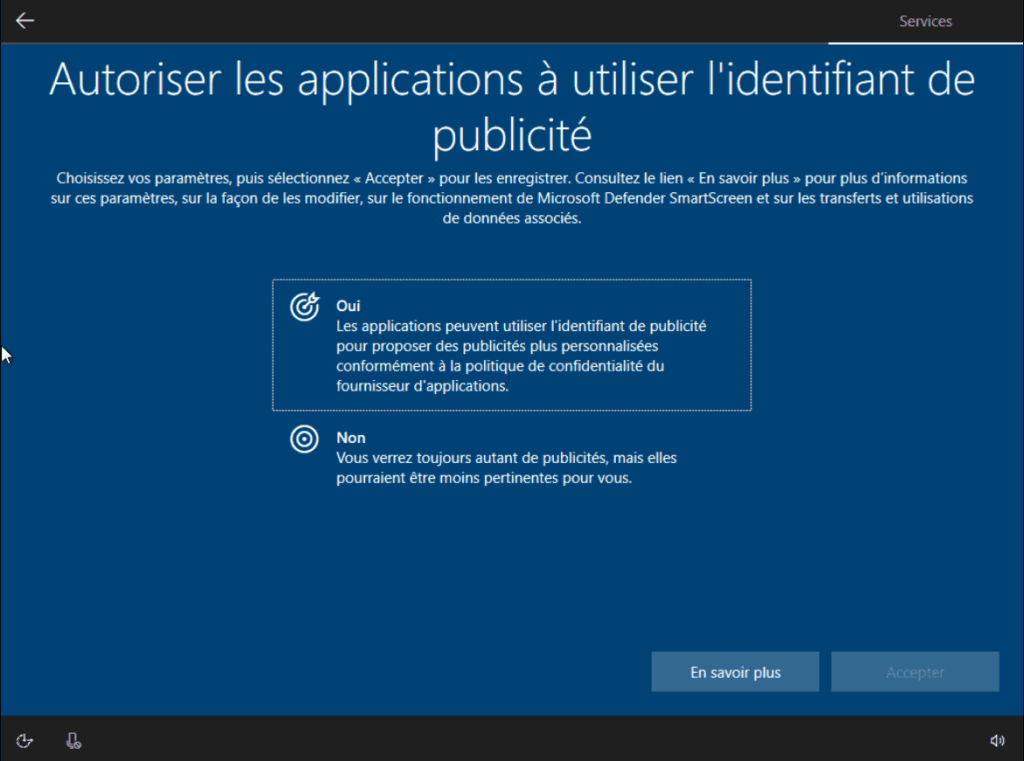
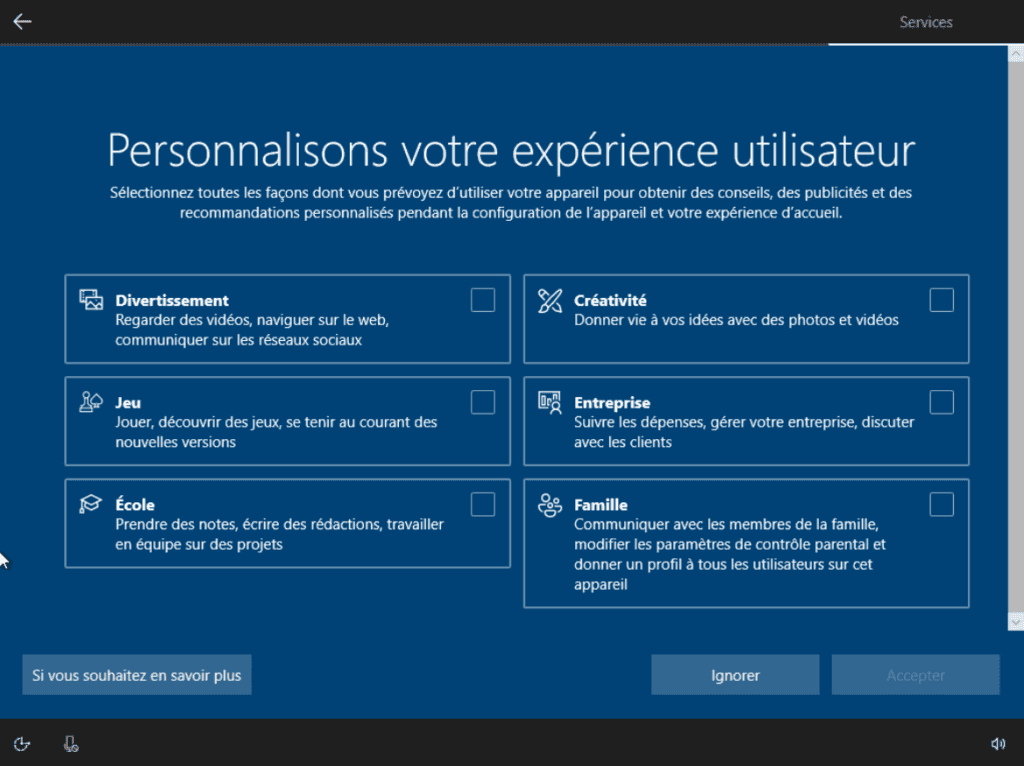
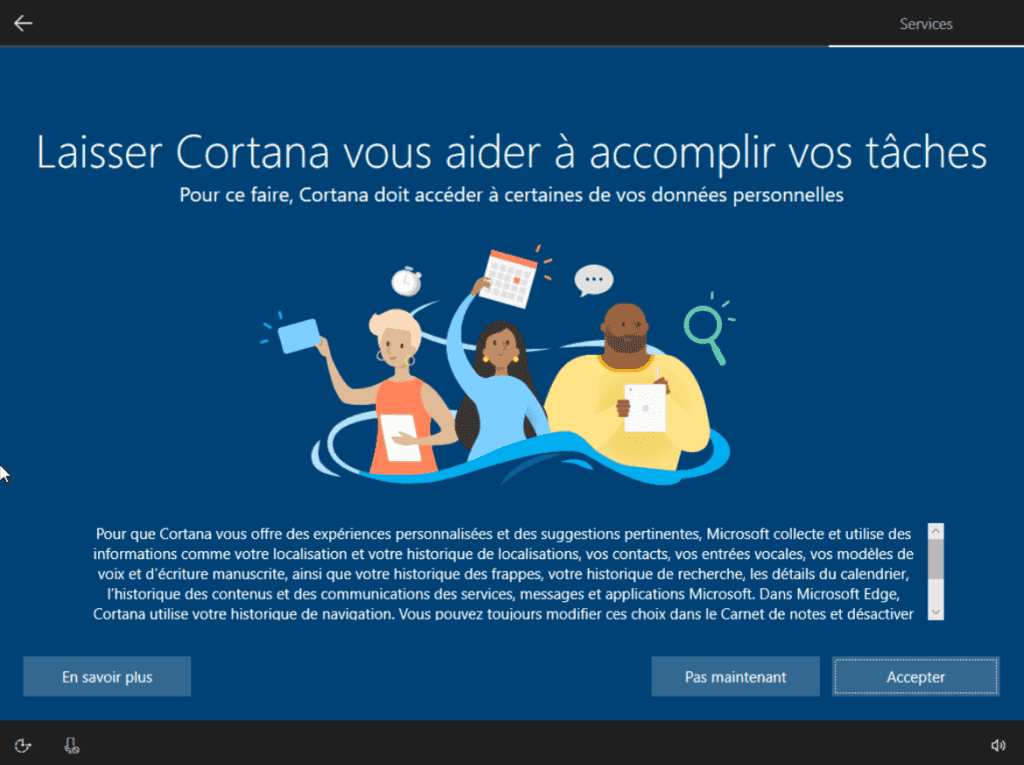
- Windows will finish configuring the system before displaying the desktop.
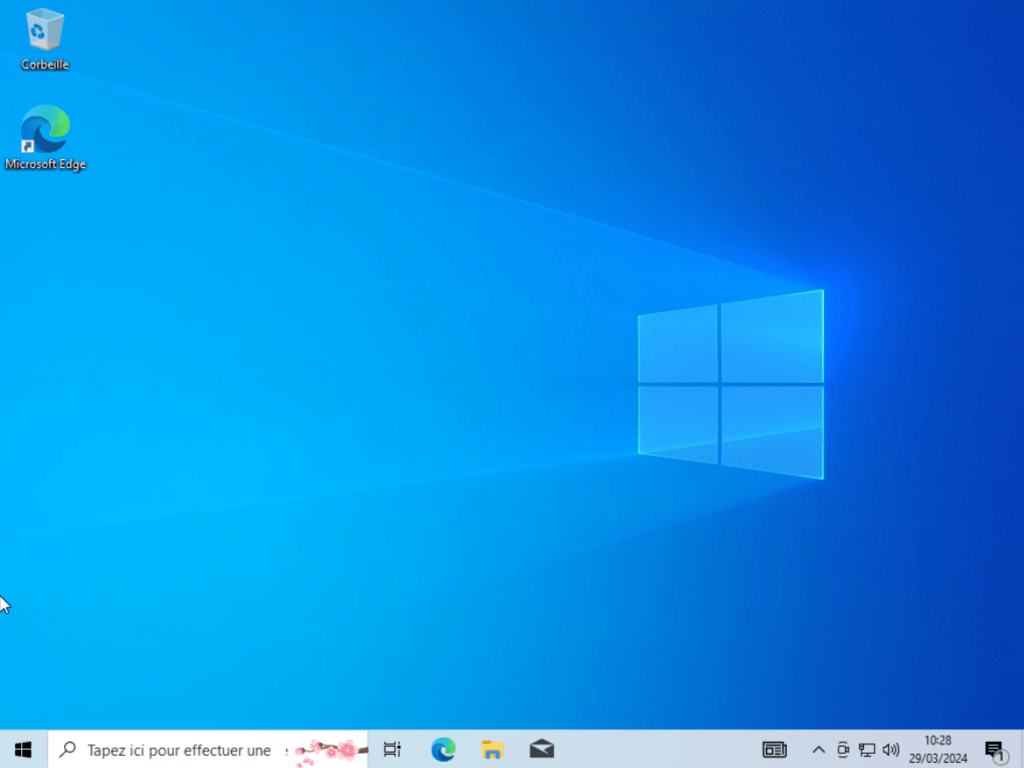
? Congratulations, you’ve successfully installed Windows 10 on your PC! ?
We allow some readers to view our articles for free with an ad blocker. However, their number is currently too high for us to keep this access available to everyone.
You can disable your ad blocker to continue reading immediately, subscribe to enjoy all our content without ads, or come back a little later when the pressure has eased.
Access will be restored automatically as soon as the situation allows.