
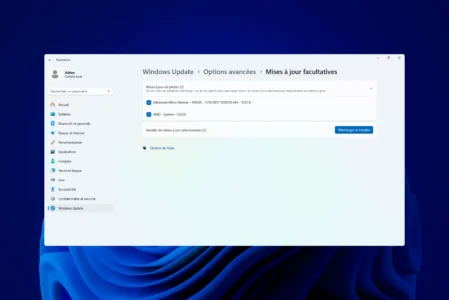
Over time, manufacturers release driver updates to improve the stability, compatibility and security of your PC’s components. Updating a single driver can sometimes be enough to solve a specific problem, but a global update can optimize your system as a whole and anticipate potential malfunctions. Whether you’re looking for an automatic or manual update, this step-by-step guide will help you update all the drivers on your Windows PC.
In this article
What is a driver?
A driver is a computer program that enables an operating system (such as Windows, Linux or macOS) to communicate with a hardware or peripheral device. It acts as an intermediary between hardware and software to ensure optimal, stable operation of computer components.
Update your PC drivers with Windows Update
Windows Update automatically updates many hardware drivers, ensuring system compatibility and stability. This method is particularly recommended for general updates, such as those for graphics cards, network cards and embedded peripherals. Here’s how it works:
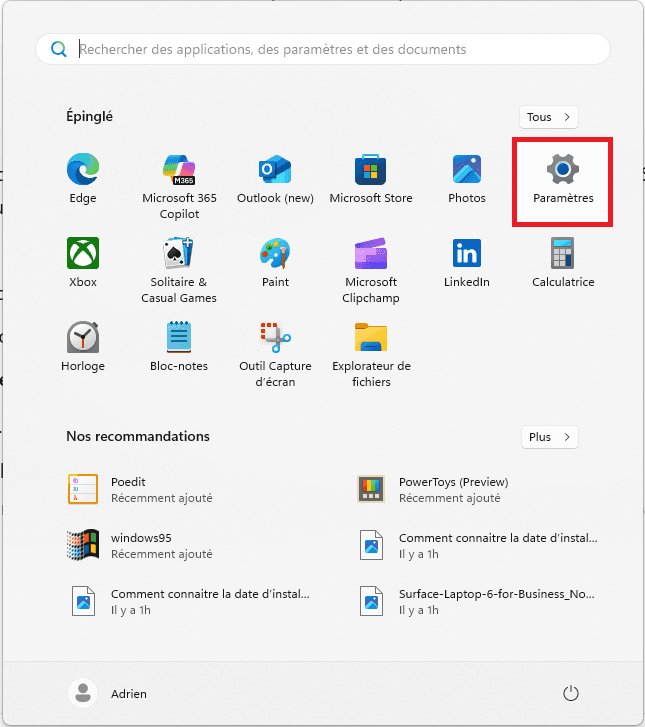
Click on the Start menu (Windows icon in the taskbar) and select Settings (⚙️).
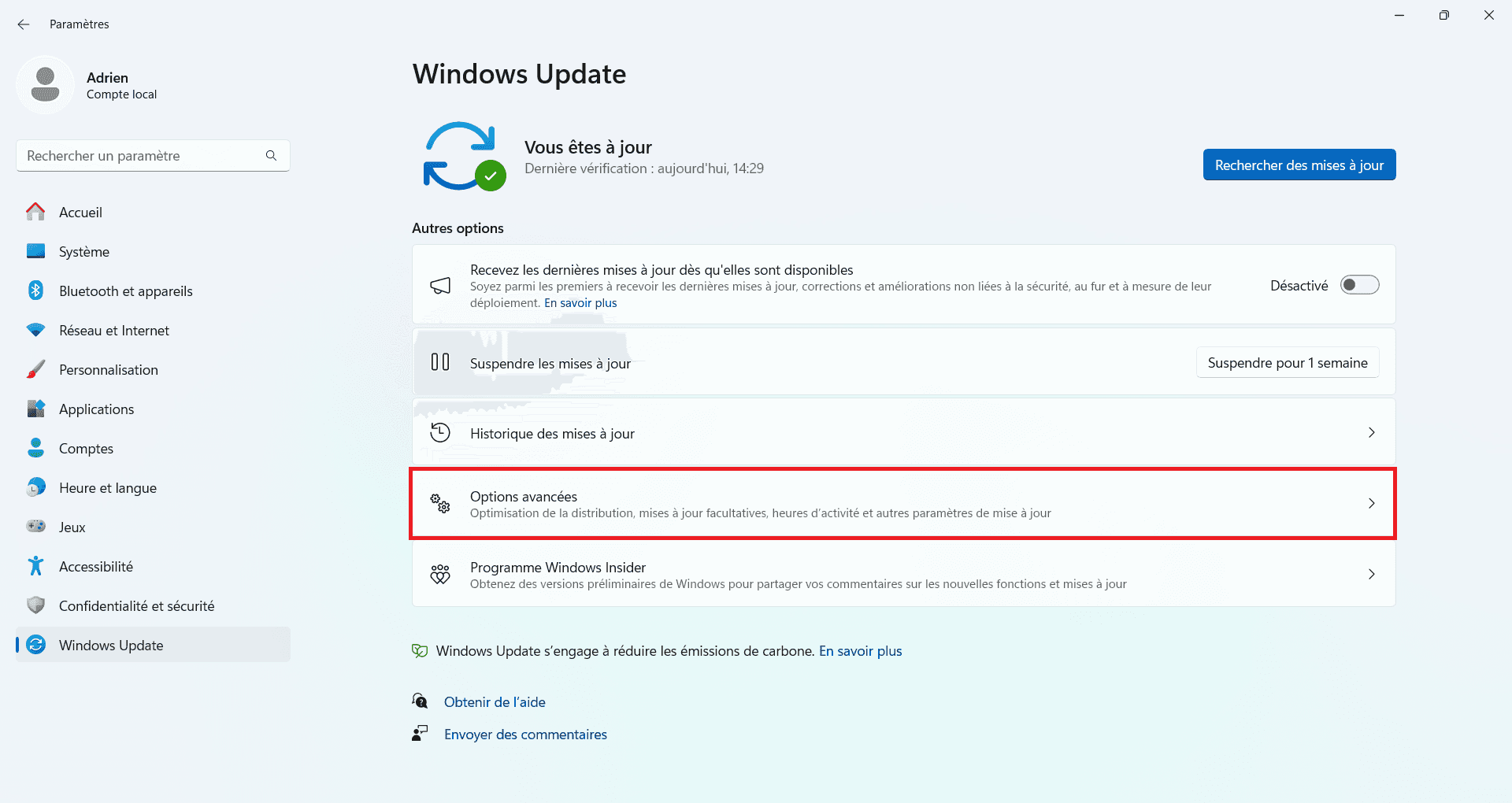
In the side menu, click on Windows Update.
Click on Check for updates.
Wait while Windows checks for available updates.
If driver updates are available, they will be listed and installed automatically.
Some drivers are not installed automatically but are available as optional updates:
On the Windows Update page, click on Advanced options.
Scroll down to the Optional updates section.
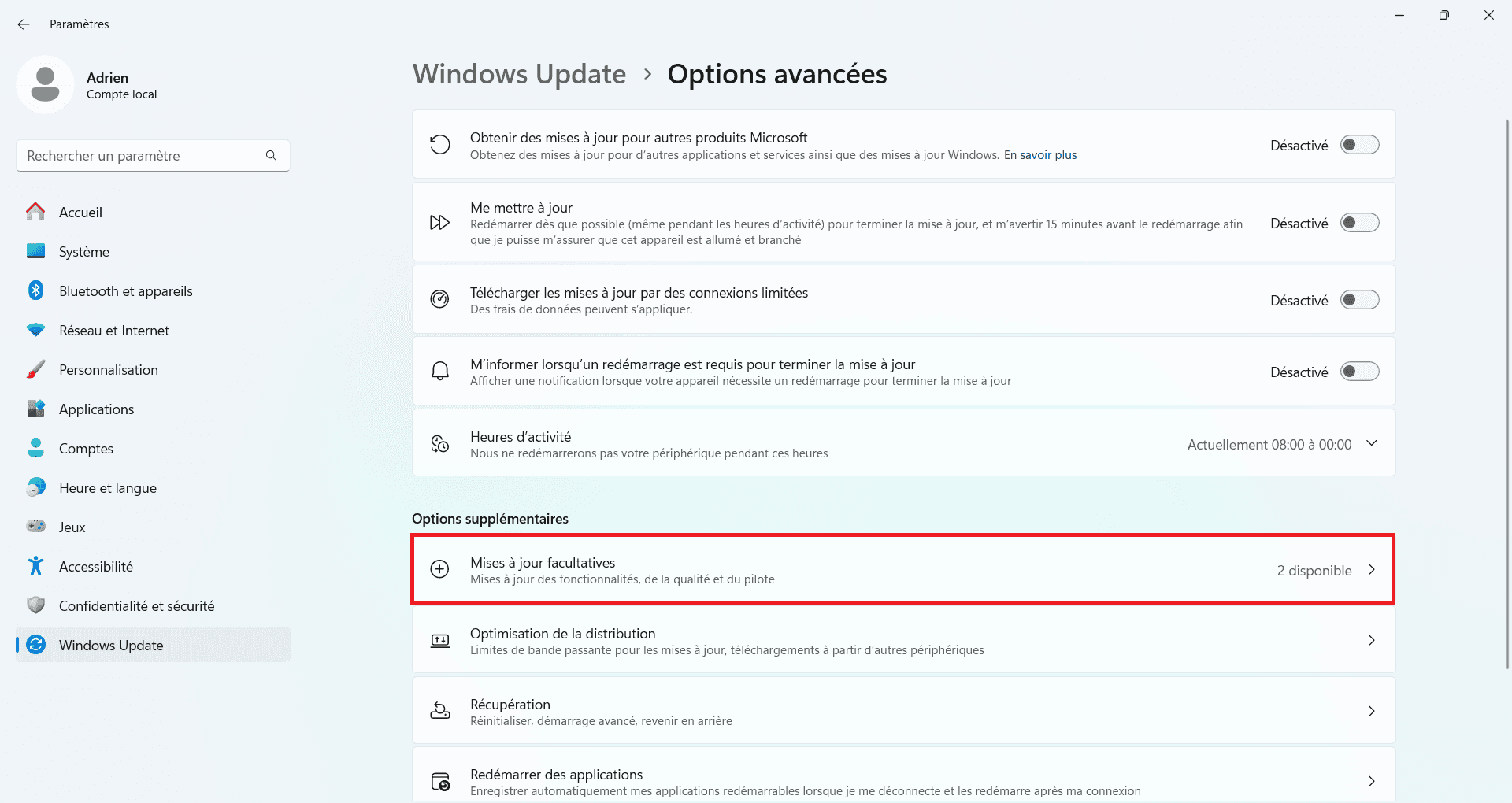
Click on Driver updates.
Check the drivers you wish to install, then click on Download and install.
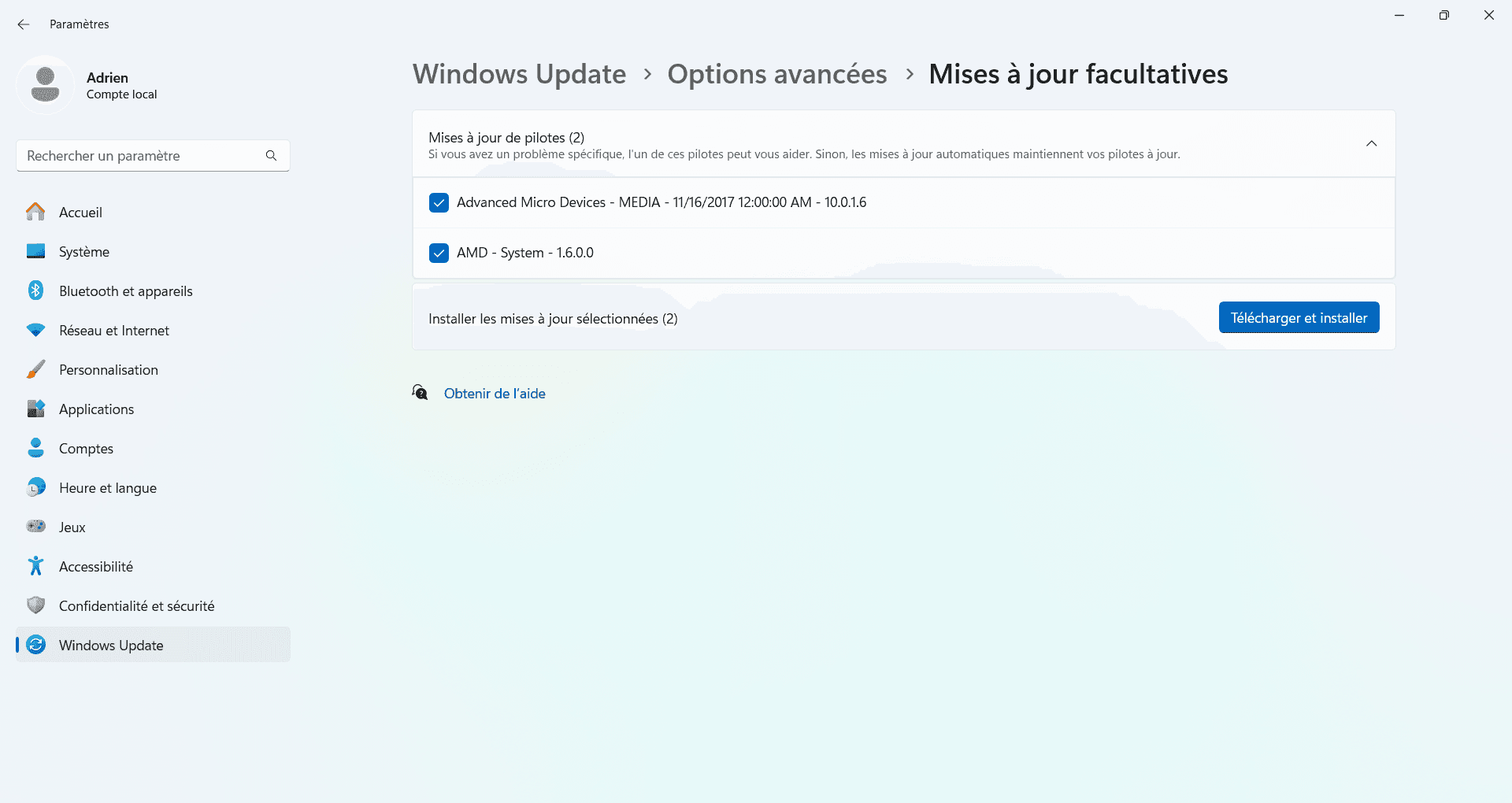
Once updates have been installed, a reboot may be required to apply the changes.
Once the PC has been restarted, the new drivers will be active.
Update drivers with DriverBooster Free
Driver Booster Free is a program developed by IObit that automatically scans, downloads and installs the latest drivers for your hardware. It’s particularly useful for those who want to update all their drivers without going through Windows Update or the Device Manager.
Before starting, you need to download and install the :
Go to the official IObit website and download Driver Booster Free.
Run the installation file and follow the on-screen instructions.
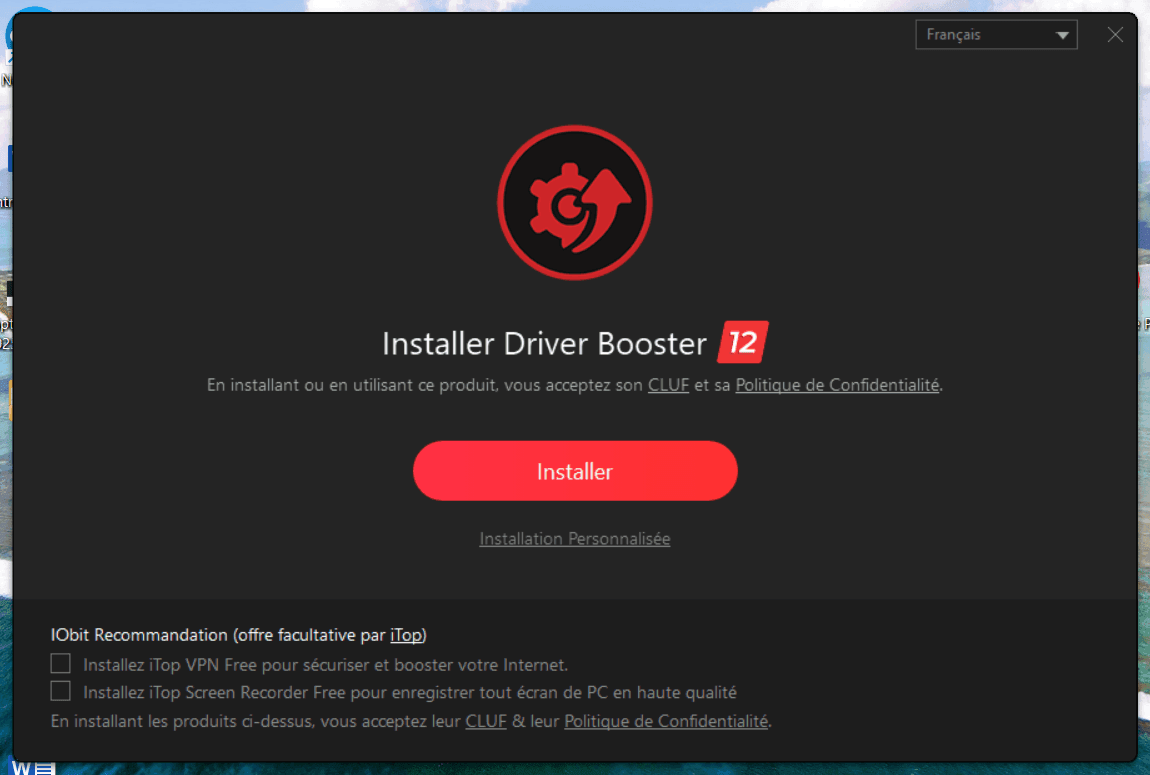
Once installation is complete, launch Driver Booster.
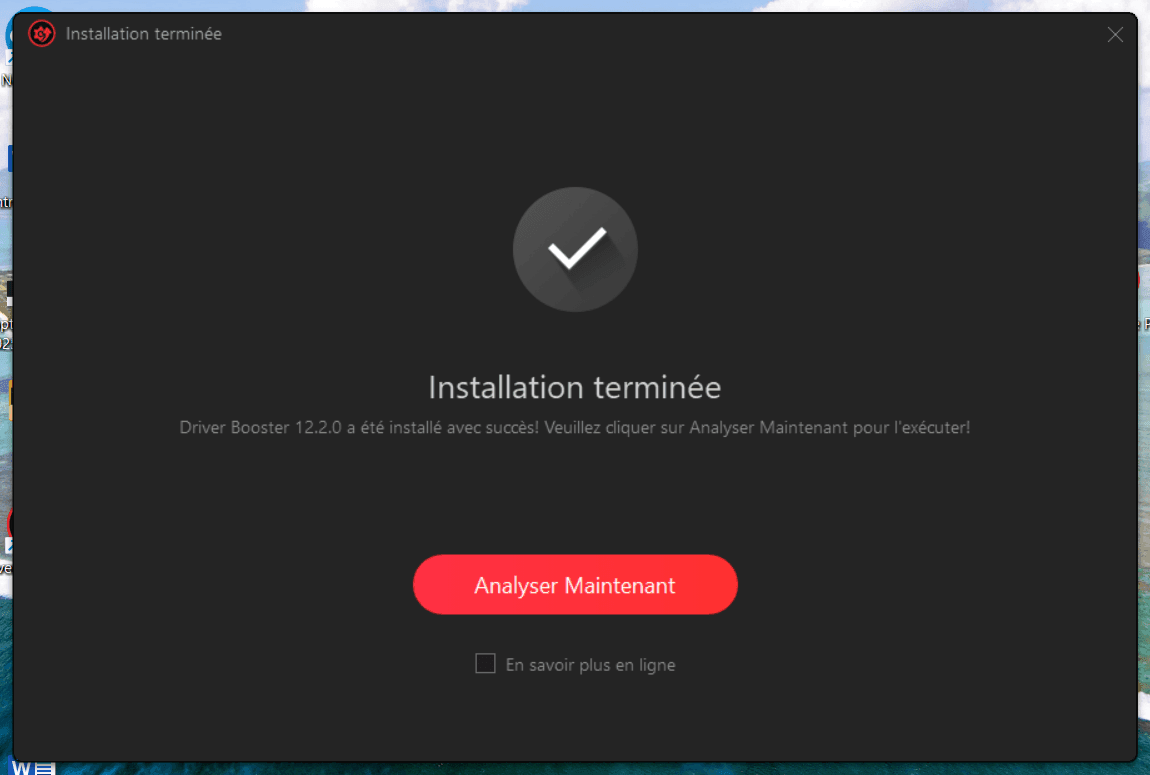
Note: During installation, pay attention to any additional software and uncheck it if you don’t want to install it.
Click on the Analyze button.
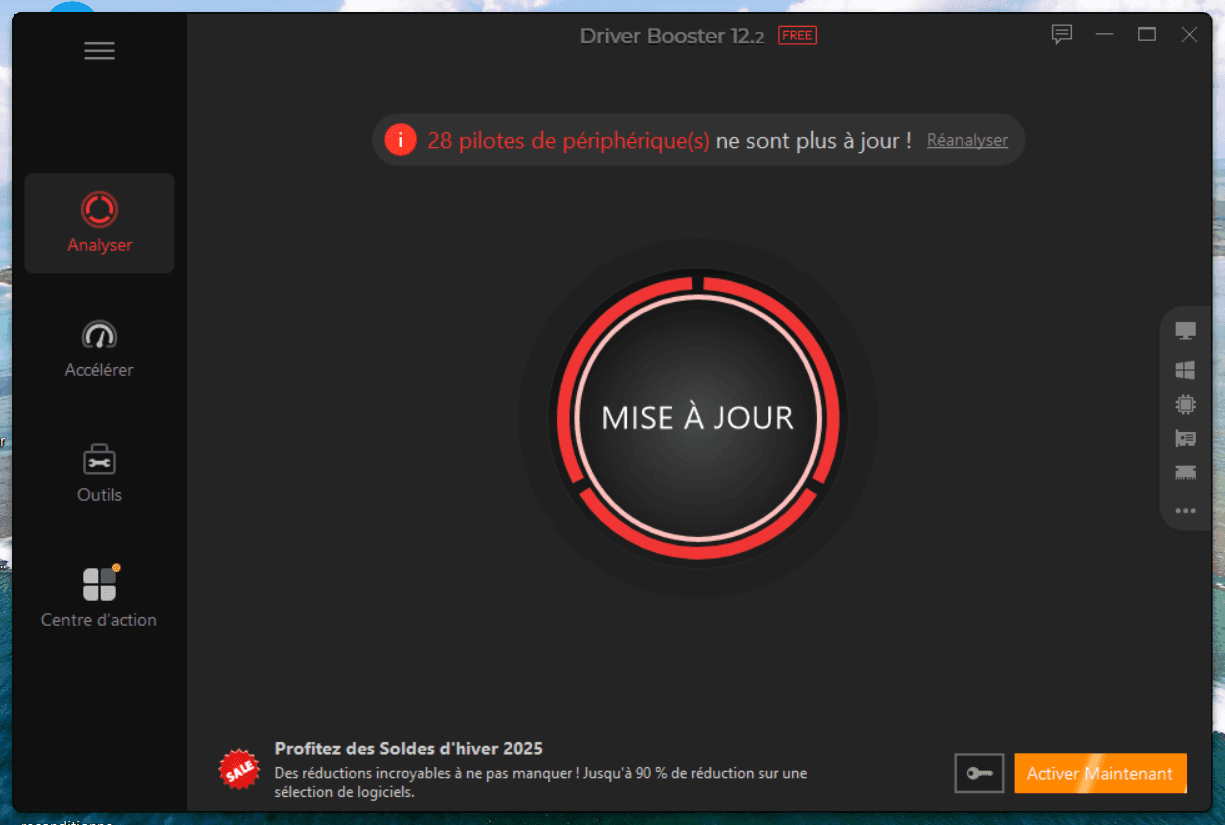
The software will scan all your drivers and detect any that are obsolete, missing or corrupt.
Once the analysis is complete, a list of drivers to be updated is displayed.
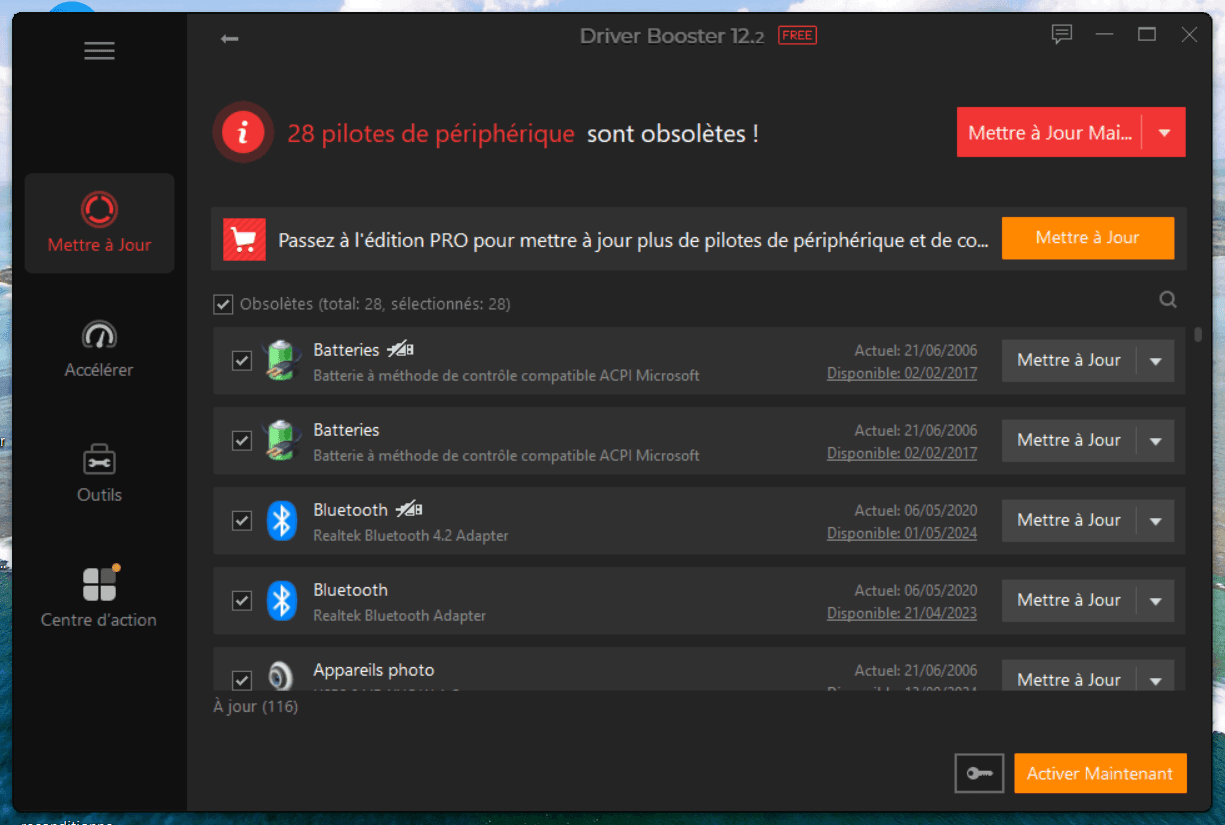
Click Update Now to install all available updates at once.
If you wish to update only certain drivers, click on Update next to each item concerned.
Driver Booster automatically downloads and installs the latest driver versions.
Note: Some drivers may require you to restart your PC after installation. Driver Booster will inform you if necessary.
Update your PC drivers with DriverCloud
DriverCloud is an online service for analyzing your computer, identifying obsolete or missing drivers, and easily downloading the appropriate updates. This tool is particularly useful for finding drivers for hardware not recognized by Windows, or for keeping your system up to date.
Before using DriverCloud, you need to install its analyzer:
Download the analyzer from the official DriverCloud website.
Open the downloaded file.
Select the default installation folder or choose another.
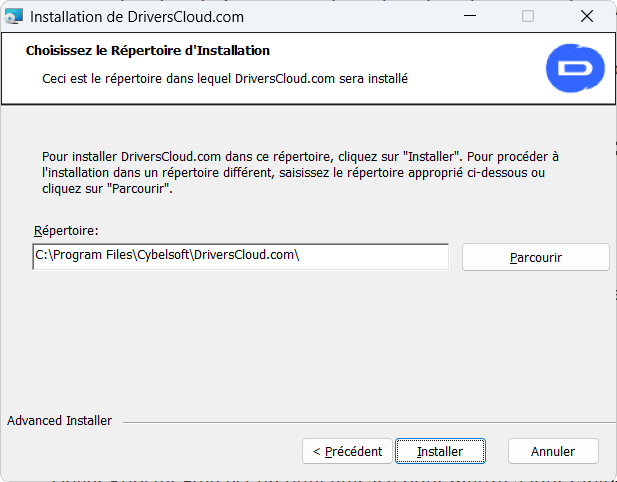
Click Install to complete the installation.
Open the software.
Click Online Detection to analyze your hardware and identify the drivers you need to update.
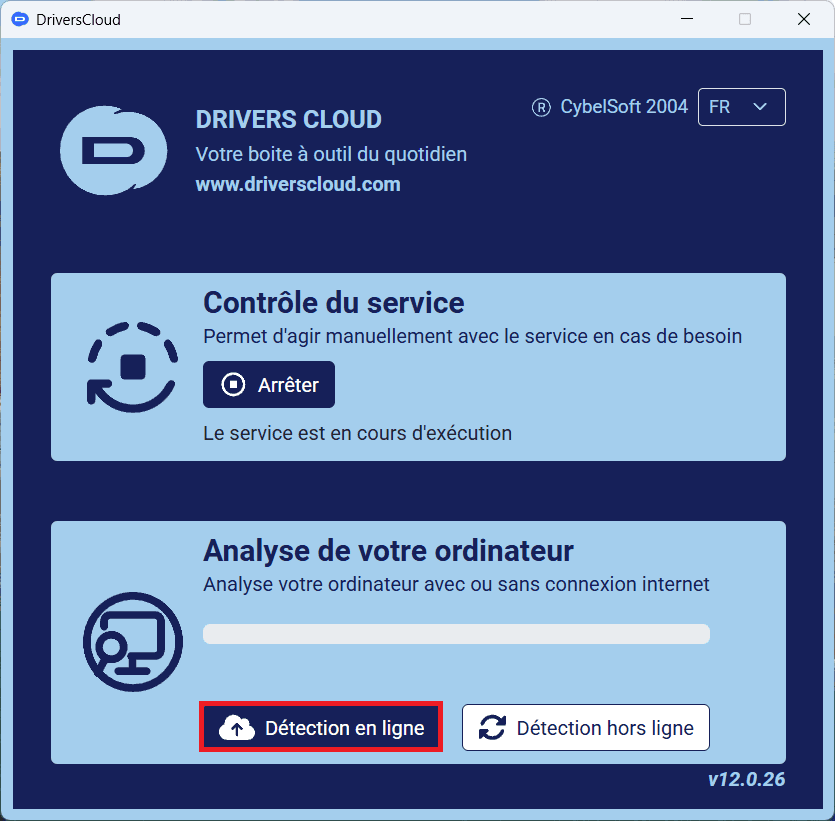
Wait for the analysis to finish and for your browser to open automatically with the results.
After the scan, DriverCloud displays a list of your PC’s components with available updates:
DriverCloud offers the latest drivers compatible with your hardware.
Check the drivers you wish to download.
Download selected drivers.
Click on Download to download the installation files.
Open each downloaded file and follow the installation instructions.
Restart your PC to apply the changes.
Check that everything is working properly (sound, display, Internet connection, etc.).
We allow some readers to view our articles for free with an ad blocker. However, their number is currently too high for us to keep this access available to everyone.
You can disable your ad blocker to continue reading immediately, subscribe to enjoy all our content without ads, or come back a little later when the pressure has eased.
Access will be restored automatically as soon as the situation allows.