

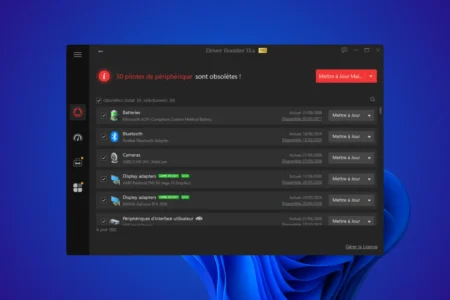
Automatic driver-updater software has a poor reputation, and Driver Booster is no exception. A search for reviews finds people who recommend uninstalling it immediately and others who say they have used it without trouble for years.
For my part, I have used Driver Booster more than 100 times to find and install drivers on Windows PCs. In the great majority of cases it identified the hardware correctly and installed drivers without causing a problem. I have nevertheless encountered a few mouse-driver errors: Driver Booster is not infallible and can install a driver that works less well than the one supplied by the manufacturer.
I still use it because it saves a great deal of time and is extremely easy to use.
In this article
- What is Driver Booster for?
- Why does Driver Booster have a poor reputation?
- Microsoft and security vendors have flagged IObit’s driver tool
- Three blue screens after driver updates
- Driver Booster can install an unsuitable driver
- Windows Update is Microsoft’s recommended option
- Driver Booster Free is already comprehensive
- I do not update every driver systematically
- My opinion of Driver Booster Pro
What is Driver Booster for?
Driver Booster is developed by IObit. It scans the components and peripherals in a computer, then compares installed drivers with the versions in its database. It can download and install newer versions almost automatically.
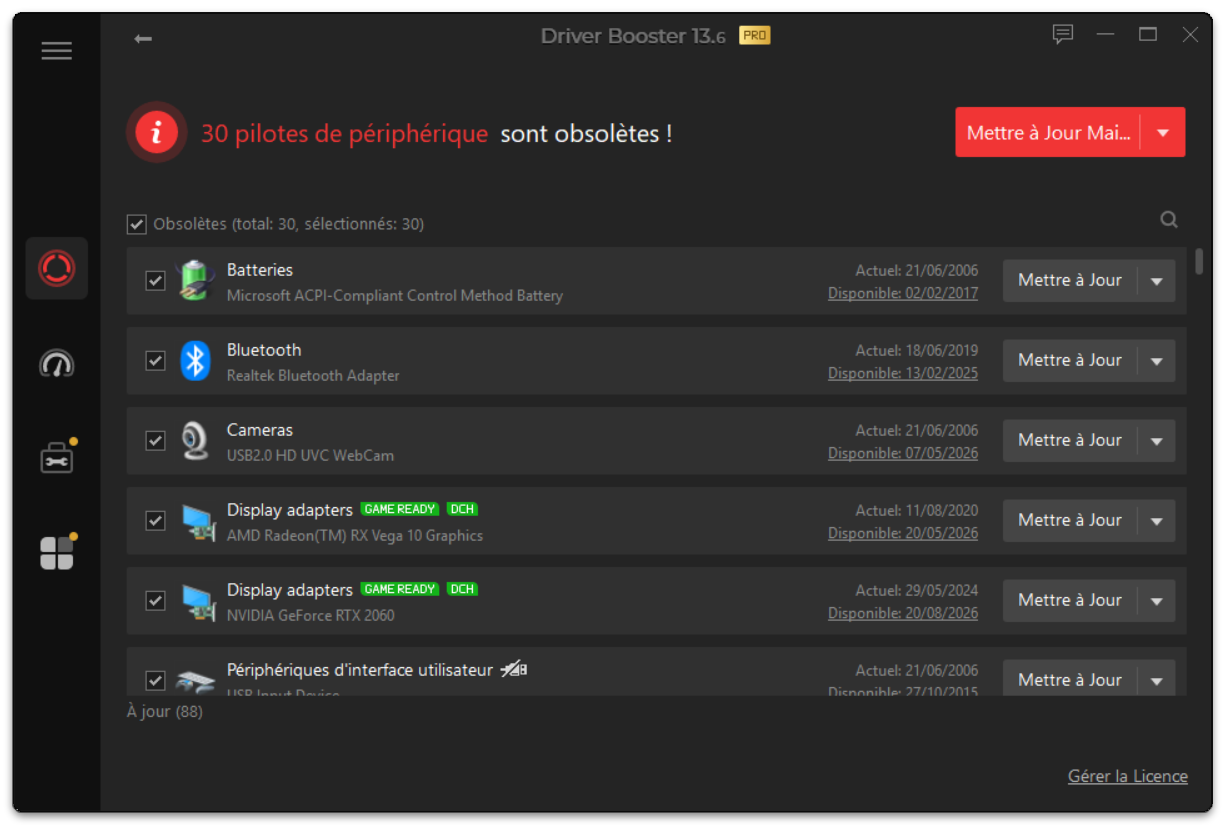
It is particularly useful after a Windows reinstallation. Instead of searching manually for network, audio, Bluetooth, chipset and peripheral drivers, it centralises much of the work. At the time of writing, IObit claims a database of more than 12 million drivers for Driver Booster Free and more than 18 million for paid versions; those figures come from IObit itself.
Why does Driver Booster have a poor reputation?
IObit is a publisher historically associated with Chengdu, China; intellectual-property records in the name of Chengdu AOBI Information Technology trace that origin. I do not consider Chinese origin evidence that software is dangerous. What matters more is its behaviour on the computer, the quality of the drivers it proposes and the ability to repair the system if an update goes wrong.
IObit’s reputation does not come only from its country of origin. Some of its products are particularly aggressive commercially. I am much less fond of Advanced SystemCare, IObit’s cleaning and optimisation tool, because of its frequent promotions and sales prompts.
Microsoft and security vendors have flagged IObit’s driver tool
Malwarebytes still classifies IObit Driver Booster as a PUP, or Potentially Unwanted Program. Microsoft also has a PUA:Win32/DriverBooster entry in its security database. Context matters: Microsoft’s entry dates from 2016 and Malwarebytes’ detailed technical example concerns Driver Booster 6.3 from 2019, far removed from current releases.
PUP or PUA does not automatically mean a virus or malware. Microsoft uses the category for programs whose behaviour can be unwanted, such as advertising, promotions or offers to install additional software.
My experience after more than 100 uses
In my use, Driver Booster works correctly in the overwhelming majority of cases. It identifies PC components well and finds drivers that Windows Update does not always offer immediately. The scan is quick and you do not need to know every component reference.
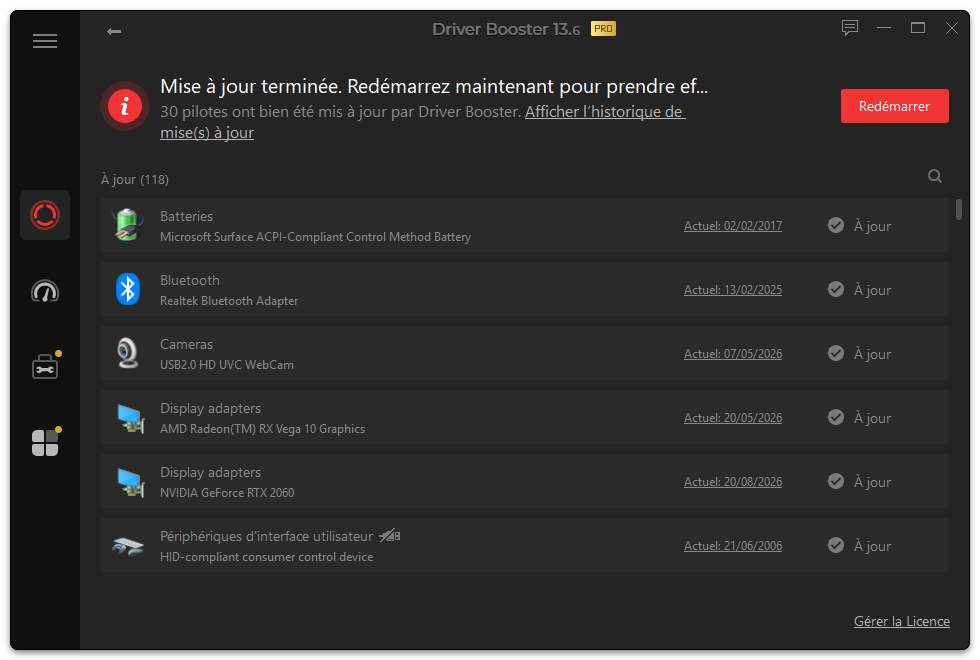
For someone who has just reinstalled Windows and has a dozen devices to check, the time saved can be considerable. The interface is simple: start the scan, review detected drivers, and the program handles much of the download and installation. I have seen very few malfunctions in more than 100 uses—but I have seen some.
Three blue screens after driver updates
Across more than 100 uses, I encountered three cases where a driver update caused a blue screen when Windows started. That remains rare, but the consequences can be troublesome. In all three cases Windows no longer started correctly after the update, recovery attempts did not restore a stable system, and I had to reinstall Windows completely.
This is the main risk with this kind of software. Driver Booster can choose a driver that appears compatible with the hardware but is not fully compatible with the PC configuration or the manufacturer’s adaptations. My overall experience remains positive, mainly because I use it after formatting a PC, but I do not recommend updating every driver blindly on a computer that already works perfectly. A newer driver is not automatically necessary.
The mouse-driver problem I encountered
The issue I remember most clearly involved mouse drivers. Driver Booster found a newer version and installed it normally, but the trackpad stopped working afterwards. I removed the problematic driver, after which the other mouse drivers worked again, then downloaded and installed the driver directly from the manufacturer’s official website. The problem did not return.
Driver Booster can install an unsuitable driver
An unsuitable or simply less stable driver can be offered, especially because the software has to manage a huge number of hardware references and Windows versions. In my experience these problems remain rare. A few drivers caused trouble in more than a hundred uses, but I have not seen an avalanche of unusable PCs after using Driver Booster.
Windows Update is Microsoft’s recommended option
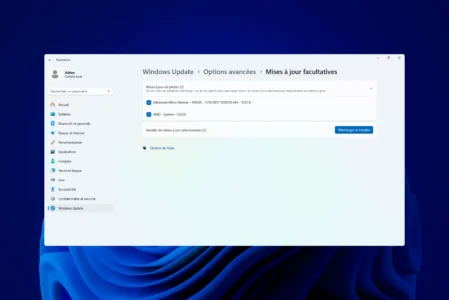
Driver Booster is not required for Windows to work. Microsoft recommends Windows Update to obtain computer drivers. Windows 11 retrieves many drivers automatically and others appear in optional updates.
 assistouest.fr
When Windows Update does not find the required driver, Microsoft then recommends checking the hardware manufacturer’s website. That is also my preferred approach when a particular device causes trouble. For NVIDIA, AMD or Intel graphics cards, going directly to the manufacturer provides its own tools, settings and releases. Driver Booster is not a replacement for official websites; it is a tool for centralising and speeding up driver searches.
Driver Booster Free is already comprehensive
The free edition is one of the software’s strengths. Unlike programs that detect outdated drivers for free and immediately require payment to install them, Driver Booster Free updates many drivers at no cost.
There are limits: Free uses part of the driver database, while Pro expands it, speeds downloads and adds automation.
| Feature | Driver Booster Free | Driver Booster Pro |
|---|---|---|
| Driver scan | Yes | Yes |
| Install many drivers | Yes | Yes |
| Database claimed by IObit | Over 12 million | Over 18 million |
| Automatic updating | Limited or manual | Yes |
| Automatic driver backup | No | Yes |
| Offline updating | Limited | Yes |
| Game Ready driver priority | No | Yes |
| Accelerated downloads | No | Yes |
Driver Booster Free is not merely a demo that forces you to buy Pro to install a driver, and it can be enough for many users.
Why I use Driver Booster Pro
Pro is useful when Driver Booster is used regularly: it provides a larger database, more automation, automatic backup of older versions before some updates and priority for certain gaming drivers. For someone updating a PC every two years, paying is debatable. The backup feature is valuable because no automatic updater can guarantee that a new driver works perfectly on every configuration.
I do not update every driver systematically
This is the biggest difference between my use and the behaviour I advise against. I do not assume a driver must be replaced just because a newer version exists. If the PC works perfectly, all devices are recognised and there is no stability or security issue, some updates bring almost no benefit. Driver Booster is much more useful after a Windows installation, when a device is not recognised, when a driver is genuinely old or when I need a quick overview of available updates.
For graphics drivers, I also prefer to keep track of what is installed. NVIDIA, AMD and Intel publish frequent releases, sometimes for different uses. On a gaming PC or workstation, downloading directly from the manufacturer remains easy. Driver Booster is convenient, but it should not make every decision for you.
My opinion of Driver Booster Pro
After more than 100 uses, my overall opinion of Driver Booster Pro is positive. It is not perfect and can install a problematic driver; I saw that with some mouse drivers. Removing the driver and installing the manufacturer’s version restored normal operation.
Those issues were rare compared with the number of trouble-free uses. I understand why some technicians never use automatic driver-updater software: Windows Update and official manufacturer sites are safer when you need a specific driver. Still, reducing Driver Booster to a dangerous program that must always be avoided is unfair. It is practical, exceptionally easy to use and effective in most situations I have encountered.
The Free edition is sufficient to update many drivers. The Pro edition is worthwhile for a larger database, more automation, backups and regular use. I will keep using Driver Booster—just not with my eyes closed.
We allow some readers to view our articles for free with an ad blocker. However, their number is currently too high for us to keep this access available to everyone.
You can disable your ad blocker to continue reading immediately, subscribe to enjoy all our content without ads, or come back a little later when the pressure has eased.
Access will be restored automatically as soon as the situation allows.