
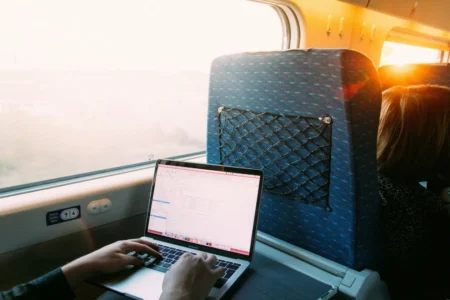
Your password is 20 characters long. On the train, after entering it incorrectly twice, you click on the eye icon to check where you went wrong.
The black dots are replaced by letters, numbers and special characters.
The person sitting next to you can now see the same password.
She doesn’t need to hack into your computer or take a photo of your keyboard. A quick glance is all it takes to spot a username, a client’s name, the amount on a quote or the content of a private conversation.
Whether on a train, a plane, in a departure lounge or a hotel lobby, a laptop screen is rarely as inconspicuous as one might think.
It’s not about becoming suspicious of every passenger, but about keeping the information displayed on your computer private and preventing someone sitting next to you from reading a password, a message, a work document or personal information displayed on your PC.
The CNIL and SNCF Voyageurs recommend limiting the visibility of the screen, using a privacy filter and locking your computer before leaving your seat.
In this article
- What a neighbour can understand in a matter of seconds
- Have a look around you before opening the PC
- Not all tasks are worth doing whilst travelling
- Passwords displayed in plain text pose a particular problem
- Let an administrator fill in the login fields
- Windows Hello and access keys limit the number of visible keystrokes
- Notifications can give you away without warning
- Reducing the brightness is no substitute for a filter
- The privacy filter when the seat is allocated to you
- Lock Windows before leaving your seat
- Frequently asked questions about screen privacy
What a neighbour can understand in a matter of seconds
A person doesn’t need to read a whole page to find information that wasn’t intended for them.
The subject line of an email may reveal a customer’s name. A notification may display a login code. A calendar may show the date of a medical appointment or the title of an internal meeting.
| Visible element | Displayed information |
|---|---|
| Login page | Email address and password displayed |
| Inbox | Senders, message subjects and work organisation |
| Calendar | Appointments, travel arrangements and names of participants |
| Invoice or quotation | Client, contact details and amount |
| Business email | Internal conversations and shared files |
| Online banking | Balance and recent transactions |
| E-ticket | Name, journey details and booking reference |
| Password manager | List of websites and services used |
The person looking may not necessarily have intended to do so. They might turn their head out of curiosity, recognise a name or read a sentence simply because it happens to be in their field of vision.
The absence of malicious intent does not make the information any less vulnerable.
Have a look around you before opening the PC
When it comes to transport, the choice of seat is just as important as the orientation of the screen.
A seat against a wall reduces the number of people who can see behind you. A seat facing an aisle leaves your screen more exposed.
Please take a few seconds to look at the layout.
- Check the seats next to and behind you.
- Position the PC so that it is not directly visible from the driveway.
- Tilt the screen slightly, as long as it remains comfortable.
- Keep the bonnet within easy reach so that you can fold it down quickly.
- Avoid placing the computer opposite a queue or a thoroughfare.
On a plane, the screen can also be seen from the row behind when the tray table is in an almost vertical position.
In a hotel lobby or an airport departure lounge, the situation changes as people arrive. A table that’s on its own may find itself surrounded just a few minutes later.
Not all tasks are worth doing whilst travelling
A two-hour journey doesn’t mean you have to open the most sensitive files on your computer.
Reading an article, organising files or drafting a text for publication involves little risk. A payslip, a medical record, a list of clients or a confidential discussion, however, require greater caution.
Before opening a document, ask yourself this question.
Would I feel embarrassed if my neighbour read this page for 5 seconds?
If the answer is yes, you have three options.
Wait until you are in a quieter place, change your position or protect the screen with a filter.
Passwords displayed in plain text pose a particular problem
The eye-shaped button found in some login fields allows you to temporarily display the password you have entered.
This feature is handy when the password is long or the laptop’s keyboard is awkward to use. It becomes risky as soon as someone else can see the screen.
A 20-character password can remain on screen for several seconds whilst you’re trying to spot the mistake. The person standing next to you doesn’t need to memorise every character at once. They can pick up on the pattern, the first few characters, or a section that’s reused across other accounts.
Avoid displaying your password when you’re working in a busy place.
If you do need to check what you’ve typed, shield the screen with your body, wait until those around you are looking away, or postpone logging in.
Let an administrator fill in the login fields
A password manager stores your login details in a secure location and can fill in the login fields for you.
This reduces the time spent typing a password on a visible keyboard. It also prevents the password from being displayed in plain text whilst you’re checking for mistakes.
Some browser-based managers may automatically fill in the login fields once the protected database has been opened.
| Instead of doing this | Try this method instead |
|---|---|
| Re-entering a long password | Use auto-fill |
| Show the password to check it | Open the password manager from a secure location |
| Reusing a password that’s easy to remember | Generate a different password for each account |
| Keep passwords in a document | Store them in a password manager |
| Copy a password from an email | Retrieve it from the password vault provided for this purpose |
The manager does not protect everything that appears on the screen. Its interface may itself display the list of registered accounts.
So please avoid rummaging through your boot in front of other passengers. Instead, use the top-up feature available on the login page.
Windows Hello and access keys limit the number of visible keystrokes
Windows Hello allows you to sign in using facial recognition, a fingerprint or a PIN associated with the device.
You no longer need to type in your full Microsoft account password every time you start up your PC.
The access keys all work in the same way. On compatible services, you can sign in using facial recognition, a fingerprint, the device’s PIN or a physical key. Microsoft states that these must first be registered on a compatible device or in a compatible key manager.
These methods do not make the screen invisible. However, they do reduce the number of passwords you have to type in or reveal whilst travelling.
Notifications can give you away without warning
You made sure to close your email programme. Yet a banner appears in the corner of the screen.
It contains the sender’s name, the start of the message or a login code.
A notification may display more information than the open app.
Before setting off, hide banners from sensitive apps or switch on Do Not Disturb mode. Windows also allows you to hide the content of notifications on the lock screen.
Reducing the brightness is no substitute for a filter
High brightness makes it easier to read from neighbouring seats. Reducing it may reduce side visibility in a brightly lit environment.
The CNIL recommends this precaution to travellers, in addition to the privacy filter.
It does not provide complete protection.
Someone sitting next to you will still be able to read the highlighted text, window titles and large images. Lowering the brightness does not compensate for the screen being at the wrong angle.
The settings should also remain comfortable. A screen that is too dark strains the eyes and may prompt you to increase the font size, which then makes it easier to read from a distance.
The privacy filter when the seat is allocated to you
You can’t always choose your seat.
The train is full. The airline has allocated you a seat. The only available power socket is in the middle of a co-working space. Someone sits down next to you after the train has set off.
The privacy filter restricts the angle from which the screen remains legible. The image remains visible to anyone sitting directly in front of the screen, whilst it darkens at the sides.
It is particularly useful if you frequently work in the following locations.
| Location | Benefits of the filter |
|---|---|
| Train with a direct neighbour | High |
| Aircraft with close-set seats | High |
| Busy departure lounge | High |
| Coworking space | High for business documents |
| Hotel lobby | Useful near high-traffic areas |
| Private hotel room | Low |
| Enclosed individual office | Low |
| Presentation to a group of people | May be awkward |
A filter mainly reduces side visibility, but someone sitting directly behind you can still see the screen.
The filter can also make the image appear darker when you look at the screen from an angle. This can be a nuisance when you want to show a document to the person sitting next to you.
To compare adhesive, removable and magnetic models, take a look at our selection of the best privacy filters for laptops.
A detachable or magnetic model is better suited to users who switch between working on confidential documents and screen sharing.
Before placing your order, check the dimensions of the visible area. Two 14-inch screens may have different aspect ratios. Our guide explains how to measure the diagonal, width and height of a PC monitor’s screen.
Lock Windows before leaving your seat
You’re off to get a coffee or to use the toilet on the train.
The computer remains open on the tablet.
Even when fitted with a filter, it becomes accessible to anyone capable of sitting in front of the screen or using the keyboard.
Before you get up, use the Windows + L shortcut
Windows locks the session immediately without closing any open programmes or documents.
Don’t just minimise windows or turn off the screen using the brightness button. Locking the device should require re-authentication.
Where possible, take your PC with you. A locked session restricts access to data, but does not prevent the device from being stolen.
Keeping your laptop screen safe on the train
The immediate neighbour has an unobstructed view. People walking along the lane can also see the screen.
Position the PC facing the window where the layout allows. Hide notifications and lock the session before each journey.
On a shared table, the privacy filter offers greater convenience than having to keep adjusting the screen.
Keeping your work data secure on a plane
Seats that are too close together restrict the angle at which the computer screen can be tilted. The person sitting behind you can see the screen between the headrests.
Avoid opening sensitive documents whilst boarding and disembarking. Passengers are standing in the aisle at the same height as your screen at these times.
Avoiding prying eyes in the waiting room
People move around and pass by you. A spot that was safe when you first set up may no longer be safe 10 minutes later.
Choose a seat against a wall and keep an eye on what’s going on around the table.
Working in a co-working space without compromising your privacy
The same people stay in the vicinity for several hours. They may eventually recognise your clients’ names, your files or the tools you use.
The filter, auto-lock and hidden notifications mean you don’t have to constantly keep an eye on the screen’s angle.
Working safely in communal areas
The tables are low and positioned in the middle of the aisles.
Keep sensitive documents in your room. Use the lobby for reading, writing short replies and handling documents that do not contain any confidential information.
Frequently asked questions about screen privacy
Does a privacy filter prevent anyone from seeing the screen?
We allow some readers to view our articles for free with an ad blocker. However, their number is currently too high for us to keep this access available to everyone.
You can disable your ad blocker to continue reading immediately, subscribe to enjoy all our content without ads, or come back a little later when the pressure has eased.
Access will be restored automatically as soon as the situation allows.