
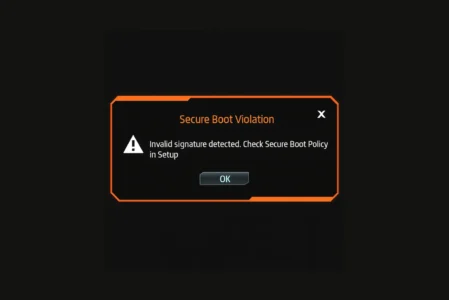
You turn on your computer and, instead of Windows loading, a black screen or red panel displays Secure Boot Violation. The system refuses to go further.
This can happen after a Windows update, a hardware change or an attempt to install Linux. The motherboard detects a change it does not recognise and blocks startup for security reasons. Restoring access usually only requires changing a few UEFI settings; it takes less than five minutes and does not require advanced technical skills.
In this article
Secure Boot Violation: the UEFI error message
When Secure Boot Violation appears during startup, UEFI’s built-in security mechanism has blocked the system. Secure Boot checks that every startup component—the bootloader, kernel and critical modules—is signed by a trusted key. If that check fails, the system stops to prevent potentially malicious software from running.
Common causes include an unsigned or damaged bootloader, a Microsoft key that has expired or been revoked, a Linux distribution that needs a shim or custom keys, and a poorly prepared USB drive or DVD with an incomplete or incorrect ISO image. The message does not necessarily mean the system is infected: the UEFI firmware simply does not recognise the startup software as trusted.
What should you do after a Secure Boot violation?
A red Secure Boot Violation screen can be worrying, but it is usually a signature or compatibility problem. There are several ways to resolve it.
Disable Secure Boot on your PC
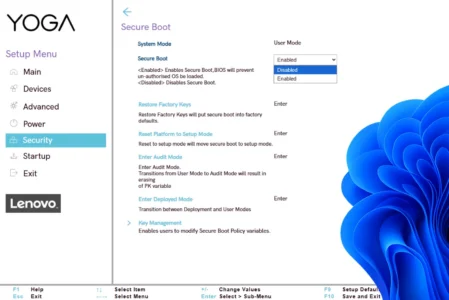
You can disable Secure Boot in UEFI firmware (BIOS). Restart the computer, open the UEFI menu using the key for your manufacturer, then find Secure Boot under the Boot or Security tab. Setting it to Disabled stops signature checks at startup and can boot an OS or medium that is not recognised as signed.
 assistouest.fr
Disabling Secure Boot removes an important security layer. It protects against malware such as rootkits that can load before the operating system. If you disable it, use only trusted media and do so only when necessary.
Use an operating system signed by Microsoft
The most reliable way to avoid a Secure Boot Violation is to use an operating system recognised and signed by Microsoft. UEFI-certified computers check digital signatures trusted by Microsoft’s key database. When the bootloader is signed and approved, firmware allows the system to start. That is why current Windows releases and some Linux distributions work with Secure Boot enabled.
On Linux, compatibility is provided by shim: a small bootloader signed by Microsoft that starts GRUB and then the Linux kernel. Major distributions including Ubuntu, Fedora and Debian include it and boot normally on Secure Boot machines.
| Operating system | Support | Why it works |
|---|---|---|
| Windows 8 / 10 / 11 | Native | Bootloaders and drivers are signed by Microsoft. |
| Ubuntu and derivatives such as Linux Mint | Shim | A Microsoft-signed shim starts GRUB and the kernel. |
| Fedora / RHEL | Shim | Official Secure Boot support. |
| Debian 10+ | Shim | Includes a signed shim compatible with Microsoft keys. |
| openSUSE / SUSE | Shim | Signed bootloader compatible with Secure Boot. |
| Other distributions such as Arch or Gentoo | No | Requires manual bootloader signing or a custom shim. |
If the BIOS/UEFI does not offer a Secure Boot disable option, the manufacturer has locked the feature. In that case, the way to proceed is to install a Secure-Boot-compatible operating system recognised by Microsoft’s keys.
Configure Secure Boot with your own keys (Machine Owner Key)
Arch Linux or Gentoo users, and users who compile a custom kernel, can manage signatures with MOK (Machine Owner Key). Generate a key pair, sign the bootloader and kernel with the private key, then import the public key into UEFI so it becomes trusted. An operating system not signed by Microsoft can then boot while integrity checking remains enabled.
In practice you usually have to disable Secure Boot temporarily to enrol the keys. Once MOK keys are imported, re-enable it for a secure boot process suited to customised systems. This balances security and flexibility, but requires technical knowledge: a configuration mistake can make the system unbootable.
Don’t let the algorithm decide for you
Add Assistouest to your preferred sources on Google so you can find our guides faster when you search for an IT solution.
Best practice
When Secure Boot Violation occurs, the most reliable solution is to use a current, signed operating system, whether Windows or a compatible Linux distribution. Disabling Secure Boot can help temporarily but should not become permanent. Check the system, installation media and UEFI settings before choosing the appropriate solution.
If the PC remains blocked at startup or the error persists, do not keep trying changes that may worsen the problem. I can diagnose and repair this type of startup fault in Nantes.
The content will unlock automatically after verification.