Every day, billions of DNS requests pass through the hands of a small number of mostly American companies. Google DNS, Cloudflare and OpenDNS have become fast, free standards, often without users realising it. That dominance raises an essential question: where does our browsing data go, and who can see it?
In response to this digital-sovereignty issue, the European Union launched DNS4EU, its own public DNS resolver. The project is intended to give European internet users more privacy, security and independence. What does this new DNS actually change, and should you use it now? Here is what you need to know, including how to enable it in Windows.
In this article
The European Union creates its own DNS resolver
DNS4EU is the first public recursive DNS service backed by the European Union. Available since 9 June 2025, it offers a European alternative to dominant services such as Google DNS and Cloudflare, with strict privacy, transparency and digital-sovereignty requirements.
The infrastructure is hosted in the European Union and operated by a cybersecurity consortium led by Whalebone. Its servers are distributed across at least 14 Member States and connected through anycast routing to reduce latency. Data processing complies with the GDPR, with access strictly limited to metadata.
On security, DNS4EU uses the most advanced standards. DNSSEC checks request integrity, while DoT (DNS over TLS) and DoH (DNS over HTTPS) encrypt exchanges to prevent interception. These technologies, once reserved for advanced users, are available by default here. For alternatives, see our selection of the best fast and secure DNS servers.
The five DNS profiles offered by DNS4EU
DNS4EU provides five configurations for different needs, from completely unrestricted browsing to stronger protection against advertising and sensitive content. Each profile has its own IPv4 and IPv6 addresses and can also be used over encrypted DoH or DoT.
- Unfiltered: full Internet access with no blocking, for absolute neutrality.
- Protective: automatically blocks malware and phishing sites; the best compromise.
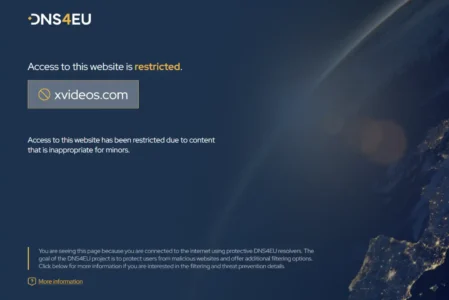
- Protective + Child: adds parental filtering for content unsuitable for children.
- Protective + Ads: also blocks advertising and tracking domains.
- Full Protection: the complete package for threats, advertising and adult content.
| Profile | IPv4 | IPv6 | Encrypted hostname (DoH / DoT) |
|---|---|---|---|
| Unfiltered | 86.54.11.100 86.54.11.200 |
2a13:1001::86:54:11:100 2a13:1001::86:54:11:200 |
unfiltered.joindns4.eu |
| Protective | 86.54.11.1 86.54.11.201 |
2a13:1001::86:54:11:1 2a13:1001::86:54:11:201 |
protective.joindns4.eu |
| Protective + Child | 86.54.11.12 86.54.11.212 |
2a13:1001::86:54:11:12 2a13:1001::86:54:11:212 |
child.joindns4.eu |
| Protective + Ads | 86.54.11.13 86.54.11.213 |
2a13:1001::86:54:11:13 2a13:1001::86:54:11:213 |
noads.joindns4.eu |
| Full Protection | 86.54.11.11 86.54.11.211 |
2a13:1001::86:54:11:11 2a13:1001::86:54:11:211 |
child-noads.joindns4.eu |
Enable DNS4EU parental filtering in Windows
DNS4EU requires no third-party software. To enable child protection (the Protective + Child profile) on a Windows PC, one PowerShell command is enough. The operation takes less than a minute and applies to the network connection you choose, whether Wi-Fi or Ethernet.
Step 1: find your network connection
Open PowerShell as administrator: click Start, type PowerShell, right-click it and choose Run as administrator. First list your active connections:
Get-NetAdapter | Where-Object Status -eq 'Up'Note the exact name in the Name column, for example Wi-Fi or Ethernet. You will use that name in the next step.
Step 2: apply DNS4EU parental DNS
Replace "Wi-Fi" with the name found in step 1, then run:
# DNS4EU - Child profile (Protective + Child)
# Replace "Wi-Fi" with your connection name

Set-DnsClientServerAddress -InterfaceAlias "Wi-Fi" -ServerAddresses "86.54.11.12","86.54.11.212","2a13:1001::86:54:11:12","2a13:1001::86:54:11:212"
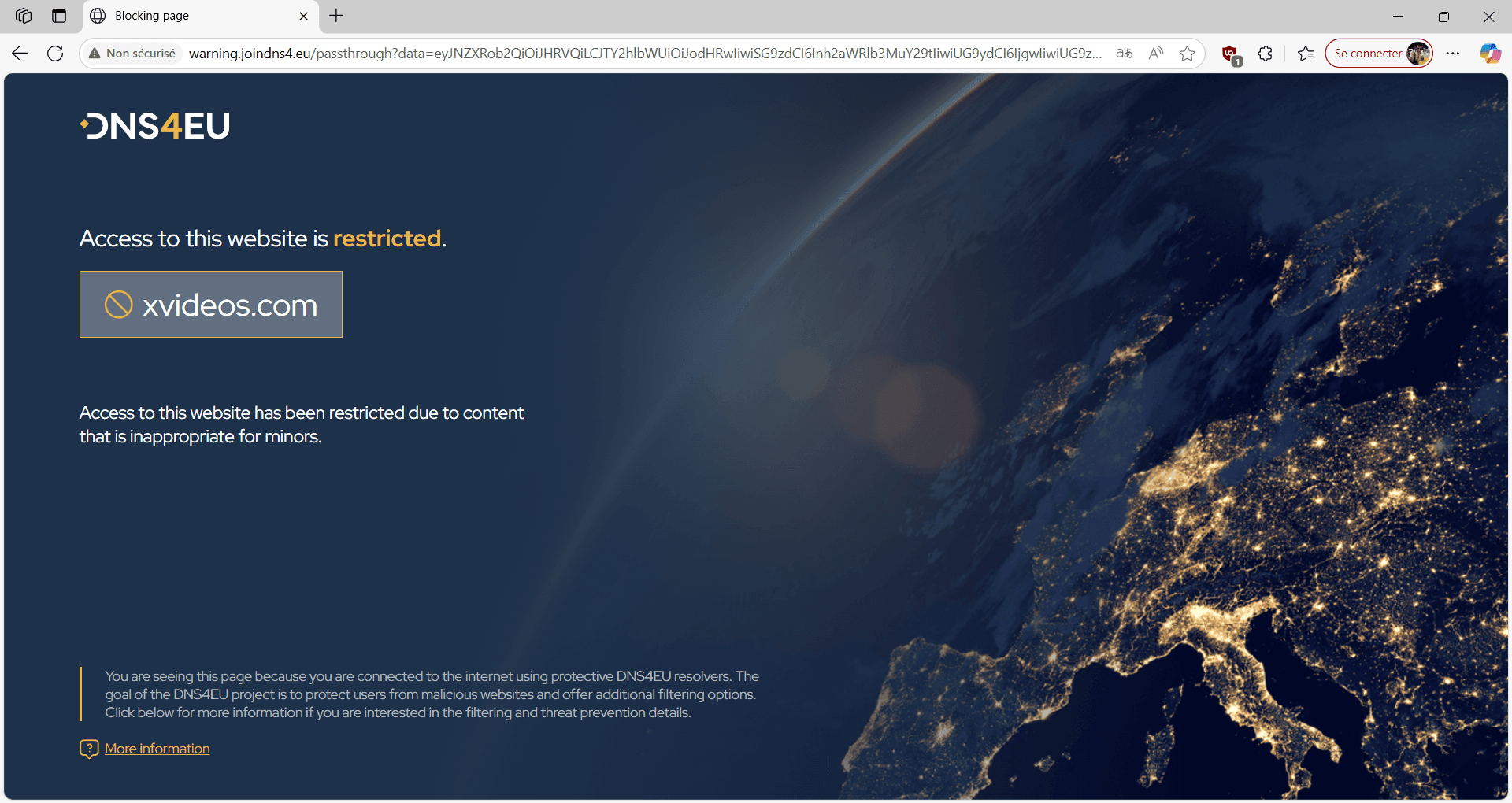
One command applies IPv4 and IPv6 servers at the same time. Your devices now use a secure, filtering European DNS. Sites unsuitable for children are blocked at network level, whatever application or browser is used.
Check that DNS is active
To confirm that Windows is using DNS4EU, display the DNS servers configured for the connection:
Get-DnsClientServerAddress -InterfaceAlias "Wi-Fi"You should see 86.54.11.12 and 86.54.11.212. You can also test name resolution directly against the parental server:
Resolve-DnsName joindns4.eu -Server 86.54.11.12If the command returns a response without an error, your computer is querying the DNS4EU parental DNS server.
Return to automatic DNS
To remove DNS4EU and let Windows obtain DNS servers automatically from your router again, reset the connection:
Set-DnsClientServerAddress -InterfaceAlias "Wi-Fi" -ResetServerAddressesThe connection returns to automatic mode, as it was before the change.
Should you adopt DNS4EU now?
DNS4EU is a solid option for anyone who wants to move away from American resolvers without sacrificing performance. It encrypts requests, filters threats and complies with the GDPR, all free of charge. While Google DNS and Cloudflare are run by companies subject to US law, DNS4EU keeps data on European soil. That is a concrete sovereignty benefit for individuals, schools and businesses alike.
The service is still young, launched just over a year ago. Its coverage and speed are improving as nodes are deployed, although a long-established resolver such as Cloudflare still has more global points of presence. For strictly European browsing, the difference is negligible in everyday use.
Keep one limitation in mind: a filtering DNS protects at network level, but it does not remove traces left locally on the PC. For complete protection, combine DNS4EU with a Windows privacy cleaner that clears histories and caches, or move filtering to the whole network with Pi-hole.
We allow some readers to view our articles for free with an ad blocker. However, their number is currently too high for us to keep this access available to everyone.
You can disable your ad blocker to continue reading immediately, subscribe to enjoy all our content without ads, or come back a little later when the pressure has eased.
Access will be restored automatically as soon as the situation allows.