
Your computer still works, but it does not meet the hardware requirements for Windows 11? Instead of replacing it, you can install ChromeOS Flex, Google’s free operating system, to keep using your PC for web browsing, email, videos, and documents.
ChromeOS Flex includes most of the Chromebook experience and runs on many computers that originally came with Windows. It does not require TPM 2.0 or a processor on Windows 11’s compatibility list.
You install it from a USB drive, and you can try ChromeOS Flex without removing Windows first. This lets you check that your hardware works before replacing your old operating system for good.
In this article
- ChromeOS Flex runs on many PCs that are incompatible with Windows 11
- Prepare your computer before replacing Windows
- Create a ChromeOS Flex installation USB drive
- Boot your old Windows PC from the USB drive
- Try ChromeOS Flex before removing Windows
- Install ChromeOS Flex instead of Windows
- Install Linux apps on ChromeOS Flex
- ChromeOS Flex gives old PCs a second life
ChromeOS Flex runs on many PCs that are incompatible with Windows 11
Since standard support for Windows 10 ended in October 2025, many working computers have not met the requirements for an official upgrade to Windows 11. Microsoft offers Extended Security Updates through October 12, 2027 for eligible Windows 10 PCs enrolled in the ESU program, but this does not solve the longer-term question of what to do with them.
ChromeOS Flex is an interesting way to extend their useful life. Unlike Windows 11, it does not require TPM 2.0, a hardware security component whose absence prevents some computers from officially installing Microsoft’s system.
Google sets accessible hardware requirements for ChromeOS Flex.
| Component | Minimum requirement |
|---|---|
| Processor | 64-bit Intel or AMD |
| Memory | 4 GB RAM |
| Internal storage | 16 GB |
| Boot | Boot from a USB drive |
| TPM 2.0 | Not required |
| Virtualization | Not needed to install ChromeOS Flex |
These requirements make it possible to install ChromeOS Flex on many laptops and desktop PCs. However, 32-bit processors and ARM architectures are not supported. Google also advises against using Intel or AMD processors and graphics chips released in 2012 or earlier.
Meeting the minimum requirements does not guarantee that every device will work. Some Wi-Fi and graphics cards, as well as laptop-specific features, are not compatible with ChromeOS Flex. Google publishes a list of certified models, but computers that are not on the list may still work.
Before removing Windows, you can boot ChromeOS Flex directly from a USB drive and check whether it is compatible with your computer.
Prepare your computer before replacing Windows
A full ChromeOS Flex installation erases the operating system, apps, partitions, and files on your computer’s internal storage. Before you begin, back up your documents, photos, and other important data to an external drive or online storage.
Also check whether the software you currently use will work for you. ChromeOS Flex mainly uses web apps and cannot install Windows programs in .exe format directly. It also does not include the Google Play Store for Android apps, unlike many Chromebooks.
However, compatible computers can run Linux apps such as LibreOffice, GIMP, and Visual Studio Code through the built-in Linux environment. We will return to this option after installation.
To prepare the installer, you need a USB drive with at least 16 GB of capacity, an internet connection, and the Google Chrome browser. Creating the installer will erase the entire USB drive.
Create a ChromeOS Flex installation USB drive
Google provides an official utility that downloads ChromeOS Flex and prepares a bootable USB drive. The tool is called Device Recovery Utility in the Chrome Web Store.
It runs directly in Google Chrome, so you do not need to download an ISO image manually or use a tool such as Rufus.
Use Google Chrome to create the USB drive
Although Microsoft Edge is based on Chromium and accepts Chrome Web Store extensions, I recommend using Google Chrome for this process. During my test in Edge, I ran into a problem with the recovery utility, while Google’s official instructions cover its use in Chrome.
Here is how the main browsers compare for this procedure.
| Browser | Creating the USB drive |
|---|---|
| Google Chrome | Officially recommended method |
| Microsoft Edge | Extension can be installed, but users report errors |
| Mozilla Firefox | Chrome extension is not compatible with Firefox |
If you normally use Edge or Firefox, you can install Google Chrome temporarily to prepare your USB drive, then return to your usual browser when you are done.
A separate window opens and guides you through the three steps to create the installer.
Select ChromeOS Flex in the recovery utility
In Device Recovery Utility, click Get started, then choose the option to select a model from a list. The tool will ask you to choose the manufacturer and product for the system you want to install.
In the first drop-down menu, select Google ChromeOS Flex. In the second, choose ChromeOS Flex, then click Continue.
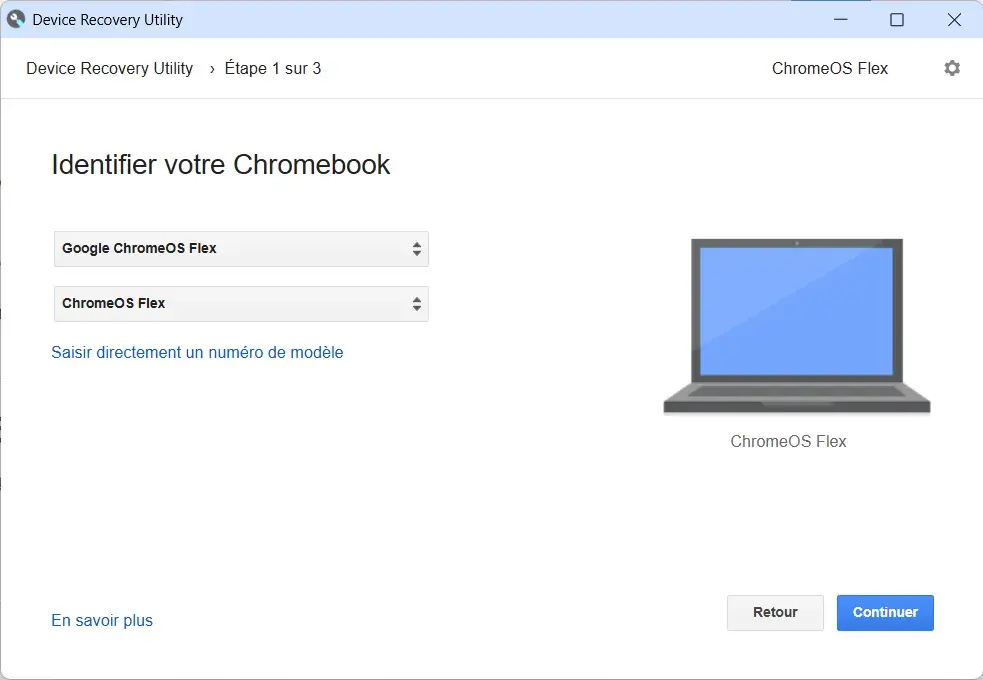
This selection tells the utility which system image to download. You do not need to enter your computer’s brand or model.
Choose the USB drive you will use to install ChromeOS Flex
Connect your USB drive to the computer. Device Recovery Utility detects available removable drives and asks you to choose the one that will receive the ChromeOS Flex image.
In my screenshot, I used a 119.2 GB SanDisk Extreme Pro, but a USB drive with at least 16 GB is enough to create the installer.
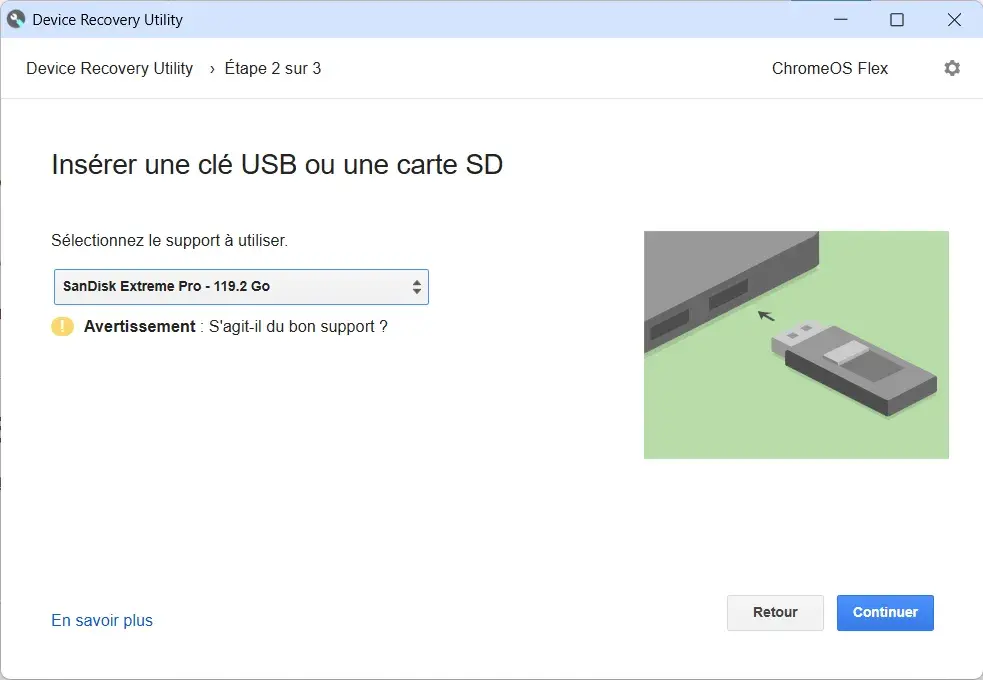
Check the drive name and capacity carefully so you do not select the wrong device. All data on the selected USB drive will be erased in the next step.
After selecting the correct drive, click Continue.
Download ChromeOS Flex and create the installation media
The utility displays a final summary with the selected USB drive. A warning reminds you that the drive’s data and partitions will be erased.
Click Create to download ChromeOS Flex and write the system image to the USB drive.
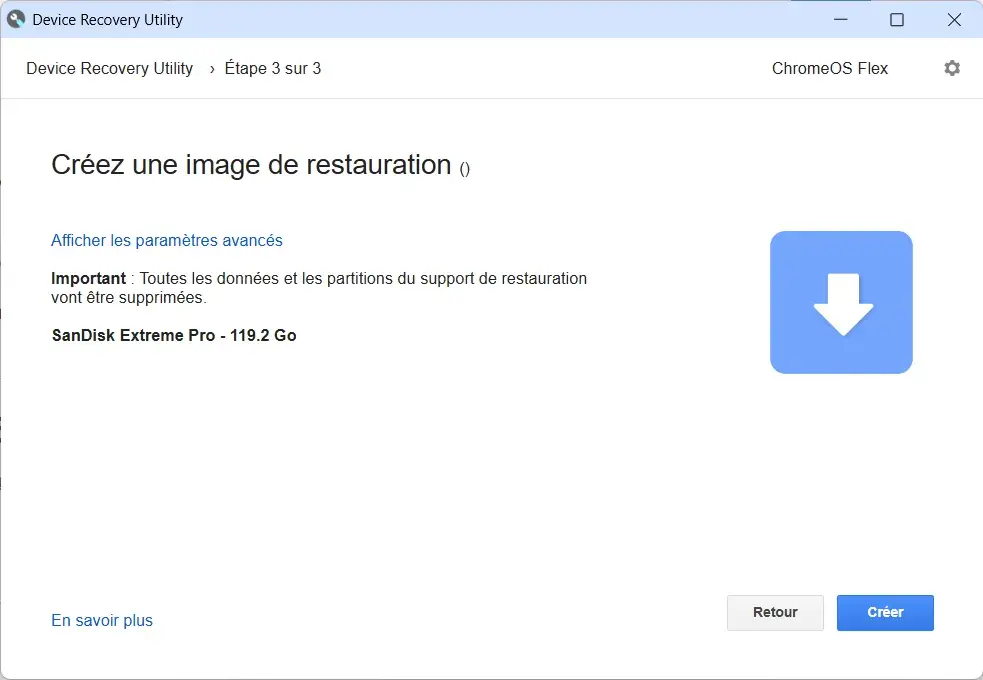
Device Recovery Utility downloads the required files, prepares the partitions, and checks the finished drive. The process takes several minutes, depending on your internet connection and USB drive speed.
When the utility confirms that the recovery media is ready, you can remove the USB drive. So far, only its contents have been erased. Windows is still on your computer.
You can now use the USB drive to boot your PC into ChromeOS Flex.
Boot your old Windows PC from the USB drive
To start ChromeOS Flex, shut down the computer where you want to install it, then connect the USB drive you just prepared.
When the computer starts, open the boot device menu. The key depends on your computer’s manufacturer and model. It is F12 on many Dell and Lenovo PCs, F9 on some HP models, or Esc and other function keys on other computers.

 assistouest.fr
Press the relevant key repeatedly as soon as the PC starts, then select your USB drive from the list of available devices.
If the USB drive does not appear, open the BIOS or UEFI settings and check that booting from USB is allowed. Google recommends keeping Secure Boot enabled on compatible computers. You do not need to disable this protection to install ChromeOS Flex.
When the computer successfully boots from the USB drive, the ChromeOS Flex logo appears, followed by the welcome screen.
Try ChromeOS Flex before removing Windows
One advantage of ChromeOS Flex is that you can try it directly from the USB drive without installing anything on your internal storage.
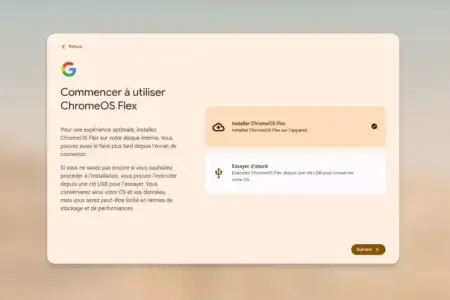
On the welcome screen, click Get started, then choose Try it first. ChromeOS Flex starts in a temporary environment that leaves your Windows installation and files on the drive untouched.
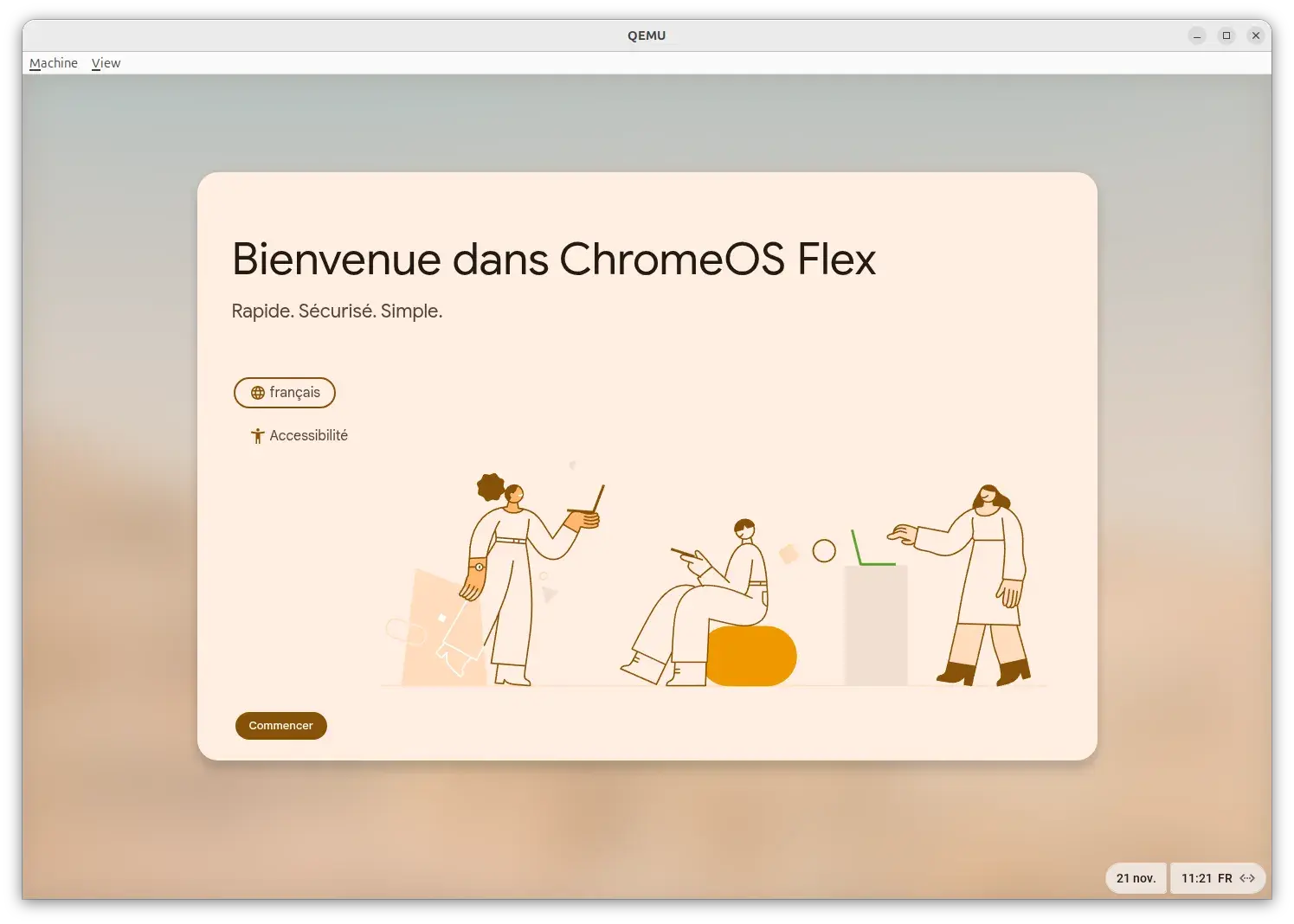
Explore the desktop, open Google Chrome, connect to the internet, and check that your main devices work. Pay particular attention to Wi-Fi, sound, the keyboard, touchpad, and webcam if you use a laptop.
Also check sleep mode, display resolution, and video output if you use an external monitor. Running from a USB drive has some limitations: performance may be slower than from an SSD, storage space is limited, and automatic system updates are unavailable in this temporary session.
This is still the best way to detect hardware incompatibilities before erasing Windows. If your computer works properly and ChromeOS Flex meets your needs, you can continue with the full installation.
Install ChromeOS Flex instead of Windows
When you have finished checking the system, sign out of your ChromeOS Flex session. On the sign-in screen, select Install ChromeOS Flex.
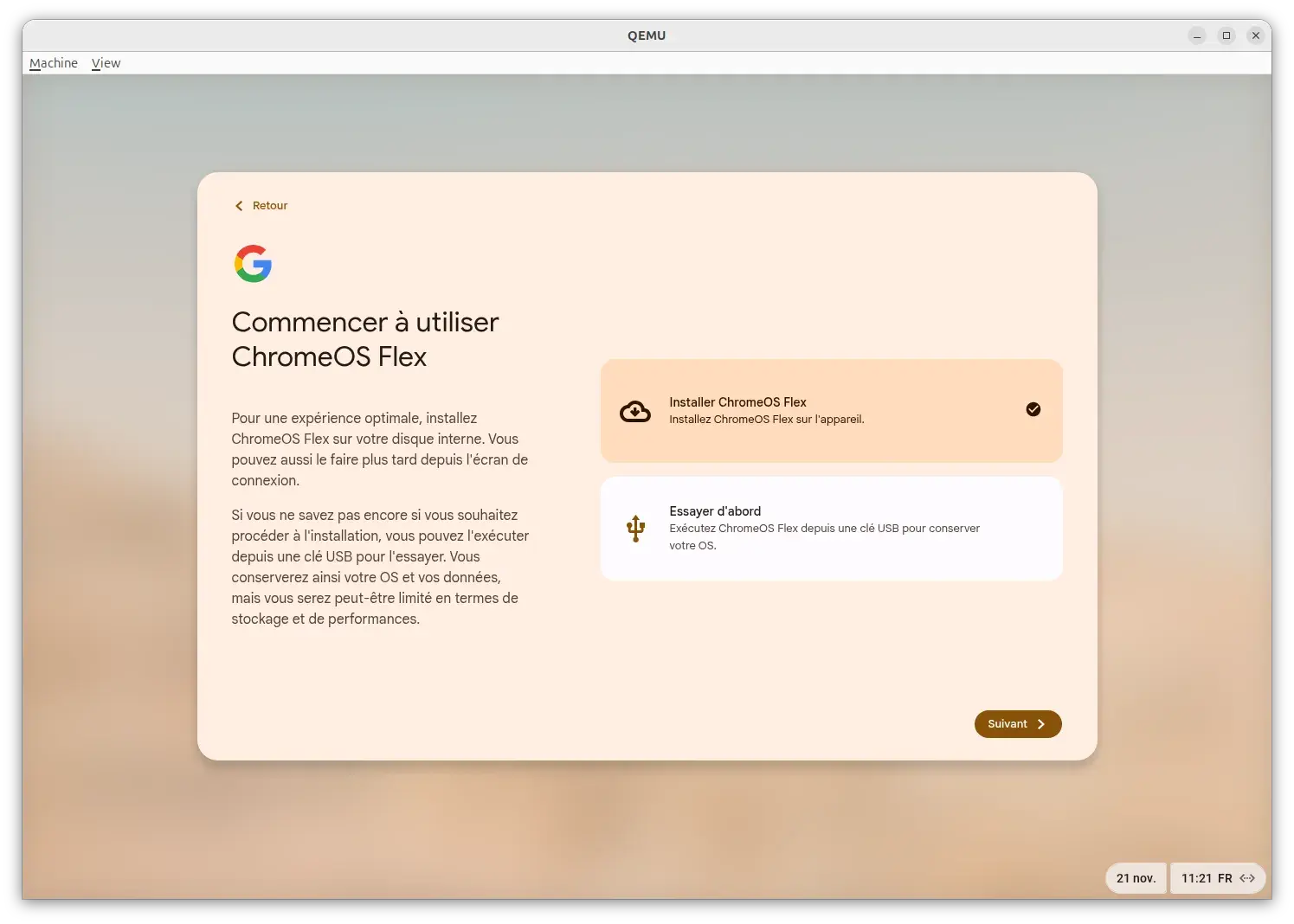
If you have not started a trial session, you can also choose to install it directly from the welcome screen.
The utility then warns that the computer’s data will be erased. This replaces Windows and deletes the data on the internal drive. ChromeOS Flex does not officially support dual booting Windows and ChromeOS Flex from the same drive.
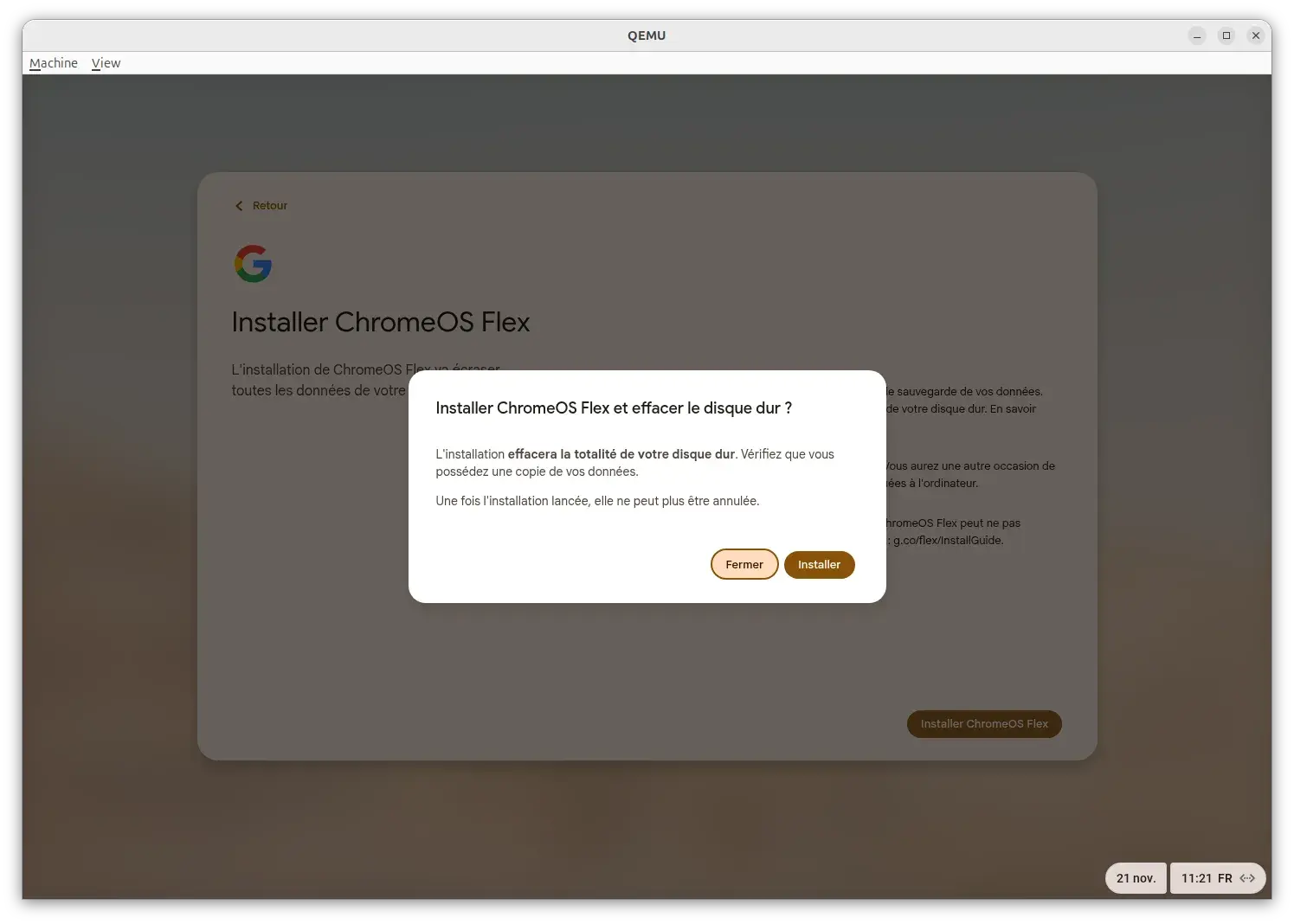
Make sure your backups are complete and disconnect any external drives that are not needed for installation. Then click Install ChromeOS Flex to confirm.
The system prepares the internal drive and copies the files it needs. When installation is complete, the computer shuts down automatically.
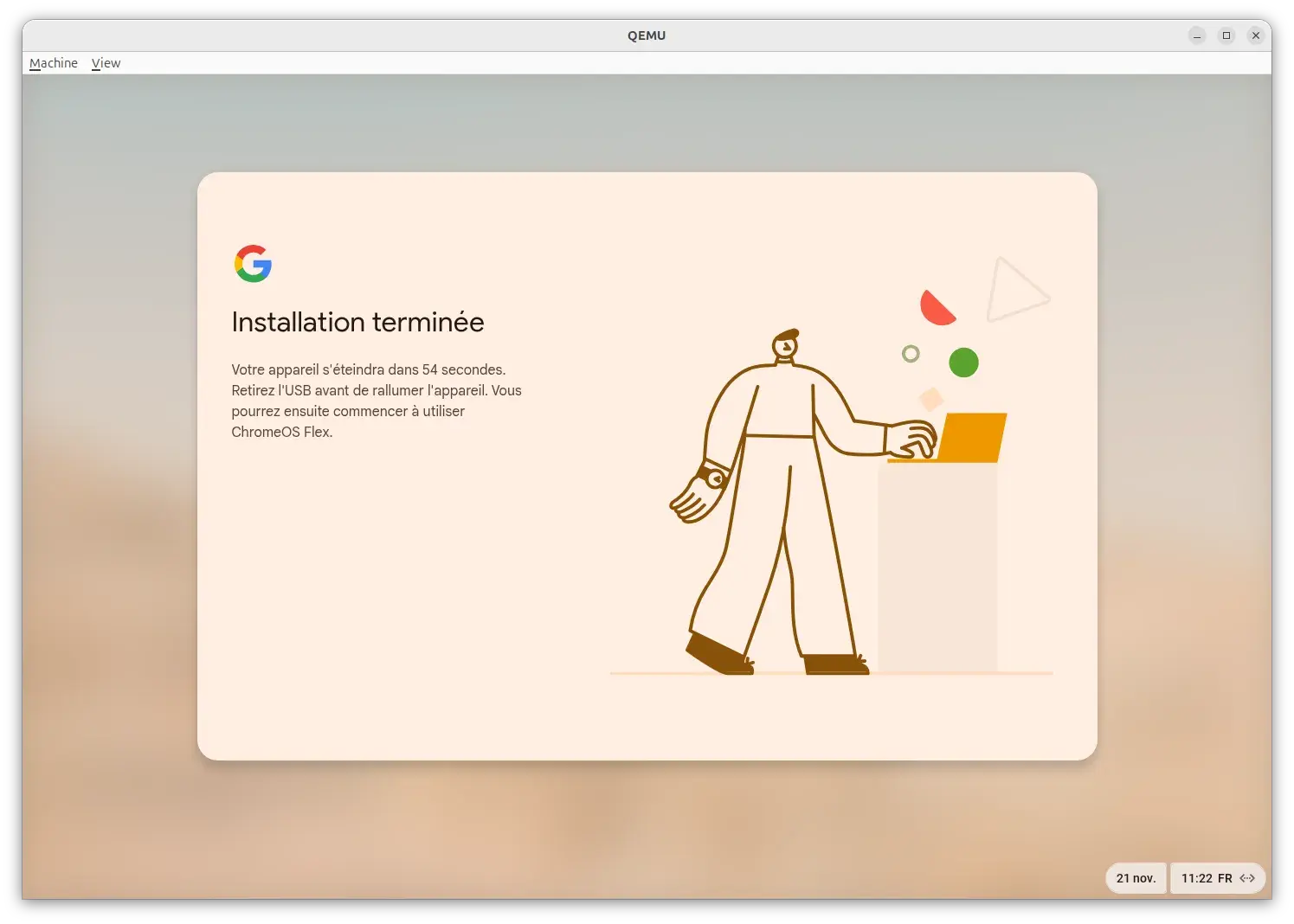
Remove the USB drive, then turn your computer back on. ChromeOS Flex now starts from the internal storage, without the installer.
Set up ChromeOS Flex after installation
On first startup, ChromeOS Flex guides you through setup. Choose your language, check the keyboard layout, and connect your computer to the internet.
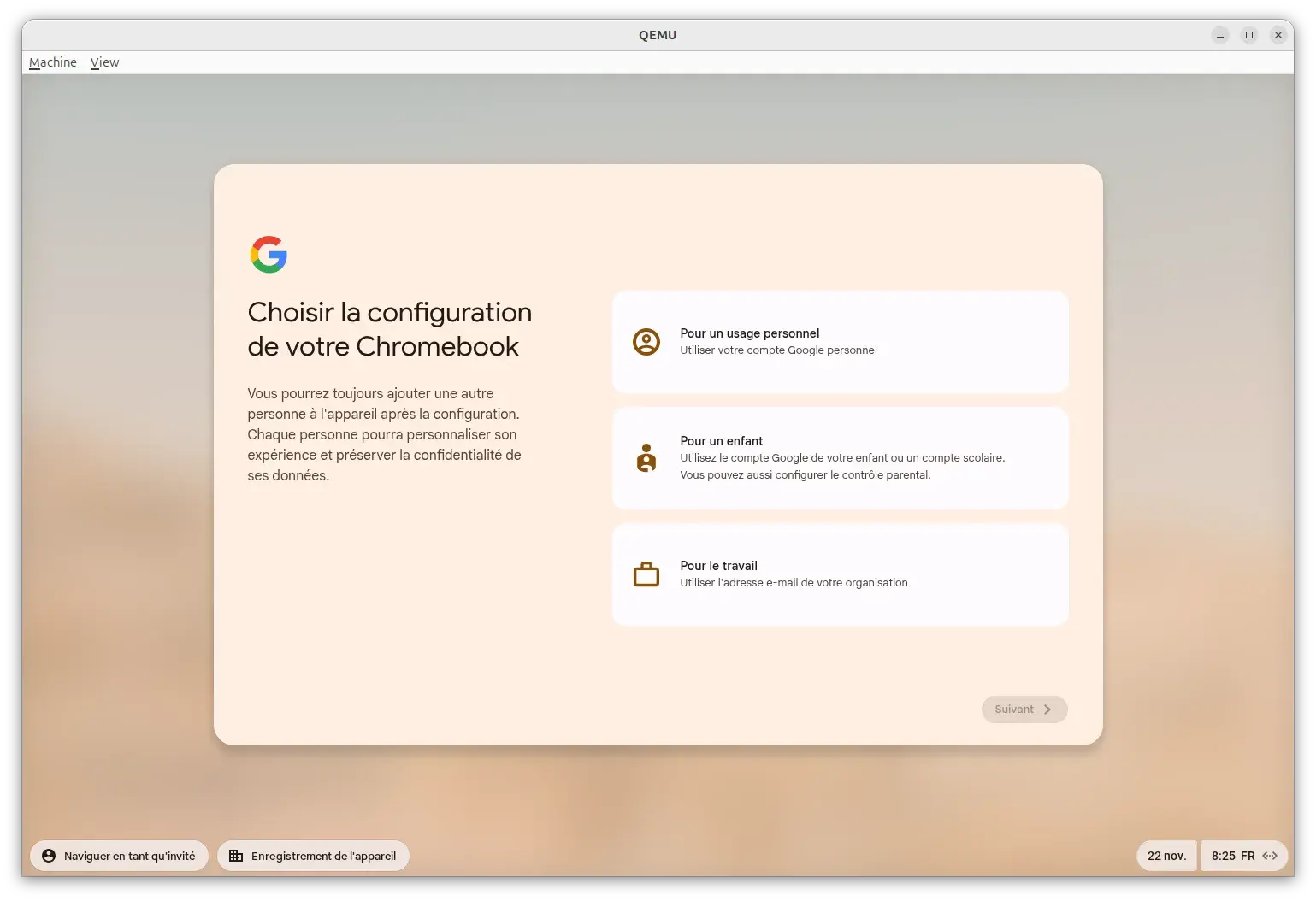
You can then sign in to your Google Account to restore your Chrome bookmarks, synced passwords, and files stored in Google Drive. ChromeOS Flex also has a Guest mode for temporary access without a Google Account, but it does not keep browsing data after you sign out.
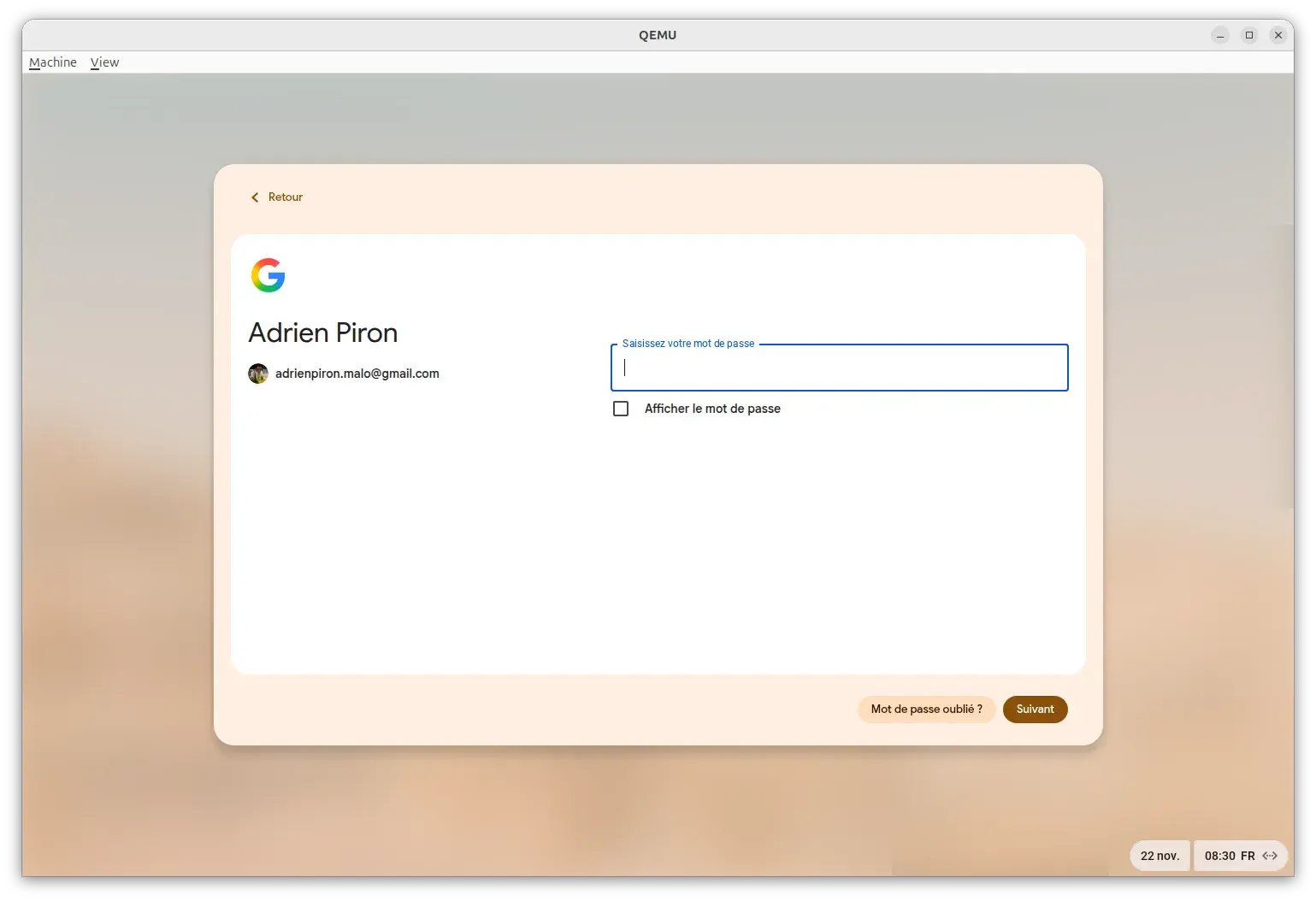
Once setup is complete, you reach the ChromeOS Flex desktop with its app launcher, taskbar, and Google Chrome browser. System updates are managed automatically when the computer is online.
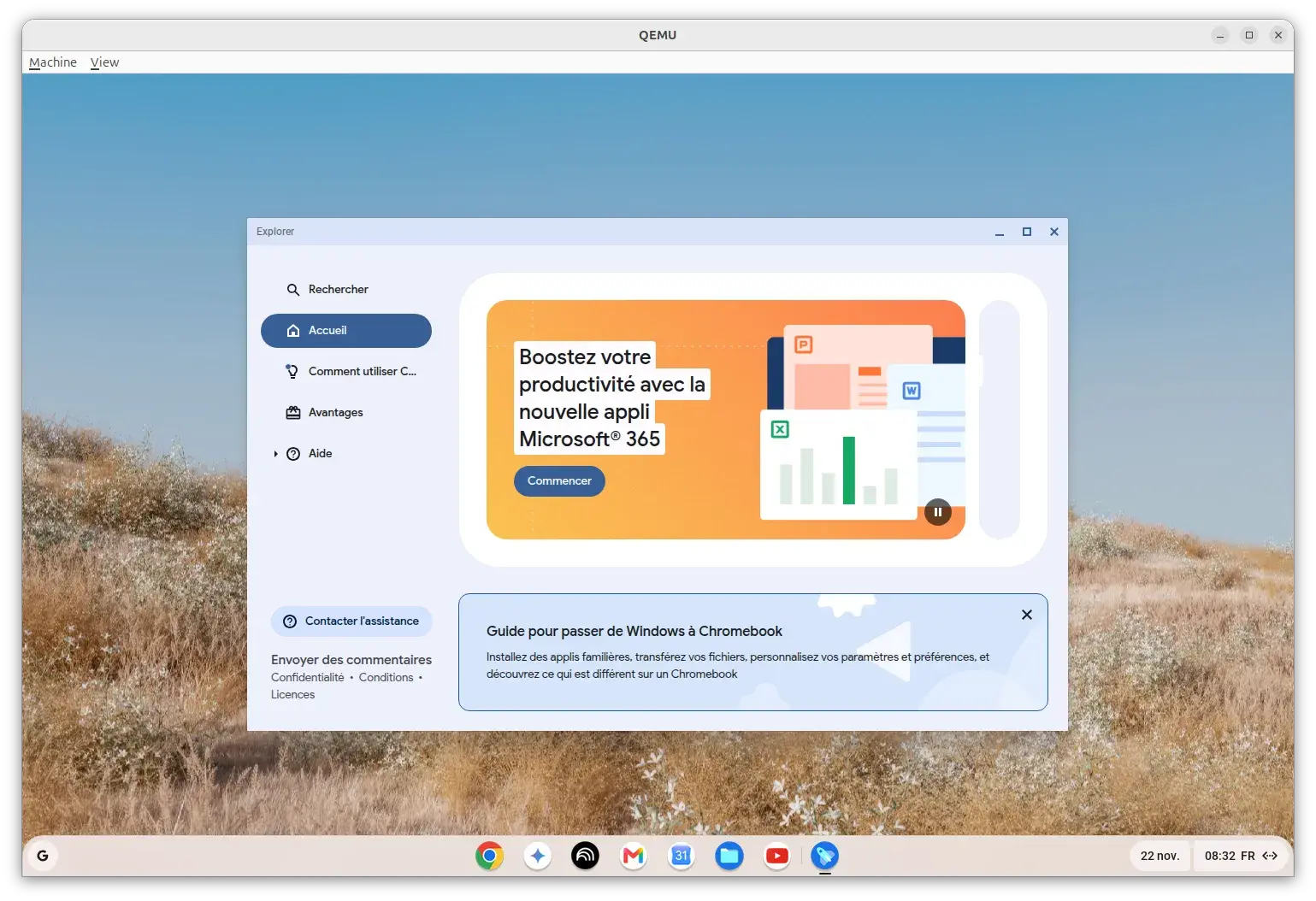
To check the installed version and look for updates manually, open ChromeOS settings and go to About ChromeOS.
Your PC is now ready for web browsing, web apps, and everyday office work. There is one more option if you want to keep installing full desktop software outside the browser.
Install Linux apps on ChromeOS Flex
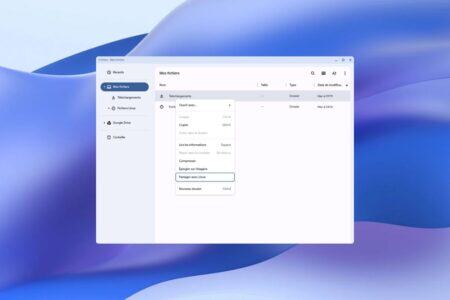
ChromeOS Flex includes a Linux environment that can run apps such as LibreOffice, GIMP, VLC, and Visual Studio Code. These programs run in Debian and open on the ChromeOS desktop in regular windows.
On recent versions of ChromeOS, Google has also updated this environment with the Baguette architecture, introduced for new Linux installations starting with ChromeOS 147. Debian now runs directly in a virtual machine, without the container layer used by the older Crostini architecture.
If your hardware is compatible, you can enable Linux in ChromeOS settings, then install software with APT or add a graphical app store.
ChromeOS Flex gives old PCs a second life
ChromeOS Flex is an interesting option when your computer still works properly but no longer meets the requirements for Windows 11. It is free to install, does not require TPM 2.0, and can be tried from a USB drive, making it accessible for everyday use.
On my mini PC with an Intel N100 processor, 4 GB of RAM, and an NVMe SSD, ChromeOS Flex felt very responsive after I replaced Windows. Performance depends on the hardware, but this result shows that a modest computer can still provide a comfortable experience with the right operating system.
If you mainly use your PC for the internet, documents, and email, it is worth trying ChromeOS Flex before replacing your hardware. If your computer does not run it properly, you can also consider a Linux distribution designed for older PCs.