Have you installed an M.2 SSD in your computer only to find that an older hard drive or SATA SSD has disappeared? This can be completely normal. On some motherboards, M.2 slots and SATA connectors share hardware resources, which can prevent them from being used at the same time.
A computer may have six SATA connectors without being able to use all of them while an M.2 SSD is installed. This limitation depends on the motherboard design and the slot you choose.
In this article
An M.2 SSD can disable SATA ports
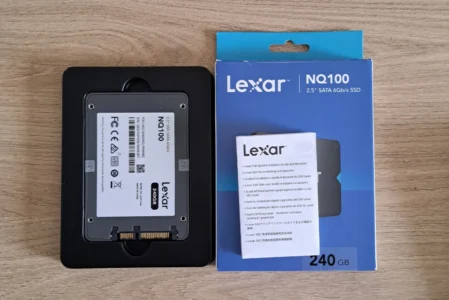
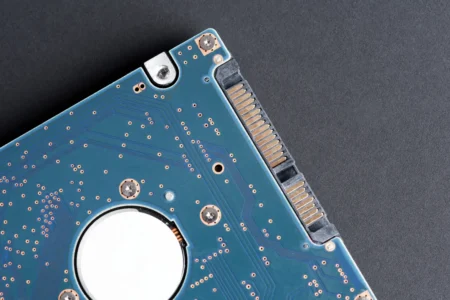
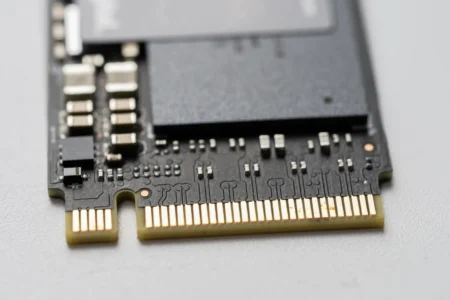
Storage devices communicate with the processor and chipset through different interfaces. SATA drives use a SATA controller, while M.2 NVMe SSDs communicate over PCI Express.
To offer more connection options without adding more hardware resources, some manufacturers make several connectors share the same communication lanes.
When an M.2 SSD occupies a slot that uses these shared resources, some SATA ports may be disabled. The M.2 SSD takes priority over the affected connectors.
Example: the ASUS TUF GAMING B550-PLUS motherboard
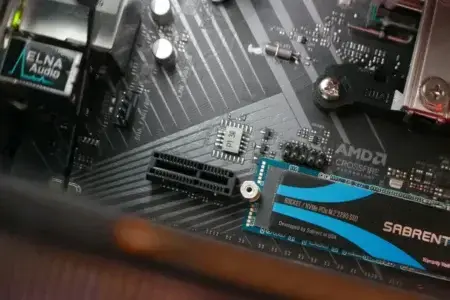
The ASUS TUF GAMING B550-PLUS motherboard has six SATA ports and two M.2 slots. However, when an SSD is installed in the second M.2 slot (M.2_2), ports SATA6G_5 and SATA6G_6 become unavailable.
This limitation applies whenever the slot is occupied, whether the M.2 SSD uses SATA or PCIe mode. If a hard drive is already connected to SATA port 5 and you then install an SSD in slot M.2_2, the SATA drive will no longer be detected.
The drive is not faulty, and its data has not disappeared. The SATA connector is simply unavailable in this configuration.
Some motherboards let you choose how resources are shared
This sharing is not always automatic. On some motherboards, the BIOS lets you prioritise M.2 SSD performance or SATA port availability. For example, the ASUS PRIME Z370-A has an M.2_2 PCIe Bandwidth Configuration setting.
Two modes are available:
| PCIe mode | Result |
|---|---|
| PCIe x2 | The SSD uses two PCIe lanes, and SATA ports 5 and 6 remain active. |
| PCIe x4 | The SSD uses four PCIe lanes, and SATA ports 5 and 6 are disabled. |
x4 mode gives the M.2 SSD more bandwidth, while x2 mode keeps both SATA ports available.
If you need SATA ports 5 and 6 and want to keep both available, x2 mode is preferable, but it limits the M.2 SSD’s maximum transfer speed.
How to check whether your motherboard shares SATA and M.2 ports
Not every motherboard has this limitation. Some have enough resources to use their M.2 slots and SATA ports at the same time.
The easiest way to check is to read your motherboard manual. Look for sections called Storage, M.2, Shared Bandwidth or similar. The manufacturer will indicate which connectors become unavailable when an M.2 slot is in use.
If you do not know your motherboard’s model, open Windows System Information by pressing Windows + R, then type msinfo32. The motherboard manufacturer and model are usually listed under the baseboard information.
How can you access a SATA drive that disappeared after installing an M.2 SSD?
If your hard drive disappeared immediately after you installed an M.2 SSD, first check the shared connectors in your motherboard manual. If the conflict is confirmed, the simplest fix is to connect the drive’s data cable to another available SATA port.
Shut down the computer completely, unplug its power supply, then move the SATA cable to a connector that does not share resources with the M.2 SSD.
When you restart the computer, check that the drive appears in the BIOS and in Windows. If it contains the operating system, also check the boot order.
If no SATA ports are left, you can use the drive as external storage with a SATA-to-USB adapter.
We allow some readers to view our articles for free with an ad blocker. However, their number is currently too high for us to keep this access available to everyone.
You can disable your ad blocker to continue reading immediately, subscribe to enjoy all our content without ads, or come back a little later when the pressure has eased.
Access will be restored automatically as soon as the situation allows.