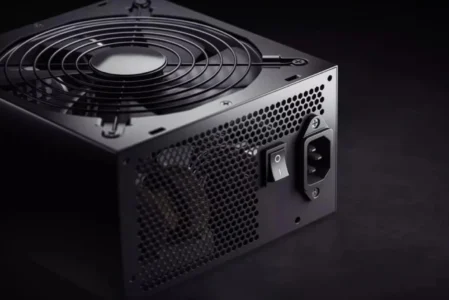

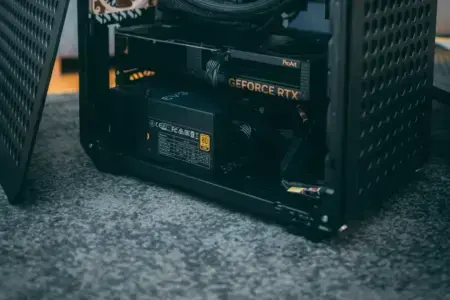
Is the fan in your PC power supply not spinning even though the computer is running? This is perfectly normal with power supplies that use a semi-passive cooling mode. The fan starts only when the PSU needs extra cooling.
Its behavior also depends on the fan curve set by the manufacturer. Some power supplies start the fan as power draw increases, while others wait until the internal temperature is higher.
In this article
Your power supply fan does not need to spin all the time
Many power supplies have a semi-passive fan mode (Zero RPM on Corsair models or Hybrid Mode on Seasonic models). This feature lets the fan stop completely when the heat generated by the PSU is low enough.
When you browse the web, watch a video or work on a document, your computer uses relatively little power. The components inside the PSU generate less heat, so its heatsinks can cool it quietly without the fan running.
As power draw increases, the fan gradually starts to remove heat. However, the point at which it starts depends directly on your power supply’s fan curve.
The fan curve determines when the PSU fan starts
Each manufacturer sets a fan curve to suit the design of its power supply. The curve determines when the fan starts and how fast it spins based on electrical load, internal temperature or both.
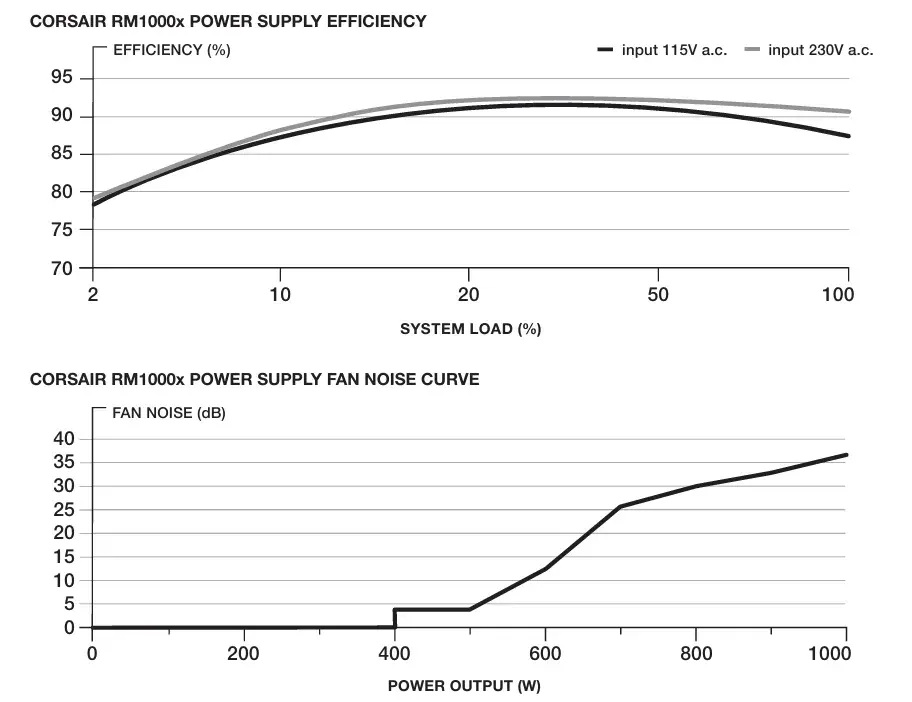
For example, the fan on some versions of the 1,000 W RM1000x stays off until the load reaches about 400 W. A computer drawing 350 W can therefore keep running while its power supply fan remains completely still.
The wattage printed on a power supply is its maximum output capacity, not your computer’s constant power consumption. You can calculate the power your PC needs to better understand the load your setup places on the PSU.
Other models use a different threshold or start the fan according to the temperature of their internal components. Two power supplies with the same rated wattage can behave very differently.
Here are a few examples of fan modes used by manufacturers:
| Power supply | Fan behavior |
|---|---|
| Corsair RM1000x | Zero RPM mode with a threshold of about 400 W on the Corsair curve shown above |
| Seasonic FOCUS PLUS | Hybrid mode stops the fan at low load, with a button to enable continuous cooling |
| be quiet! Dark Power 14 | Choice between continuous fan operation and semi-passive mode |
A powerful, efficient power supply can produce little enough heat to run without active cooling for a while.
To find out what to expect from your model, look up its model number on the manufacturer’s website and check its fan curve. Some power supplies also have a switch that changes how the fan operates.
How to check whether your power supply fan works
Before running a test, check whether your power supply has a Hybrid, Fanless or Fan Control switch. On compatible Seasonic FOCUS PLUS models, this switch disables semi-passive mode so the fan stays on even when power draw is low.
If your PSU only manages its fan automatically, you can use a stress-testing program to increase your computer’s power draw and observe the fan.
Test your power supply fan with OCCT
The OCCT stress-testing program includes a test designed to put a heavy load on a computer’s power supply. It puts the processor and graphics card under load at the same time to increase system power draw.
To check the fan on a computer that is otherwise working normally, follow these steps:
- Download OCCT from its official website and open the program.
- Check your processor and graphics card temperatures while the computer is idle.
- Select the power supply test in OCCT.
- Run the test for two to three minutes for an initial check.
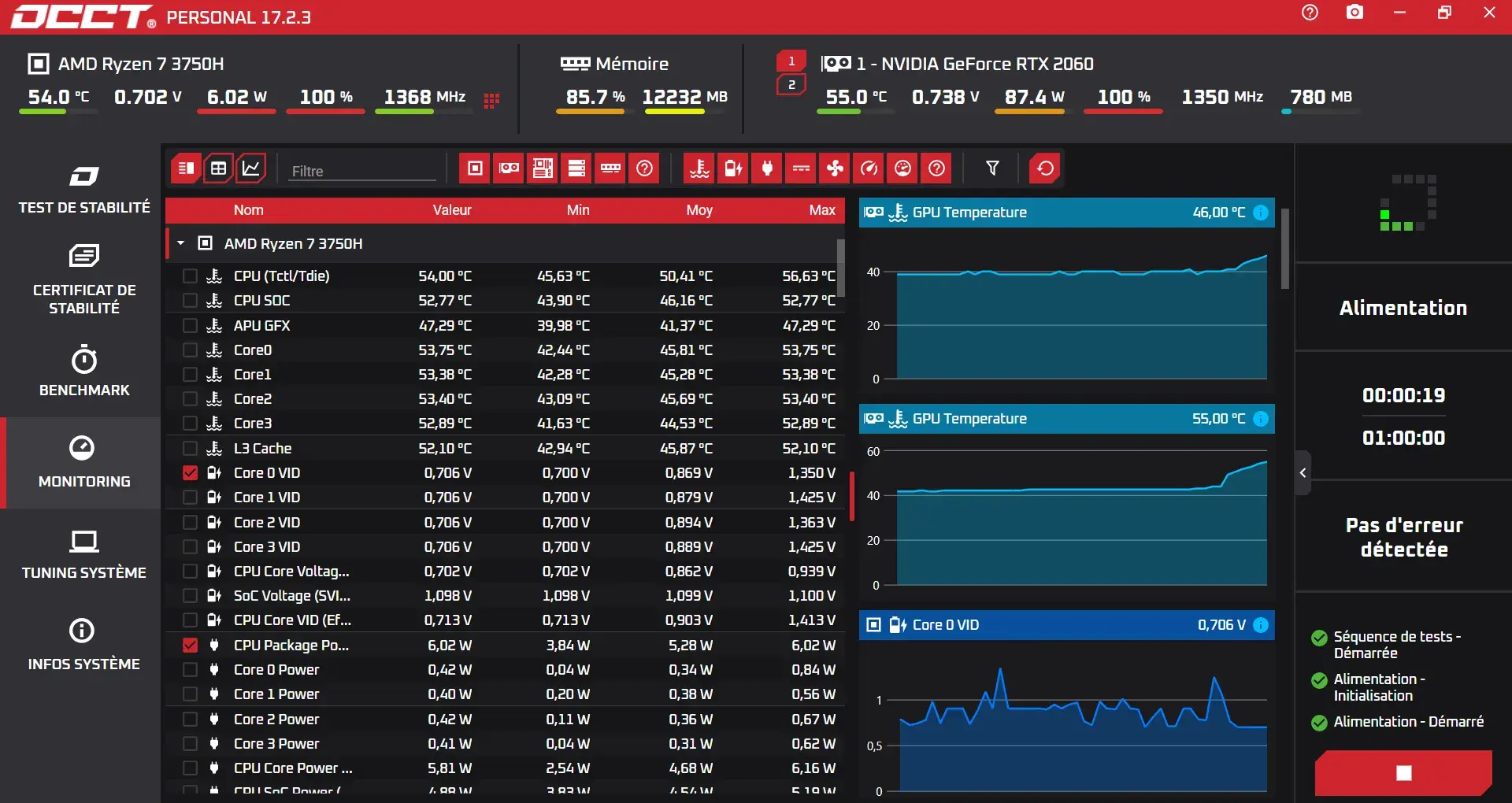
- Watch the temperatures and check whether the power supply fan starts spinning.
- Stop the test and compare the result with the behavior expected by the manufacturer.
If the fan starts, you have confirmed that it works under the conditions of the test. If it stays still, check your power supply’s fan curve before assuming it has failed. Some models remain in semi-passive mode even when the computer is under a heavy load.
How to tell whether the power supply fan is faulty
A stationary fan is more concerning when it comes with other symptoms, such as sudden shutdowns, an unusual smell or mechanical noises coming from the power supply.
A fan that will not start while continuous fan mode is enabled can also indicate a fault. First check that your model is designed to support that setting.
| What you observe | What it may mean |
|---|---|
| Fan stopped while idle | Normal behavior in semi-passive mode |
| Fan stopped during a game | Behavior depends on the fan curve |
| Fan starts during OCCT | Operation confirmed during the test |
| Fan stays still in continuous mode | Possible fault that needs checking |
| PC shuts down suddenly during OCCT | Electrical or hardware instability needs diagnosis |
| Burning smell from the power supply | Shut down the computer immediately |
If your computer shuts down suddenly when power draw increases, the cause may also be an undersized power supply, an electrical protection feature or another unstable component.
For a more thorough check, see our tutorial on testing an ATX power supply with a multimeter. It explains how to check the voltages delivered by the PSU and look for possible problems.
When to have your power supply checked by a professional
If you suspect the fan has failed, have the power supply checked by a professional. They can verify that it works and determine whether it needs to be replaced.
Replacing the entire power supply is safer than trying to repair its fan. The unit contains capacitors that can hold a dangerous electrical charge even after it has been unplugged, so opening it is risky.
When choosing a replacement, check its wattage, connectors and cooling system. Some PC power supplies have a Zero RPM mode that reduces noise when the computer is under light load.