If your PC has switched to aeroplane mode, you can turn it off with just a few clicks from the taskbar. In Windows 11, this setting disables the computer’s wireless connections and may prevent Wi-Fi from working properly.
If the button doesn’t respond or the Wi-Fi doesn’t come back on after exiting aeroplane mode, the problem is a different one. Before tinkering with drivers or network settings, start by quickly checking these settings. This will tell you straight away whether Windows is stuck in aeroplane mode or whether the fault lies with the Wi-Fi card.
In this article
- 1. Turn off aeroplane mode from the taskbar
- 2. Find Airplane Mode in Windows settings
- 3. Check the key on the keyboard to see if aeroplane mode is still enabled
- Airplane mode is disabled or the button is greyed out
- Airplane mode is turned off, but the Wi-Fi isn’t coming back on
- Check the driver if there is a problem with the Wi-Fi card
- Windows no longer detects the Wi-Fi card at all
1. Turn off aeroplane mode from the taskbar
In Windows 11, click on the area containing the network, volume and battery icons in the bottom right-hand corner of the screen. You can also press Windows + A to open Quick Settings directly. If the Airplane Mode button is enabled, click it once to disable it.
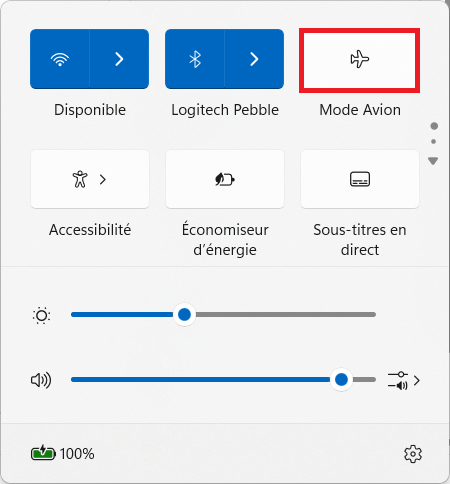
The Wi-Fi should then be able to reconnect to the network you were previously using. If it does not reconnect immediately, wait a few seconds before carrying out any further actions, to allow Windows to reactivate the wireless adapter and scan for available networks again.
2. Find Airplane Mode in Windows settings
If the button does not appear on the taskbar, open Windows Settings and go to Network & Internet. Then open the Airplane Mode section and set the toggle to Off.
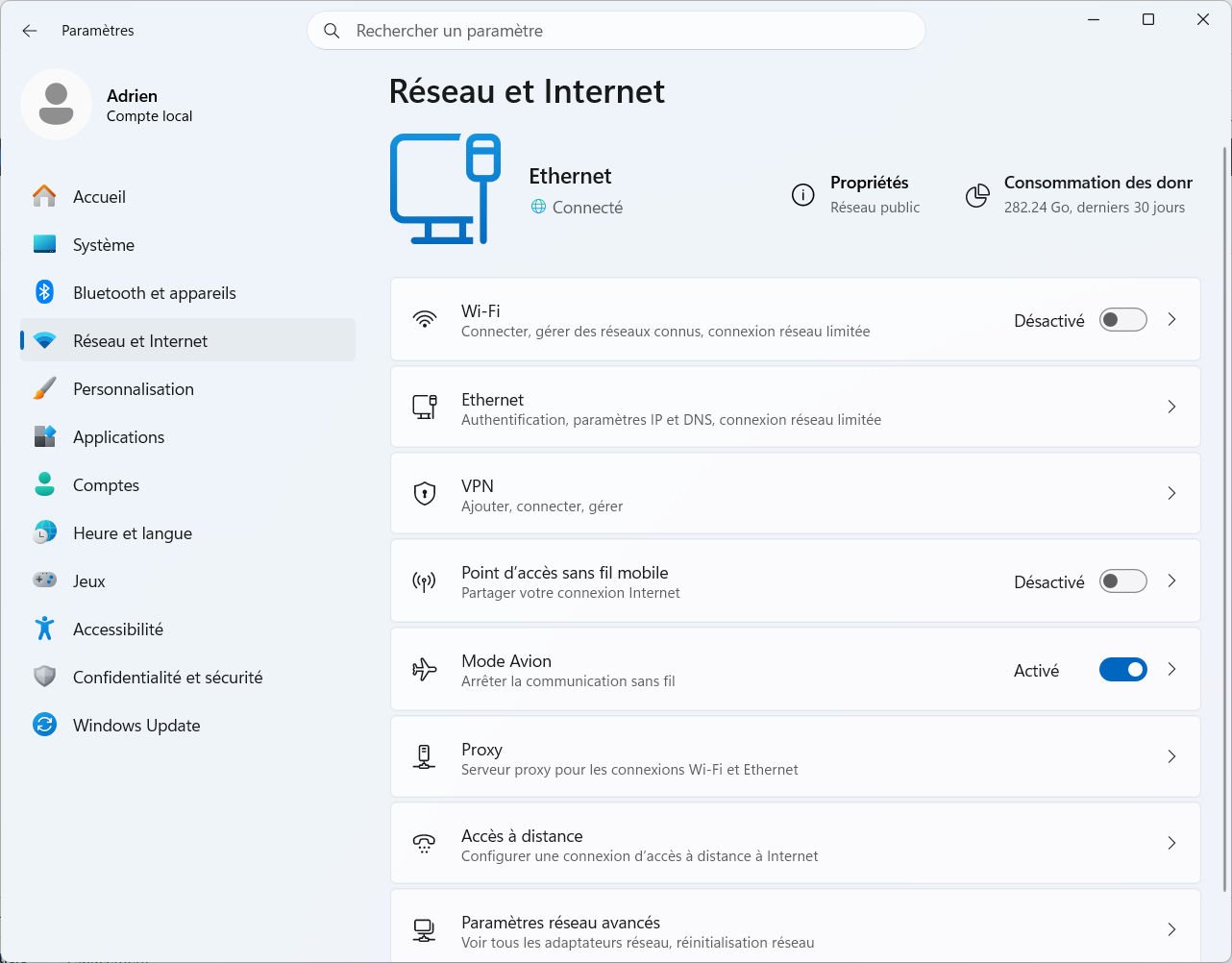
This method is also useful if you’re unsure whether Airplane Mode is enabled. An unusual network icon or the absence of a Wi-Fi signal doesn’t necessarily mean it’s active. The toggle in the settings lets you check this directly.
If aeroplane mode is shown as being off but you still can’t see any Wi-Fi networks, there’s no point in carrying on trying this button. The problem is probably with the Wi-Fi connection itself, and we’ll come back to that a little later.
3. Check the key on the keyboard to see if aeroplane mode is still enabled
On many laptops, wireless communications can also be controlled via the keyboard. Depending on the manufacturer, a key may display an aeroplane, an antenna or a symbol representing wireless connections. It may work straight away or require you to hold down the Fn key.
It is therefore possible to enable aeroplane mode without going through the Windows settings. If your problem arose after fiddling with the keyboard, look for this type of symbol on the function keys at the top of the keyboard. Press the relevant key once – perhaps in combination with Fn – and then check whether the aeroplane mode status changes in Windows.
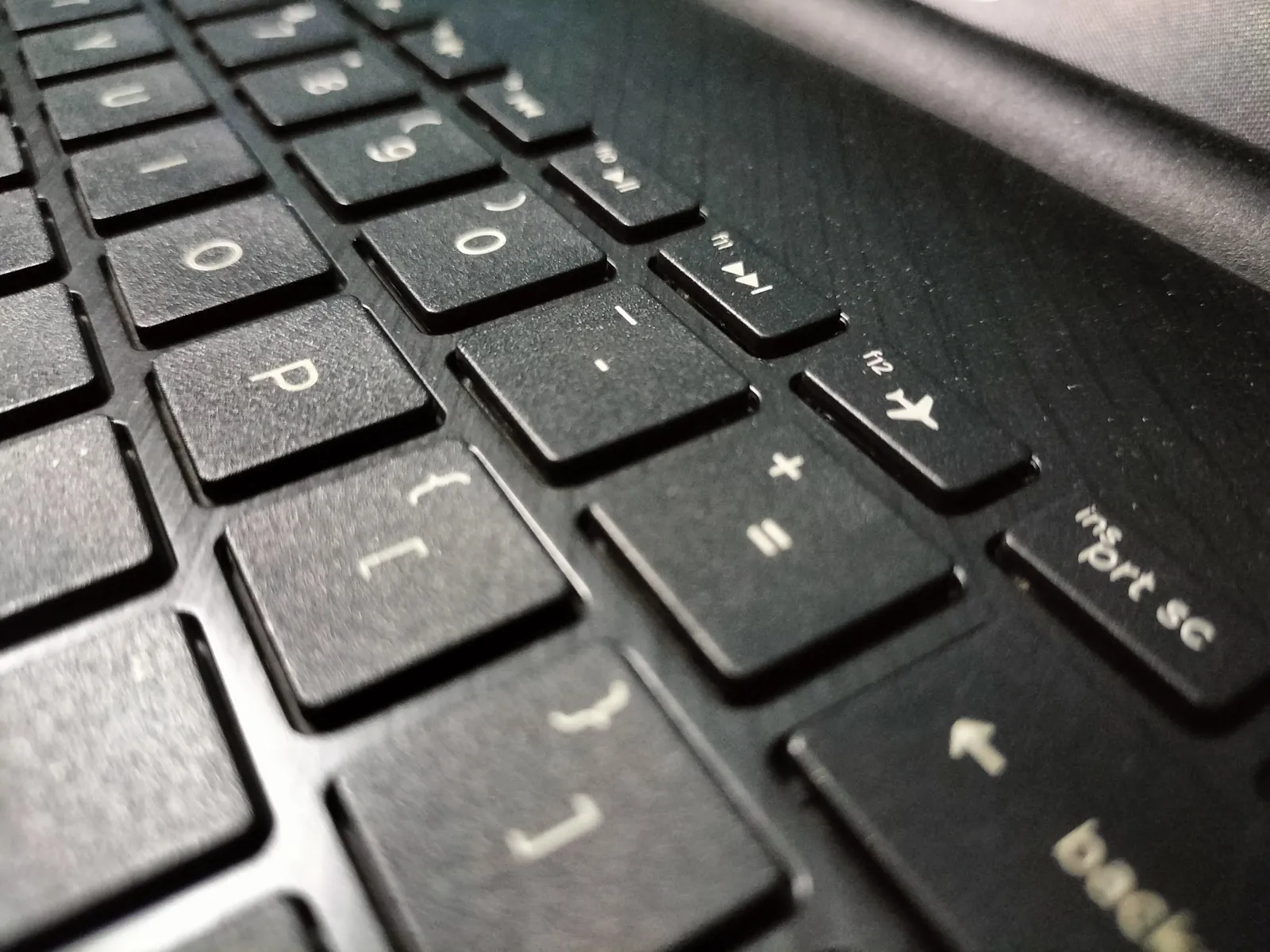
There is no single universal key. On some PCs, it can be found on F7, F8, F12 or another function key.
Some older laptops also have a physical switch to turn off wireless connectivity. This may be located on the side of the laptop or near the keyboard. If your laptop has one, check that it hasn’t been moved accidentally.

 assistouest.fr
If the key associated with aeroplane mode is faulty and activates the function on its own, you can disable it or reassign it to another function by remapping the keyboard. This prevents a faulty key from reactivating aeroplane mode without having to replace the keyboard.
Airplane mode is disabled or the button is greyed out
If Windows still shows Airplane Mode as active even though the button is no longer responding, start by completely restarting the computer. Be sure to use the Windows Restart command rather than simply putting the computer to sleep. A restart forces Windows to reload the network devices and may be enough to restore a setting that has become corrupted.
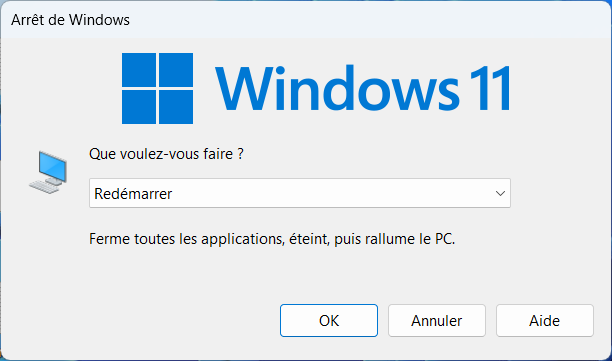
After restarting, go back to Settings, then to Network & Internet, and check Airplane Mode again.
If the button is still greyed out, check whether Windows can still detect the Wi-Fi adapter. Right-click on the Start menu and then open Device Manager.
Expand the ‘Network adapters ’ section and look for your Wi-Fi adapter. Its name will contain a brand name such as Intel, Realtek, Qualcomm or MediaTek, followed by ‘Wireless’, ‘Wi-Fi’ or ‘WLAN’. At this stage, simply check that the adapter is listed and that there is no warning symbol displayed next to its name.
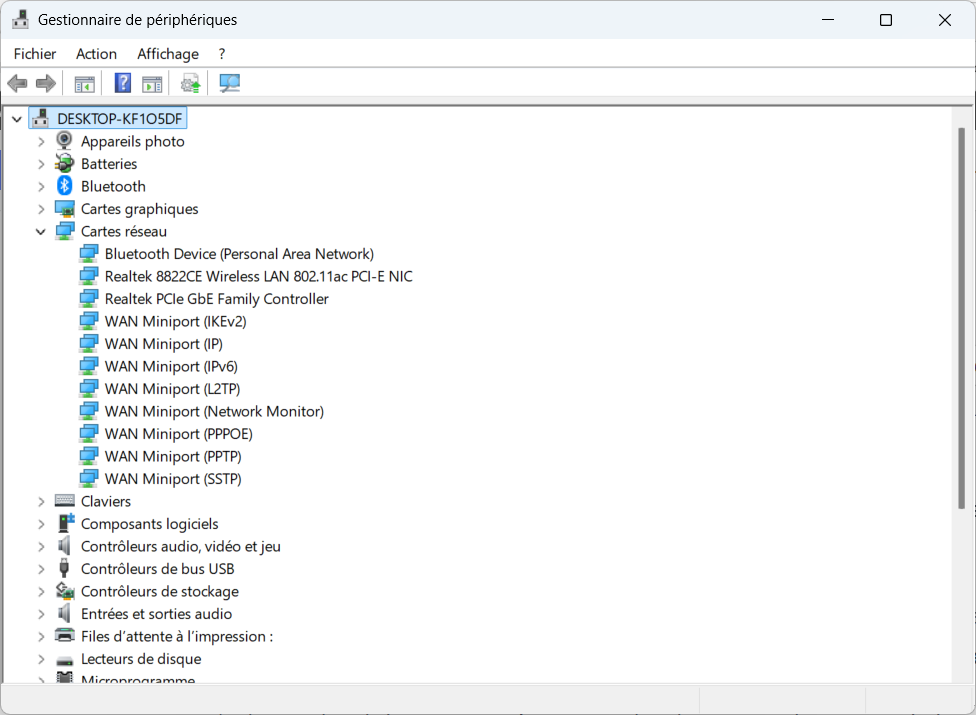
If the Wi-Fi card is missing, disabled or accompanied by a warning, the problem is probably no longer limited to aeroplane mode.
Airplane mode is turned off, but the Wi-Fi isn’t coming back on
Airplane mode is indeed turned off in Windows, but the Wi-Fi button is missing, no networks are displayed, or it is impossible to enable the connection. In this case, continuing to toggle airplane mode will be of no use, as Windows is now experiencing a problem with the Wi-Fi adapter or its operation.

Start by checking the quick settings. If the Wi-Fi button is there but switched off, simply try switching it back on. If it is completely missing, go back to Device Manager and check that the wireless network adapter still appears under ‘Network adapters’.
Check the driver if there is a problem with the Wi-Fi card
Reinstalling the driver is not the first thing you should do when a PC appears to be stuck in aeroplane mode. It is only relevant if the Wi-Fi adapter displays a warning in Device Manager, is no longer recognised correctly, or if the problem arose after a Windows update or reinstallation.
In this case, avoid software that promises to automatically search for all the drivers on your PC. Windows Update and the computer manufacturer’s website are the best options.
Once the driver has been installed or updated, restart the PC and then check the aeroplane mode and Wi-Fi again. If the network card is working normally, the available networks should reappear without the need to change any other settings.
Windows no longer detects the Wi-Fi card at all
A Wi-Fi card that no longer appears in Device Manager after a restart warrants further investigation. The driver may be missing, but the card may also be disconnected or have a hardware fault.
If the card is still not recognised after checking the driver and restarting the computer, it may be worth contacting a computer repair technician. They will be able to check whether the problem lies with Windows, the driver, the Wi-Fi card itself or its connection to the motherboard before considering replacing it.
In most cases, however, the problem is much simpler. If Airplane Mode is enabled, turn it off via the Quick Settings or under ‘Network and Internet’. If it is already turned off, don’t get stuck on this setting; instead, carry on troubleshooting your Wi-Fi.
We allow some readers to view our articles for free with an ad blocker. However, their number is currently too high for us to keep this access available to everyone.
You can disable your ad blocker to continue reading immediately, subscribe to enjoy all our content without ads, or come back a little later when the pressure has eased.
Access will be restored automatically as soon as the situation allows.