You leave your PC on a train or in a café. In a moment, the security of your files may depend only on whether your Windows account has a password. If someone removes the drive and connects it to another PC, your confidential documents could be read straight away.
BitLocker protects your data on the physical drive itself. Once enabled, access to the drive requires a decryption key, making your information unreadable to anyone who tries to access the hardware. Here is how to set it up.
In this article
1. Turn on device encryption on supported systems
Device encryption is a data-protection feature built into Windows. Unlike the full BitLocker Drive Encryption feature, this simplified version turns on automatically on computers that meet strict hardware security requirements. It protects your files by making them unreadable to anyone without your sign-in credentials or recovery key.
- Sign in to Windows with an administrator account.
- Open the Start menu and select Settings.
- Go to Privacy & security, then select Device encryption.
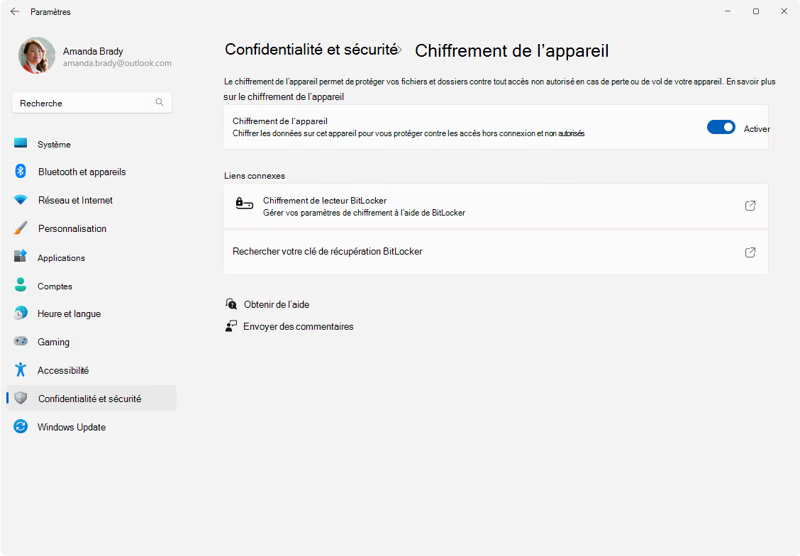
- If the option is missing, check System Information to make sure your computer supports device encryption.
- Switch Device encryption to On.
Windows Home supports Device encryption when the hardware is compatible. Only full BitLocker Drive Encryption, which offers more granular controls, is limited to Windows Pro and Enterprise editions.
If your hardware does not support this simplified encryption, or you need more control over individual drives, set up BitLocker manually instead.
2. Encrypt a specific drive with BitLocker Drive Encryption
Unlike automatic Device encryption, BitLocker Drive Encryption gives you full control. It is available only in Windows Pro, Enterprise, and Education. You can protect your Windows system drive, internal data partitions, and removable drives such as USB flash drives and external hard drives.
- Open Control Panel and go to System and Security.
- Select BitLocker Drive Encryption.
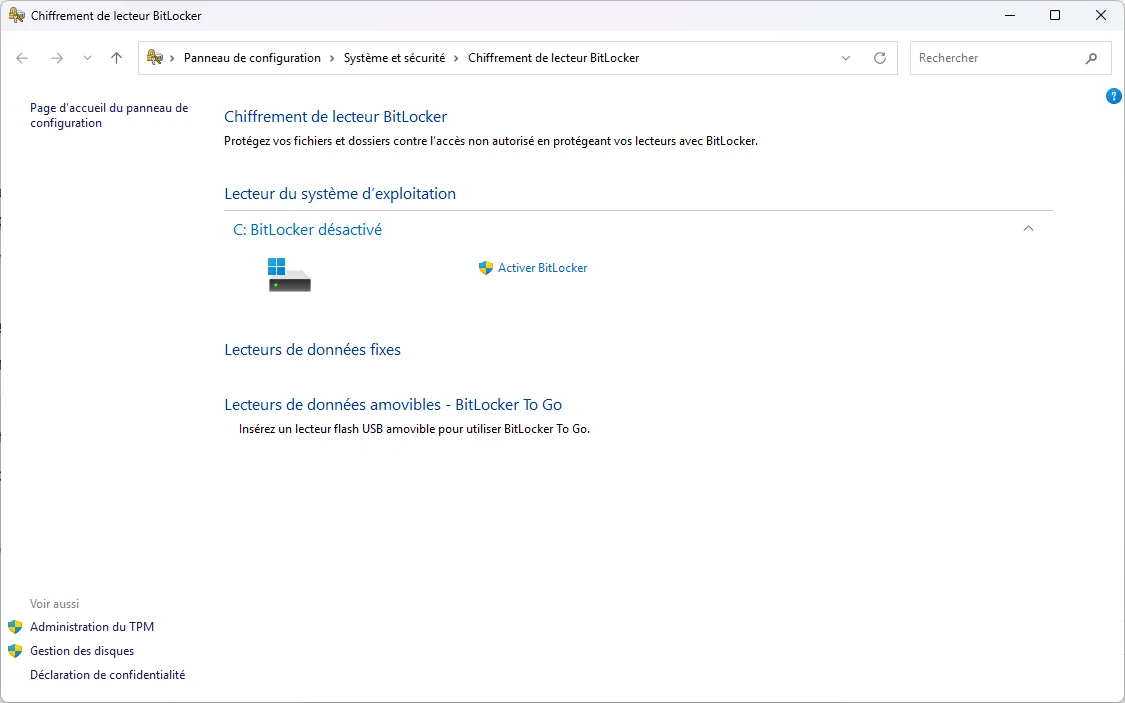
- The page lists your drives in three groups: Operating system drive, Fixed data drives (your internal partitions), and Removable data drives (BitLocker To Go).
- Select Turn on BitLocker to start the setup wizard.
- Choose how you want to unlock your files. You can use a password (the simplest option), a Microsoft account, or a smart card (often used in businesses).
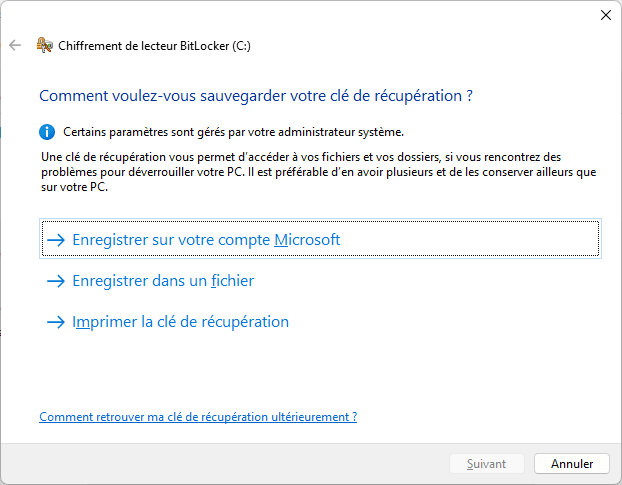
- Choose whether to encrypt only the used disk space (faster for a new drive) or the entire drive (safer for a drive that already contains sensitive data).
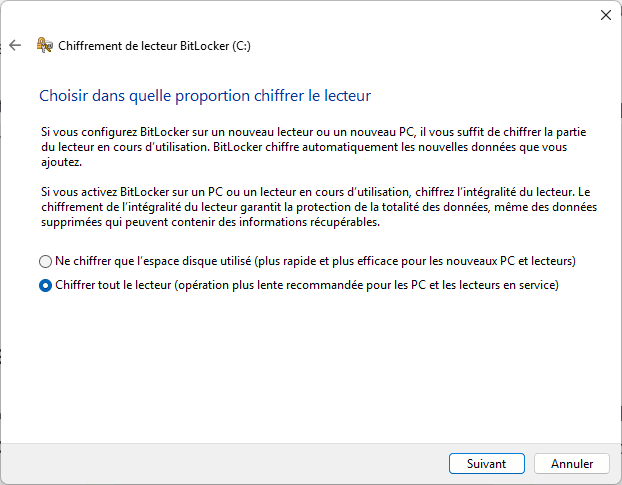
- Choose New encryption mode for internal drives. For removable drives, use Compatible mode so the USB drive can also be read by older versions of Windows.
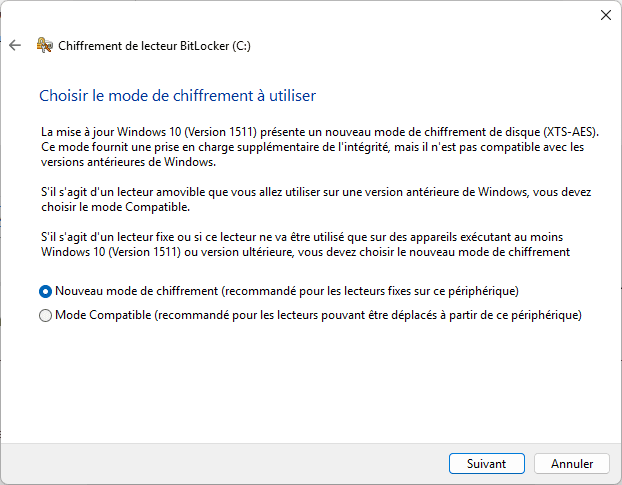
Encryption starts in the background after you confirm your choices. However, this protection can become a problem if you lose access to your drive. Saving your recovery key is the most important step. Without it, you may permanently lose your data if you forget your password or the hardware fails. Save it to your Microsoft account, print it, or store it on a secure external device.
3. Back up your BitLocker recovery key
The recovery key is a unique 48-digit code. It is your last resort if BitLocker detects a suspicious hardware change, such as a motherboard replacement or BIOS update, or if you forget your password. This code may be the only way to unlock your data.
- Choose one of the options offered by the BitLocker wizard:
- Save to your Microsoft account: the key is linked to your online Microsoft account.
- Save to a file: create a text file containing the key. Do not save it on the drive you are encrypting.
- Print the recovery key: keep a paper copy in a secure place.
- Save to Active Directory: for computers joined to a business domain; this option is managed by the system administrator.
If you are not sure where you saved your recovery key, or you think you may have lost the original copy, do not panic. As long as you can sign in to Windows, you can create another copy of the key.
- In Control Panel, find the drive whose access you want to protect.
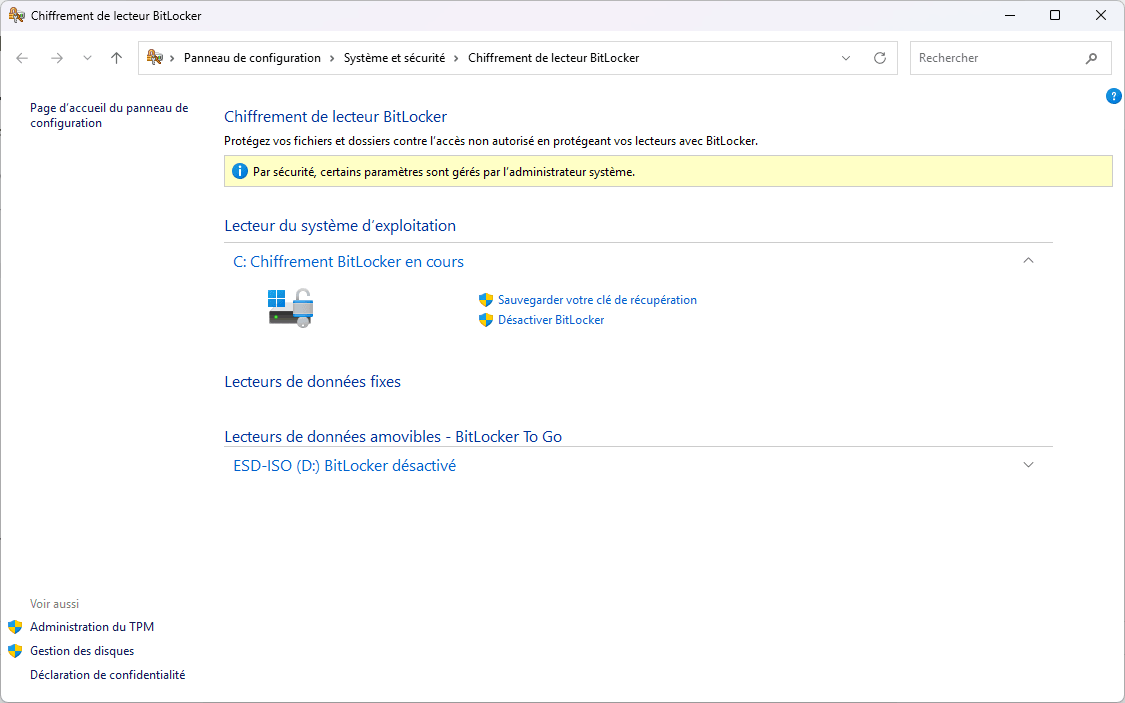
- Select the Back up your recovery key link next to the padlock icon.
Warning: If you lose both your password and recovery key, your data will be permanently inaccessible. Microsoft recommends keeping several secure physical and digital copies of the key.
The graphical interface is enough for most people. If you want to automate these tasks or manage multiple computers, Windows also provides more powerful command-line tools.
4. Use the command line for advanced management
manage-bde (BitLocker Drive Encryption) is the command-line tool for configuring BitLocker with precise control. It is useful for scripting and for troubleshooting a system when the graphical interface is unavailable.
- Type cmd in the Windows search box, right-click Command Prompt, and choose Run as administrator.
- To check a drive’s encryption status, enter:
manage-bde -status
To encrypt a drive and create a recovery key, enter:
manage-bde -on C: -rp
To back up a recovery key to Active Directory for a specific drive, enter:
manage-bde -protectors -adbackup C:
These commands are useful, but BitLocker requires care. If a technical change or hardware update locks you out, you need to know exactly where to find your recovery key.
5. Find a BitLocker recovery key
If you forget your password or Windows locks the drive, the recovery key is your only way back in. If you do not have it to hand, check the locations you selected during setup:
- Your Microsoft account: on another device, visit account.microsoft.com/devices/recoverykey to view the saved keys.
- A text file: check external storage, personal cloud services, or printed documents kept in a safe place.
- Active Directory: if this is a work computer, contact your IT support team. The key is stored on your organization’s servers.
- A USB drive: if you exported the key, connect the removable drive and open the text file Windows created, usually named BitLocker Recovery Key.txt.
What if you cannot find your BitLocker key?
If you have checked your Microsoft account, physical storage, and IT support without success, you are facing Windows’ strongest data protection. By design, BitLocker has no backdoor. To protect files you sync to the cloud as well, see our guide to encrypting Google Drive or OneDrive files on Windows.
We allow some readers to view our articles for free with an ad blocker. However, their number is currently too high for us to keep this access available to everyone.
You can disable your ad blocker to continue reading immediately, subscribe to enjoy all our content without ads, or come back a little later when the pressure has eased.
Access will be restored automatically as soon as the situation allows.