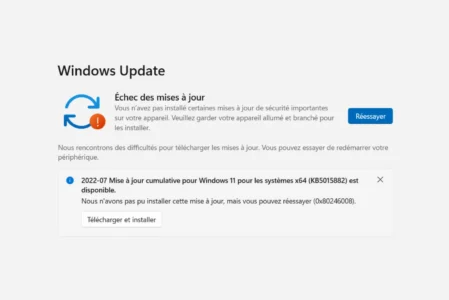
Windows automatic updates help keep the system secure, but they can also be intrusive. Updates may start in the middle of a work session and cause unwanted interruptions. In some cases, they use up network bandwidth or cause critical system errors, such as blue screens. This guide explains how to pause or disable updates on Windows.
In this article
Should you really disable Windows Update?
Disabling Windows Update may seem like an ideal way to regain control of your computer when updates arrive at the wrong time. Taking control of the system means you no longer have to put up with unexpected restarts at the worst possible moment, while keeping bandwidth available for other activities. This approach lets you keep a stable configuration and avoid an automatic update changing your settings or slowing down your PC without warning.
However, this choice has consequences. Preventing updates from being installed leaves the system exposed to known security flaws that malware can exploit. Going without Microsoft’s patches deliberately leaves the door open to security vulnerabilities and malware that exploits unpatched flaws. In the long term, missing updates can also cause compatibility problems with new software or devices.
1. Temporarily pause updates in Settings
The easiest way to avoid interruptions is to pause downloads for a set period. Windows lets you do this directly from the system interface.
- Open the Start menu and select Settings.
- Go to Windows Update on Windows 11, or Update & Security > Windows Update on Windows 10.
- Find the Pause updates option.
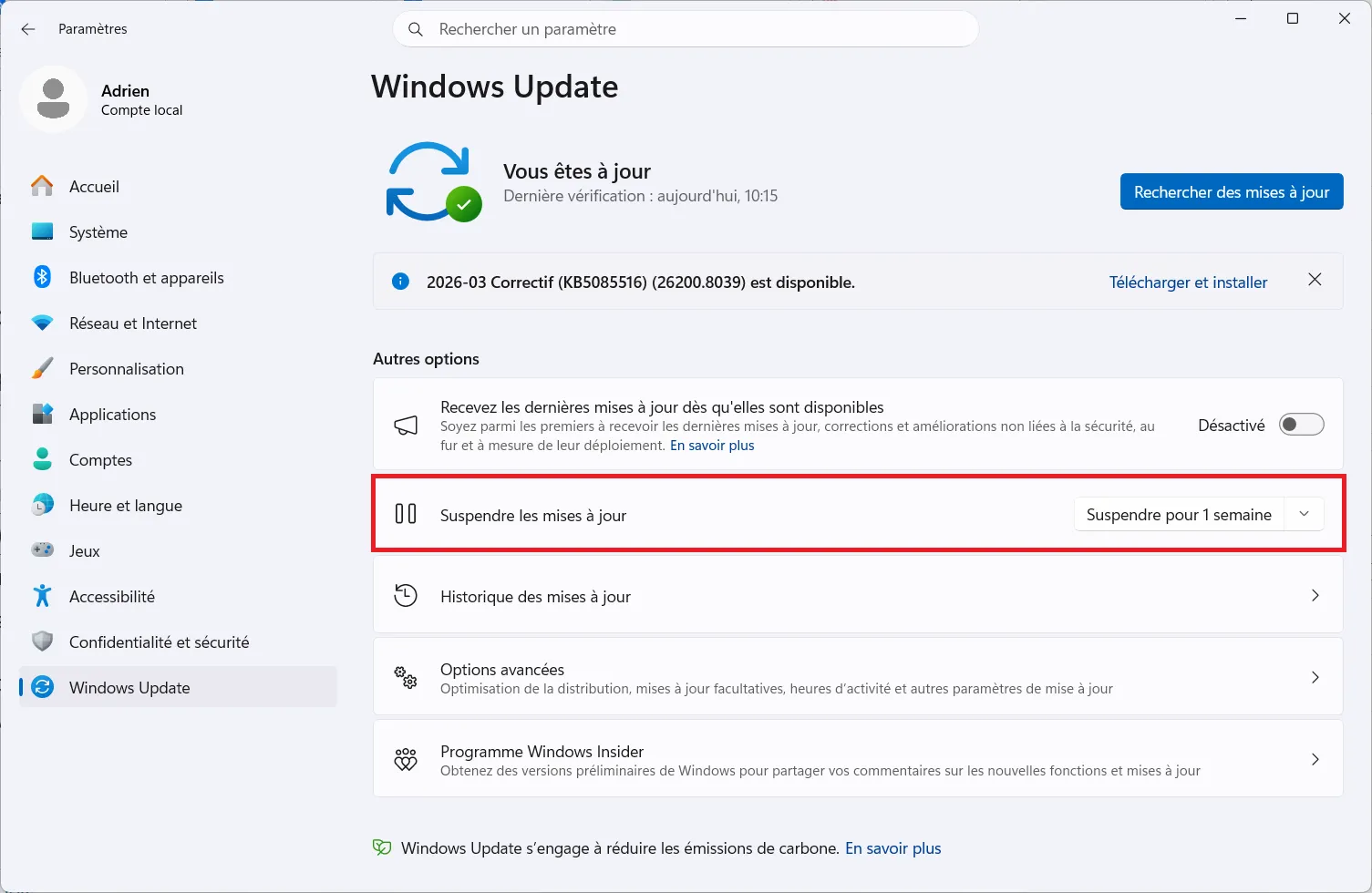
- You can also choose how long to pause updates from the drop-down menu.
This stops updates from being downloaded and installed until the selected period ends. After that, the system resumes its normal update activity.
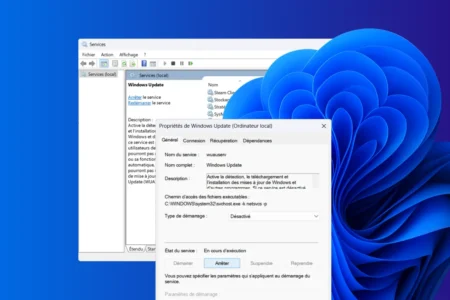
2. Disable the Windows Update service in the Services console
For stricter control, you can disable the Windows service responsible for checking for and installing updates. This prevents the process from starting automatically when you sign in.
- Press Windows + R to open the Run dialog box.
- Type services.msc, then press Enter.
- Find Windows Update in the list of services.
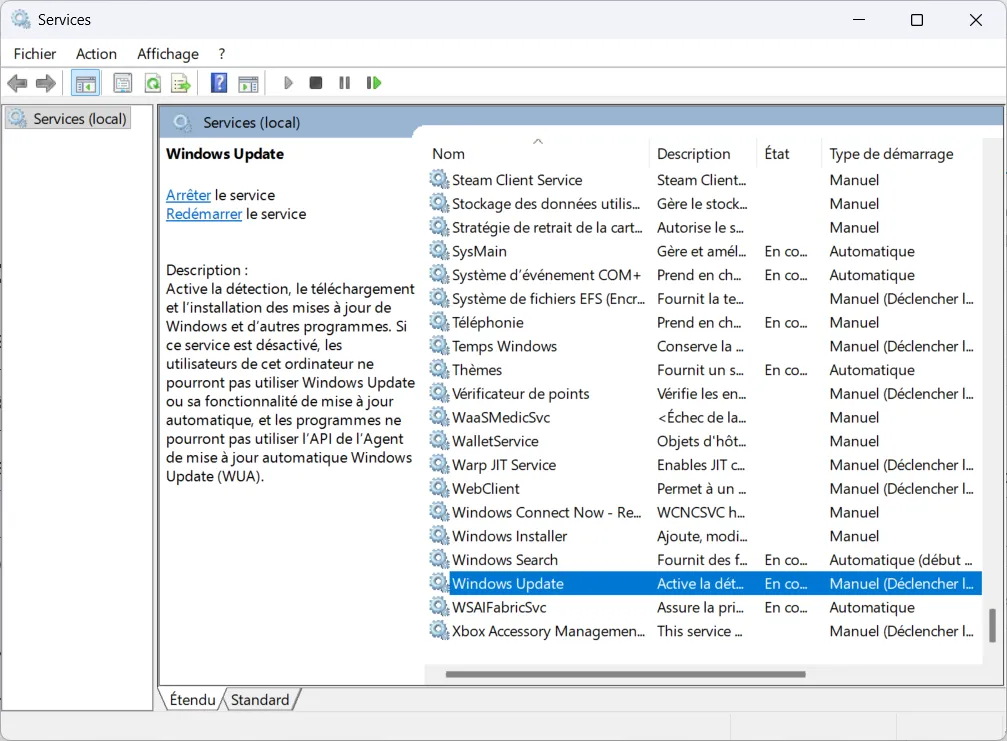
- Double-click the service to open its properties.
- On the General tab, change the Startup type to Disabled.
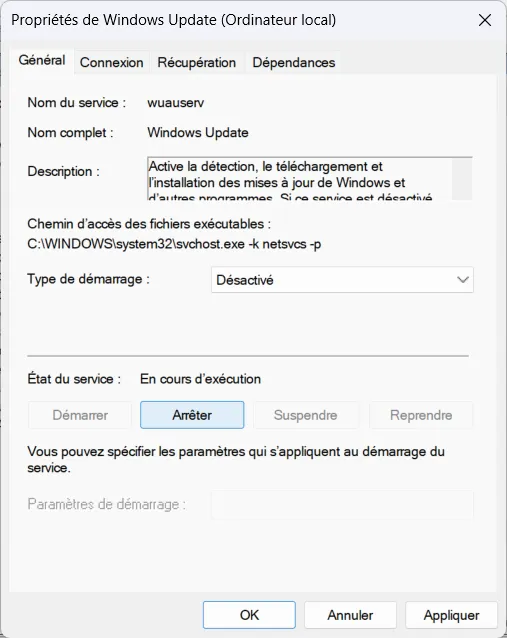
- Click Stop if the service is currently running.
- Click Apply, then OK, to confirm.
Warning: Disabling this service may prevent other components that depend on Windows Update from working. This change can cause download errors or security problems.
3. Use Group Policy Editor to block updates
If you use Windows Pro or Enterprise, Group Policy Editor includes a setting to prevent updates from being downloaded automatically.
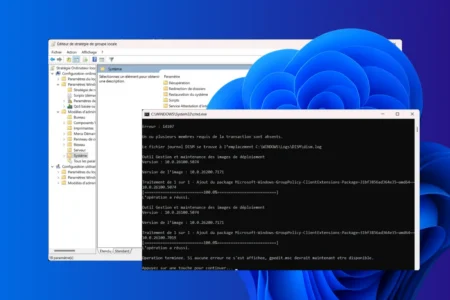
- Press Windows + R, type gpedit.msc, and press Enter.
- Go to: Computer Configuration > Administrative Templates > Windows Components > Windows Update > Manage end user experience.
- Find the setting named Configure Automatic Updates.
- Double-click it and select Disabled.
- Click Apply and OK to save your changes.
This method applies to the Pro, Enterprise, and Education editions of Windows 10 and 11. It has no effect on Home editions, which do not include this management tool.
 assistouest.fr
Updates should be blocked with care. Although this prevents service interruptions, the system becomes vulnerable to unpatched security flaws. It is a good idea to turn these features back on from time to time to maintain the integrity of your operating system.
Can you disable Windows Update permanently?
You can disable Windows Update for an extended period using advanced methods, such as disabling services or changing system settings. This is not recommended in the long term because it exposes your computer to unpatched security vulnerabilities.
Does Windows Update turn itself back on?
If you temporarily pause updates in Windows Settings, the system automatically resumes them when the pause period ends. However, if you disable the Windows Update service directly in the Services console, it will not restart automatically.
We allow some readers to view our articles for free with an ad blocker. However, their number is currently too high for us to keep this access available to everyone.
You can disable your ad blocker to continue reading immediately, subscribe to enjoy all our content without ads, or come back a little later when the pressure has eased.
Access will be restored automatically as soon as the situation allows.