
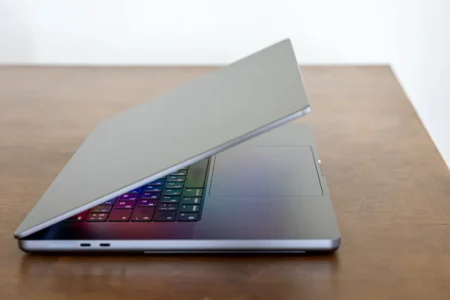
Buying a laptop has become paradoxically more complicated even though PCs are generally better than they were a few years ago. Between Intel Core Ultra, AMD Ryzen AI, Snapdragon, integrated or dedicated graphics, OLED displays, battery capacity and different memory configurations, a specification sheet can quickly become difficult to understand.
In this article
- Start by defining what you will do with your computer
- 1. The processor determines overall performance
- ARM64 is gaining ground in laptops
- 2. RAM determines how many programs can run comfortably
- 3. An SSD dramatically improves responsiveness
- 4. Choose a dedicated graphics card if you plan to game
- 5. Battery life depends on the battery and on power consumption
- 6. The screen determines comfort and affects battery life
- Which configuration for study, gaming or work?
Start by defining what you will do with your computer
Before looking at a single component, ask yourself what will normally be open on the computer during a typical day.
For taking notes, using Word or LibreOffice, reading PDFs, browsing the web, watching videos and joining video calls, power requirements are fairly modest. A mid-range processor is more than enough, and spending more on the processor will often provide less comfort than choosing a better screen, a better battery or a lighter computer.
Requirements change when you add video editing, photo editing, compiling, virtual machines, 3D modelling or recent games. These tasks can make greater use of the processor, memory and especially the graphics card.
You should also distinguish between what you do regularly and what you might possibly want to do. If you occasionally play Minecraft, League of Legends or a few indie games, sacrificing battery life and weight for a large graphics card would probably not be the best choice.
1. The processor determines overall performance
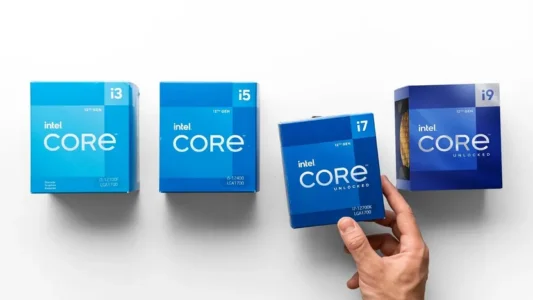
The processor matters, but you should not choose a computer simply because it has an Intel® Core™ i9 rather than an i3. These product ranges evolve quickly, and their names do not allow you to compare processors from different generations reliably.
For example, an i3-14100 is faster than an i7-610E. Conversely, an i5-14600K is much faster than an i3-14100. Never compare two processors based only on the i3, i5, i7 or i9 label. The generation and the processor’s specifications matter just as much.
 assistouest.fr
To compare two processors, look instead at the number of cores and threads, their generation, architecture and clock speed in GHz.
How many cores do you need for a fast laptop?
A core is a processing unit inside the CPU. The more effectively software can distribute its work across several cores, the more it can benefit from a processor with many cores. This is particularly useful for video editing, compiling, virtual machines, rendering and some professional workloads.
For office work, schoolwork, web browsing and video calls, the requirement is much lower, but the processor remains important. Adding more and more cores will not make Word or your browser faster, but a fast modern laptop should have at least four cores.
| Typical configuration | Suitable workloads |
|---|---|
| 4 cores and 8 threads | Office work, studies, browsing, streaming |
| 6 cores and 12 threads | Multitasking, programming, photo editing, gaming |
| 8 cores and 16 threads | Video editing, heavier development, content creation |
| 12 cores or more | Rendering, virtualisation, calculation |
These are only reference points. A recent six-core processor can be faster than an older eight-core model, but this is already more reliable than comparing marketing names. Clock speed, architecture, power consumption and laptop cooling also matter.
What are processor threads?
Threads are not additional physical cores. A processor with six cores and twelve threads still has six physical cores. Threads simply help it use its resources more efficiently and process more work in parallel when software can take advantage of them.
AMD64, AMD, Intel and ARM: what do these geeky terms mean?
AMD, Intel and Qualcomm are processor manufacturers. AMD64 and ARM64, on the other hand, are architectures. ARM64 (commonly called ARM) and AMD64 (also called x64) are processor architectures. Comparing AMD with ARM is therefore comparing a company with an architecture.
| Term | Type | What it is | Example in a PC |
|---|---|---|---|
| AMD | Manufacturer | Company that designs Ryzen processors | AMD Ryzen 5 |
| Intel | Manufacturer | Company that designs Core i3, i5 and other processors | Intel Core i5 |
| Qualcomm | Manufacturer | Company that designs ARM64 Snapdragon processors for PCs and smartphones | Snapdragon X |
| ARM64 | Architecture | 64-bit architecture | Snapdragon running Windows 11 |
| AMD64 or x64 | Architecture | 64-bit architecture | AMD and Intel use it |
Most Windows PCs with AMD or Intel processors now use the x86-64 architecture, also called x64 or AMD64.
The name AMD64 may look odd on a computer with an Intel processor, but this is perfectly normal. AMD created this 64-bit extension of the x86 architecture, which Intel later adopted as well.
| Architecture | Origin | What to remember |
|---|---|---|
| x86 | Created by Intel in the late 1970s | Historic PC architecture, originally 16-bit and then 32-bit |
| x64 or AMD64 | 64-bit extension created by AMD in the early 2000s | 64-bit version of x86, now used by AMD and Intel processors |
A program can therefore display AMD64 even when your computer has an Intel processor. It does not mean that it detected the wrong processor.
ARM64 is gaining ground in laptops
ARM processors are not new. This architecture has been used extensively for years in smartphones, tablets and televisions, and it now powers 99% of smartphones.
Historically, one of their main advantages has been energy efficiency. They were particularly suited to devices where power consumption, battery life and heat mattered more than maximum performance. Recent progress now allows ARM processors to deliver enough performance for complete laptops.
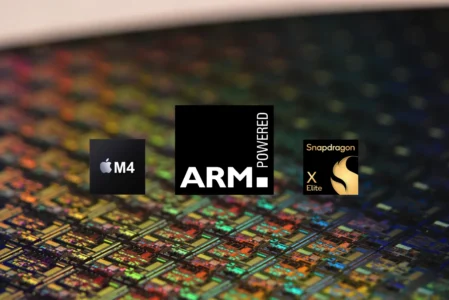
Windows 11 runs natively on ARM64 and can also emulate many applications designed for x64 PCs. Compatibility is not yet perfectly identical to an Intel or AMD PC for some drivers, peripherals, older software and games.
These processors can also include a dedicated NPU for artificial-intelligence calculations. Snapdragon X chips in some Copilot+ PCs can therefore run AI tasks locally instead of sending everything to a remote server. This is not ARM64 itself that makes this possible, but the specialised components integrated into modern processors.
For a student who mainly uses a browser, Word, PDFs and video calls, an ARM PC can be a perfectly reasonable choice. If you want to install many games, use older peripherals or run professional software, an Intel or AMD x64 PC remains the simplest and safest option.
2. RAM determines how many programs can run comfortably
Random Access Memory (RAM) temporarily stores the data Windows and your applications need. The more programs, browser tabs or games you open, the more RAM is used. When memory starts to run out, Windows compensates by creating a page file on the drive, which is hundreds or thousands of times slower and can cause slowdowns.
Windows 11 uses around 4 to 5 GB of memory at idle, depending on the PC and installed software. With only 8 GB of RAM, little headroom remains once the browser, Word, Discord and other applications are open.
How much RAM does a laptop need?
| RAM | Suitable for | Our view |
|---|---|---|
| 8 GB | Office work, browsing, classes, streaming | Recommended minimum for Windows 11 |
| 16 GB | Multitasking, study, programming, photo editing, gaming | Best balance for most users |
| 32 GB | Demanding games, video editing, large applications, virtual machines | Recommended for intensive workloads |
| 64 GB or more | Virtual machines, rendering, large professional projects | Mainly for professional needs |
For a laptop bought today, 16 GB is generally the best balance. It lets you keep several applications and many tabs open without constantly monitoring available memory.
32 GB becomes useful when workloads become much heavier. Some recent games, video editing, virtual machines and large creative applications can use a lot of memory. It also gives you more headroom if you plan to keep the laptop for several years.
Check whether the RAM is soldered and upgradeable
The installed capacity is not the only thing to check. On many recent laptops, RAM is soldered directly to the motherboard and cannot be replaced.
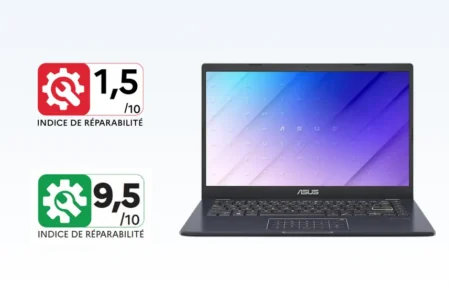
If all RAM is soldered and there is no additional slot, an 8 GB laptop will remain limited to 8 GB for its entire life. If the RAM fails, the motherboard will generally need to be repaired or replaced, which can make the repair complicated and uneconomical after the warranty period.
Conversely, some computers still have one or more slots for adding memory. Buying an 8 GB laptop today and upgrading it to 16 GB in a few years can be a more economical long-term solution.
3. An SSD dramatically improves responsiveness
Storage keeps your files, Windows, applications and games even when the computer is turned off. Unlike RAM, its capacity is measured in GB or TB and data is stored permanently.
However, storage technologies do not all work the same way. An old mechanical hard drive (HDD) can severely slow down a computer with an otherwise capable processor, while an SSD lets Windows, applications and files load much faster.
HDD, SATA SSD and NVMe: what is the difference?
A mechanical hard drive contains real magnetic platters spinning at 5,400 or 7,200 rpm. A read head must physically move to access data. This technology is useful for storing large amounts of data cheaply, but it has become too slow to be the main drive in a PC.
SSDs have no moving parts. Data is stored in flash memory, which dramatically reduces access times. This is now the type of storage to choose for Windows and applications.
| Storage type | What it looks like | Speed | Typical use |
|---|---|---|---|
| HDD | 2.5 or 3.5-inch mechanical drive | About 80 to 200 MB/s | Large volumes at low cost |
| 2.5-inch SATA SSD | Small rectangular enclosure | Up to about 550 MB/s | Older PC or machine without M.2 |
| M.2 SATA SSD | Small stick fitted directly to the motherboard | Up to about 550 MB/s | Same speed as 2.5-inch SATA despite the shape |
| M.2 NVMe SSD | Small stick similar to M.2 SATA | Several thousand MB/s | Modern laptops and PCs |
M.2 and NVMe do not mean the same thing
M.2 describes the physical form factor of the SSD. An M.2 stick can therefore use SATA and be limited to around 550 MB/s, just like a 2.5-inch SATA SSD.
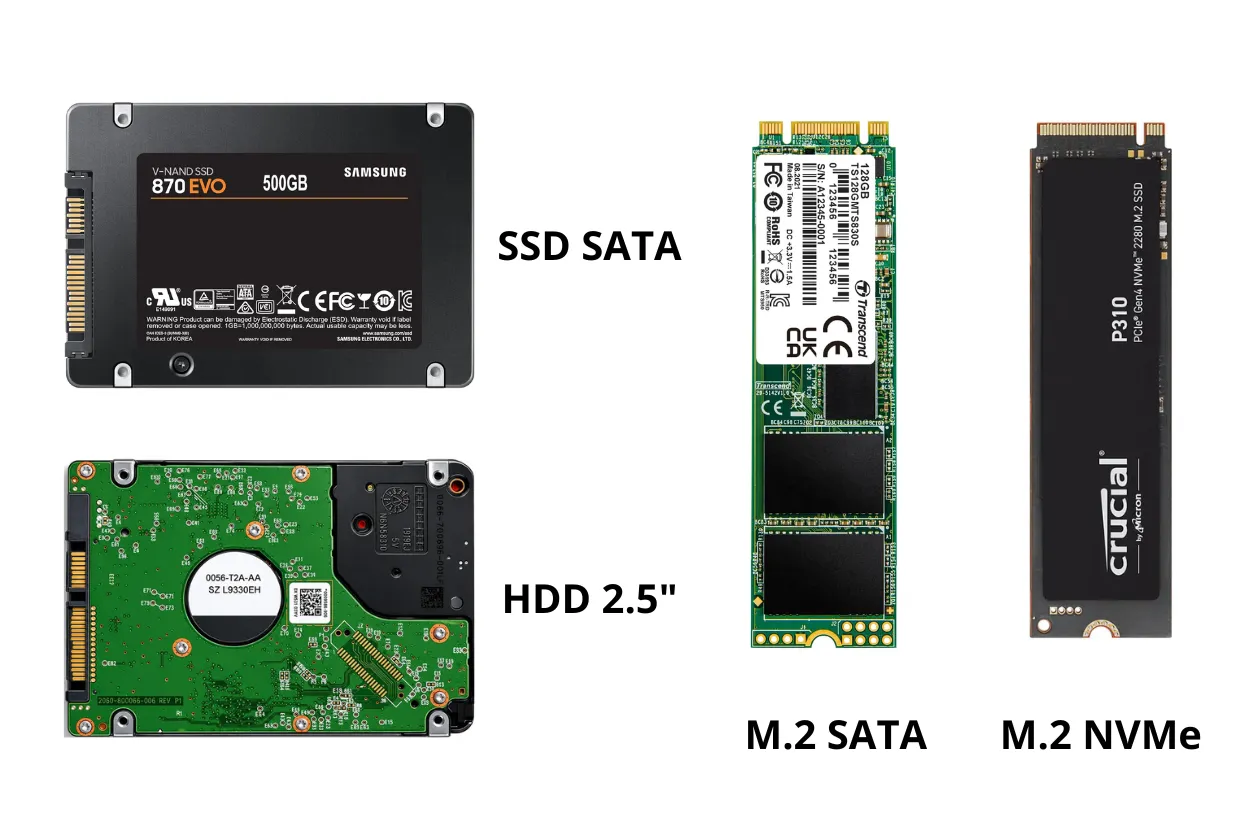
An NVMe SSD uses the PCI Express interface and can reach several thousand MB/s. NVMe was designed for fast storage and offers lower latency than SATA.
Two SSDs can therefore look almost identical as small M.2 sticks while offering very different performance.
M.2 indicates the shape of the SSD. SATA or PCIe indicate how it communicates with the PC. NVMe is the protocol used by fast PCIe SSDs.
Is an NVMe SSD essential?
For a new laptop, I would choose an NVMe SSD today. It offers excellent performance while taking very little space, which explains why it has become standard in laptops.
The advertised figures should nevertheless be put into perspective. Moving from a mechanical hard drive to a SATA SSD transforms a computer’s responsiveness. Moving from a good SATA SSD to an extremely fast NVMe drive is much less noticeable when opening Word, browsing the web or starting Windows.
Very high throughput becomes useful when transferring large files, doing certain professional tasks, editing video or performing other workloads that heavily use storage.
How much storage should you plan for?
For office work, study and documents, 512 GB is now a comfortable capacity for many users. A 1 TB SSD is useful if you install several games, store many photos or videos, or want plenty of room for several years. The minimum I recommend is 240 GB if you store few photos and videos and do not play games. I strongly advise against a 120 GB SSD: Windows 11, its updates, temporary files, cache and a few applications can quickly occupy 80 GB.
On some PCs with only 120 GB of storage that I have had to troubleshoot, there was not even enough free space left to install Windows updates. Windows Update needs a certain amount of available space to download and install updates.
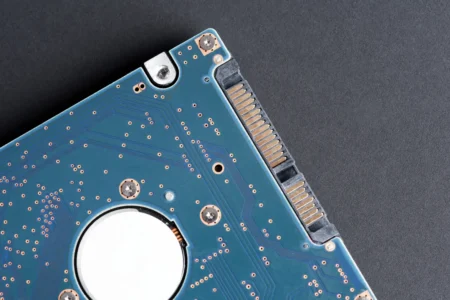
As with RAM, check whether the SSD can be replaced. A laptop with a replaceable M.2 SSD can easily move from 512 GB to 1 or 2 TB later, avoiding the need to pay for a large capacity immediately.
4. Choose a dedicated graphics card if you plan to game
The graphics processor (GPU) handles Windows, video, games and many graphics calculations. For office work, study, videos or browsing, there is no need to buy a computer with a large dedicated graphics card.
Most laptop processors already include an integrated GPU (iGPU). AMD also uses the term APU for processors combining the CPU and graphics part, as explained in this article about integrated graphics processors. These solutions use less power and allow manufacturers to build lighter laptops with longer battery life.
An integrated GPU is more than enough for Word, PDFs, YouTube, Netflix, video calls and even some less demanding games. Recent iGPUs are much faster than they used to be.
An integrated GPU uses some of your RAM
Unlike a dedicated graphics card, which has its own video memory (VRAM), an integrated GPU uses part of the computer’s RAM. Windows manages this dynamically and the GPU uses a shared-memory architecture.
This matters on a computer with only 8 GB of RAM. If Windows and your applications are already using much of it, the integrated GPU must share what remains. On an iGPU laptop, 16 GB of RAM therefore provides much more comfortable headroom, particularly if you plan to play occasionally.
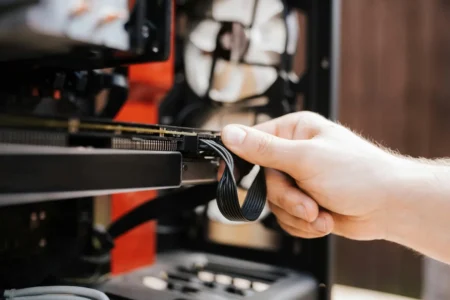
Depending on the PC and BIOS, a small amount may be permanently reserved and additional memory may be allocated dynamically when the GPU needs it. Windows distinguishes dedicated memory from shared system memory available to the GPU.
When do you need a dedicated graphics card?
A dedicated graphics card becomes useful for regular gaming, 3D rendering, some video-editing tasks, software using GPU acceleration and certain artificial-intelligence workloads.
It has its own video memory (VRAM), so it does not rely solely on system RAM to store textures, images and data used by the GPU.
| VRAM | Suitable for | What to expect |
|---|---|---|
| iGPU with shared RAM | Office work, study, videos, light games | Enough for most everyday tasks |
| 4 GB VRAM | Older or light games, modest settings | Can run games such as GTA V with appropriate settings |
| 6 GB VRAM | More demanding 1080p games, medium settings | Access to more recent games with some compromises |
| 8 GB VRAM | Recent 1080p games, higher details | Comfortable for many current titles |
| 12 GB or more | Very demanding games, high textures, 1440p, creative work and some AI calculations | More headroom for graphics workloads |
These figures are reference points and are not enough on their own to compare two graphics cards. An 8 GB card can be much slower than another card with the same amount of memory. Like system RAM, VRAM exists in generations such as GDDR6, GDDR6X and GDDR7 with different speeds. Memory-bus width and GPU power also matter.
| VRAM type | Indicative speed | Where it is found | What to remember |
|---|---|---|---|
| GDDR6 | About 14 to 20 Gb/s per pin | Many recent graphics cards | Good modern standard |
| GDDR6X | About 19 to 24 Gb/s per pin | Some high-end NVIDIA cards | Faster than GDDR6 |
| GDDR7 | About 28 to 32 Gb/s per pin | New GPU generations | Newer and faster generation |
VRAM mainly indicates how much graphics data can be kept quickly near the GPU, not how fast the GPU can process it.
The same graphics card can be more or less powerful depending on the laptop
On a laptop, the graphics card’s name alone is not enough to determine its performance. Two computers equipped with the same GeForce RTX can operate with different power limits.
This power is linked to the TGP (measured in watts). A GPU allowed to consume more power can maintain higher clock speeds if the cooling system can dissipate the heat.
It is therefore possible for two laptops with exactly the same graphics card reference to offer different gaming performance. If you are buying a gaming laptop, check tests of the specific model instead of relying only on the GPU name.
5. Battery life depends on the battery and on power consumption
Battery life is particularly important if you plan to use your computer while travelling, in class, on a train or simply away from a power outlet. It mainly depends on how much energy the battery stores and how much power the PC consumes.
Laptop battery capacity is expressed in Wh, or watt-hours. The higher the value, the more energy the battery can store. An 80 Wh battery stores more energy than a 50 Wh battery.
That does not mean an 80 Wh laptop will last longer. A powerful computer with a high-performance processor and dedicated graphics can consume much more than a low-power ultraportable.
What battery capacity should you choose?
| Capacity | Type of laptop | What to remember |
|---|---|---|
| 40 to 50 Wh | Small ultraportables and entry-level laptops | Fine if the PC uses little power, but limited |
| 50 to 65 Wh | Versatile laptops | Good compromise for everyday use |
| 65 to 80 Wh | Long-lasting ultraportables and more powerful laptops | For working several hours away from an outlet |
| 80 to 99 Wh | Gaming PCs, workstations and very long-lasting models | Very large battery, useful when components consume a lot |
An ultraportable with a 55 Wh battery can easily outlast a gaming laptop with a 90 Wh battery if its power consumption is much lower.
A powerful laptop needs a larger battery
A powerful processor can consume more when heavily loaded. A dedicated graphics card increases consumption even further, as do a very bright display, a high resolution or a 120/144 Hz refresh rate.
This is why gaming laptops often have 80 or 90 Wh batteries without offering exceptional battery life. The battery is large, but the components require a lot of energy.
Conversely, for office work, study or browsing, a less powerful computer can offer much better battery life with a smaller battery.
ARM processors are particularly interesting for battery life
ARM64 PCs such as Snapdragon models are designed around energy efficiency. This architecture has historically been widely used in smartphones and battery-powered devices. ARM processors can therefore deliver capable laptops while maintaining relatively low consumption. This is particularly attractive if you prioritise battery life over maximum power.
Do not rely only on the advertised battery life
Manufacturers may advertise 15, 20 or sometimes more than 20 hours, but those figures are obtained under specific conditions. Watching a video at reduced brightness does not consume as much as working with dozens of tabs, a video call and several applications open.
When comparing two laptops, Wh capacity is useful, but I recommend looking for battery tests performed on the exact model you want to buy.
The screen can significantly reduce battery life
The display is one of the biggest power consumers in a laptop. High brightness, an OLED panel, a very high resolution or a 120 Hz refresh rate can increase consumption.
6. The screen determines comfort and affects battery life
The screen is one of the components you use constantly, yet it is often considered less important than the processor or RAM when buying a laptop. An excellent computer with a dim, difficult-to-read or poorly defined display can quickly become unpleasant to use for several hours a day.
Panel technology, resolution, brightness and refresh rate directly affect comfort. Some specifications can also have a significant impact on battery life.
IPS or OLED: which technology should you choose?
IPS displays use a backlight behind the panel. They offer good colours and wide viewing angles, and are an excellent choice for office work, study and most uses.
With an OLED display, each pixel produces its own light. Black pixels can be turned completely off, providing deep blacks and very high contrast. Colours are attractive and response time is excellent.
| Display type | Advantages | Suitable for |
|---|---|---|
| IPS | Good balance, accurate colours, reasonable price | Office work, study |
| OLED | Perfect blacks, excellent contrast, beautiful colours | Films, photography, content creation |
For mainly working in Word, reading PDFs and browsing, a good IPS display is more than enough. OLED is worthwhile if image quality, films, games or graphic creation matter greatly to you.
Full HD, 2K or 4K: do not simply choose the biggest number
Resolution indicates the number of pixels displayed. The higher it is, the finer text and images can appear.
On a 13- to 15-inch display, around Full HD 1920 × 1080 or 1920 × 1200 already provides excellent sharpness for work. 2K, 2.5K or equivalent displays add precision, which can be pleasant for photography, design or particularly crisp text.
4K is much less essential on a small laptop screen. It requires more graphics resources and can increase power consumption, while the visual difference is small at this size.
60 Hz, 120 Hz or 144 Hz: what is the difference?
Refresh rate, expressed in Hz, indicates how many times the display can update its image each second. A 60 Hz display can show up to 60 images per second, compared with 120 on a 120 Hz display.
The difference between 60 and 120 Hz is visible even without gaming. Moving windows, scrolling web pages and animations look smoother.
| Refresh rate | Suitable for | What to remember |
|---|---|---|
| 60 Hz | Office work, study, videos | Enough for work and better battery life |
| 90 to 120 Hz | General-purpose use | Very good balance between smoothness and consumption |
| 144 to 165 Hz | Gaming | Useful for high frame rates |
| 240 Hz or more | Competitive gaming | Unnecessary for most users |
A high refresh rate can increase display power consumption. Some PCs let you lower it when running on battery.
Which configuration for study, gaming or work?
At this point, you do not need to remember every specification in this article. The simplest approach is to choose a balanced configuration that is sufficient today while keeping some headroom for the years ahead.
| Your use | Recommended configuration |
|---|---|
| Study and office work | At least a 4-core processor, 8 to 16 GB RAM, 256 to 512 GB SSD, iGPU, Full HD display |
| General-purpose use | 4- to 6-core processor, 8 to 16 GB RAM, 512 GB SSD, iGPU or small dedicated GPU as needed |
| Occasional gaming | 16 to 32 GB RAM, 512 GB or 1 TB SSD, dedicated GPU with 2 to 6 GB VRAM |
| Recent gaming | 6- to 8-core processor, 16 to 32 GB RAM, 1 TB SSD, dedicated GPU with at least 8 GB VRAM |
| Creation and professional use | 8-core processor or more, 32 GB RAM, 1 TB SSD or more, dedicated GPU depending on the software |
If you mainly need a computer for study, office work, remote work or web browsing, there is no need to spend €1,000. Balanced laptops can be found for under €600.
Discover my selection of the best laptops under €600 for working.
If you want to play regularly, edit video, work in 3D or use professional software, more of your budget should go towards the processor, graphics card and memory rather than thinness or battery life.
We allow some readers to view our articles for free with an ad blocker. However, their number is currently too high for us to keep this access available to everyone.
You can disable your ad blocker to continue reading immediately, subscribe to enjoy all our content without ads, or come back a little later when the pressure has eased.
Access will be restored automatically as soon as the situation allows.