
Installing Windows from a USB drive is now the fastest method and, on recent PCs without a DVD drive, sometimes the only option. For a clean installation, a Windows reset or troubleshooting, you need software that turns a Windows ISO image into bootable media. Here are the best tools for making a bootable Windows or Linux USB drive.
In this article
1. Media Creation Tool: Microsoft’s official utility
Media Creation Tool is Microsoft’s official utility for creating a Windows 11 installation USB drive. It is free and suitable for every level. It automatically downloads the latest Windows release from Microsoft, then writes it to a USB drive or saves an ISO image. Its interface keeps the procedure simple.
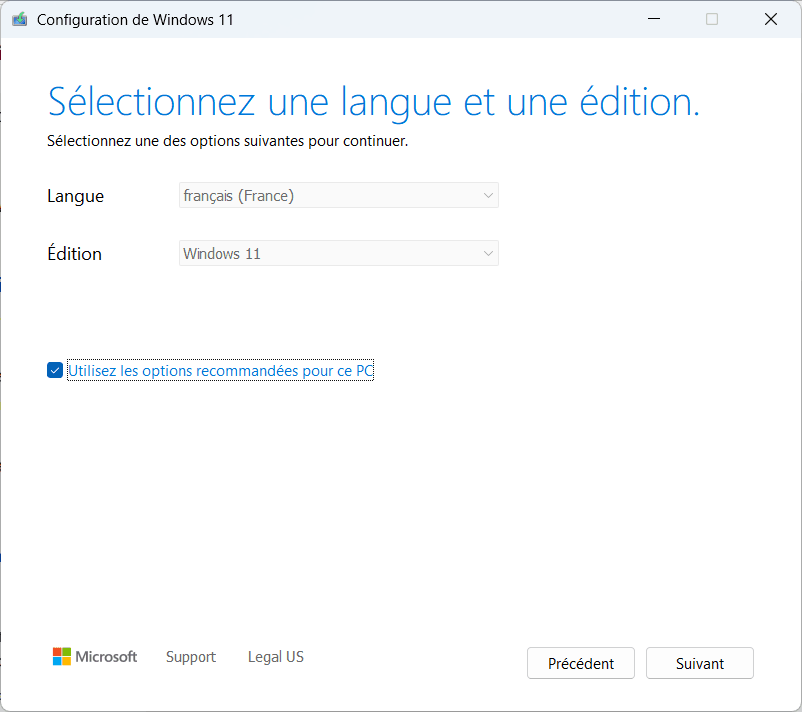
It is the most reliable way to get a clean, current version of Windows without using third-party websites. It selects the edition, language and architecture automatically, although these settings can also be chosen manually. Its UEFI and GPT support makes it suitable for modern PCs, and it formats the USB drive while avoiding partitioning mistakes.
2. Rufus for a bootable Windows or Linux USB drive
Rufus is one of the most popular tools for a bootable Windows 11 USB drive, for good reason. It is lightweight, portable and open source. It supports UEFI and BIOS plus MBR and GPT partition tables, so it works with nearly every old or new hardware configuration.
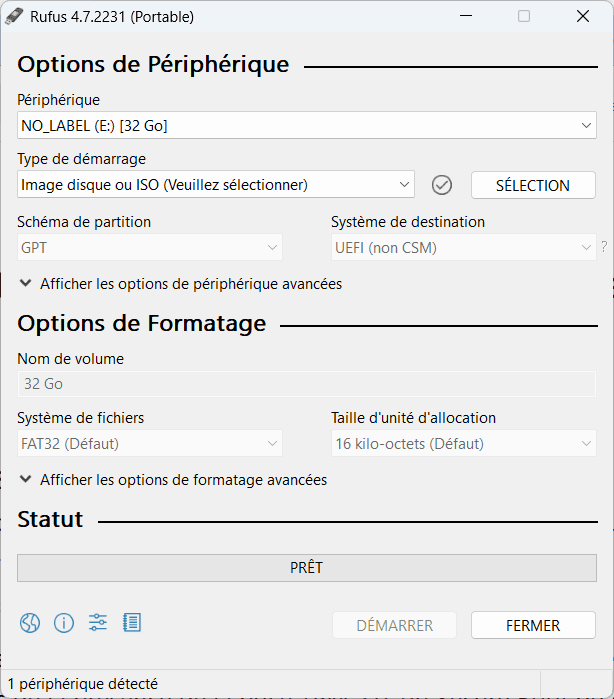
For Windows 11, its key advantage is the ability to bypass Microsoft’s hardware checks. In a few clicks, it can disable checks for TPM 2.0, Secure Boot, RAM and processor requirements. It is therefore ideal for installing Windows 11 on a PC judged incompatible by Microsoft’s tool.
Rufus is simple for beginners yet powerful for experienced users. You can choose the file system, partition scheme and boot mode, making it one of the most complete solutions for a clean install, a system reinstall or emergency repair.
3. Ventoy: several operating systems on one USB drive
Ventoy is an open-source utility that changes how bootable USB drives are made. Unlike traditional tools such as Rufus, which erase and rewrite the drive for every ISO, Ventoy installs its boot loader once. You then copy ISO files directly to the drive. This saves time and is especially flexible when testing or installing several systems.
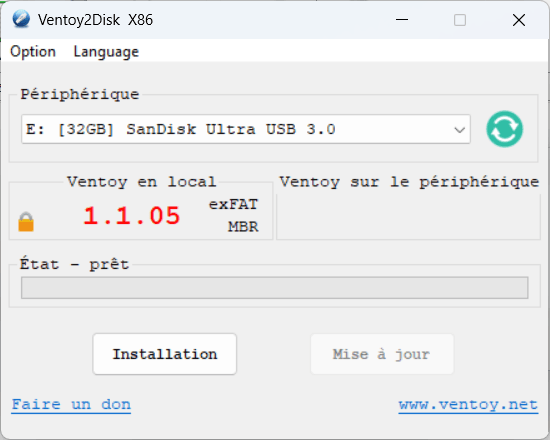
Ventoy works with Windows, Linux, macOS and some BSD releases, and supports more than 100 distributions including Windows 11. It detects ISO files and shows a boot menu. BIOS and UEFI modes, customised ISOs, persistence, ISO verification and Secure Boot are supported.
Ventoy is ideal for a versatile, easy-to-update multi-system ISO drive. Use it to install Windows 11, repair a PC with a live Linux environment or try Tails OS without reconfiguring the drive each time.
4. Balena Etcher for writing an ISO to a USB drive or SD card
Balena Etcher is a free, cross-platform application that simplifies bootable media creation from ISO and IMG disk images. Select the image, choose the USB drive or SD card, then click “Flash!”. Beginners appreciate its reliability and lack of complicated settings.
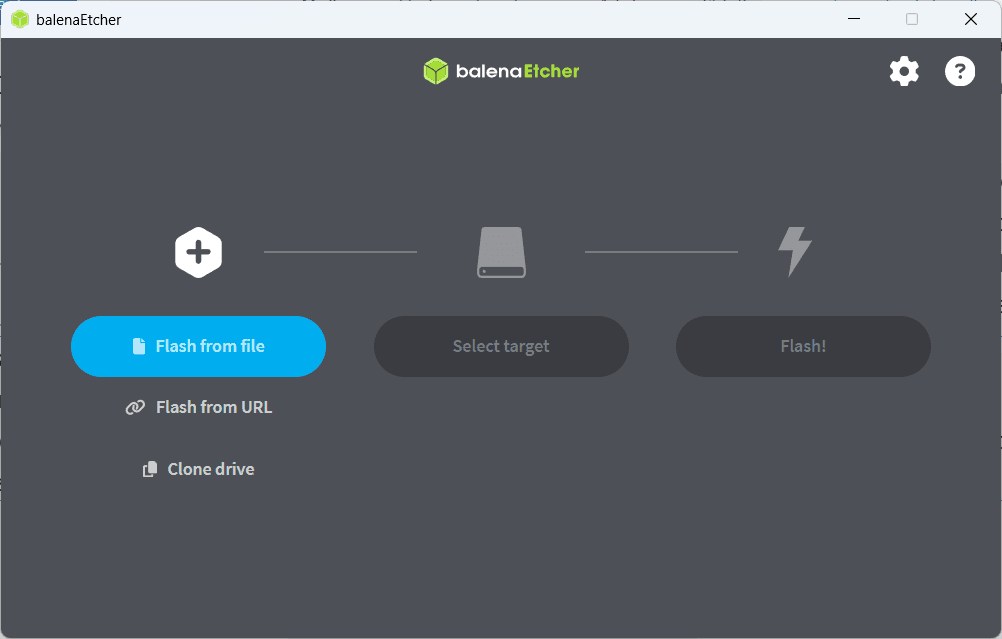
Unlike more technical tools, Balena Etcher writes the image as-is without changing files or adding a multiboot menu. That makes it a sound choice for Linux systems, live distributions and diagnostic tools; it can also create a bootable Windows 11 USB drive. Its minimalist design is a limitation for advanced users, however: it has no partitioning options, custom formatting or TPM and Secure Boot bypass, and cannot manage multiple ISO files like Ventoy.
Don’t let the algorithm decide for you
Add Assistouest to your preferred sources on Google so you can find our guides faster when you search for an IT solution.
5. UNetbootin for installing an OS without a CD or DVD
UNetbootin (Universal Netboot Installer) is a free, open-source tool for creating bootable USB drives from ISO files. It works with Windows, Linux and macOS, and has long been used to install Linux distributions without burning a CD or DVD. Its simple interface accepts a local disk image or downloads some distributions directly.
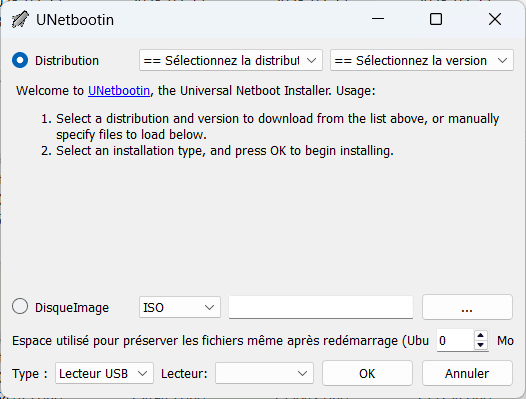
Although it is less suited to recent Windows releases, UNetbootin can still create a bootable Windows USB drive. It remains useful for advanced users and Linux enthusiasts, but has limits with Windows 11: no TPM bypass and no advanced UEFI, MBR or Secure Boot partition management. Its development is also less active than that of Ventoy or Rufus.
The content will unlock automatically after verification.