
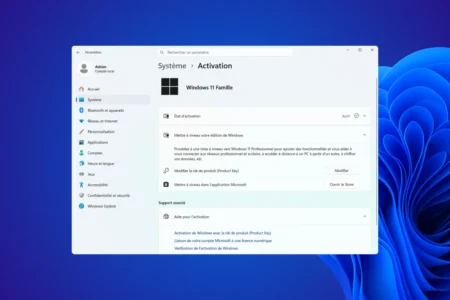
Windows restricts access to certain features (such as upgrading from the Home edition to the Pro edition) by means of a paywall and system restrictions. To bypass this restriction without reinstalling your entire system, Microsoft offers generic product keys.
These codes do not permanently activate Windows. They simply force the installer to accept the upgrade. Once the switch has been made, you will need to link a valid digital licence to complete the activation. Here are the keys required to unlock these editions.
In this article
List of generic RTM installation keys for Windows 11
These keys are intended for standard installations (end users). They enable the initial installation or upgrade of the edition.
| Windows 11 Editions | Generic RTM key |
|---|---|
| Windows 11 Home | YTMG3-N6DKC-DKB77-7M9GH-8HVX7 |
| Windows 11 Home N | 4CPRK-NM3K3-X6XXQ-RXX86-WXCHW |
| Windows 11 Pro | VK7JG-NPHTM-C97JM-9MPGT-3V66T |
| Windows 11 Pro N | 2B87N-8KFHP-DKV6R-Y2C8J-PKCKT |
| Windows 11 Pro for Workstations | DXG7C-N36C4-C4HTG-X4T3X-2YV77 |
| Windows 11 Pro for Workstations N | WYPNQ-8C467-V2W6J-TX4WX-WT2RQ |
| Windows 11 Pro Education | 8PTT6-RNW4C-6V7J2-C2D3X-MHBPB |
| Windows 11 Pro Education N | GJTYN-HDMQY-FRR76-HVGC7-QPF8P |
| Windows 11 Education | YNMGQ-8RYV3-4PGQ3-C8XTP-7CFBY |
| Windows 11 Education N | 84NGF-MHBT6-FXBX8-QWJK7-DRR8H |
| Windows 11 Enterprise | XGVPP-NMH47-7TTHJ-W3FW7-8HV2C |
| Windows 11 Enterprise N | WGGHN-J84D6-QYCPR-T7PJ7-X766F |
| Windows 11 Enterprise G N | FW7NV-4T673-HF4VX-9X4MM-B4H4T |
List of KMS product keys for Windows 11
These keys are intended solely for use in enterprise environments that utilise a Key Management Server (KMS) for the centralised activation of workstations.
| Windows 11 editions | Generic KMS key |
|---|---|
| Windows 11 Home | TX9XD-98N7V-6WMQ6-BX7FG-H8Q99 |
| Windows 11 Home N | 3KHY7-WNT83-DGQKR-F7HPR-844BM |
| Windows 11 Pro | W269N-WFGWX-YVC9B-4J6C9-T83GX |
| Windows 11 Pro N | MH37W-N47XK-V7XM9-C7227-GCQG9 |
| Windows 11 Pro for Workstations | NRG8B-VKK3Q-CXVCJ-9G2XF-6Q84J |
| Windows 11 Pro for Workstations N | 9FNHH-K3HBT-3W4TD-6383H-6XYWF |
| Windows 11 Pro Education | 6TP4R-GNPTD-KYYHQ-7B7DP-J447Y |
| Windows 11 Pro Education N | YVWGF-BXNMC-HTQYQ-CPQ99-66QFC |
| Windows 11 Education | NW6C2-QMPVW-D7KKK-3GKT6-VCFB2 |
| Windows 11 Education N | 2WH4N-8QGBV-H22JP-CT43Q-MDWWJ |
| Windows 11 Enterprise | NPPR9-FWDCX-D2C8J-H872K-2YT43 |
| Windows 11 Enterprise N | DPH2V-TTNVB-4X9Q3-TJR4H-KHJW4 |
| Windows 11 Enterprise G | YYVX9-NTFWV-6MDM3-9PT4T-4M68B |
| Windows 11 Enterprise G N | 44RPN-FTY23-9VTTB-MP9BX-T84FV |
| Windows 11 Enterprise LTSC 2019 | M7XTQ-FN8P6-TTKYV-9D4CC-J462D |
| Windows 11 Enterprise N LTSC 2019 | 92NFX-8DJQP-P6BBQ-THF9C-7CG2H |
Method 1: Change the key via Settings
The most straightforward way to change your Windows 11 edition is to use the system’s built-in management interface. This method allows you to unlock features available in a higher edition – such as upgrading from Home to Pro – whilst retaining all your personal applications and documents.
- Press the Windows and I keys at the same time to open Settings.
- In the menu on the left, click on ‘System’, then select ‘Activation’ from the list on the right.
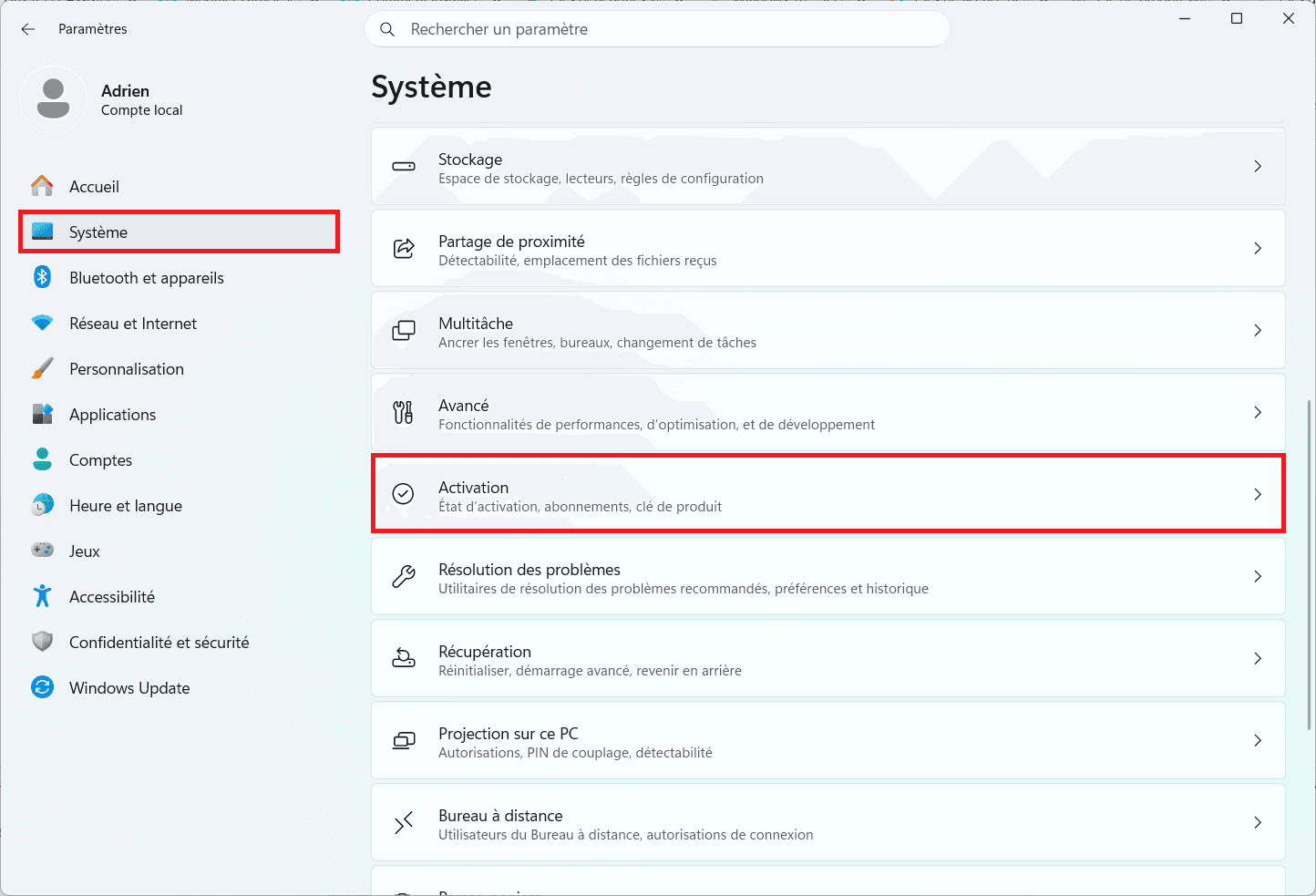
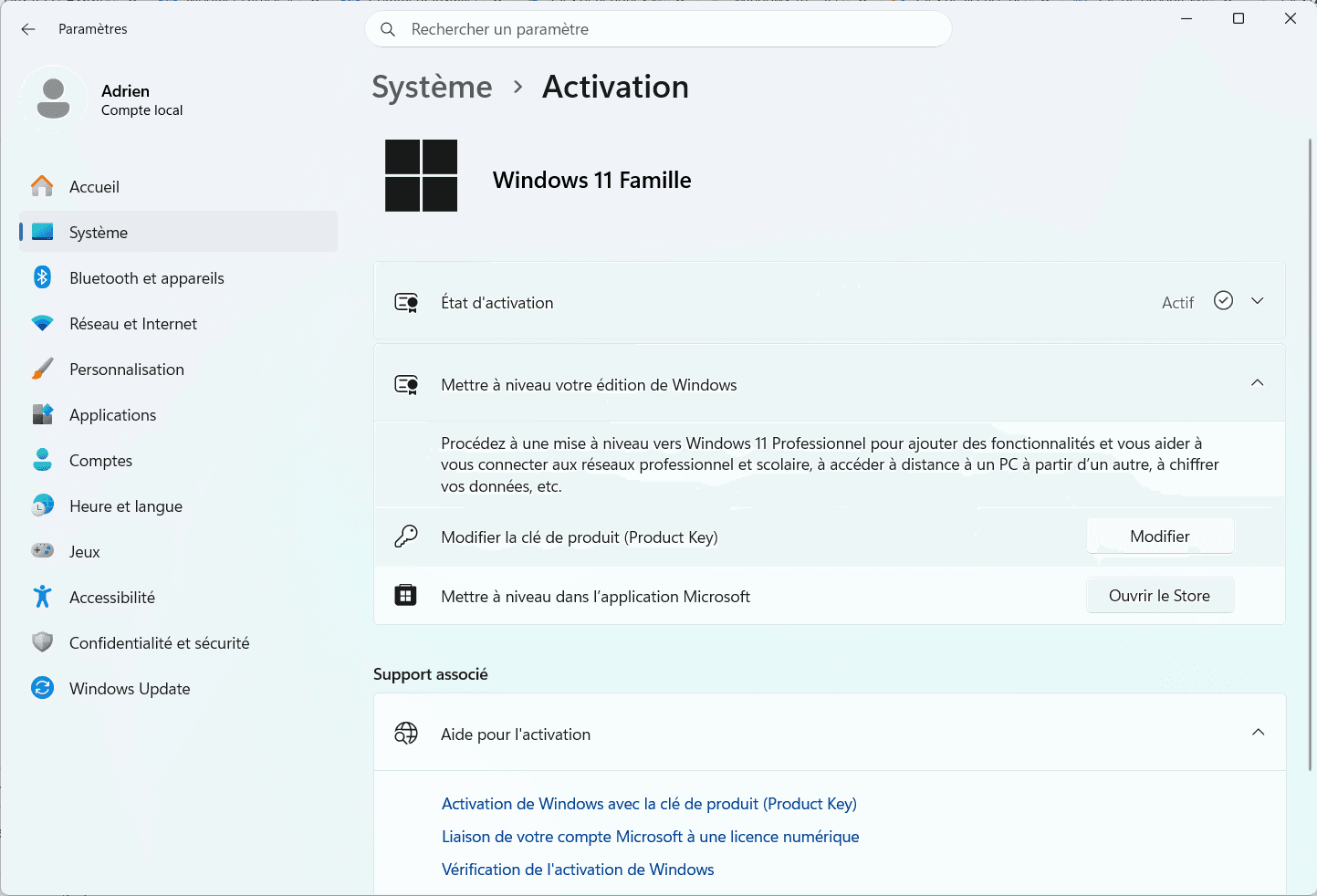
- Locate the ‘Edit product key’ line and click the ‘Edit’ button.
- Enter the generic key corresponding to the required edition.
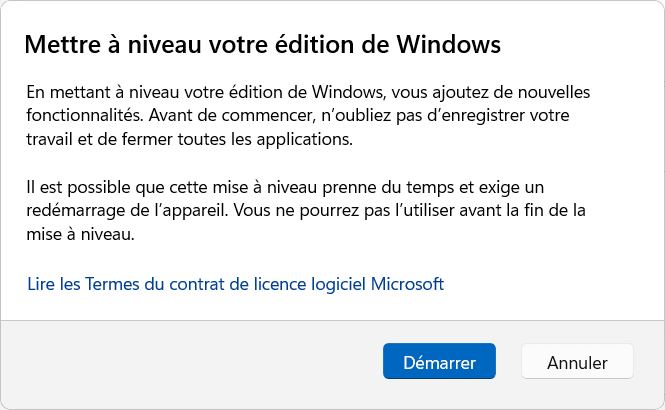
- Click Next. The system will check for compatibility.
- Click Start to begin the upgrade. Your computer will restart to apply the feature changes.
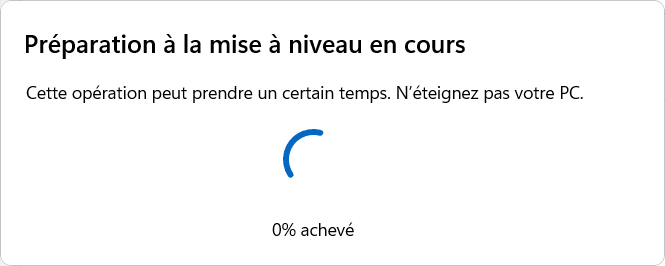
After restarting, you can confirm the change by returning to the system information. Your new edition will now be listed in the Windows specifications.
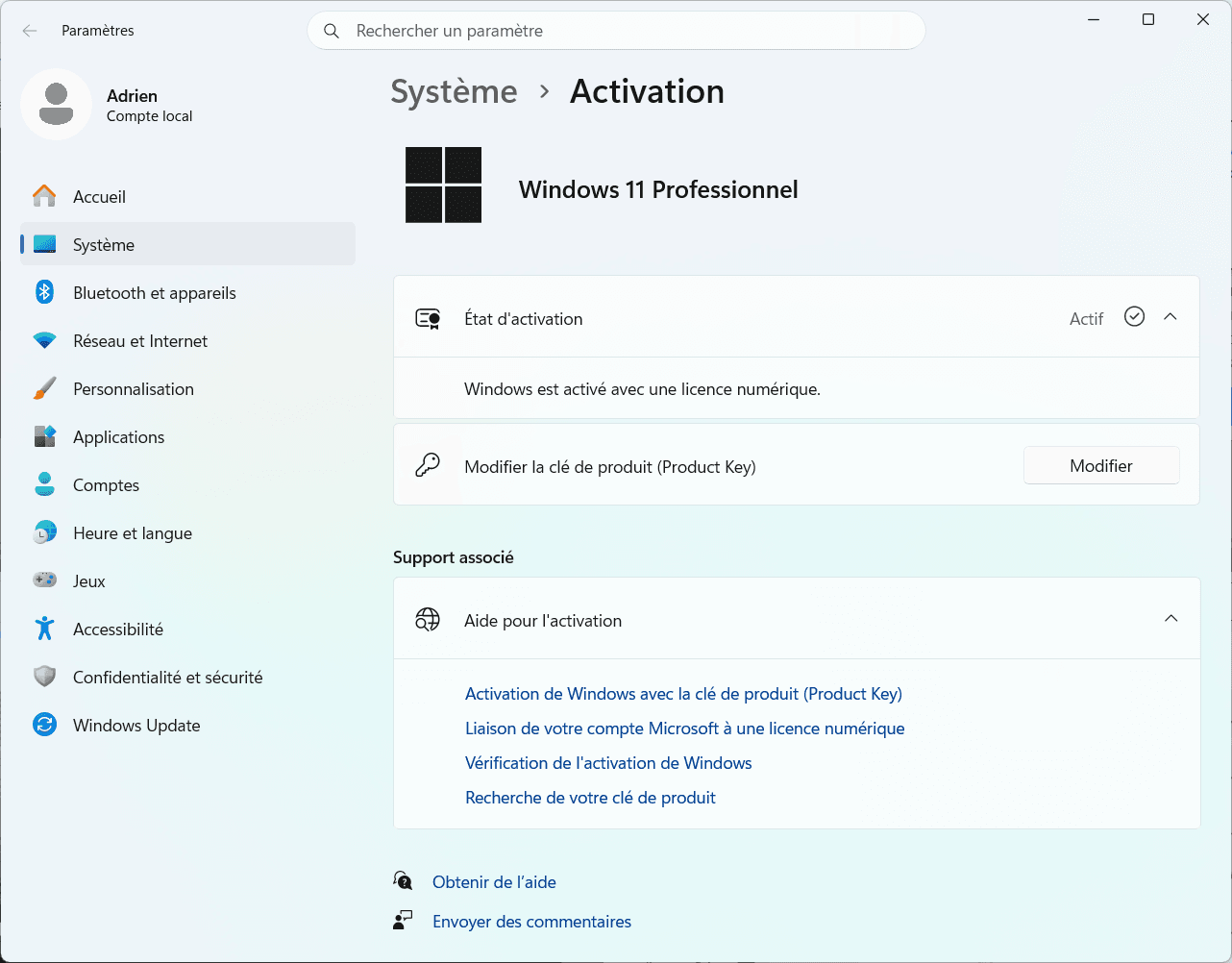
The operation is now complete and your system is immediately up and running with its new software capabilities.
Method 2: Using the Command Prompt
The Command Prompt is a faster and more efficient alternative if you prefer using administrative tools or if the graphical user interface is not working properly. This method uses the Windows software licence management tool to change the system edition with just a few lines of code.
- Click the Start button, then type
‘cmd’into the search bar. - Right-click on Command Prompt and select ‘Run as administrator’.
- In the black window, enter the following command, replacing the Xs with the key you chose from the lists above:
slmgr /ipk XGVPP-NMH47-7TTHJ-W3FW7-8HV2C
The slmgr /ipk (Install Product Key) command installs the key in the Windows registry.
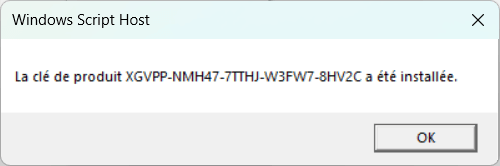
- To force activation using this new key, type the following command:
slmgr.vbs -ato
This second command forces communication with the validation services to update your session’s functionality.
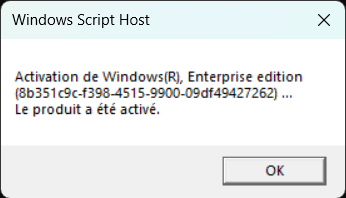
Once the process is complete, a notification will confirm that the operation was successful. Your system will then be immediately recognised under its new edition, granting access to the management tools and specific settings corresponding to the licence entered.
What are Windows 11 generic product keys used for?
Generic Volume Licensing Keys (GVLK) or RTM installation keys are codes provided by Microsoft to enable the installation of the operating system or a change of edition without permanently activating the licence. They are useful for testing in virtual machines or for quickly switching from a limited version (Home) to a more comprehensive version (Professional).
A generic key is not a commercial licence. It does not allow you to permanently activate your system via Microsoft’s servers. After using a generic key to install or upgrade your system, you will need to enter a genuine Windows 11 licence purchased separately to access all features and remove the activation prompts.
We allow some readers to view our articles for free with an ad blocker. However, their number is currently too high for us to keep this access available to everyone.
You can disable your ad blocker to continue reading immediately, subscribe to enjoy all our content without ads, or come back a little later when the pressure has eased.
Access will be restored automatically as soon as the situation allows.