A PC can run Windows normally, play games for several hours and still restart as soon as its processor is subjected to a particularly intensive workload. That is exactly what happened recently with a client’s gaming PC that was shutting down at random.
After fixing several problems on the machine, I ran Linpack with OCCT to check the processor’s stability. The test did not last long: the PC shut down and restarted after about ten seconds.
The processor had been overclocked with unstable settings. The computer could work correctly under lighter workloads, but heavily loading the CPU was enough to reproduce the client’s problem almost immediately.
Linpack is particularly useful in this kind of situation. This stress test puts an especially heavy computational load on the processor while checking that the results are correct. It can therefore reveal certain instabilities much faster than waiting for a game or application to cause another crash.
In this article
- Linpack makes the processor handle very heavy calculations
- A processor at 100% does not always use the same amount of power
- Linpack can detect an error without your CPU being defective
- Processor overclocking was causing the restarts
- The amount of memory changes how the test behaves
- How long should you run a Linpack test in OCCT?
Linpack makes the processor handle very heavy calculations
Linpack was not originally created as a diagnostic program for PCs. The benchmark comes from the LINPACK project dedicated to numerical computing and already appeared in the software’s user guide in 1979. Its purpose at the time was to measure how long different computers needed to solve systems of linear equations.
It is a benchmark that solves a dense system of linear equations in the form Ax=b, measures the time required for the calculation and then checks the accuracy of the result. Performance is expressed as floating-point operations per second.
This sequence of calculations is particularly well suited to a CPU stress test because it keeps the processor’s execution units heavily occupied for an extended period. Unlike a benchmark that only measures how long a task takes, Linpack can also compare the result obtained with the expected result to detect a calculation error.
A processor at 100% does not always use the same amount of power
You might think that running any software showing 100% processor usage in Task Manager would produce the same result. In practice, the usage percentage mainly indicates how long the cores are busy and does not precisely describe the type of instructions they are executing.
Video compression, a game, Cinebench and Linpack can therefore all show 100% CPU usage while producing different power consumption and temperatures. Linpack makes extensive use of mathematical operations that can be vectorized and take advantage of the instruction sets available on the processor.
AVX instructions are especially relevant in this context. AVX and AVX2 can lead to higher power consumption and more heat, to the point that some processors reduce their clock speed to stay within their electrical or thermal limits.
This is one reason why Linpack can make a processor run hotter than a game even though both use all the cores. The processor is simply not doing the same work in both situations.
If the temperature immediately reaches the limit set by the manufacturer and the processor sharply reduces its frequency, the test quickly shows that the cooling system cannot dissipate such a heavy CPU workload.
Linpack can detect an error without your CPU being defective
The Linpack test alternates an intensive calculation phase with a phase dedicated to checking the results. If the processor calculates an incorrect value, OCCT can report an error even though Windows continues to run normally.
The calculation result is accompanied by a residual that makes it possible to check its accuracy. A result that is abnormally far from the expected value indicates that the calculation is incorrect.
In my client’s case, the behaviour was much more severe: the computer restarted after around ten seconds. Linpack does not ask Windows to restart when a calculation fails. The load placed on the processor simply exposed a serious instability that brought down the entire system.
A restart during Linpack may point to the processor and its settings, but you must also check temperatures, voltages, the power supply and any limits applied by the motherboard.
Processor overclocking was causing the restarts
Overclocking means increasing the processor’s operating frequency to gain performance. However, the CPU must retain enough voltage to perform its calculations correctly.
An unstable setting does not necessarily cause a crash when Windows starts. The frequency may be sufficient for office work, browsing or some games and become problematic when all cores work simultaneously under a much heavier load.
That was exactly how the machine I was diagnosing behaved. The PC did not restart every time during normal use, but Linpack reproduced the problem within seconds. After identifying the overclocking settings as the cause of the instability and correcting the configuration, the stress test remained stable and the processor was able to continue.
Linpack 2019 and 2021 belong to two different generations
OCCT has offered several generations of Linpack, and you may still come across the names Linpack 2019 and Linpack 2021. The year does not indicate a difficulty level, so Linpack 2021 should not be viewed as simply a more powerful version of the 2019 test.
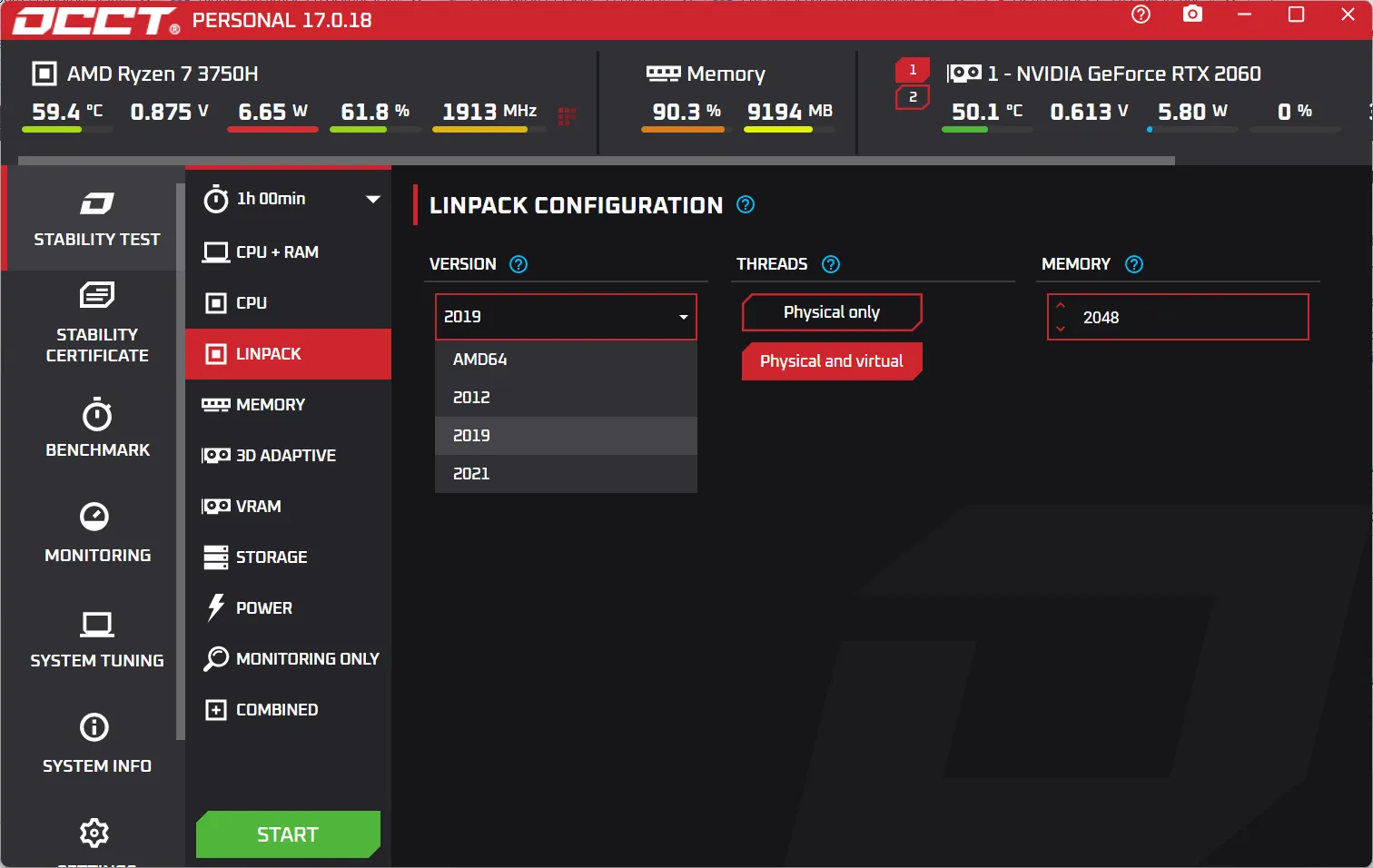
OCCT 5.0 integrated an updated version of Linpack in 2019. Two years later, its developer added Linpack 2021, explaining that it was a completely updated version that also worked with AMD processors.
This period also coincided with the evolution of Intel’s mathematical libraries. From version 2021.1 onwards, Intel Math Kernel Library was renamed Intel oneAPI Math Kernel Library. Intel kept the existing CPU APIs while evolving the library and its distribution model.
| Version in OCCT | What it represents |
|---|---|
| Linpack 2019 | Generation integrated into OCCT in 2019 |
| Linpack 2021 | Updated version added in 2021 with announced support for AMD CPUs |
Optimized libraries can select different instructions depending on the processor and its architecture.
The amount of memory changes how the test behaves
The memory setting in Linpack does not simply decide how much RAM the software is allowed to use. It changes the size of the mathematical problem to solve and therefore the duration of the test’s different phases.
OCCT currently recommends staying around 2 to 4 GB so that the calculation and verification phases remain short enough. With a much larger amount of memory, each problem takes longer to solve and you must wait longer before receiving a new result check.
To look for instability quickly, using all available memory is therefore not the best choice. Several relatively short cycles provide results regularly and make it possible to detect a possible error sooner.
Using a large amount of memory can nevertheless be useful when the goal is to measure performance or put more stress on memory transfers.
How long should you run a Linpack test in OCCT?
Leaving Linpack running for eight hours does not necessarily provide more information than a shorter test. The appropriate duration depends on the problem you are investigating.
When the PC restarts after ten seconds, the diagnosis can already move forward. There is no point waiting an hour when the machine cannot get past the beginning of the test. After changing the settings, you can run Linpack again and check whether the restart still occurs just as quickly.
A configuration that passes the first few minutes obviously deserves a longer test if the aim is to validate its stability. At a minimum, monitor the errors reported by OCCT, the maximum temperature, processor frequencies and any thermal or electrical limits.
There is no duration that can guarantee a processor will never crash, however. A stress test only reproduces one type of workload, and stability also depends on frequency transitions, memory, the memory controller and the PC’s other components.
We allow some readers to view our articles for free with an ad blocker. However, their number is currently too high for us to keep this access available to everyone.
You can disable your ad blocker to continue reading immediately, subscribe to enjoy all our content without ads, or come back a little later when the pressure has eased.
Access will be restored automatically as soon as the situation allows.