Seeing a processor run at a low frequency is not necessarily worrying. At idle or under a light workload, modern CPUs deliberately reduce their frequency and voltage to limit power consumption. However, when usage rises to 80, 90 or 100% and the frequency remains well below the manufacturer’s advertised base frequency, it is time to find out what is actually limiting the processor.
The first thing many people check is the temperature, but that is not always the right lead. A wrong BIOS configuration, a power limit, virtualization or a cooling problem can produce a very similar symptom. The most effective approach is therefore to start from a clean state and eliminate the possible causes one by one.
In this article
Reset the BIOS to restore the default settings
The BIOS or UEFI does more than choose the boot order. It controls much of the processor’s behavior, including boost features, some power limits, virtualization and the CPU’s overclocking and undervolting settings.
You do not need to have changed settings manually to encounter this problem. A BIOS update, an incomplete reset or an old saved profile can also leave the firmware in a state that differs from the manufacturer’s intended configuration. Restore the default settings in the BIOS, save the changes and restart Windows before running the test again. If the processor immediately returns to a normal frequency under load, you know that a firmware setting was contributing to the problem.
This reset may also disable settings that you had deliberately enabled. Remember to check XMP or EXPO to boost your memory, the boot order and virtualization afterwards if you need them.
Disable virtualization if you do not use it
Virtualization is used by Hyper-V, virtual machines and WSL2 on Windows 11. WSL2 runs a real Linux kernel inside a virtual machine and relies on Virtual Machine Platform, which itself is based on part of the Hyper-V architecture. WSL1 works differently and does not use this virtual machine.
On a properly configured PC, enabling virtualization in the BIOS should not reduce the processor’s frequency. It can nevertheless be useful to test it when the frequency becomes abnormally low after enabling WSL2, Hyper-V or another virtualized environment. Some systems can experience an interaction between the VM, the processor’s power management and the manufacturer’s firmware.
If you use WSL2, start by completely shutting down its distributions with:
wsl --shutdownThen run the same CPU test in Windows. If the processor goes, for example, from 2 GHz with WSL2 active to nearly 3 GHz once the VM is stopped, cooling is probably not the cause of the difference. You should then examine the WSL2 configuration, the number of virtual processors exposed to the VM and the platform’s power management.
If you do not use any virtual machine, WSL2 or Hyper-V, you can also disable virtualization in the BIOS and run the test again.
Clean the fans and check the thermal paste
When the frequency starts normally and then drops as the processor heats up, cooling becomes a possibility worth investigating. The CPU then reduces its power consumption and frequency to limit the heat it produces. This is thermal throttling.
Dust alone can cause a significant deterioration. It builds up on the fan blades, but especially in the radiator’s very fine fins, reducing the airflow through the cooling system. Ventilation blocked by dust, hair or other debris can prevent a laptop from dissipating heat properly and lead to lower performance.
On an older or poorly maintained PC, the thermal paste should also be checked. It fills the tiny irregularities between the processor and the heatsink so that heat can be transferred correctly. When it has dried out or the heatsink is not making proper contact, the CPU temperature rises much faster as soon as a heavy workload starts.
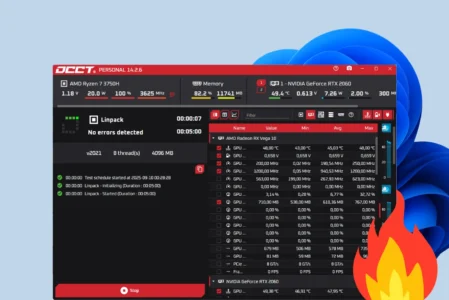
Thermal throttling can be misleading if you look at the temperature too late. As soon as the CPU sharply reduces its frequency and power, it produces less heat and its temperature drops. A processor observed at 60°C may therefore have reached a much higher temperature moments earlier. The maximum values recorded throughout the workload are much more useful than the temperature shown when you open software to check a PC’s temperatures.
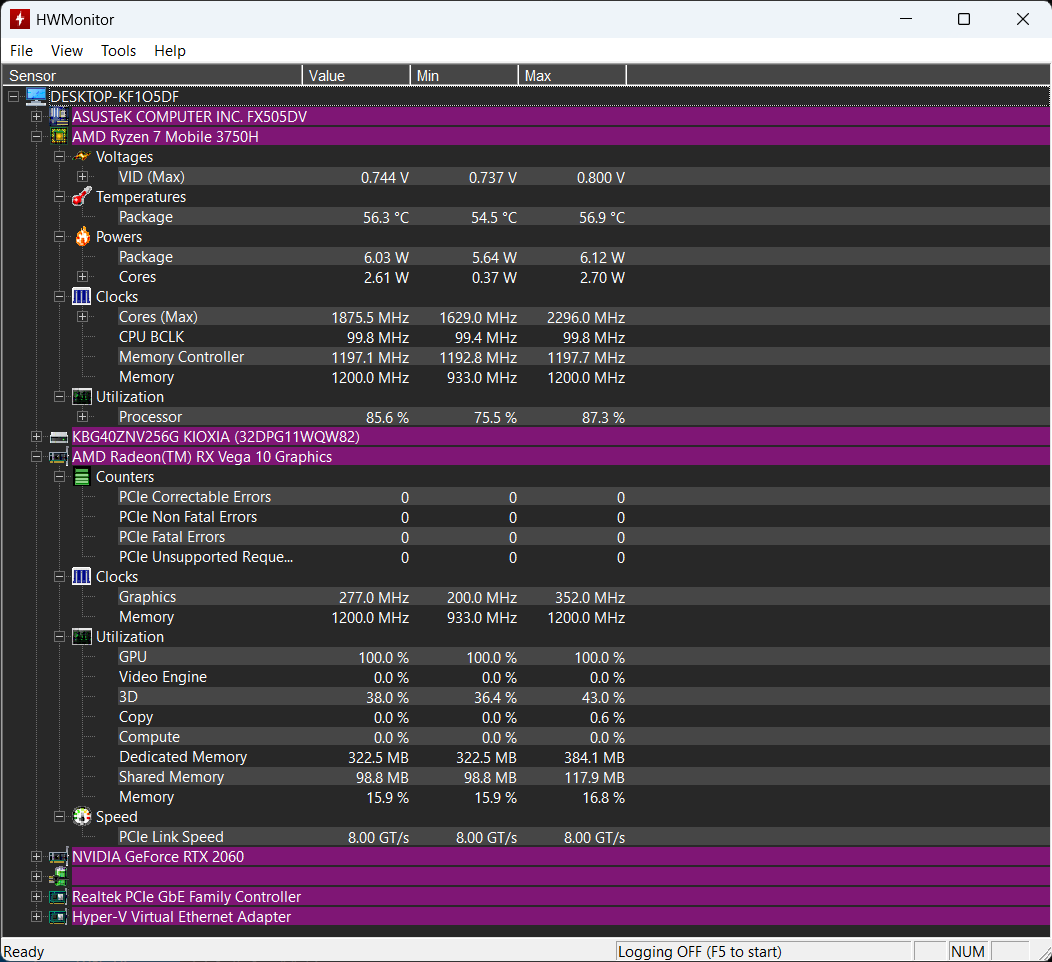
After cleaning the fans and replacing the thermal paste, run the same test for the same length of time. The result should not be judged only by the number of degrees. If the processor has more thermal headroom, it can use that headroom to increase its frequency and ultimately show a similar temperature while delivering more performance.
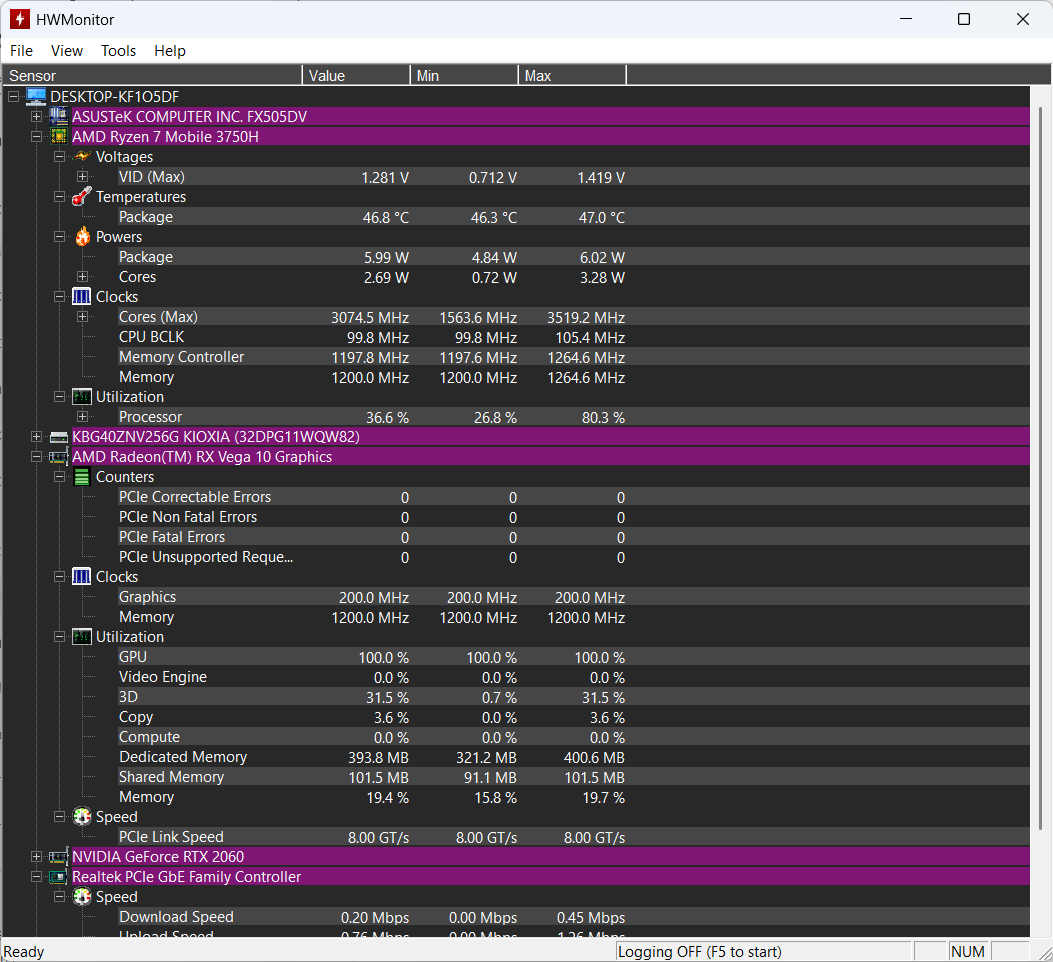
If your CPU instead remains around 45 or 50°C throughout a full workload but still operates far below its normal frequency, the cooling system is unlikely to explain the current problem. You should then look at power limits and the PC’s software configuration.
Check the power settings configured in Windows
Before suspecting a hardware problem, you should also check that Windows is not imposing a performance limit itself. The active power plan can change the processor’s behavior, including its minimum and maximum state, boost strategy and certain frequency limits. An overly conservative profile can therefore keep the CPU at a lower-than-expected frequency, even when the workload increases.
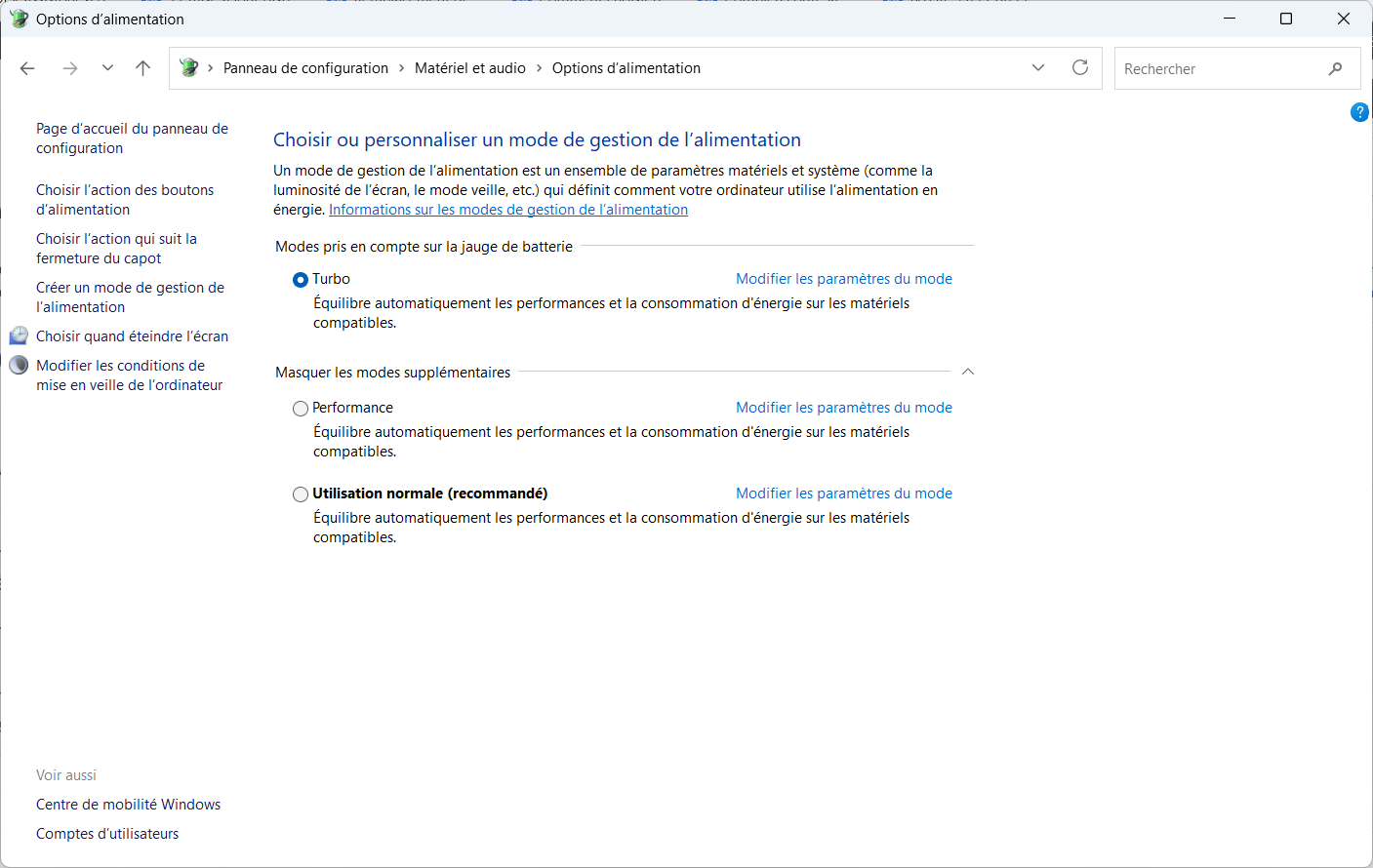
On laptops, you should also check the manufacturer’s software. ASUS, Lenovo, Dell, HP, MSI and Acer add their own Silent, Balanced, Performance or Turbo profiles, which can directly change the power available to the processor and the behavior of the fans. Windows may show 100% performance available while the manufacturer’s software applies a more restrictive power policy.
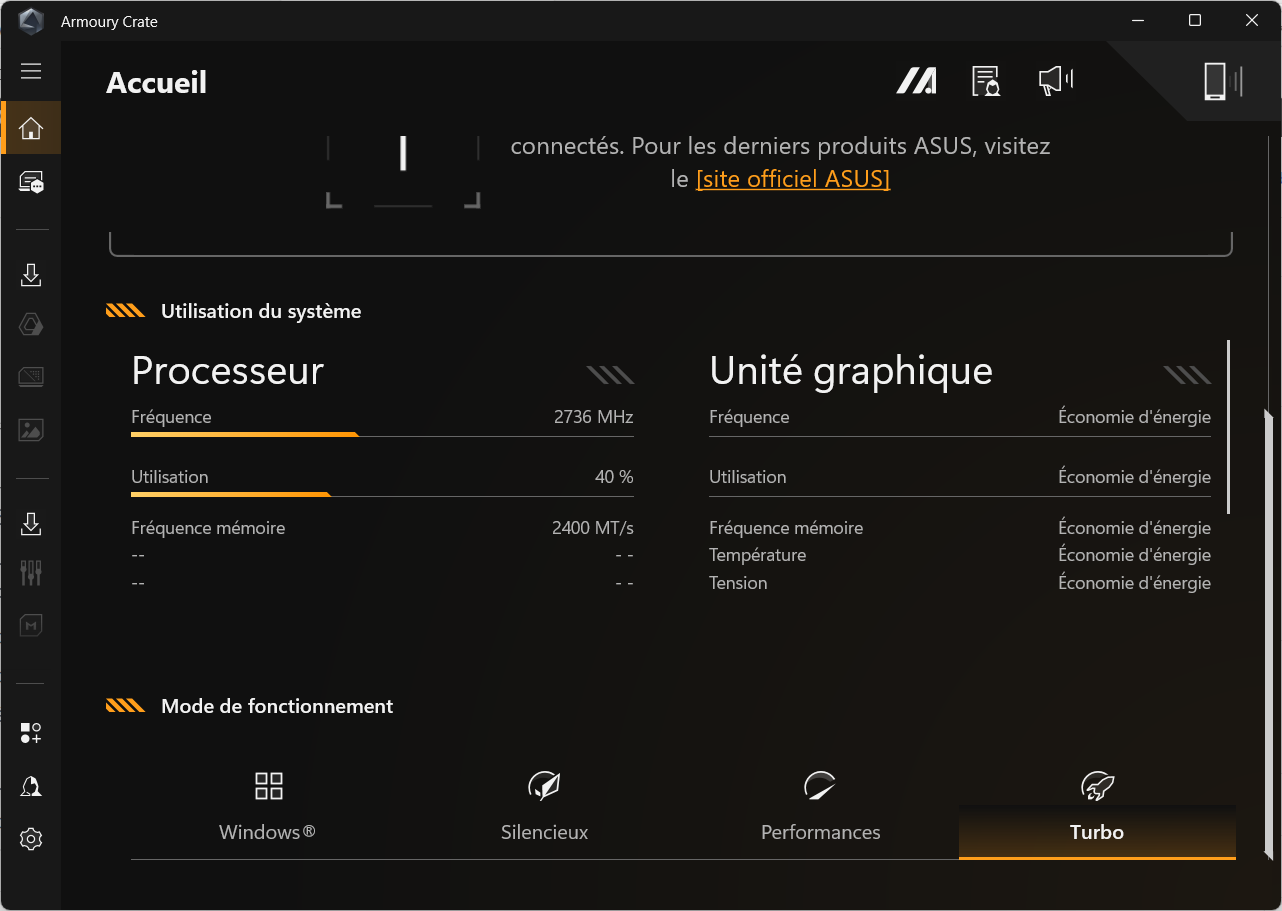
Plug your computer into AC power and select a normal or Performance profile, then run exactly the same load test. If the frequency rises without any other change, the limitation came from the power profile rather than the processor itself.
Reinstall the chipset drivers
If the BIOS, virtualization, cooling and power profiles do not explain the problem, the next step is to look at the chipset software stack.
Chipset drivers are not only used for USB ports or the PCI Express bus. They also handle some of the communication between Windows, the processor, ACPI, the motherboard controllers and the power-management mechanisms. On a laptop, they also interact with the firmware and the manufacturer’s tools.
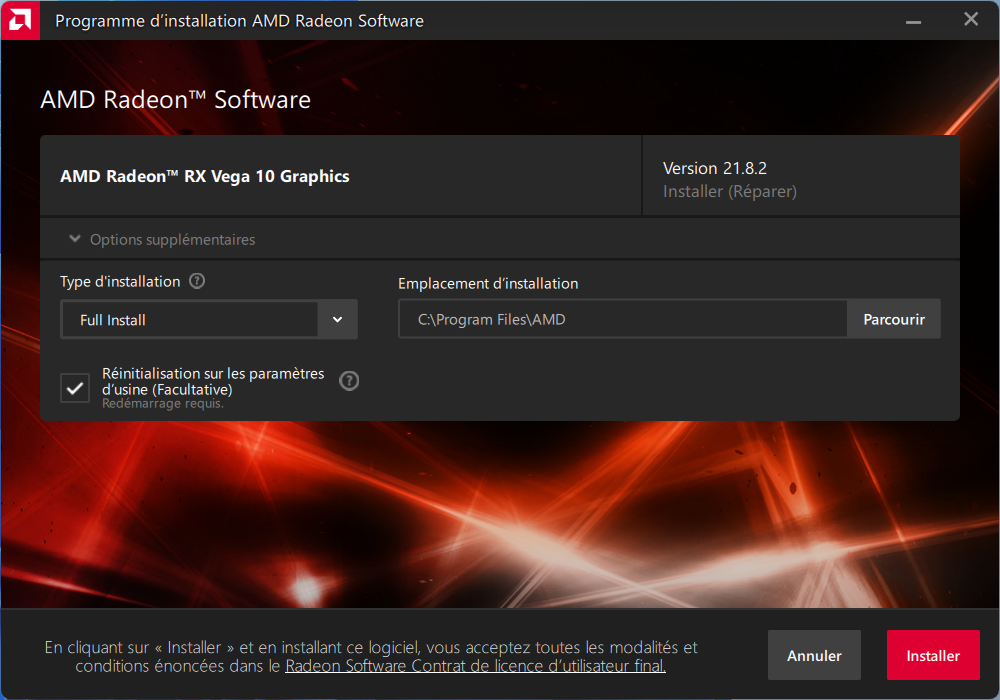
A Windows upgrade or a driver update can replace several components at the same time. GPIO, I2C, SMBus, PSP, ACPI or manufacturer-specific interfaces can then end up with versions that differ from those originally intended for the PC. Everything may appear to work correctly in Device Manager while power management is abnormal.
A low frequency does not necessarily indicate a thermal problem
This is probably the most important point to remember. A CPU frequency that is too low under full load is a symptom, not a diagnosis.
If the processor stays cool but runs very slowly, first look at the BIOS settings, virtualization, power limits or firmware management. If the frequency gradually drops as the temperature rises, cooling becomes much more suspicious.
The most reliable approach is therefore to compare CPU load, frequency, temperature and behavior before and after each change. By following this order, you can identify the cause without replacing hardware unnecessarily.
We allow some readers to view our articles for free with an ad blocker. However, their number is currently too high for us to keep this access available to everyone.
You can disable your ad blocker to continue reading immediately, subscribe to enjoy all our content without ads, or come back a little later when the pressure has eased.
Access will be restored automatically as soon as the situation allows.