For the past few days, Codex may no longer start correctly in Visual Studio Code after an update to its extension. I encountered the problem with version 26.1021.22027, even though everything had been working normally before.
I use Visual Studio Code with a WordPress project running under WSL Ubuntu with DDEV. The Codex extension is installed correctly and appears normally in VS Code, but its interface no longer loads. After a few seconds, a message simply says that Codex could not start.
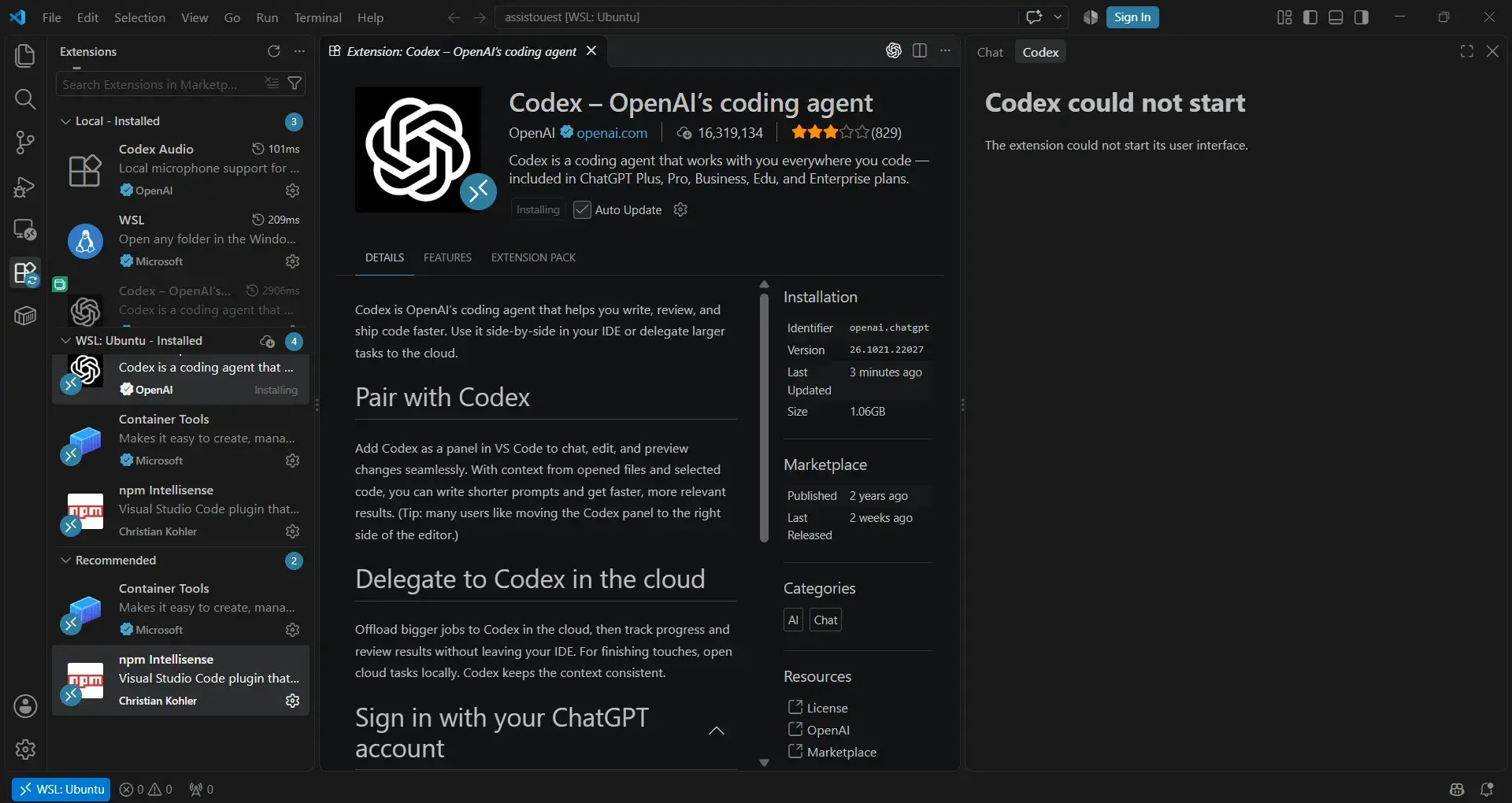
The problem was not caused by WSL or the project. The same issue with version 26.1021.22027 was reported on the official Codex GitHub repository. If Codex stops starting immediately after an update, first check the extension version before changing your development environment.
Check whether Codex displays a startup error
When this problem occurs, the extension is still visible in Visual Studio Code. You can open the Codex panel normally, but its interface never finishes loading.
After a few seconds, the following message appears:
Codex could not start
The extension could not start its user interface.
If the problem appeared after an update, testing another extension version is therefore quicker than immediately reinstalling WSL or Visual Studio Code.
Install an earlier version of Codex in Visual Studio Code
Visual Studio Code lets you go back to an earlier extension version without completely removing it.
Open Extensions, then search for Codex – OpenAI’s coding agent. On the extension page, click the small arrow next to the Uninstall button, then choose Install Specific Version….
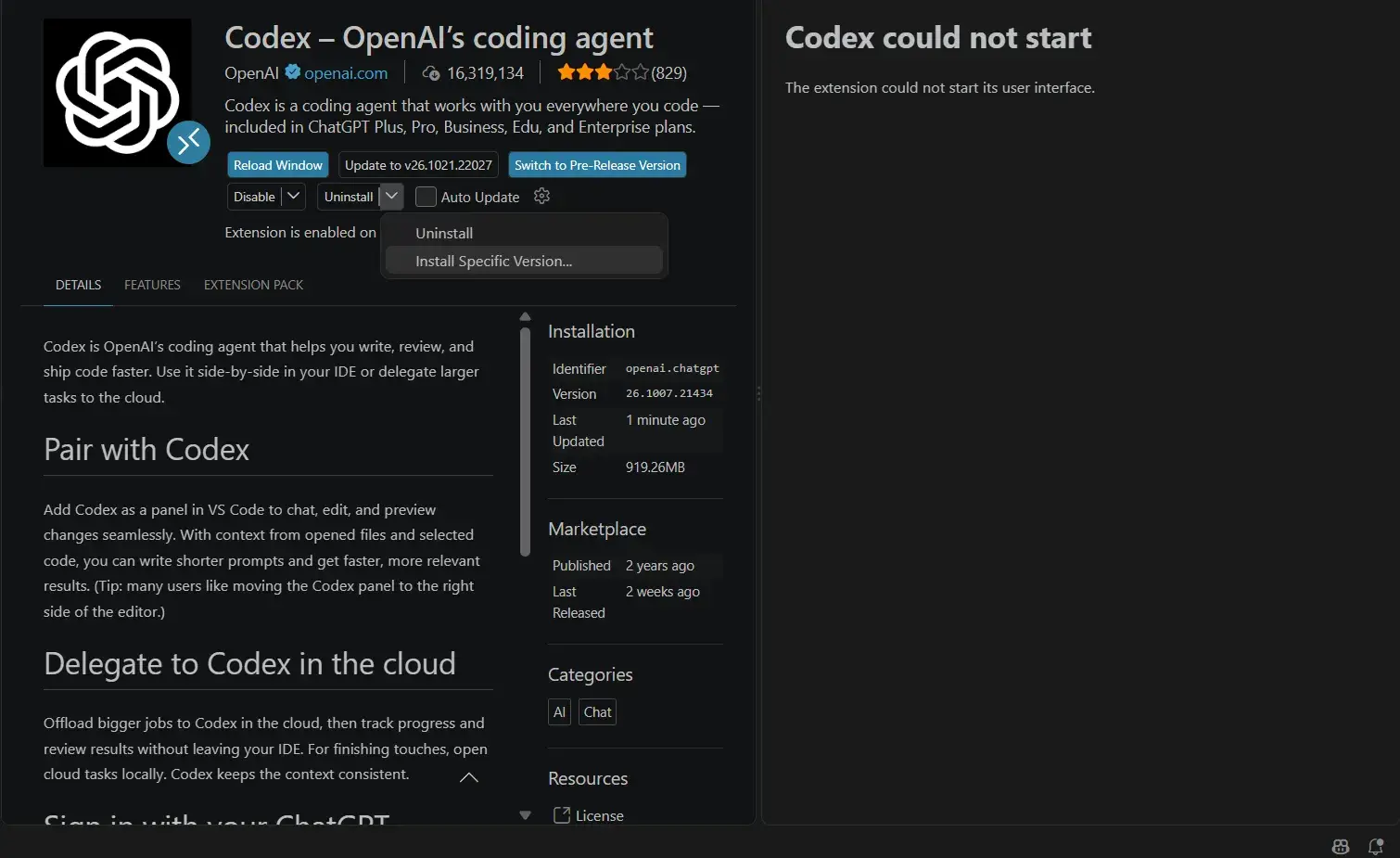
Once the installation is complete, Visual Studio Code displays the Reload Window button. Click it to reload the window and restart Codex with the version you have just installed.
For the problem encountered with version 26.1021.22027, you can go back to 26.1007.21434. This is the version I used to restore Codex, and it is also mentioned as working in the GitHub issue.
Check that Codex works after reloading VS Code
Once Visual Studio Code has reloaded, open the Codex panel again.
If the interface appears normally, you have confirmed that the problem was related to the extension version and that you did not need to change your project or WSL environment.
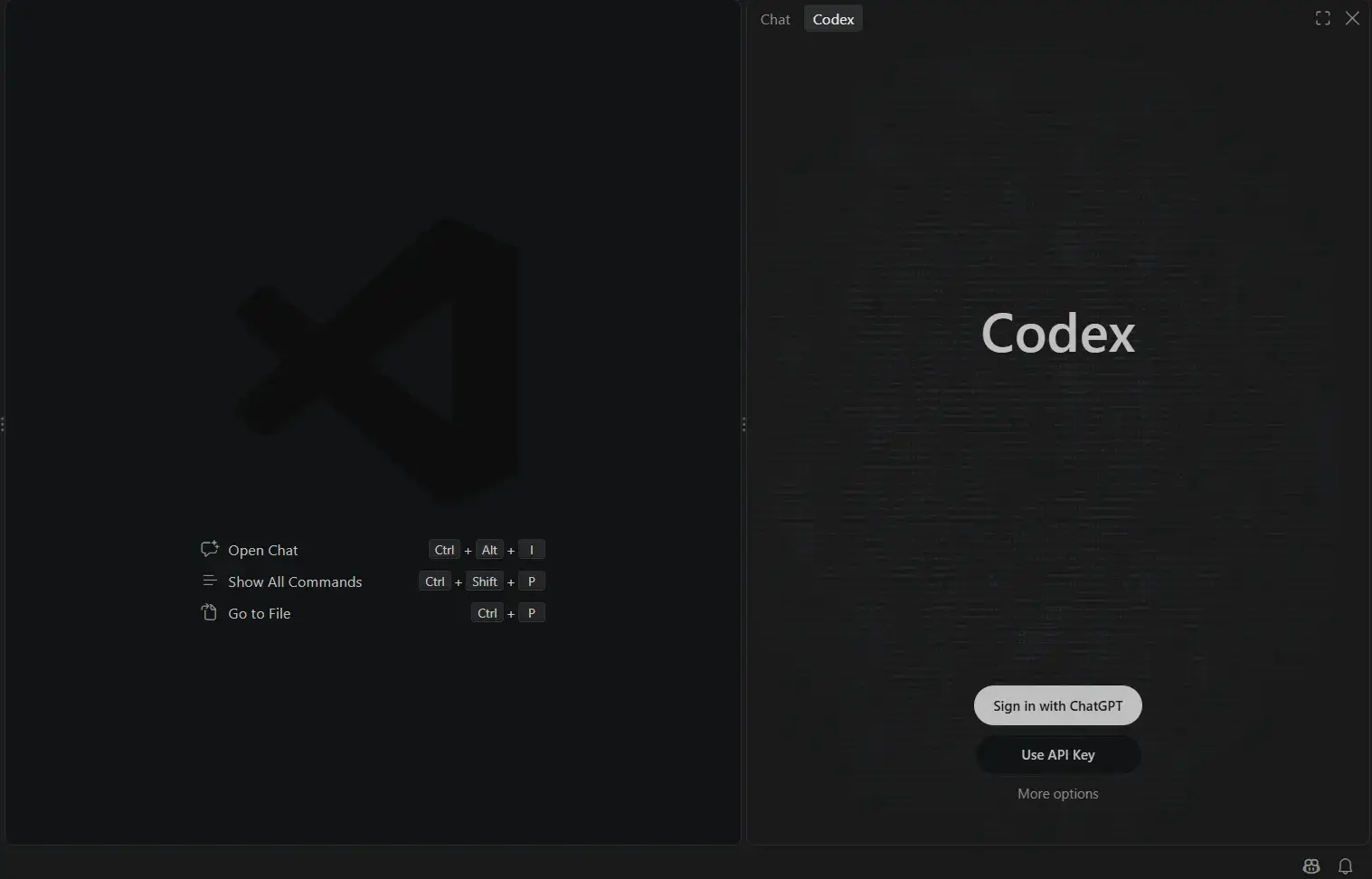
Switching from version 26.1021.22027 to 26.1007.21434, followed by reloading VS Code, was enough to restore the Codex interface.
If a future Codex update causes another problem, temporarily returning to the last version known to work can help confirm whether the update is responsible.
Stay on the Release version if you prefer stability
Visual Studio Code allows some extensions to offer both Release and Pre-Release versions.
Pre-Release versions let you try new features sooner, but they may also receive changes before they are distributed through the regular channel. If you use Codex every day and prefer stability, it is better to stay on a Release version.
Temporarily disable automatic updates
After restoring a working version, open the Codex extension page again and temporarily disable Auto Update. This prevents your rollback to an earlier version from being undone during the next update check.
You can re-enable automatic updates once the problem has been fixed.
Try a newer version once the problem has been fixed
When a new Release version of Codex is available, install it and check whether its interface loads correctly. If everything works, you can re-enable automatic updates and continue using recent versions.
If the problem comes back, reinstall the latest version you know works and wait for the next update.
Check whether Codex services are down
A Codex startup error does not necessarily mean that OpenAI services are unavailable. If ChatGPT is also not working in your browser, start by checking whether ChatGPT is down.
We allow some readers to view our articles for free with an ad blocker. However, their number is currently too high for us to keep this access available to everyone.
You can disable your ad blocker to continue reading immediately, subscribe to enjoy all our content without ads, or come back a little later when the pressure has eased.
Access will be restored automatically as soon as the situation allows.