A laptop is not designed to last forever. On average, a laptop’s lifespan is between three and five years before the battery starts to wear out, the storage shows signs of weakness, or the cooling system loses efficiency. Yet, with a few simple habits and regular maintenance, it is entirely possible to keep using it for up to seven years or even longer. Let’s look at the best ways to maintain your PC and delay obsolescence.
In this article
Preserve the battery and extend its lifespan
The battery is often the first component to show signs of weakness in a laptop. Its lifespan depends directly on how it is used every day. To preserve it, it is recommended to keep the charge level between 20 and 80%, rather than letting it fluctuate between 0 and 100%.
Many manufacturers also offer charge-limiting tools that set a maximum threshold, such as 80%, which is ideal when the laptop remains plugged in for long periods.
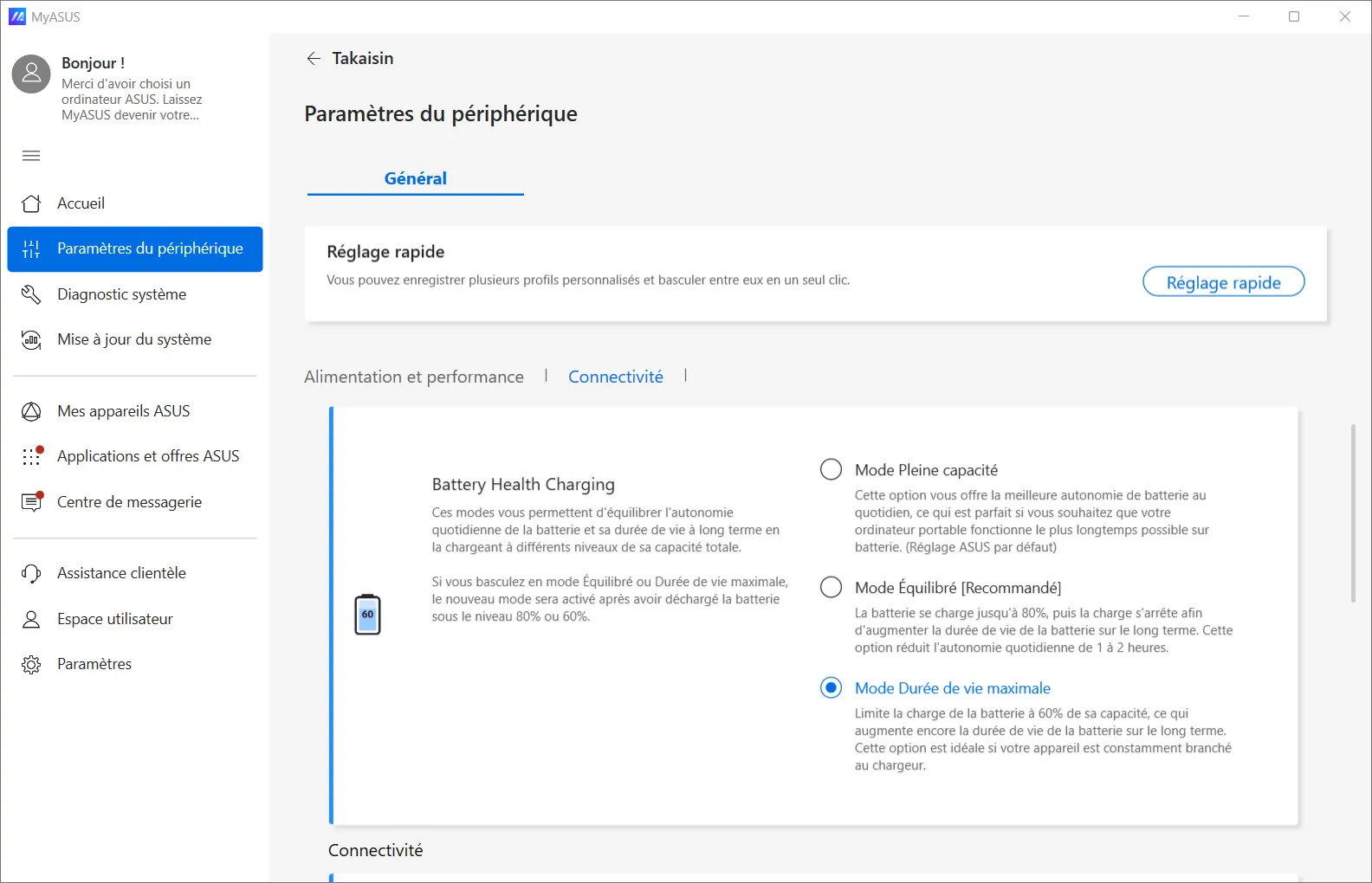
You should also avoid overheating (placing the laptop on a bed or exposing it to sunlight) and deep discharges, which accelerate chemical wear. Finally, if you need to store your laptop for several weeks, keep the battery at around 40 to 60% charge in a cool, dry place to limit premature aging.
| Situation | Best practice |
|---|---|
| Daily charging | Keep the charge between 20 and 80% |
| Laptop often plugged in | Enable a charge limit (70 to 80%) |
| Temperature | Use it on a hard, ventilated surface |
| Long-term storage | Charge to 40 to 60% and store in a cool, dry place |
| Recharge cycles | Recharge before 20% and avoid deep discharges |
5 ways to prevent overheating
Heat is the number two enemy of electronic components, just after water. A laptop that is exposed to high temperatures too often will suffer reduced performance and a drastically shortened lifespan. Here are five good practices to keep your machine cool and protect its components.
1. Use your laptop on a flat, hard surface
A laptop needs to breathe. Its fans draw in and expel air through vents located underneath or on the sides. When placed on a bed, sofa or cushion, the cooling system becomes smothered, causing the temperature to rise quickly.
Always use your computer on a table, desk or any rigid, flat surface so air can circulate freely. If you still want to use it in bed, place a rigid support underneath it, such as a tray or a thick book.
2. Clean the inside and vents regularly to prevent dust buildup
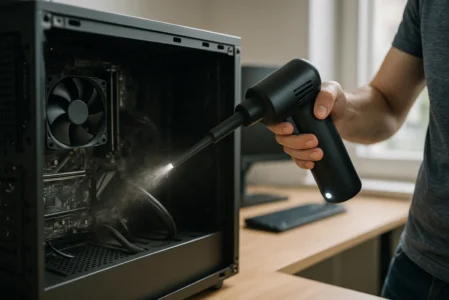
Over time, dust builds up in the fans and air ducts. The computer heats up faster and becomes noisier. To prevent this, cleaning every six months to one year is recommended. A laptop air duster is ideal: it removes impurities without disassembling the device, unlike compressed-air cans, which can spray moisture. This maintenance restores cooling efficiency and delays component wear.
 assistouest.fr
3. Replace the thermal paste every 2 to 3 years
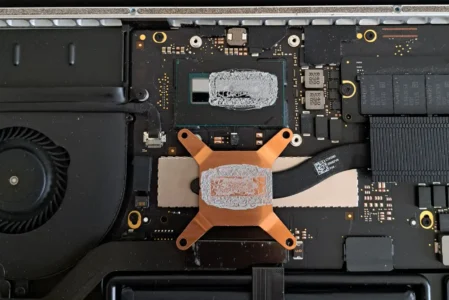
Thermal paste sits between the processor and the cooling system. Its role is to fill microscopic surface imperfections, improving contact and making it easier to transfer heat to the heatsink. Over time, it can dry out, crack or lose effectiveness. The processor temperature then rises faster, the fan runs more often and performance can become less stable during demanding tasks. On a machine that is used regularly, replacing it every 2 to 3 years is a good interval.

The replacement can be carried out by a technician or an experienced user, provided the old paste is cleaned correctly and the new paste is applied in an appropriate amount. Properly applied paste can reduce the temperature by several degrees and limit the automatic performance drop caused by overheating, when the processor protects itself by temporarily slowing down.
4. Monitor temperatures regularly
Many users operate their computers without ever knowing the temperatures they actually reach. Yet a simple check can quickly reveal a cooling problem, such as a dirty fan, worn thermal paste or insufficient airflow through the chassis. The earlier overheating is detected, the easier it is to fix without affecting the hardware.

Several free software tools can display the processor and graphics card temperatures in real time. During intensive use, these components should remain below 85 to 90°C. If these thresholds are exceeded regularly, it means that cleaning, airflow adjustment or more thorough maintenance is needed to preserve the PC’s performance and stability.
5. Invest in a cooling pad for demanding workloads
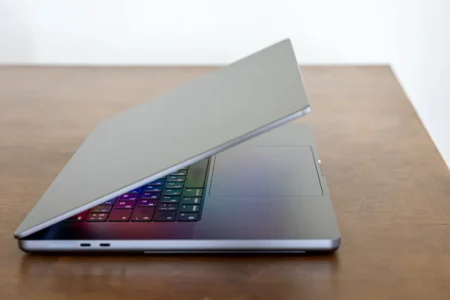
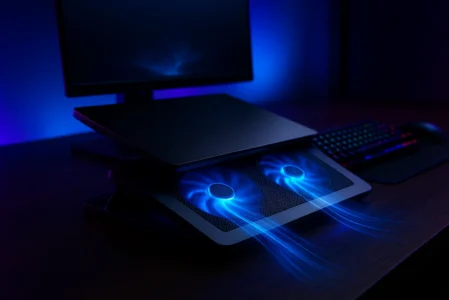
Thin, powerful laptops used for gaming, 3D work or video editing tend to heat up more. In these situations, a cooling pad can be an effective solution. This affordable accessory uses built-in fans to improve airflow beneath the machine. The temperature reduction can reach several tens of degrees, which is enough to relieve the components and extend their lifespan.
Optimize your laptop’s storage and system
A laptop can age prematurely because of its hardware, but also because of a lack of software maintenance. A saturated or poorly configured system quickly loses speed, making the machine seem obsolete even though its components are still in good condition. Two good practices are essential for extending its lifespan.
Always keep free space on the drive
Modern SSDs need some room to manage data writing and erasing properly. When an SSD is nearly full, its performance drops and wear accelerates. It is therefore recommended to keep 15 to 25% free space on the main drive. This simple precaution helps maintain stable read and write speeds while delaying wear on the memory cells.
Keep drivers and the BIOS up to date
An up-to-date PC is a safer and more stable PC. Drivers are needed for every component (graphics, Wi-Fi, audio and chipset) to work correctly. Outdated versions can cause bugs, instability or excessive power consumption, while up-to-date drivers improve compatibility and performance.
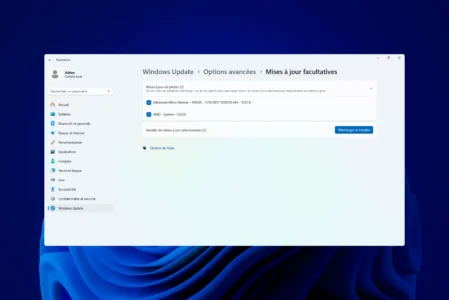
The BIOS, or UEFI, also plays a key role in power and temperature management. Manufacturer-provided updates fix stability issues and extend the life of the hardware.
Lighten startup and reduce unnecessary load
Over time, many applications are automatically added to Windows startup. The computer takes several minutes to boot and consumes memory unnecessarily. Disabling non-essential programs that launch with Windows improves responsiveness and reduces the overall load on the processor and SSD. A PC that is under less constant strain runs cooler and ages better.
We allow some readers to view our articles for free with an ad blocker. However, their number is currently too high for us to keep this access available to everyone.
You can disable your ad blocker to continue reading immediately, subscribe to enjoy all our content without ads, or come back a little later when the pressure has eased.
Access will be restored automatically as soon as the situation allows.