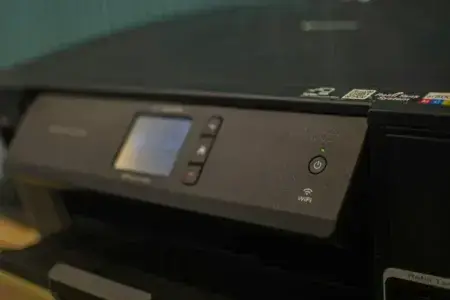
Can you print from your phone, but your PC says the printer is offline or refuses to print? The cause may be a network connection problem, a VPN or an old printer installation in Windows.
Before resetting your printer or internet router, run through these checks to restore the connection.
In this article
Check that your printer is connected to Wi-Fi
First, make sure your printer is connected to your router’s Wi-Fi network. On the printer’s screen, open the network or Wi-Fi settings and check the name of the network it is using.
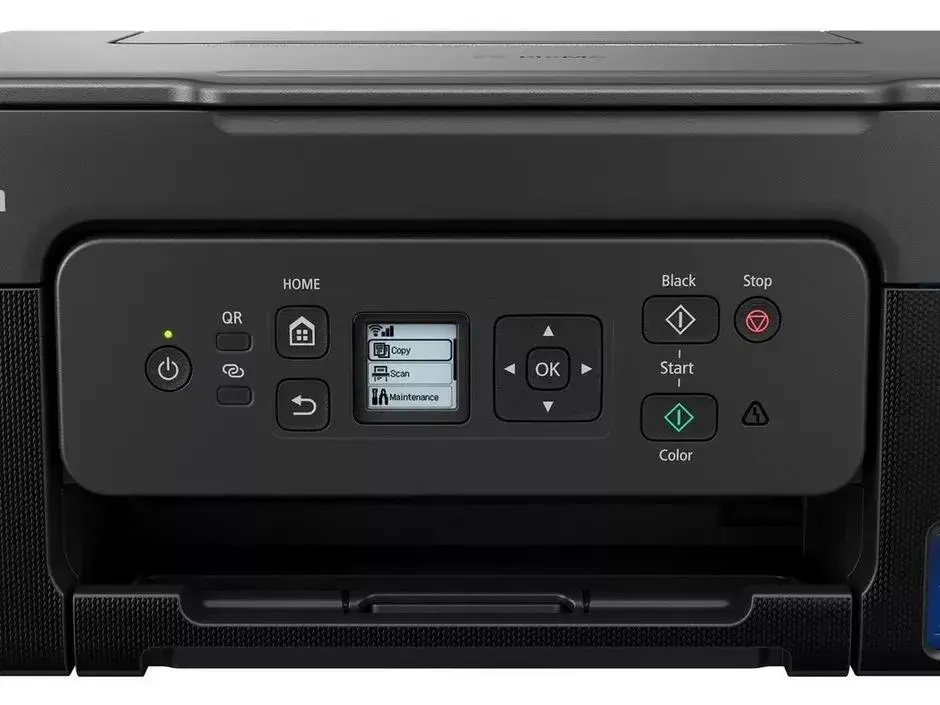
Depending on the model, you may also be able to print a network configuration report to check its connection status and IP address.
Being able to print from your phone does not prove that the printer is connected to your router. Some models support Wi-Fi Direct, which lets a phone connect to the printer without using your home network.
Not every printer supports 5 GHz Wi-Fi
Modern routers offer both 2.4 GHz and 5 GHz Wi-Fi, but some printers support only 2.4 GHz. Your computer can use the 5 GHz network while the printer uses 2.4 GHz, as long as your router allows devices on both bands to communicate.
If your printer cannot see any Wi-Fi network during setup, check that 2.4 GHz Wi-Fi is enabled in your router settings.
Check that your PC is on the same network
Your computer must be able to communicate with the printer on your local network. It can connect over Wi-Fi or directly to the router with an Ethernet cable; either works.
First, make sure your PC can access the internet by opening a webpage. Then check that it is not connected to a guest Wi-Fi network. Some routers isolate guest devices so they cannot reach other equipment at home.
If you use a VPN, temporarily disconnect it and try printing. Some VPNs stop Windows from detecting printers on the local network. If printing works with the VPN off, look in its settings for an option that allows access to your local network.
Remove your printer and duplicate entries from Windows
If your printer and computer are connected to the network correctly, the problem may be its Windows installation. After a router change, an update or several setup attempts, Windows can keep multiple entries for the same printer.
To remove a printer in Windows 11, open Settings, then go to Bluetooth & devices > Printers & scanners.
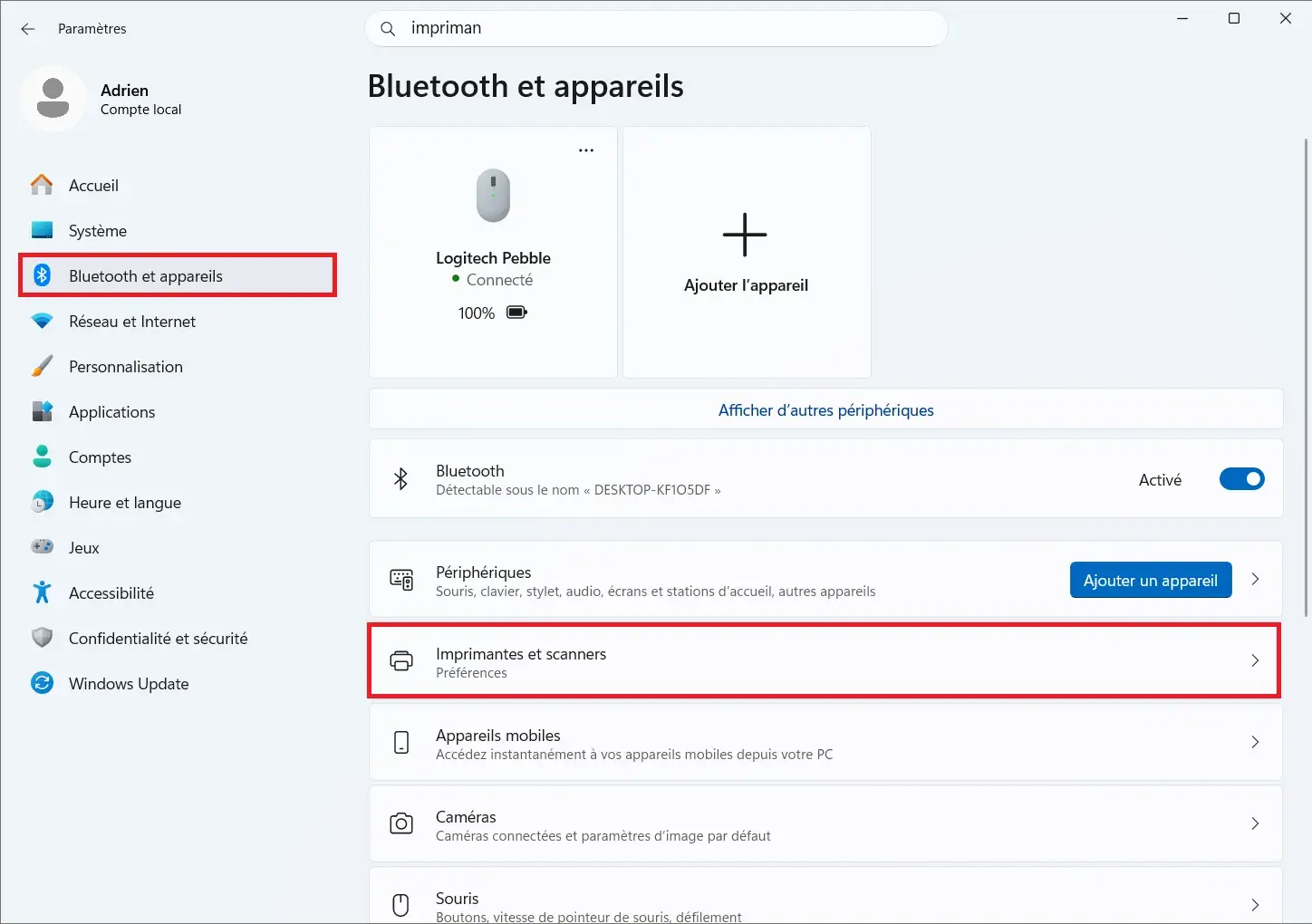
Select the printer, choose Remove and confirm. Return to the printer list and check whether several entries have the same model name. You can remove duplicates after making sure they are not another printer you still use.
This removes the selected printers from Windows so you can set them up again without the old entries.
Reinstall your printer with the manufacturer’s official software
After removing the old installations, use the software provided by your printer’s manufacturer to set it up again.
These programs can find your printer on the network and configure the drivers it needs.
You can download drivers and setup utilities from the manufacturers’ official websites:
| Manufacturer | Download drivers and software |
|---|---|
| HP | Download HP drivers |
| Canon | Download Canon drivers |
| Epson | Download Epson drivers |
| Brother | Download Brother drivers |
On the manufacturer’s website, search for the model number printed on your printer and download the installer for your version of Windows.
Run the program and follow the steps. When asked to choose a connection type, select wireless and let the installer search for your printer.
When setup is complete, return to Windows printer settings and print a test page to check that everything works.
What if your printer still does not work?
To get your printer working in Windows, first check that your computer and printer are on the same local network and that a VPN is not blocking communication. If the problem continues, remove the printer and any duplicate entries in Windows, then reinstall it with the setup utility from the manufacturer’s official website.
Can Windows see your printer, but your documents are stuck in the queue? The Wi-Fi may be fine. Try clearing a stuck print job in Windows so pending jobs are removed and new documents can print.
We allow some readers to view our articles for free with an ad blocker. However, their number is currently too high for us to keep this access available to everyone.
You can disable your ad blocker to continue reading immediately, subscribe to enjoy all our content without ads, or come back a little later when the pressure has eased.
Access will be restored automatically as soon as the situation allows.