
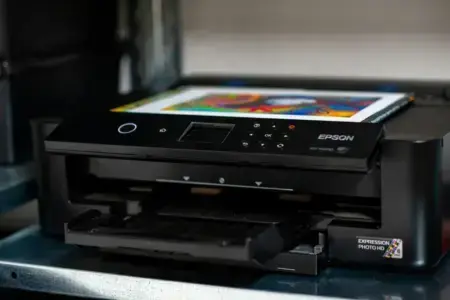
You have sent a document to the printer, but nothing happens. When you open the Windows print queue, you may find one or more jobs stuck there. Even if you click Cancel, they refuse to disappear, preventing later print jobs from starting.
In this article
Cancel all documents in the print queue
The first thing to try is cancelling pending print jobs in Windows Settings. This is usually enough when a document gets stuck because of a one-off error.
On Windows 11, open Settings, then go to Bluetooth & devices and Printers & scanners. Select your printer and click Open print queue. You can right-click a document and choose Cancel to remove it individually, or open the queue window’s menu and select Cancel all to remove every pending print job.
On Windows 10, go to Settings, Devices, then Printers & scanners. Select your printer and open its queue. In the menu bar, click Printer, then Cancel All Documents.
Wait a few moments for Windows to remove the print jobs. If the queue clears, you can send a new document to print.
Sometimes a document remains on screen with the status “Deleting” or “Error”. In that case, trying to cancel it again usually does not help. You need to restart the service that manages print jobs.
Restart the Print Spooler to clear stuck jobs
Windows uses a service called the Print Spooler to receive, organise and send documents to printers. If this service runs into a problem, it can keep jobs stuck in the queue and prevent later ones from being processed.
To restart it, press Windows + R at the same time to open the Run dialog. Enter the following command and press Enter.
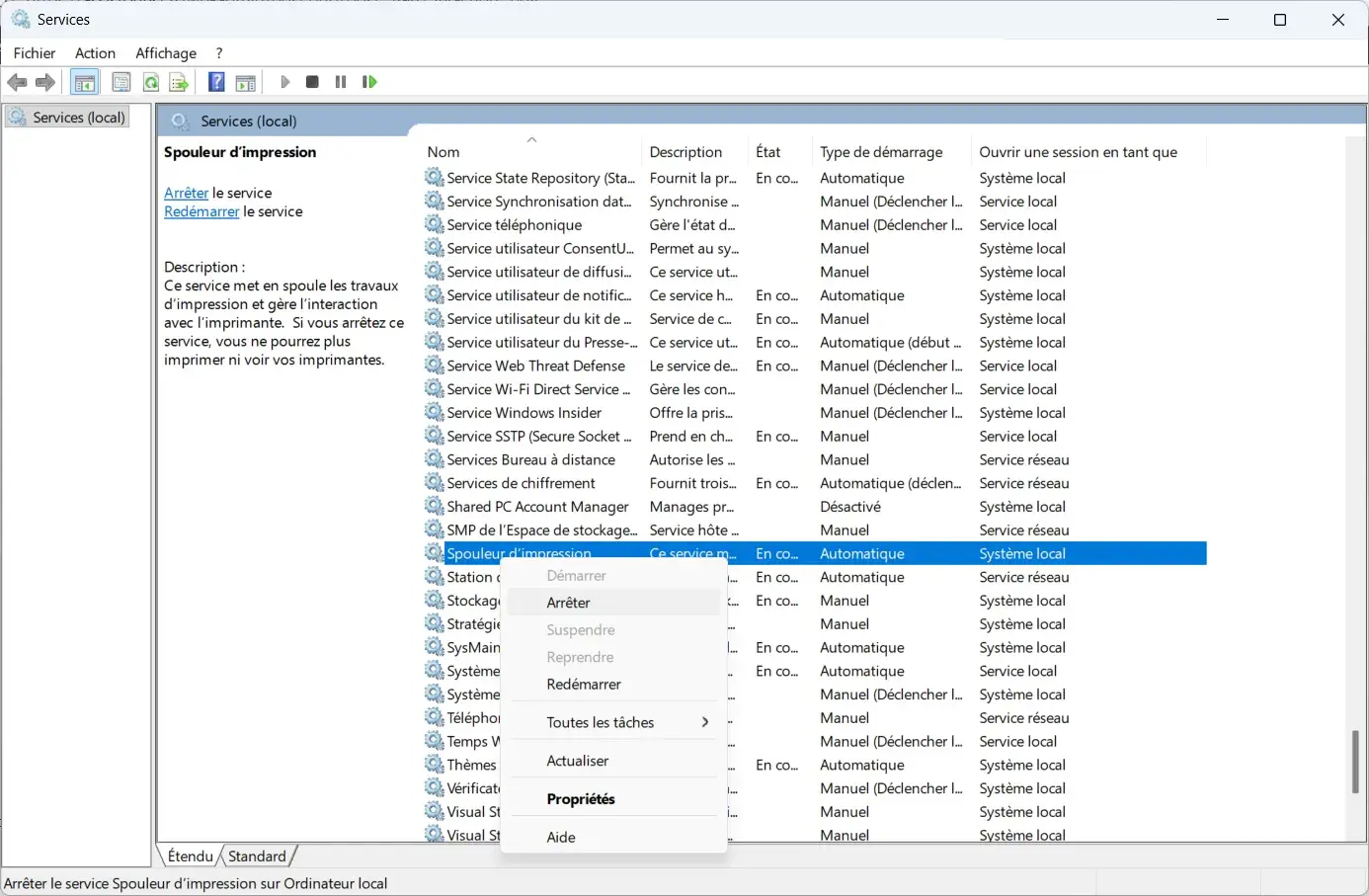
services.mscIn the Services window, find Print Spooler. Right-click it and select Stop.
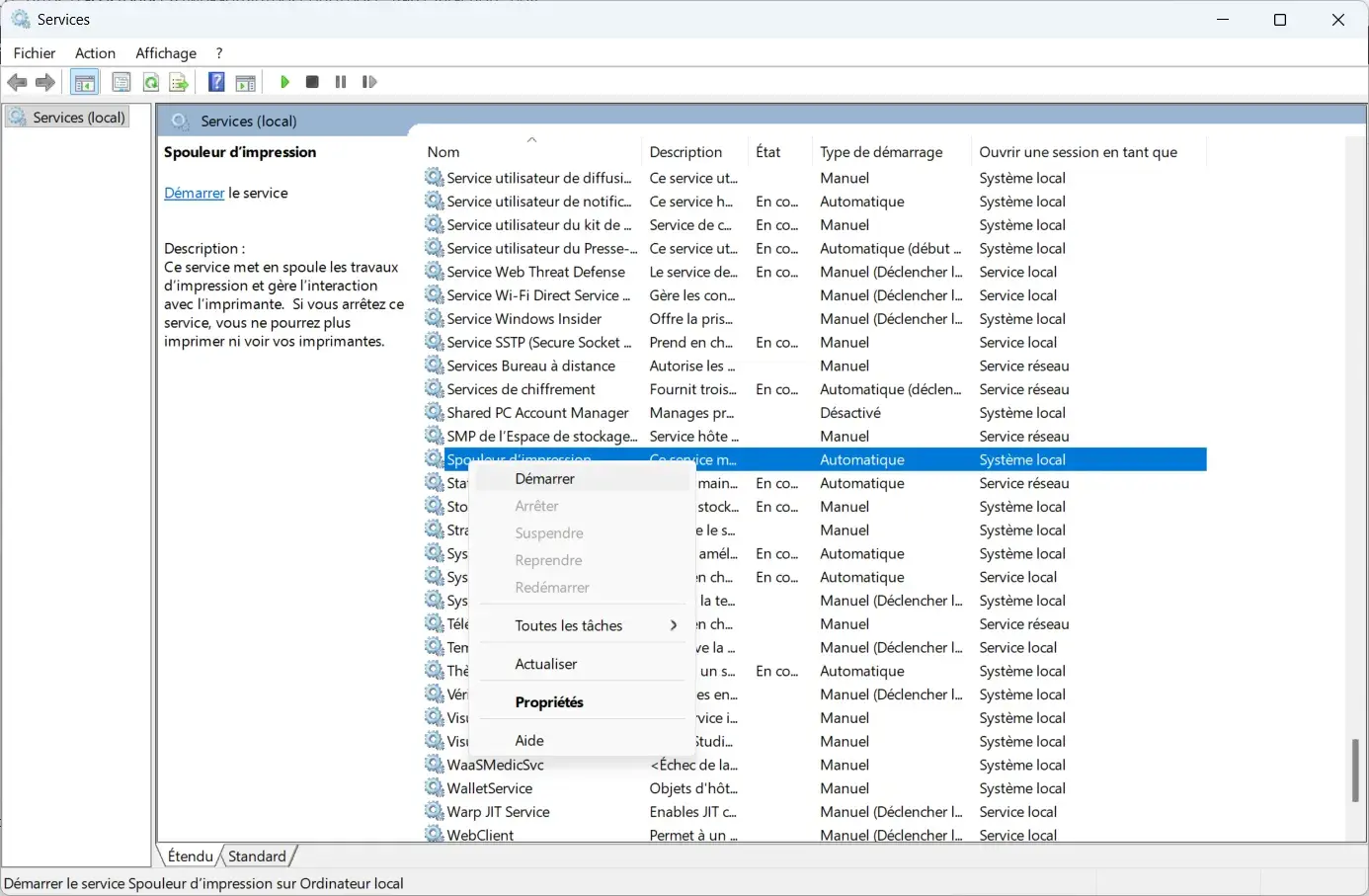
Once the service has stopped, right-click it again and select Start.
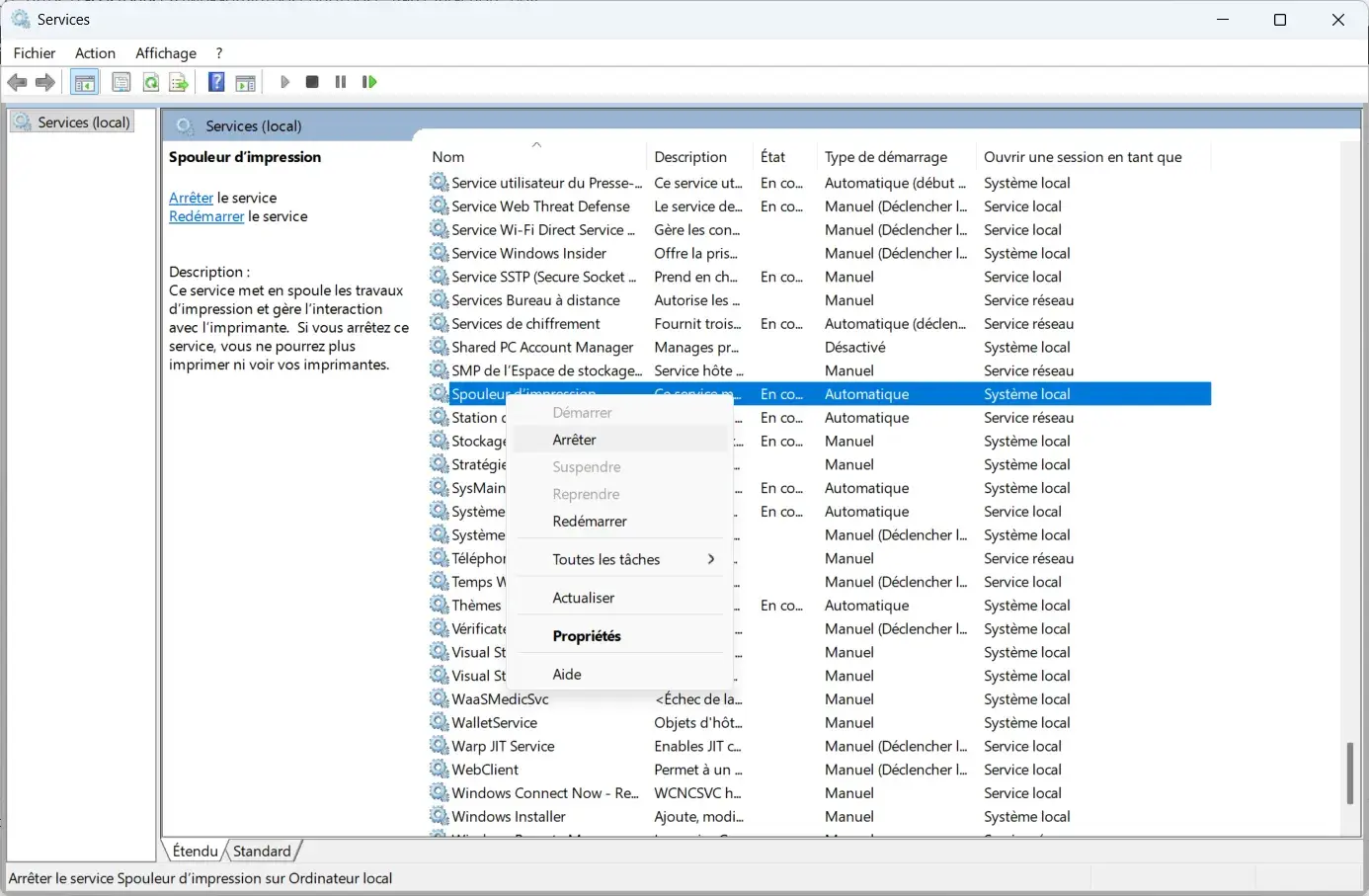
You can also select Restart directly, which performs both steps in sequence.
Go back to your printer’s queue. Wait a few seconds, then refresh it, or close and reopen the window to check its status. Try cancelling any documents that are still listed.
This restarts Windows’ printing system without requiring a full computer restart. It can resolve temporary issues, but files stored on the drive may remain after the service restarts.
If the queue still will not clear, a third method lets you delete those files directly.
Manually delete the files in the print queue
If the first two methods fail, you can manually empty the folder where Windows stores pending print jobs.
By default, this folder is located here.
C:\Windows\System32\spool\PRINTERSYou can also use this path, which works even if Windows is installed on a different drive.
%windir%\System32\spool\PRINTERSFollow these steps to clear the folder safely.
- Press Windows + R, enter
services.mscand open the Services window. Find Print Spooler, right-click it and select Stop.
- Open File Explorer, paste
%windir%\System32\spool\PRINTERSinto the address bar and press Enter. Windows may ask for administrator permission to access this folder. - Select all files inside the PRINTERS folder and delete them. Make sure you delete only the contents, not the folder itself.
- Go back to the Services window, right-click Print Spooler and select Start.
This removes print jobs stored locally by the Windows spooler, including jobs for other printers. Your original documents remain untouched, but you will need to send any deleted print jobs again.
You can now reopen the queue to make sure it is empty, then send a test page to the printer.
What to do if the queue gets stuck again
If documents keep getting stuck after these steps, the problem probably is not limited to the queue. Check that the printer is switched on, is not showing an error, and has a working USB or network connection.

 assistouest.fr
A faulty or incompatible printer driver can also cause repeated queue problems. Visit your printer manufacturer’s website to download and install a driver that matches your version of Windows.
Finally, if you share a printer between several computers, check the queue on the computer or server that manages the printer too. A document stuck there can prevent other computers from printing, even when their own queues are empty.
We allow some readers to view our articles for free with an ad blocker. However, their number is currently too high for us to keep this access available to everyone.
You can disable your ad blocker to continue reading immediately, subscribe to enjoy all our content without ads, or come back a little later when the pressure has eased.
Access will be restored automatically as soon as the situation allows.