You open the applications grid and the display stutters. The cursor freezes for a fraction of a second as you move between windows. It is frustrating, especially when you chose Linux to get a faster computer.
Your machine is not necessarily too old. Ubuntu’s default interface is simply configured with heavy visual effects and background indexing services that put a strain on the processor.
Three changes in hidden settings and two command lines are enough to remove these delays. There is no need to reinstall your entire system: we will disable what slows the interface down and bring a responsive PC back to life.
 assistouest.fr
In this article
- Delete obsolete files and dependencies
- Clearing system and browser caches in Ubuntu
- Manage applications and services at startup
- Switch to a lighter desktop environment
- Switch to a low-latency kernel to improve responsiveness
- Boost overall system performance
- Optimizing the interface: lightening the graphic environment
Delete obsolete files and dependencies
When you install or update packages on Ubuntu, the system downloads associated dependencies and .deb files. Some of these dependencies become obsolete when the software they were linked to is uninstalled. Other files, such as old downloaded packages, remain stored unnecessarily on disk.
To clean these residues, use the following command:
sudo apt autoremove && sudo apt autoclean
- apt autoremove removes automatically installed dependencies that are no longer required by any currently installed package.
- apt autoclean removes .deb files from packages that are no longer downloadable (obsolete versions), freeing up space.
This command is harmless to the system and can be run regularly after major uninstallations or updates. It keeps your system cleaner, lighter and potentially more responsive over the long term.
Clearing system and browser caches in Ubuntu
Ubuntu and its applications store numerous temporary files in cache directories. In the long term, these files can occupy several hundred megabytes, or even several gigabytes, with no real benefit once accumulated.
To quickly find out how much space your user’s cache is taking up :
du -sh ~/.cache
This directory contains :
- The cache of GNOME or your desktop environment
- Temporary browser files (Firefox, Chromium, etc.)
- The cache of certain applications such as Flatpak, Snap, Steam, etc.
Manually delete system and browser caches
You can manually delete the contents of the ~/.cache folder:
rm -rf ~/.cache/*
This poses no risk to the system, as applications automatically recreate the necessary files. However, it is advisable to close any open applications before proceeding.
Graphical method for deleting system and browser caches
If you’d rather avoid the command line or save time with a centralized interface, there are a number of graphical tools for efficient Ubuntu cleanup. These utilities are particularly useful for visualizing occupied space, selecting precisely what you want to delete and automating certain maintenance tasks.
Stacer: the system and cleaning dashboard
Stacer is an all-in-one tool for monitoring and optimizing Ubuntu via a graphical interface. It includes functions for cleaning up APT cache, system logs and package residues, as well as visual management of startup services.
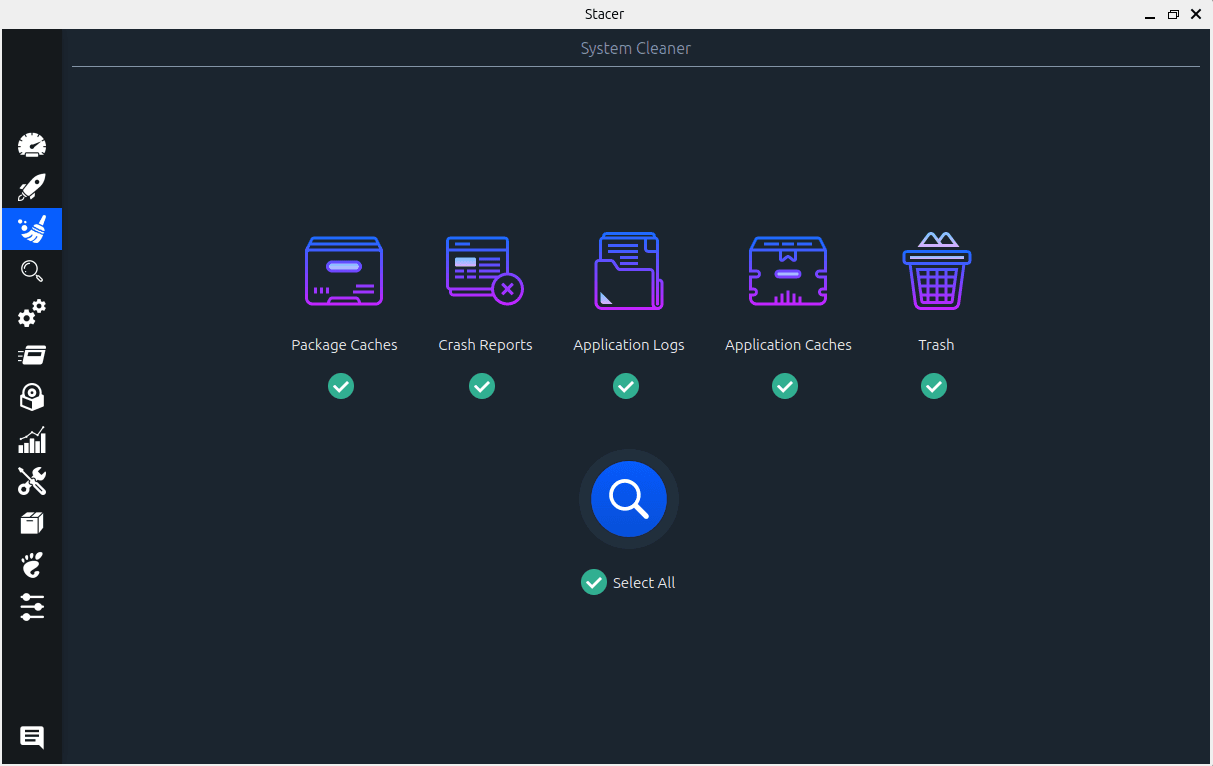
You can install Stacer with this command:
sudo apt install stacer
BleachBit: advanced cleaning inspired by CCleaner
BleachBit offers a granular approach to cleaning, with options for deleting many browsers’ caches (Firefox, Chromium), temporary files, histories, system logs and unnecessary metadata. It can be used in user or administrator mode for in-depth cleaning.
You can install BleachBit with this command:
sudo apt install bleachbit
These tools are recommended for users who wish to carry out regular cleaning operations without using the terminal.
Manage applications and services at startup
Ubuntu’s startup performance depends directly on the number of processes and services initialized at boot-up. Some are essential (network management, display), others much less so (error reports, unused printers, Snap…). Identifying and disabling what you don’t need can considerably reduce boot time and initial system load.
Identify processes that slow down startup
To diagnose exactly what is taking so long to start, the following command provides a ranking of the slowest services to initiate:
systemd-analyze blame
It returns an array of the type :
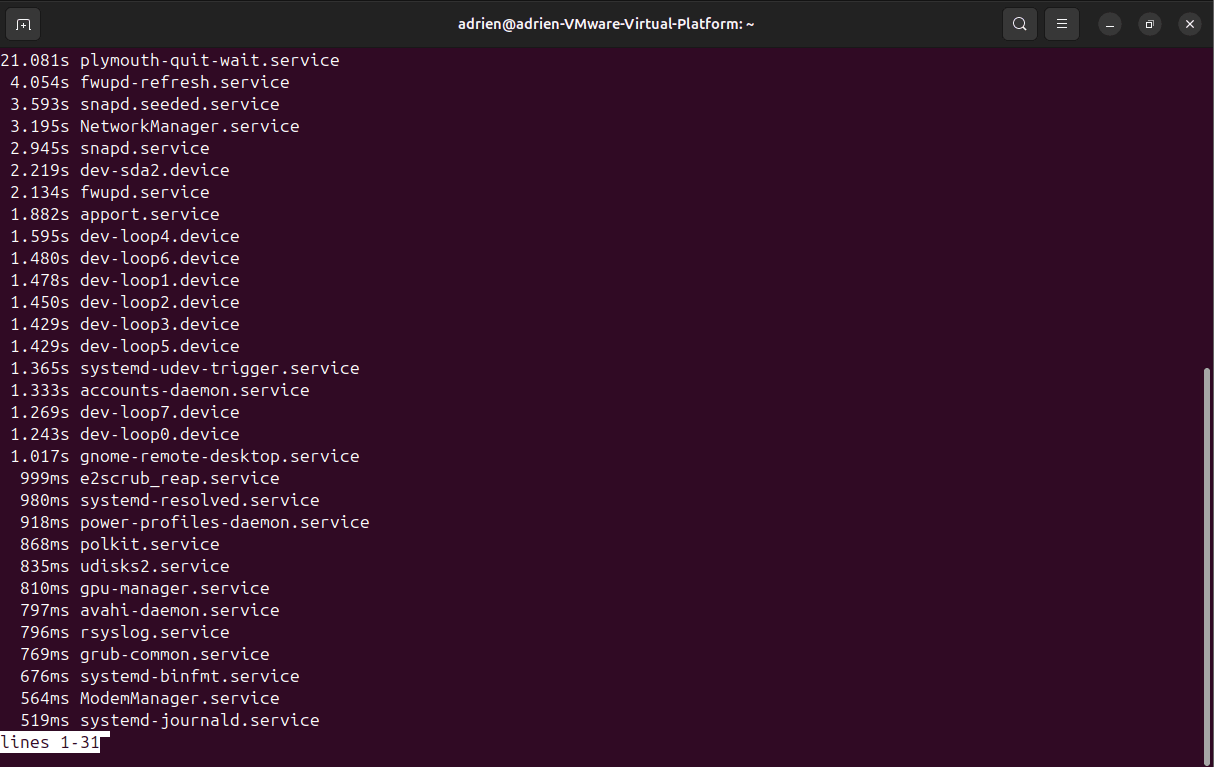
The higher the time displayed, the longer the service has delayed full system startup.
Disable non-essential services
Once you’ve identified the services you need, you can disable those that are not required for your purposes. Here are some typical examples:
- Bluetooth (if not using) :
sudo systemctl disable bluetooth.service
- Printing (CUPS):
sudo systemctl disable cups.service
Important notes:
Disabling a service is not the same as uninstalling it. You can reactivate it at any time with :
systemctl enable service_name
Never disable a service without understanding its role. To check the status of a service before making any changes :
systemctl status service_name
This approach can significantly lighten the boot phase, especially on smaller machines or when Ubuntu is installed on a mechanical disk. Ideally combined with a SATA SSD for maximum effect.
Switch to a lighter desktop environment
The desktop environment has a direct impact on overall Ubuntu performance. GNOME, supplied by default, is complete but relatively resource-hungry. It easily consumes between 800 MB and 1.2 GB of RAM on startup, which can affect responsiveness on modest or older machines.
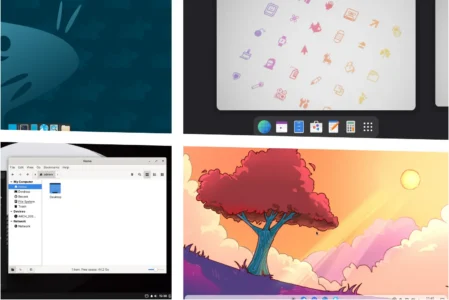
Alternatives such as XFCE, MATE or LXQt offer a lighter interface while remaining functional and stable. They often consume two to three times less RAM, with minimal CPU load. The system starts up faster, windows open more quickly, and the experience remains fluid, even on a conventional hard disk.
This change has no impact on your files or applications, but accelerates system speed. For any machine lacking responsiveness or for simple office use, switching to a thin desktop is one of the most effective levers.
Discover the best Linux desktop environments to install.
Switch to a low-latency kernel to improve responsiveness
By default, Ubuntu uses a generic kernel designed to offer a good compromise between performance, stability and hardware compatibility. However, for specific uses such as real-time audio, music production, live video or simply to maximize system responsiveness, it may be appropriate to switch to a more responsive kernel variant.
This kernel is compiled with optimizations that reduce process execution latency. The system is then able to respond more quickly to critical events such as sound I/O or GUI interaction. It is particularly recommended for digital audio workstations (DAWs), JACK/PipeWire users or desktop environments that need to remain ultra-smooth even under load.
This change is transparent to most users, but can make a real difference on latency-sensitive machines or in a demanding multimedia context.
Boost overall system performance
Even with an optimized desktop environment and few startup services, there are still limits to memory management. Ubuntu uses a swap mechanism (a disk space used when RAM is saturated) but its behavior can be adjusted to better suit your machine’s performance. Here are three effective levers for optimizing system resource management, particularly on machines with low RAM.
Reduce disk swap priority (vm.swappiness)
By default, Ubuntu is configured to start using swap relatively early (swappiness value = 60). This can lead to a noticeable slowdown, especially if the system starts writing to a mechanical disk. Lowering this value to 10 encourages the kernel to prioritize RAM usage while it’s available.
To apply this setting :
sudo sysctl vm.swappiness=10
To make it permanent :
echo "vm.swappiness=10" | sudo tee -a /etc/sysctl.conf
This simple modification considerably reduces unnecessary disk accesses, and is particularly beneficial on machines without SSDs.
Activate ZRAM: a compressed swap in RAM
ZRAM allows you to create a swap zone directly in RAM, but compressing it on the fly. This frees up RAM while avoiding the slowness of disk swap. It’s an ideal solution for systems with 4 GB RAM or less, or for accelerating performance without adding hardware.
To activate :
sudo apt install zram-tools
The service is active immediately and adjusts dynamically. Unlike conventional swap, ZRAM reduces access times while limiting disk writes, which also extends the life of SSDs.

Install Preload: load the most frequently used applications into memory
preload is a daemon that analyzes your usage habits and preloads in memory the libraries of the most frequently launched applications. This significantly reduces their opening time on systems with conventional hard disks.
Installation:
sudo apt install preload
Once in place, preload works autonomously and unobtrusively. It is particularly effective for machines used in office or educational environments, where certain applications are opened on a daily basis.
Intelligent preloading, discover how preload anticipates your needs to speed up Ubuntu.
Optimizing the interface: lightening the graphic environment
Beyond the choice of desktop environment, some of Ubuntu’s built-in software bricks can considerably affect the interface’s responsiveness. This is particularly true of Snap, the universal package system adopted by default several versions ago. Although useful in certain contexts, Snap introduces longer launch times, higher memory usage and partitioning that penalizes perceived performance.
For users concerned about system lightness, it is recommended to uninstall Snap :
sudo apt purge snapd
⚠️ Warning: uninstalling Snap will automatically delete all applications installed via Snap, such as Firefox.
Alternatively, you can use Flatpak, which is better integrated into GNOME via the following package:
sudo apt install gnome-software-plugin-flatpak
This means we can continue to benefit from universal packages, while maintaining greater fluidity.
You can also replace some heavy software with lighter equivalents. For example, Nautilus, Ubuntu’s default file manager, can be replaced by PCManFM, which is much more responsive on modest configurations:
sudo apt install pcmanfm
This type of adjustment does not alter the overall operation of the system, but clearly improves the user experience by reducing opening times and memory usage on a daily basis.
We allow some readers to view our articles for free with an ad blocker. However, their number is currently too high for us to keep this access available to everyone.
You can disable your ad blocker to continue reading immediately, subscribe to enjoy all our content without ads, or come back a little later when the pressure has eased.
Access will be restored automatically as soon as the situation allows.