Does your laptop sound like a fighter jet while the keyboard starts to burn your fingers?
When temperatures rise, the computer reduces its power to protect its components. If you do nothing, a thermal crash may follow. Start by checking your PC temperature before applying these solutions.
You do not have to wait for a forced shutdown. Here are the steps to bring the temperature down with what you have at hand.
In this article
- Raise your laptop to let air circulate underneath
- Switch to power-saving mode to reduce heat
- Work in a cool, shaded place
- Use a cooling pad for your laptop
- Turn the computer off to lower its temperature
- Replace the thermal paste to gain up to 10°C
- Blow compressed air through the ventilation grilles
- Open the laptop to clean fans and heatsinks
- Replace a defective or underpowered fan
Raise your laptop to let air circulate underneath
Raising a laptop is one of the simplest and most effective ways to lower its temperature quickly. Place it on a surface that leaves space between the chassis and the desk, such as two books or a stand. This improves airflow underneath the machine and helps the internal fans remove heat.
This small change can lower temperatures by several degrees during long sessions or in a hot room. For regular use, choose a ventilated stand with built-in fans. Even without equipment, avoiding a flat surface limits overheating and helps extend your laptop’s life.
Switch to power-saving mode to reduce heat
Enabling power-saving mode limits processor performance and reduces the activity of some components, automatically lowering heat production. It can reduce the maximum CPU frequency, slow hard drives when present and disable visual animations. This is an effective solution with no installation and no risk to the system.
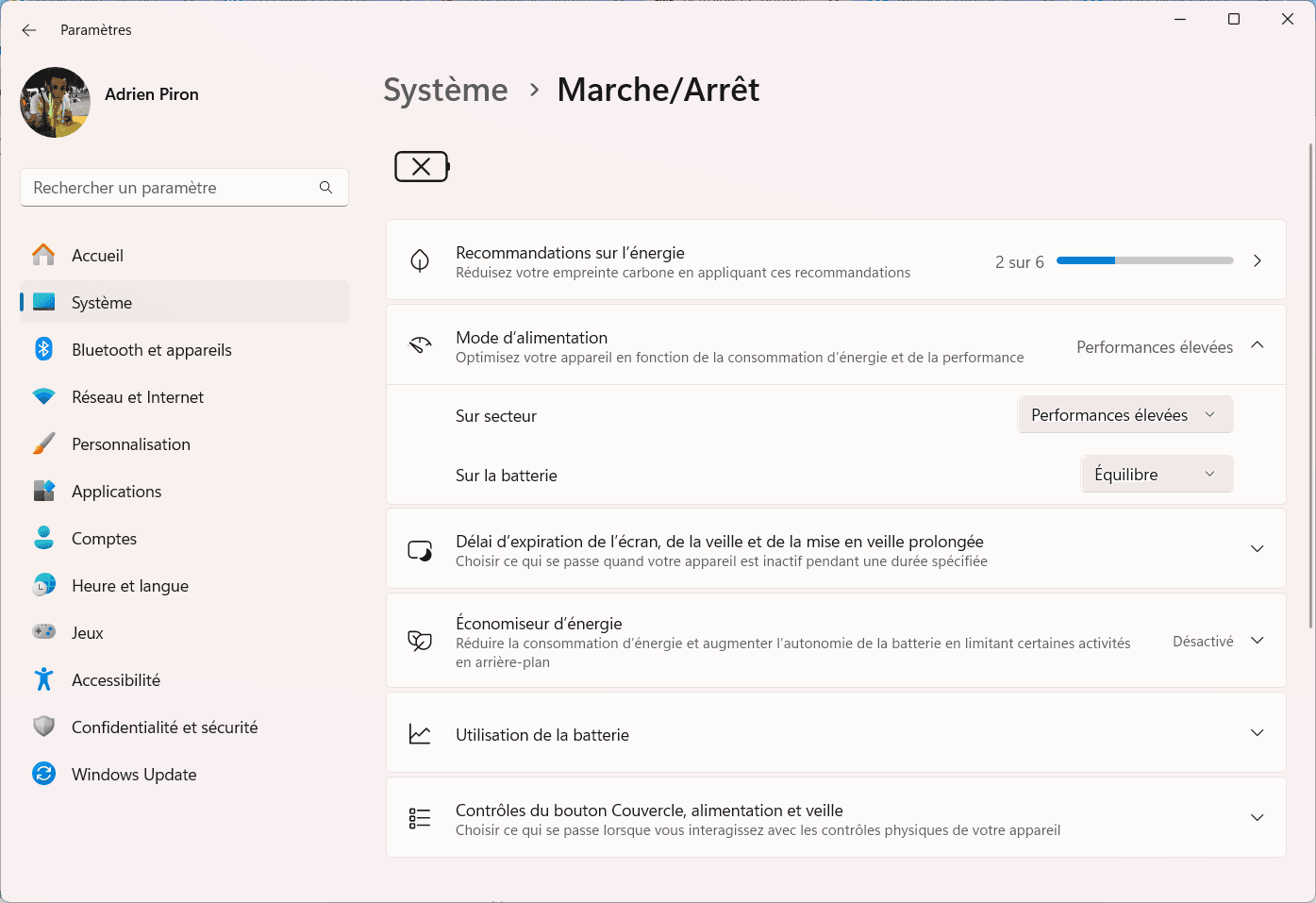
Available in Windows power settings, this mode is useful for office work and browsing, where full performance is unnecessary. Less power consumption means less stress on the components and less heat.
Work in a cool, shaded place
Ambient temperature plays a major role in laptop cooling. Working away from direct sunlight and other heat sources limits the temperature rise. A hot room or direct sunlight makes the fans compensate for heat already present around the machine.

 assistouest.fr
Moving your workstation to a cooler, better-ventilated area can lower temperatures by several degrees. If your laptop often gets hot for no obvious reason, the environment may be enough to cause overheating.
Use a cooling pad for your laptop
A cooling pad sits under the laptop and pushes cool air towards the chassis. It is especially useful for gaming, video editing and demanding software. Some models offer adjustable fan speeds and angles, improving both cooling and comfort.
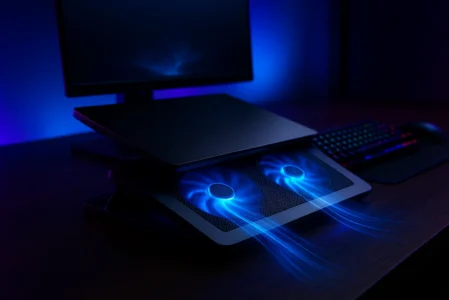
A good cooling pad can lower CPU or GPU temperatures by several degrees, improve system stability and limit thermal throttling. It is an inexpensive investment that can protect laptop performance over the long term.
Turn the computer off to lower its temperature
When a laptop is severely overheated, turning it off for a few hours remains one of the simplest solutions. A complete shutdown cuts power to the circuits and lets every component return to a normal temperature, unlike sleep mode.
This pause is recommended when the fan runs constantly at full speed or the chassis becomes hot to the touch. Use the time to check the vents and consider a lasting solution if the problem returns.
Replace the thermal paste to gain up to 10°C
Over time, thermal paste between the CPU and the cooling system dries out or cracks. Heat dissipation becomes less effective, fans run faster and performance drops. If your laptop is several years old, it may be time to replace the thermal paste.

The operation requires partial disassembly, careful cleaning and a very thin new layer. If you are not experienced, ask a professional computer technician.
Blow compressed air through the ventilation grilles
Dust accumulates inside the ventilation system, blocks the grilles and restricts airflow. Turn off the computer, hold it at a slight angle and use short bursts of dry air without turning the can upside down.
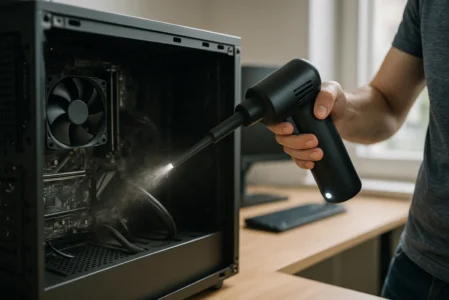
This preventive maintenance can be repeated every two or three months in a dusty environment. It does not replace a complete internal cleaning, but it can noticeably improve cooling.
Open the laptop to clean fans and heatsinks
When external solutions are no longer enough, open the computer to reach the fans and heatsinks. Dust can form thick layers that prevent hot air from escaping. Use an antistatic brush and a suitable blower, and ask a technician for help if you are not familiar with laptop hardware.
A complete cleaning is recommended every 12 to 24 months, depending on the environment. You can read our review of the PC blower used for cleaning.
Replace a defective or underpowered fan
A worn or defective fan can cause persistent overheating even after cleaning. Choose a replacement compatible with the exact laptop model, connector, dimensions and speed. A professional can inspect and replace a laptop fan when needed.
We allow some readers to view our articles for free with an ad blocker. However, their number is currently too high for us to keep this access available to everyone.
You can disable your ad blocker to continue reading immediately, subscribe to enjoy all our content without ads, or come back a little later when the pressure has eased.
Access will be restored automatically as soon as the situation allows.