

Your PC is not using the full speed of its system memory. Most users install their RAM sticks and leave them running with the BIOS default settings. To get the most from memory rated at 3200, 3600 MHz or more, simply enable the XMP (Extreme Memory Profile) in the BIOS. This setting improves gaming, multitasking and demanding software workloads.
In this article
What are XMP and EXPO profiles?
XMP (Extreme Memory Profile) is a technology developed by Intel to make it easier to use a RAM kit at its advertised speed. Each modern RAM stick stores validated profiles in its SPD chip, defining the frequency, voltage and timings approved by the manufacturer. Without user intervention, the BIOS applies the lower JEDEC standard values, which maximize compatibility but limit performance.
Enabling XMP automatically loads one of these advanced profiles so the memory can run at the speed advertised by the manufacturer. AMD platforms offer equivalents: DOCP (Direct OverClock Profile), used by ASUS, and more recently EXPO (EXtended Profiles for Overclocking), introduced by AMD for Ryzen processors.
Your PC limits RAM performance if you do not enable XMP
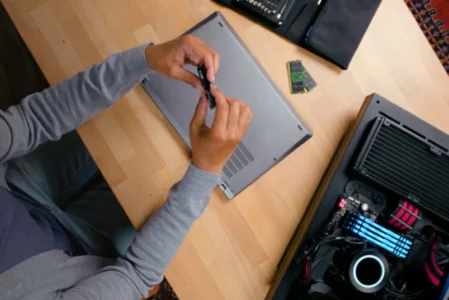
When the PC starts for the first time, every motherboard applies a JEDEC memory profile, a universal standard with relatively low frequencies between 2133 and 2400 MHz. This is not a hardware limitation: it is intended to guarantee maximum compatibility and stability regardless of the processor and RAM combination.
This means that even if you paid for memory rated at 3200, 3600 MHz or more, your sticks will often run much more slowly until the XMP/DOCP/EXPO profile is enabled. A stick advertised at 3600 MHz will default to 2133 MHz, leaving part of its potential unused.
 assistouest.fr
This is one reason why many users end up with limited RAM performance, even though a single BIOS option is enough to unlock the memory’s actual speed.
How do you enable the XMP profile to speed up RAM?
Enabling XMP does not require overclocking knowledge. It is a setting validated by memory manufacturers and designed to be accessible to everyone. Follow these steps:
- Enter the BIOS/UEFI: As soon as the PC starts, press the key required by your motherboard to enter the BIOS.
- Find the RAM setting: In the menus, locate the memory section. The name varies by platform: XMP on Intel, DOCP on ASUS/AMD, or EXPO on recent Ryzen generations.
- Select the correct profile: One or two predefined profiles will appear. Choose the one matching the certified frequency and timings of your memory kit.
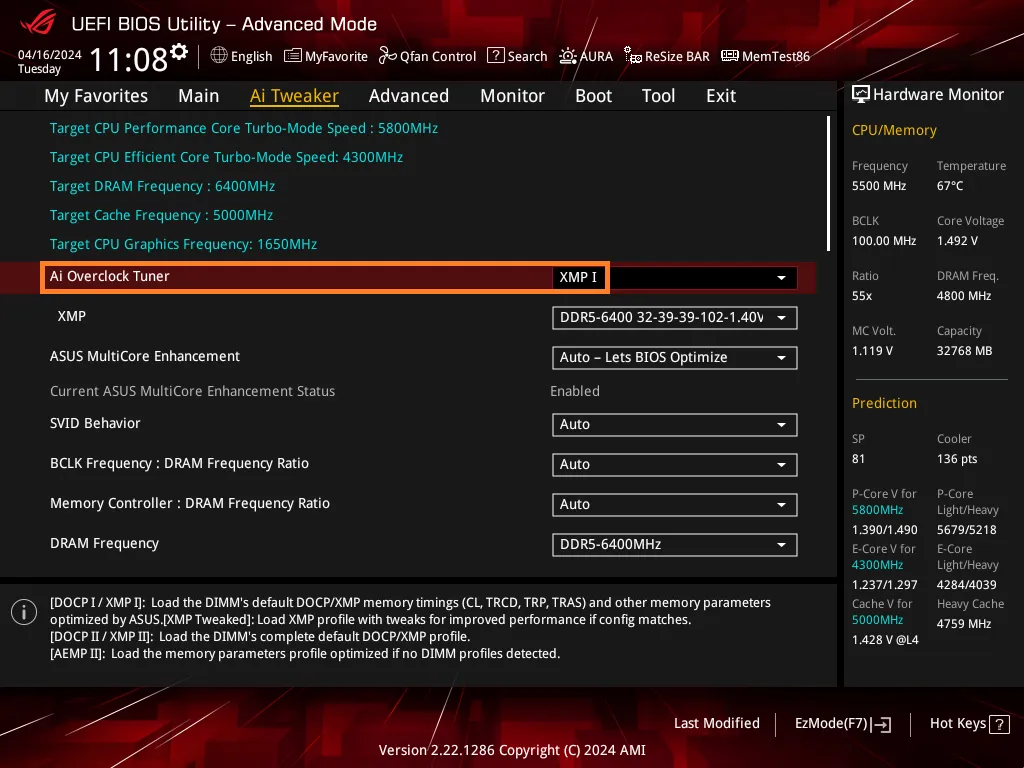
- Save and restart: Confirm the changes and let the PC restart. Your RAM will now run at the speed advertised by the manufacturer, without tedious manual adjustments.
Enabling XMP unlocks the full potential of your RAM in just a few clicks, delivering an immediate improvement in responsiveness and performance.
Don’t let the algorithm decide for you
Add Assistouest to your preferred sources on Google so you can find our guides faster when you search for an IT solution.
A free performance boost for your RAM
By enabling XMP, you can finally use the memory you have already purchased without investing in new components. It is a simple and quick operation that provides a free performance boost with no particular risk for most users. Although often overlooked, it noticeably improves both gaming and everyday use.
Do not let your memory sticks run below their rated speed: enable the XMP profile and give your PC the speed it deserves. For more optimization tips, read our tips for speeding up a slow Windows PC.
An error occurred. Please try again in a moment.