Your computer still runs Windows 10 perfectly well, but Microsoft considers it too old to install Windows 11. If it has a capable processor, 8 or 16 GB of RAM, and an SSD, it is still suitable for many everyday tasks. Bypassing the hardware requirements can extend its useful life without forcing you to buy a new computer.
Installing Windows 11 on an unsupported PC does raise some questions. Will you keep receiving security updates? Will your software and games still work? Is it dangerous to go without TPM 2.0?
In this article
- Windows 11 runs on computers Microsoft considers incompatible
- TPM 2.0 protects some data, but it does not replace antivirus software
- Some games require TPM 2.0 and Secure Boot
- Will Windows 11 keep receiving updates?
- Check your computer’s limitations before installing
- Should you install Windows 11 on your unsupported PC?
Windows 11 runs on computers Microsoft considers incompatible
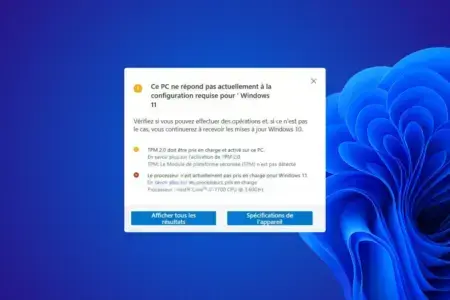
Microsoft requires a processor on its compatibility list, at least 4 GB of RAM, a TPM 2.0 module, and UEFI firmware that supports Secure Boot. These requirements define the configurations for which Microsoft guarantees the operating system’s support and security.
Not every requirement is a technical limitation that prevents Windows 11 from running. Consider a computer with a seventh-generation Intel Core i7, 16 GB of RAM, and an SSD. Its processor is not on Microsoft’s list of supported Windows 11 CPUs, even though it has enough performance for office work, web browsing, and many applications.
Bypassing the installer checks lets Windows 11 run on many computers from this generation. The operating system uses the same hardware resources as before, and its official incompatibility does not reduce performance.

 assistouest.fr
However, bypassing a check cannot replace a feature that the hardware does not have. It is important to distinguish between the different reasons Microsoft may block an installation.
| Requirement not met | What it means |
|---|---|
| Processor is not on Microsoft’s list | Windows 11 runs on many models without official support |
| TPM 2.0 is missing | Some cryptographic protections and games may be unavailable |
| Secure Boot is disabled | Some applications will not run until this protection is enabled |
| Processor lacks required instructions | Recent Windows 11 versions may not start correctly |
The last limitation affects much older processors. Since Windows 11 version 24H2, the operating system has required the POPCNT and SSE4.2 instructions. Unlike a simple check of the processor model, these are processor features that Windows actually uses.
TPM 2.0 protects some data, but it does not replace antivirus software
TPM 2.0 is one of Windows 11’s main hardware requirements. This security module generates and protects cryptographic keys, strengthens authentication, and helps verify certain aspects of your computer’s startup process.
This technology existed long before Windows 11. Your PC already ran Windows 10 without TPM 2.0 while using Microsoft Defender, Windows Firewall, and malware protection. Microsoft changed its installation requirements by making a technology that had previously been optional mandatory.
When a computer uses BitLocker, the module helps protect the keys needed to unlock the drive. It can also tie their use to specific startup conditions, making it harder to access your data if someone tampers with the computer’s boot environment.
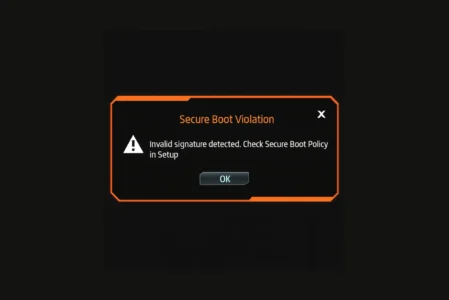
Secure Boot is a UEFI firmware feature that checks the signatures of certain components loaded before Windows, helping prevent unauthorized programs from running. It protects against some attacks that use bootkits, a type of malware that tries to interfere before the operating system loads.
These protections can help prevent data theft from an encrypted device and defend against some sophisticated attacks on the startup process. They are useful, but they do not replace Windows security updates or malware detection.
A computer without TPM 2.0 therefore retains its usual software protections. It loses some hardware-backed encryption and startup verification safeguards, but it does not automatically become more vulnerable to everyday malware.
The absence of TPM 2.0 can have a more immediate effect on certain video games.
Some games require TPM 2.0 and Secure Boot
Competitive games increasingly rely on anti-cheat systems to stop players from altering how a game works or gaining an unfair advantage. Some of these systems now require TPM 2.0 and Secure Boot to be enabled.
This change reflects the techniques used to bypass game protections. Some cheats run inside the Windows kernel with elevated privileges, while others use devices that can access a computer’s memory directly. These methods make it harder for anti-cheat systems to detect malicious programs.
To strengthen their protections, some publishers also check the environment in which Windows started. TPM 2.0 provides cryptographic information about the system’s state, while Secure Boot checks the signatures of components loaded during startup. Anti-cheat systems can use these checks to detect attempts to tamper with Windows before a game launches.
Valorant may not run without TPM 2.0 on Windows 11
On Windows 11, Riot Vanguard requires TPM 2.0 and Secure Boot. If TPM 2.0 is not detected, the game may show error VAN 9001. If Secure Boot is disabled, you may see error VAN 9003.
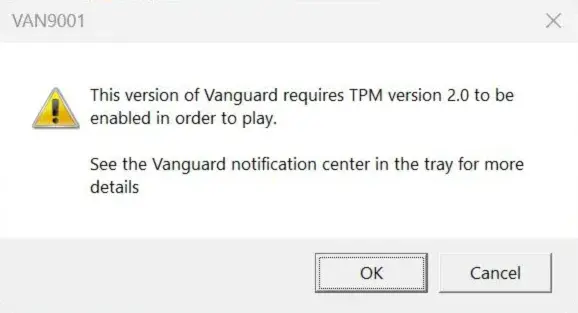
You can force Windows 11 to install without TPM 2.0, but this does not bypass the checks performed by Vanguard.
The performance of Windows is not the issue. Your processor and graphics card may run Valorant smoothly, but Vanguard will still block the game if its security requirements are not met.
If your computer is unsupported only because of its processor, but it has TPM 2.0 and Secure Boot, Vanguard’s restrictions may not apply. The anti-cheat system checks its own security requirements independently of Microsoft’s list of approved processors.
Will Windows 11 keep receiving updates?
Security updates, bug fixes, and system improvements are distributed in the same way as they are to officially supported computers. Microsoft does not reserve its security fixes exclusively for machines that meet its hardware requirements.
Microsoft’s warning is mainly about its support policy. The company does not guarantee that future updates will work on unsupported hardware, and it does not promise to fix issues specific to those configurations. That does not mean Windows Update stops working as soon as you install Windows 11.
As on any computer, an update can fail because of a driver, a software component, or a problem during installation. You can often resolve these issues by running Windows Update again or installing the affected update manually. One failed update does not mean every future update will fail.
Moving to Windows 11 may be better than staying on an unpatched system
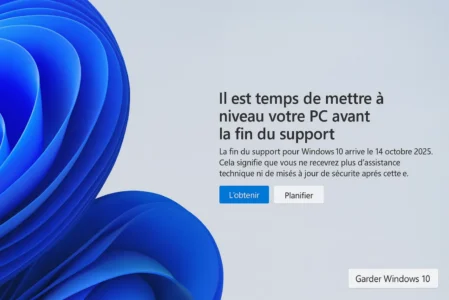
Standard support for Windows 10 ended on October 14, 2025. Since then, computers not enrolled in Microsoft’s Extended Security Updates program have stopped receiving the usual security patches.
For example, if a vulnerability is found in a Windows networking component and could let an attacker run code remotely, Microsoft can release a patch that changes the component and closes the vulnerability. On a system that no longer receives updates, the vulnerable code remains in place.
Microsoft Defender continues to monitor suspicious files and behavior, but it cannot replace changes to Windows itself. An up-to-date antivirus does not guarantee the security of an operating system that still contains known, unpatched vulnerabilities.
Windows 11 on an officially unsupported computer that continues to receive security patches is better protected against known system vulnerabilities than Windows 10 without updates.
Microsoft offers an Extended Security Updates program that lets home users continue receiving critical and important Windows 10 security updates through October 12, 2027.
In France, home users can enroll for free by signing in to Windows with a Microsoft account. A paid option is also available for people who want to keep using a local account without staying signed in to a Microsoft account.
| Installed system | Security updates | What this means |
|---|---|---|
| Windows 10 without ESU | No regular security patches | New system vulnerabilities remain unpatched |
| Windows 10 with ESU | Critical and important updates through October 12, 2027 | Extended protection during the transition |
| Unsupported Windows 11 | Security updates | Microsoft patches known vulnerabilities |
TPM 2.0 is only one factor to consider when evaluating your computer’s security. Keeping an operating system up to date is essential, and that may be a reason to install Windows 11 on officially unsupported hardware.
Check your computer’s limitations before installing
Before bypassing Windows 11’s requirements, check which features your computer supports. Some requirements are simply disabled in UEFI settings, while others depend on your processor or motherboard.
Windows already includes several tools you can use to check your hardware.
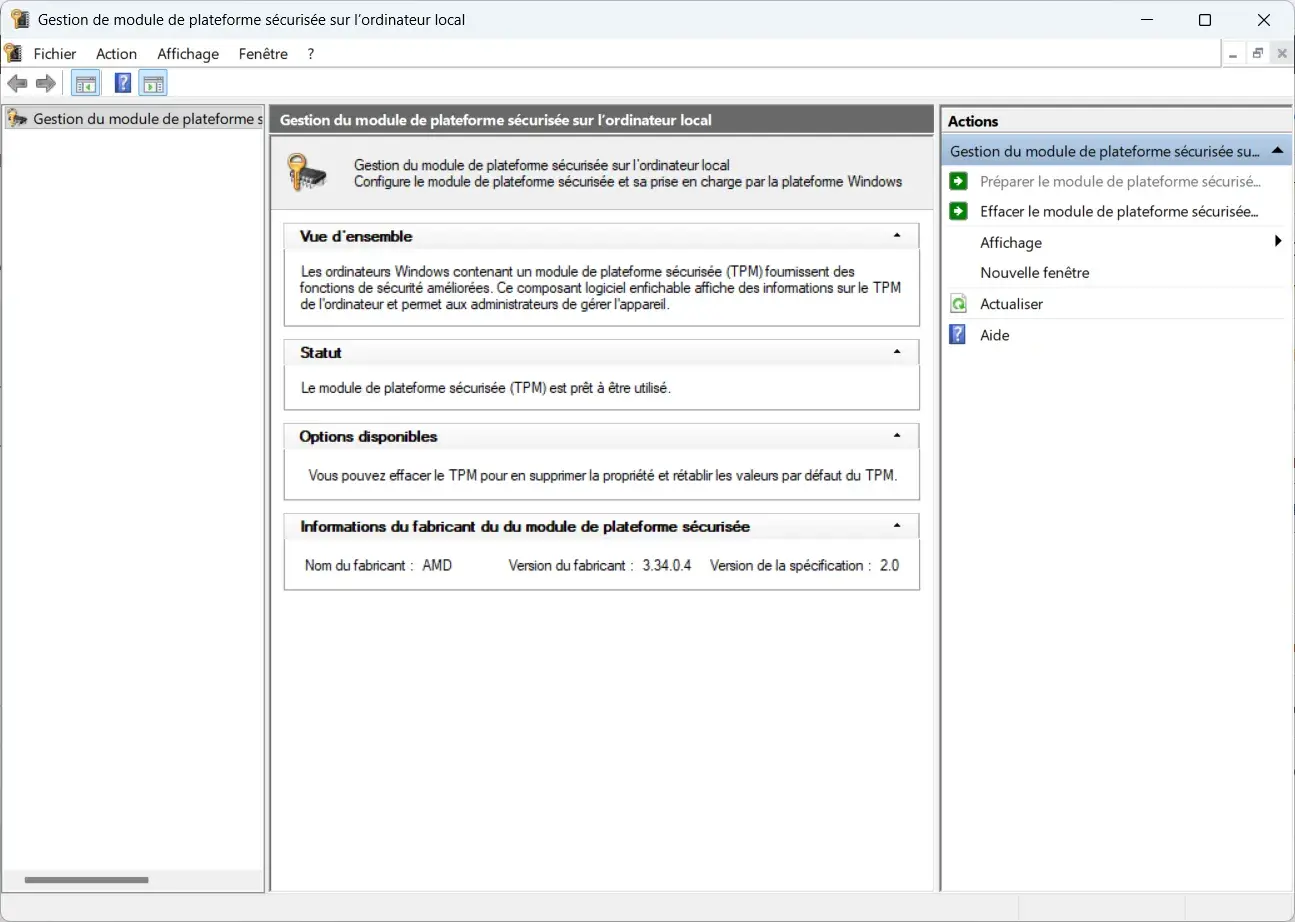
tpm.mscshows the status of the TPM and its specification version. To meet the Windows 11 and Vanguard requirements, it must report version 2.0.
msinfo32displays your BIOS mode and Secure Boot status. Check whether Windows is using UEFI mode and whether Secure Boot is enabled.
winverdisplays your installed Windows version. Use it to check whether your system is still receiving security updates.
To run these commands, press Windows + R, type the command you want to use, and press Enter.
If the TPM does not appear, also check your computer’s UEFI settings. Depending on your processor, the feature may be called Intel PTT or AMD fTPM. A TPM missing from the system information is not necessarily missing from the hardware.
Enabling Secure Boot requires extra care if Windows was installed in legacy BIOS mode. You may need to convert the system drive from MBR to GPT before using UEFI boot. On a computer protected by BitLocker, changes to the TPM or startup settings may also trigger a recovery-key prompt.
If your computer has the necessary features, you can upgrade to Windows 11 on an unsupported PC without formatting your computer.
Should you install Windows 11 on your unsupported PC?
Installing Windows 11 on an unsupported PC can make sense when your hardware works well and Microsoft’s restriction mainly concerns the processor model. Your computer keeps its performance and available hardware features while receiving security patches.
However, if your PC does not have TPM 2.0 or Secure Boot, consider the software that now requires these protections. Valorant is one example: even a computer powerful enough to run the game will be blocked if it does not meet Vanguard’s requirements.
From a security perspective, an unsupported Windows 11 installation that receives regular patches is a better option than Windows 10 without updates. The ESU program can protect Windows 10 through October 2027, giving you more time to choose the right option.
We allow some readers to view our articles for free with an ad blocker. However, their number is currently too high for us to keep this access available to everyone.
You can disable your ad blocker to continue reading immediately, subscribe to enjoy all our content without ads, or come back a little later when the pressure has eased.
Access will be restored automatically as soon as the situation allows.