Is your Chromebook limited to web apps? Learn how to enable Linux on ChromeOS and install GIMP, LibreOffice, Visual Studio Code and other software, with or without the terminal.
ChromeOS is designed primarily for web browsing and web apps. However, your Chromebook also includes a feature that lets you install full Linux applications with their own graphical interfaces, without replacing the operating system.
With the Linux environment built into ChromeOS, you can use GIMP to edit photos, LibreOffice to work on documents, or Visual Studio Code to write code. These apps open in regular windows directly on the ChromeOS desktop.
This feature is based on Debian, a Linux distribution with thousands of available applications. You can even install a graphical software centre to browse and install apps from Debian repositories or Flathub.
In this article
- How to enable Linux on a Chromebook
- Install your first Linux app with APT
- Which Linux apps can you install on ChromeOS?
- Install Visual Studio Code from Flathub
- Access ChromeOS files from Linux apps
- Do Linux apps perform as well as they do on a regular computer?
- Back up your Linux apps and files
- Make ChromeOS more versatile with Linux apps
How to enable Linux on a Chromebook
ChromeOS includes a Linux development environment that is disabled by default. Enabling it runs Debian in a virtual machine while keeping ChromeOS as your main operating system. ChromeOS therefore retains its read-only, protected base system, while Debian hosts the Linux apps you install. The two environments are separate, so you can add software without directly changing the main system.
To enable Linux, open your Chromebook settings and follow these steps.
- Select About ChromeOS from the left-hand menu.
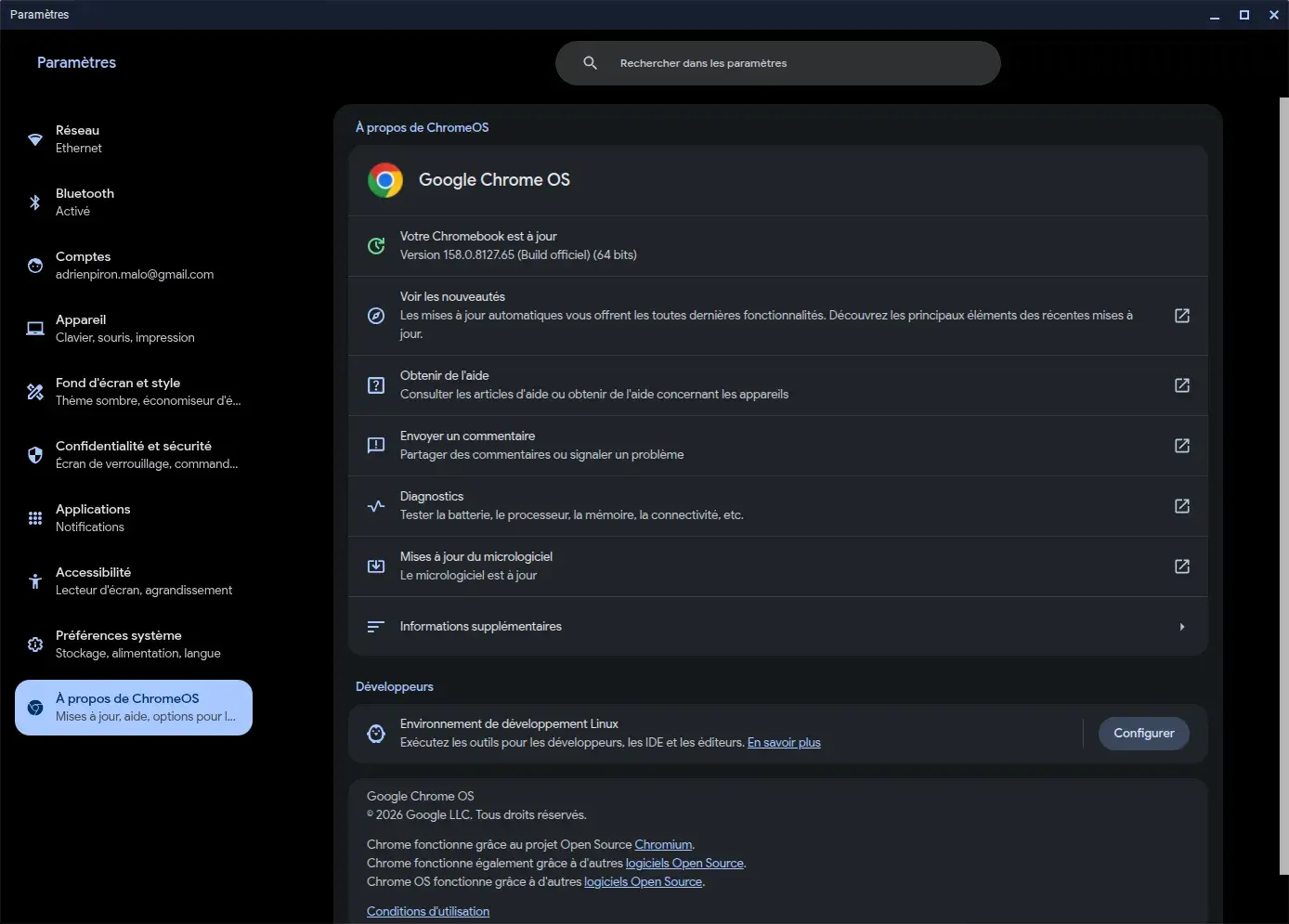
- Find Developers, then Linux development environment.
- Select Set up, then Next.
- Choose a Linux username and the amount of storage to reserve for the environment.
- Start the installation and let ChromeOS download the required components.
When setup is complete, a Terminal window opens automatically. Debian is now ready, with its own file system and software management tools.
The Linux environment runs separately from ChromeOS apps but shares your Chromebook’s hardware resources. You do not need to modify the firmware or enable Developer Mode to use Linux apps.
Install your first Linux app with APT
Debian uses a package manager called APT to download, install and update software from its official repositories. It also retrieves the dependencies apps need to run.
Before installing your first app, refresh the list of available packages and install updates for your Linux environment. Open the terminal and run this command.
sudo apt update && sudo apt upgradeThe first part refreshes the list of software available from Debian repositories. If it succeeds, the second part checks for and installs updates to packages already on your system.
APT shows you the planned changes and asks you to confirm the installation when needed. Once the updates are complete, your Linux environment is ready for its first apps.
Install LibreOffice to create and edit documents
LibreOffice is a free, open-source office suite that also runs on Windows and macOS. It includes Writer for word processing, Calc for spreadsheets and Impress for presentations. You can create, edit and save documents directly on your Chromebook without an internet connection.
To install LibreOffice with its British English interface on ChromeOS, open the Linux terminal and run this command.
sudo apt update && sudo apt install libreoffice libreoffice-l10n-en-gb -yThis command refreshes the package list, then installs LibreOffice and the components it needs to run.
When installation is complete, LibreOffice apps appear in the ChromeOS Launcher, in the folder for Linux apps. You can open Writer, Calc or Impress without entering another command.
Which Linux apps can you install on ChromeOS?
GIMP is just one example of the many apps available in Debian repositories. The same package manager can install office software, drawing tools, web browsers and media players.
Here are some useful apps for expanding what your Chromebook can do.
| App | Use | Install command |
|---|---|---|
| GIMP | Photo editing and graphic design | sudo apt install gimp |
| LibreOffice | Documents, spreadsheets and presentations | sudo apt install libreoffice libreoffice-l10n-en-gb |
| Inkscape | Vector drawing and illustration | sudo apt install inkscape |
| Krita | Digital drawing and painting | sudo apt install krita |
| Firefox ESR | Web browsing | sudo apt install firefox-esr |
| VLC | Audio and video playback | sudo apt install vlc |
These commands install the versions available in the Debian repositories configured on your Chromebook. Each app has its own graphical window and can be opened directly from ChromeOS.
If you would rather use something like a traditional app store, you can install a Linux software centre.
Install a Linux software centre to browse apps without the terminal
Debian includes GNOME Software, an app that lets you browse a catalogue, read app descriptions and manage installations through a graphical interface.
To install it on ChromeOS with Flatpak support, open the terminal and run this command.
sudo apt install gnome-software gnome-packagekit gnome-software-plugin-flatpak flatpakThis installs GNOME Software, the components needed to manage Debian packages graphically, and support for Flatpak apps.
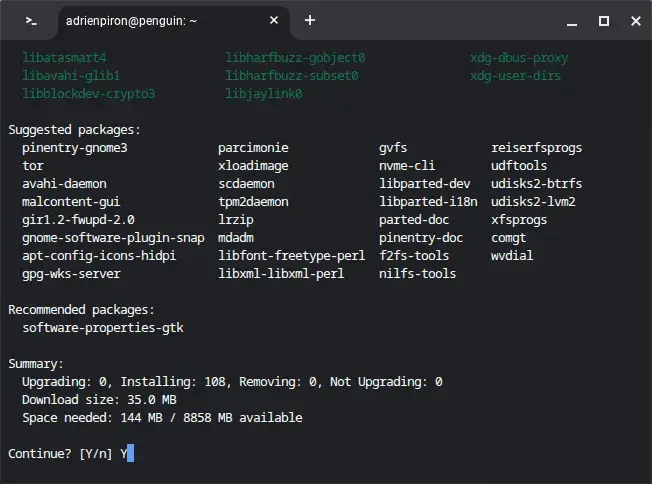
When installation is complete, open the ChromeOS Launcher and search for Software or GNOME Software, depending on your Debian environment.
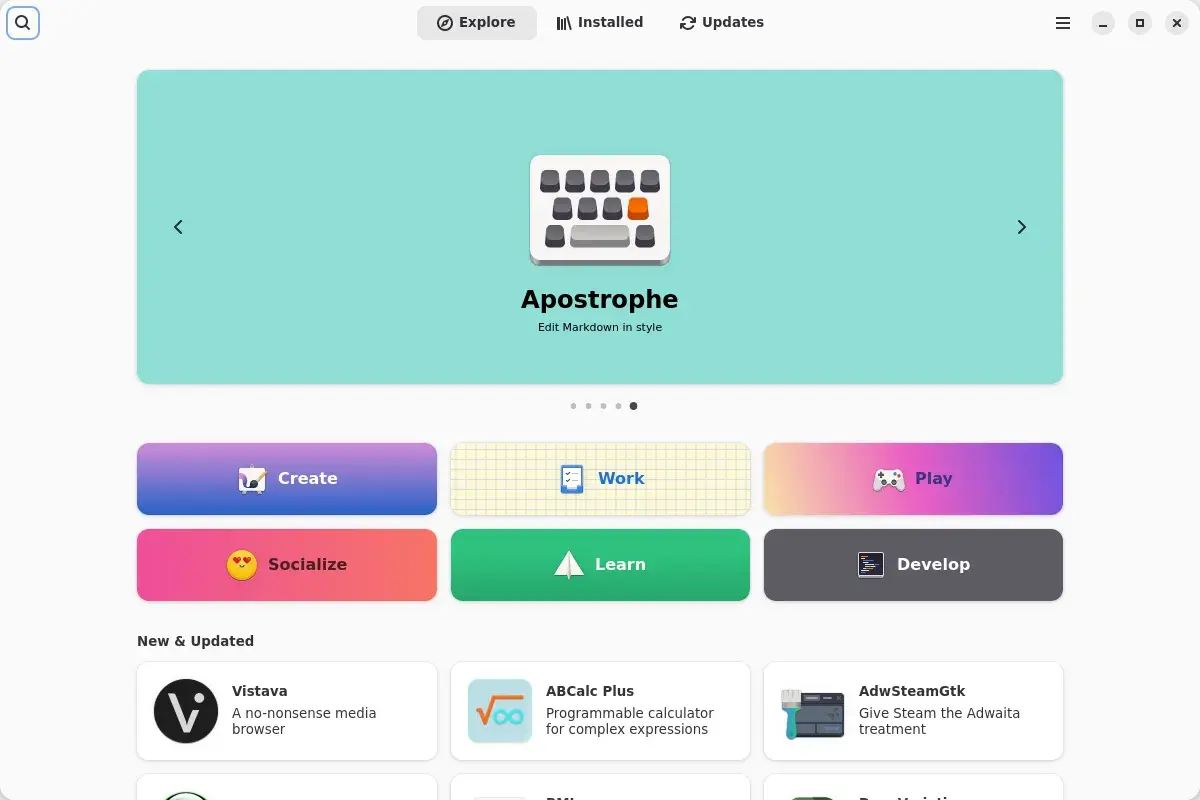
The software centre organises apps into categories and includes search, detailed app pages, and tabs for installed apps and updates.
You now have a graphical app manager in ChromeOS, so you do not need to use APT for every installation.
The catalogue depends on the software sources configured in Debian. To browse a wider selection of apps, you can add the Flathub repository.
Add the Flathub repository to access more apps
Flathub is a catalogue of Linux apps distributed in the Flatpak format. It offers many open-source and proprietary apps, including creative, office, development and communication tools.
Unlike Debian packages installed with APT, Flatpak apps use their own runtimes. This makes it possible to offer apps across different Linux distributions, independently of the versions in their traditional repositories.
Now that Flatpak is installed with GNOME Software, add the Flathub repository.
In the Linux terminal, run this command.
flatpak --user remote-add --if-not-exists flathub https://dl.flathub.org/repo/flathub.flatpakrepoThis command adds Flathub as an app source for your Linux account.
To check that the repository was added, run:
flatpak remotes --userflathub should appear in the list of configured repositories.
Next, restart the Linux environment. Right-click the Terminal app on the ChromeOS shelf and select Shut down Linux. Open the terminal again to restart Debian.
GNOME Software can now show apps from Flathub. If the same app is available from more than one source, you can choose which version to install.
Install an app from Flathub
Open GNOME Software and search for the app you want. Select its page to read the description, view screenshots and check where it comes from.
If Flathub is listed as a source, select it and click the install button. The software centre downloads the app and the components it needs.
You can also do this from the terminal. For example, to install GIMP from Flathub, run:
flatpak install --user flathub org.gimp.GIMPIf you already installed GIMP from Debian repositories, you do not need a second copy for typical use. The two versions use different distribution and update methods.
Flathub is most useful when an app is missing from Debian repositories or you want a different version.
Flatpak apps also need to download additional runtimes. If your Chromebook has limited storage, it is best to keep just one installation of each app.
Install Visual Studio Code from Flathub
Once Flathub is available in GNOME Software, you can install apps directly from the software centre. To show how it works, we will install Visual Studio Code, Microsoft’s code editor.
Open GNOME Software and search for Visual Studio Code. Select its page to read the description, view screenshots and check where it comes from. Make sure Flathub is selected as the source, then click Install.
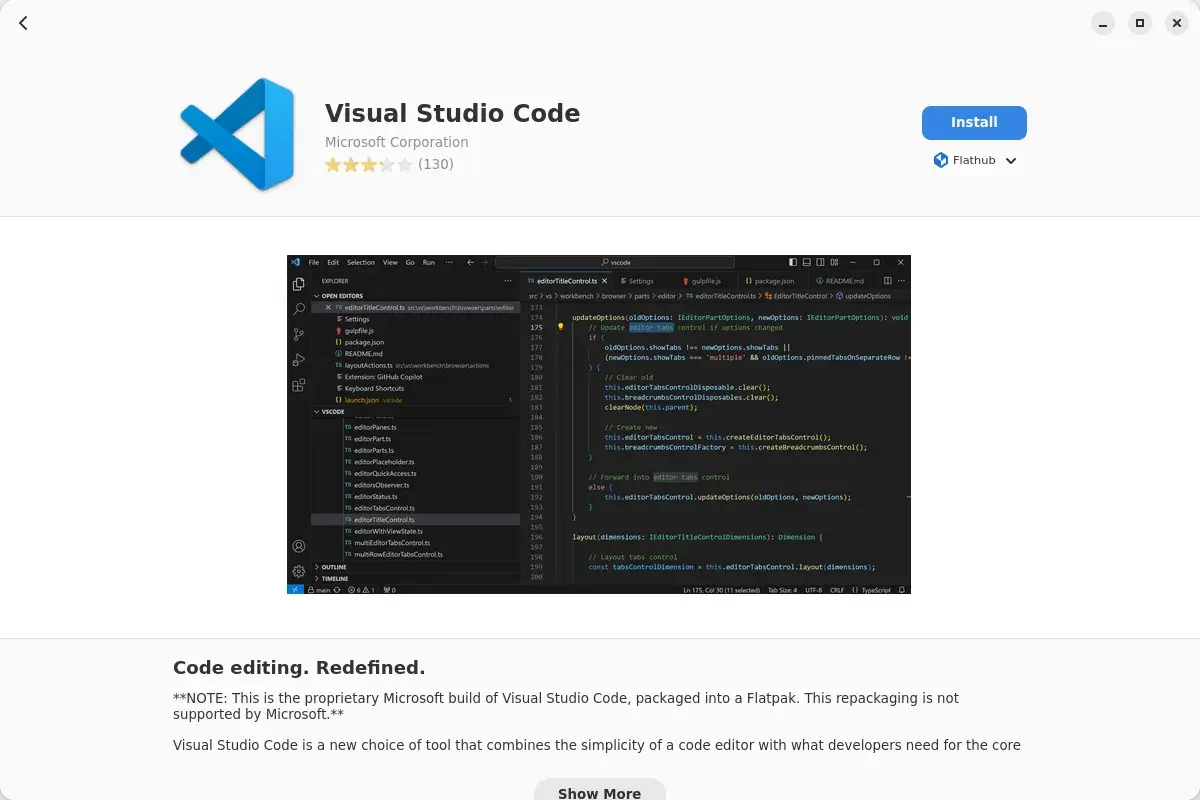
The software centre downloads Visual Studio Code and the components it needs. Once installation is complete, the editor appears in the ChromeOS Launcher alongside your other Linux apps.
You can also install it directly from the terminal with this command.
flatpak install --user flathub com.visualstudio.codeVisual Studio Code includes a graphical interface, code editor, extensions and development tools. However, Flatpak apps run in an isolated environment, which limits some access to files and tools installed in Debian.
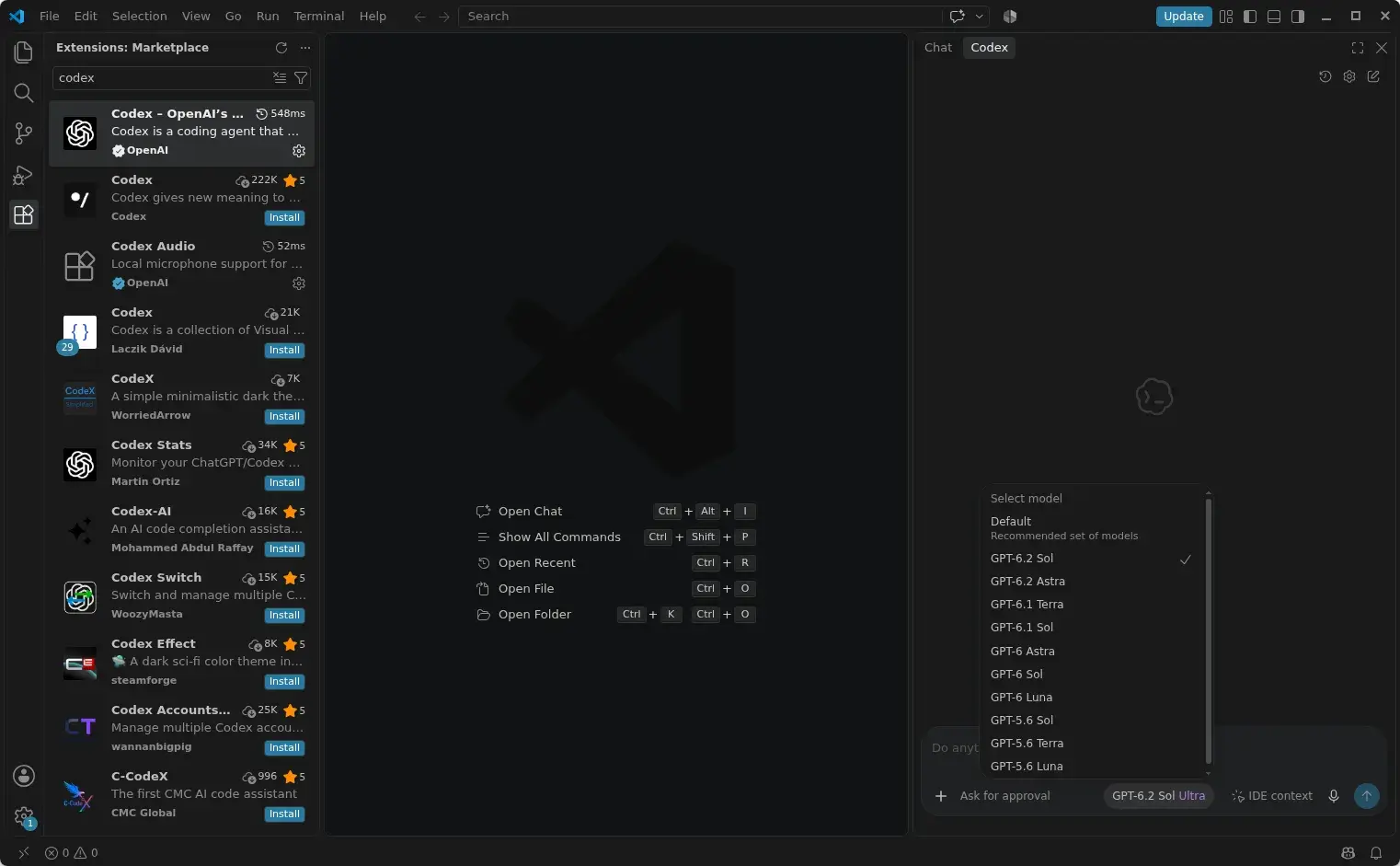
The Flathub build is maintained by the community and is not officially supported by Microsoft. For professional use that requires full integration with Linux development tools, choose the official Debian package for Visual Studio Code.
Access ChromeOS files from Linux apps
After installing apps such as GIMP or LibreOffice, you will probably want to open photos and documents saved on your Chromebook.
ChromeOS and Debian have separate storage. The ChromeOS Files app includes a Linux files folder for documents saved in the Debian environment.
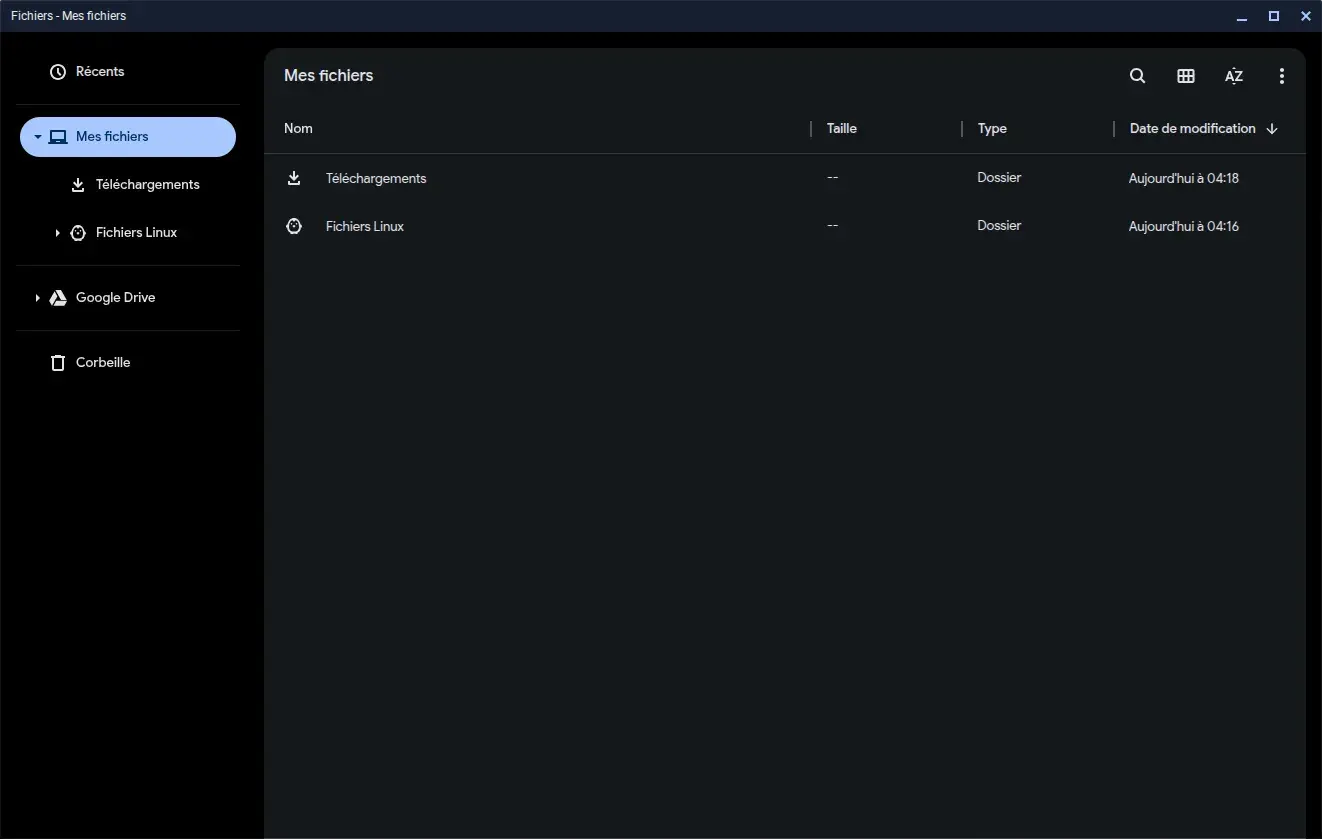
To open a photo in GIMP, you can copy it from Downloads to Linux files.
This works, but it creates a second copy of the file. To work with your files without duplicating them, ChromeOS also lets you share folders with Linux.
In the ChromeOS Files app, right-click the folder you want and select Share with Linux.
The folder becomes available in Debian under /mnt/chromeos. Run this command to see the available locations.
ls /mnt/chromeosLinux apps can then access files in shared folders, subject to the permissions you grant. For example, you can open a photo in GIMP, edit it and save the result in its original folder.
For development projects that make frequent use of the disk, keep files in the Linux storage area to reduce slowdowns caused by sharing between the two environments.
Do Linux apps perform as well as they do on a regular computer?
The Linux environment greatly expands what ChromeOS can do, but it works differently from Debian installed directly on a computer.
ChromeOS and Debian run side by side and share the Chromebook’s hardware resources. Available memory must therefore be shared between the browser, ChromeOS apps and Linux software.
Office apps, browsers and lightweight development tools work well in this environment. 3D design software, video editors and especially large development projects need more resources.
Compatibility also depends on the processor architecture. On a Chromebook with an ARM processor, Linux apps must have a version built for that architecture. Software distributed only for Intel and AMD processors will not run natively on ARM.
Virtualisation also limits access to some peripherals and graphics features. Google no longer guarantees fixes for graphics acceleration issues in Linux on ChromeOS. Baguette, the new Linux architecture, is the default for new installations starting with ChromeOS 147.
Back up your Linux apps and files
After installing several apps, your Debian environment will also contain their settings, your documents and possibly your development projects.
ChromeOS has a backup feature that lets you save this environment and restore it later.
To find it, open ChromeOS settings, then go to About ChromeOS, Developers and Linux development environment.
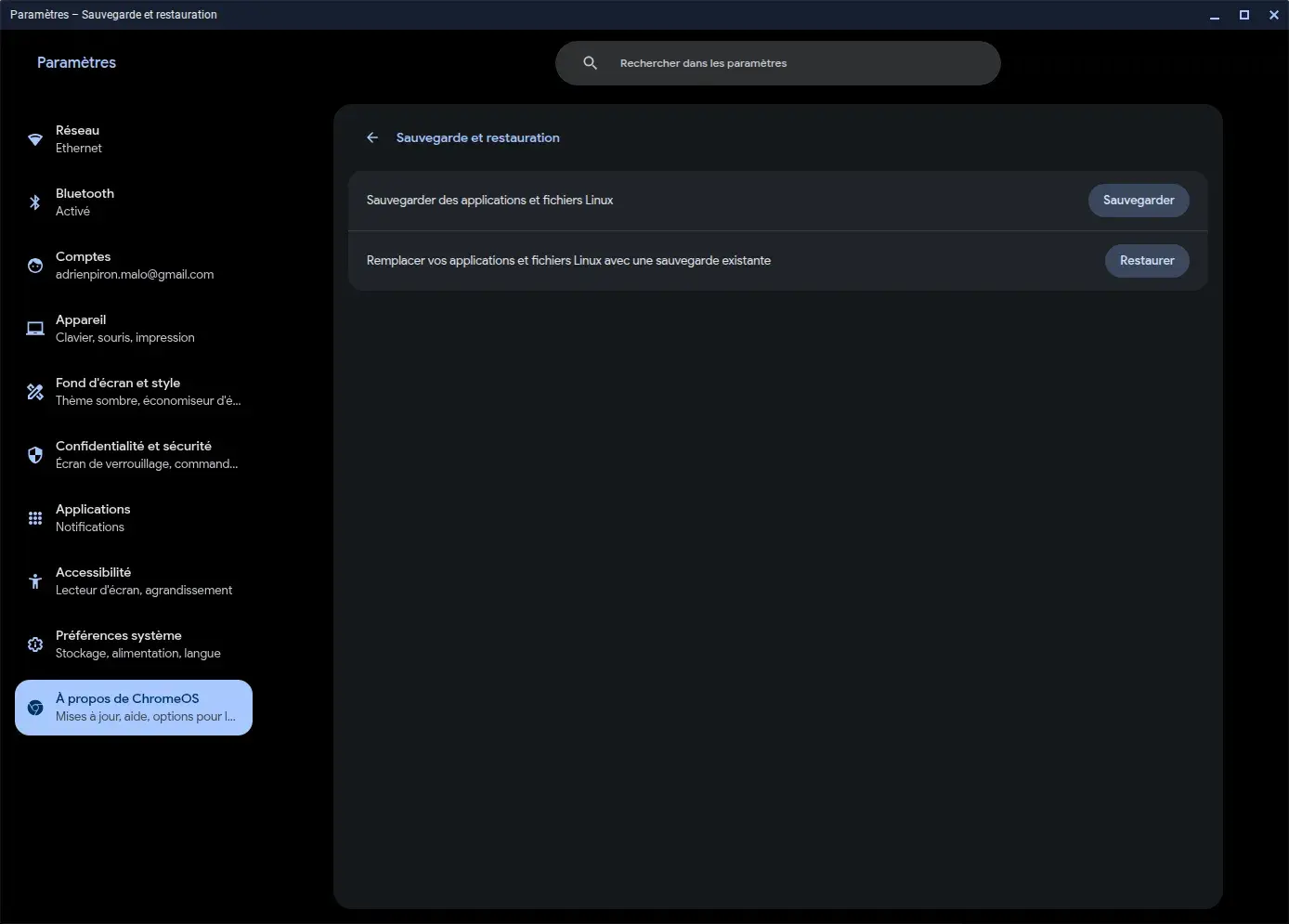
Then select Backup and restore.
The backup saves your Linux environment as an archive that you can store on an external drive. It lets you recover your apps and files if you reset your Chromebook or run into a problem with ChromeOS.
If you only want to remove an app, the steps depend on how you installed it. For example, to uninstall Visual Studio Code from Flathub, use GNOME Software or run this command.
flatpak uninstall --user com.visualstudio.codeIf you installed Visual Studio Code from its official Debian package, remove it with APT instead.
sudo apt remove codeFinally, if you want to reclaim all the storage reserved for Debian, ChromeOS settings let you remove the Linux development environment completely.
This removes your apps, their settings and all files saved in Linux. Back up anything you want to keep before doing this.
Make ChromeOS more versatile with Linux apps
With Debian, APT, GNOME Software and Flathub, ChromeOS gives you access to a much broader range of software than web apps alone.
You can edit photos with GIMP, work on documents with LibreOffice, create illustrations in Inkscape or build apps with Visual Studio Code.
With a graphical software centre, you can install these apps without having to know Linux commands.
You do not need to replace ChromeOS to use many of the apps available for Linux while keeping the features you already use on your Chromebook.
We allow some readers to view our articles for free with an ad blocker. However, their number is currently too high for us to keep this access available to everyone.
You can disable your ad blocker to continue reading immediately, subscribe to enjoy all our content without ads, or come back a little later when the pressure has eased.
Access will be restored automatically as soon as the situation allows.