An old computer is not necessarily ready for the bin as soon as it becomes too slow for Windows or is replaced by a newer machine. Even a PC that is no longer pleasant to use every day can still be suitable for many purposes.
You can install a lightweight Linux system, turn your computer into a media server with Plex, create a NAS with OpenMediaVault, host your own cloud with Nextcloud or use it as a television replacement for watching channels with Kodi.
However, these transformations do not all require the same hardware. A 120 GB SSD may be more than enough to install an operating system or Kodi, but it becomes much less practical if you want to store several terabytes of films or back up every computer in the house.
Power consumption also needs to be taken into account. An old tower left running permanently can become expensive if you have not done the maths before committing to the project.
In this article
- Check the hardware in your old PC
- Measure power consumption before leaving the PC running all the time
- Linux can make an old PC usable again every day
- Turn your old PC into a media box for your TV
- Catch Up TV & More also lets you watch television with Kodi
- Turn your old PC into a media server on your local network
- Turn an old tower into a NAS with OpenMediaVault
- Turn your old PC into a personal VPN with WireGuard
- Turn your old PC into a home automation server with Home Assistant
- Erase your data before selling or giving away the PC
- Recycle the PC when it can no longer be reused
Check the hardware in your old PC
An old tower has several SATA connectors and several hard-drive bays. It can therefore be an excellent candidate for building a NAS, even if its main drive is only 120 GB.
| Project | Recommended configuration | Suggested storage | 24/7 use |
|---|---|---|---|
| Lightweight Linux PC | 64-bit dual-core CPU, 4 GB RAM | 120 GB SSD or larger | No |
| TV with Kodi | 64-bit dual-core CPU at around 2 GHz, 4 GB RAM, HDMI and hardware H.264 / HEVC decoding | 64 to 120 GB SSD | No |
| Plex | Core i5-6500 or equivalent, 4 cores at 3.2 GHz, 4 GB RAM with hardware acceleration. | 120 to 256 GB SSD + media HDD | Optional |
| OpenMediaVault | 64-bit dual-core CPU, 8 GB RAM and Gigabit Ethernet | 120 GB SSD + data HDD | Yes |
| Nextcloud | 64-bit quad-core CPU at around 2.5 GHz, 8 GB RAM and Gigabit Ethernet | 120 to 256 GB SSD + data storage | Yes |
| Home Assistant | x86-64 dual-core CPU at around 2 GHz, 4 GB RAM, UEFI and Ethernet | 64 to 120 GB SSD | Yes |
A laptop is more compact and uses less power, but it only has one or two storage bays. It is better suited to Kodi, Home Assistant or a small server than to a NAS containing several drives.
Also check the network connection. For a file server, Plex or Nextcloud, Gigabit Ethernet is preferable to Wi-Fi when you regularly need to transfer large files.
The condition of the drive is also worth checking. Recycling a ten-year-old computer does not mean that its ten-year-old hard drive should continue to store the only copies of your photos.
Measure power consumption before leaving the PC running all the time
Reusing existing hardware can be worthwhile, but keeping an energy-hungry old tower running all year is not always economical. A computer that continuously uses 30 watts consumes around 263 kWh per year. At 50 watts, consumption approaches 438 kWh. A server that idles at 80 watts exceeds 700 kWh over a full year.
A PC turned into a retro console can be switched off when it is not in use. The same applies to a system connected to a television with Kodi. A NAS, Nextcloud server, Home Assistant system or router, on the other hand, needs to run day and night.
Linux can make an old PC usable again every day
A computer that has become frustrating to use under Windows has not necessarily reached the end of its life. If the processor still works properly and the machine has a few gigabytes of RAM, installing a lighter Linux distribution may be enough to make the PC comfortable to use every day again.
With 4 GB of RAM and an SSD, many older computers are still perfectly capable of browsing the Internet, checking email, watching videos or working on documents. Even more limited machines can use distributions specifically designed to consume few resources.
antiX, for example, remains an interesting option for very old hardware, while Linux Mint is better suited to a PC with a little more memory when you want to keep a Windows-like experience.

 assistouest.fr
If your computer still has a mechanical hard drive, replacing it with an SSD can also make a major difference. The processor does not become more powerful, but the system starts, software opens and files are accessed much faster.
Turn your old PC into a media box for your TV
If your old PC has an HDMI output, you can simply connect it to your television and use it as a media box with Kodi.
Kodi has an interface designed for television screens and makes it easy to find your films, series and other videos on the PC’s drive, a USB drive or a NAS on your network.
You can also control it with a compatible remote or from your smartphone, so you do not need to keep a keyboard and mouse next to the television.
For this use, you do not need a particularly powerful machine. An old PC with 4 GB of RAM and a small SSD can already be perfectly suitable for Full HD playback.
The main limitation is instead the video formats the machine can decode. A computer that is fast enough to run Kodi smoothly may still struggle with HEVC video if its processor or graphics hardware does not support the required hardware decoding.
For standard Full HD H.264 videos, many older computers are still more than adequate.
Catch Up TV & More also lets you watch television with Kodi
With the Catch Up TV & More add-on, you can access different television channels, live streams and several catch-up services directly in Kodi.
Your old PC can therefore remain connected to the television and be used both to watch your own videos and to access television without constantly returning to Windows.

The required storage is very small because programmes are mainly streamed from the Internet. A 120 GB SSD is therefore enough for Kodi and its operating system if your films are stored on the network.
Turn your old PC into a media server on your local network
With Plex, your old computer is no longer used directly in front of a screen. It becomes a server that stays connected to your local network and stores your films, series and videos.
You can leave the PC in an office, cabinet or another room and access its media library from your television, smartphone, tablet or another computer. The files stay in one place and are streamed remotely over the network.
An old tower is particularly useful for this purpose because it allows you to add several hard drives. You can keep a small SSD for Plex and use one or more HDDs to store your media library.
The PC simply needs to remain switched on whenever you want to access your content. Gigabit Ethernet is also preferable if you plan to stream large files regularly to several devices.
When the television can play the video directly, Plex requires little server power. An older television may, however, support H.264 but not H.265 or HEVC. Plex then has to convert the video in real time into a format the device can play.
This conversion may also be required for an excessively high resolution, an incompatible audio format or certain subtitles. The processor or graphics hardware has to work much harder with 4K video.
Plex is free for watching your content on the local network, but some features, such as hardware-accelerated transcoding, require Plex Pass.
Jellyfin, the free and open-source alternative to Plex
Jellyfin works on the same principle as Plex. Your PC is connected to the network and centralises your films, series, music and other media.
The other devices in the home can then play the content directly from this server, without needing to keep a local copy on each one.
Jellyfin is completely free and open source, making it an interesting alternative if you want to create your own media server without relying on paid features.
As with Plex, an old tower fitted with an SSD for the system and several storage drives can become a media library accessible throughout your local network.
Turn an old tower into a NAS with OpenMediaVault
If your old PC has several hard-drive bays, it can become storage space accessible from every computer in the house.
With OpenMediaVault, the PC is connected to the network and works as a NAS. You can store documents, photos, backups or videos there and access them from another PC without physically connecting the drives.
For OpenMediaVault, plan for at least a 64-bit processor, 8 GB of RAM and a Gigabit Ethernet connection. The system can be installed on a 120 GB SSD, with one or more separate HDDs for storing files.
Nextcloud turns your old PC into a personal cloud
If you want to access your files from several computers and smartphones, your old PC can also become a Nextcloud server.
The files remain stored at home, but Nextcloud adds a web interface and apps that can synchronise them automatically between your devices. For example, you can access the same documents on your desktop PC and laptop or automatically send your smartphone photos to the server.
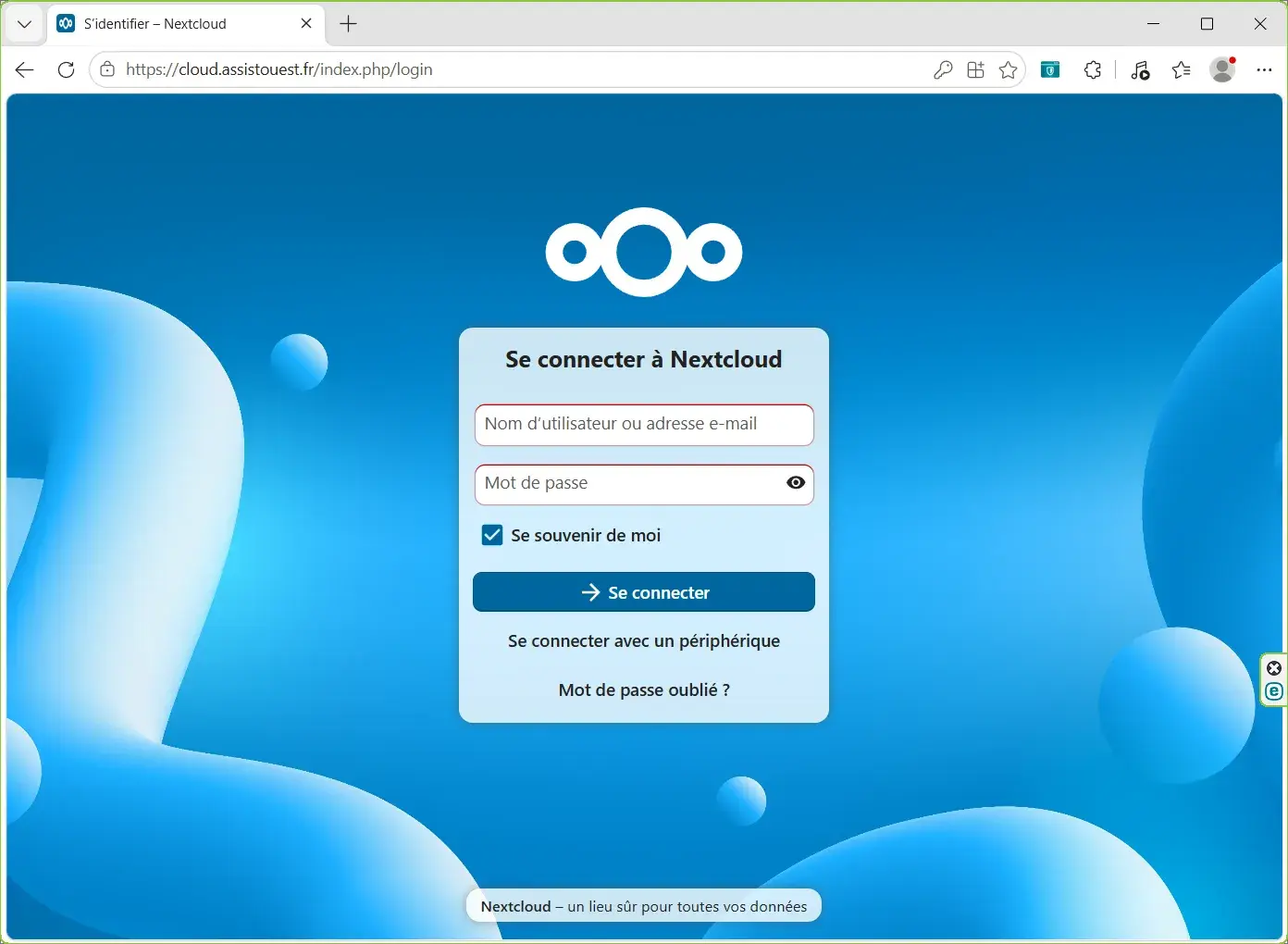
It therefore works more like Google Drive, OneDrive or Dropbox than a simple shared folder on the local network.
Nextcloud recommends a 64-bit system, and its requirements mainly depend on the number of users, the installed apps and the amount of files to manage. To reuse a PC at home, 8 GB of RAM already leaves comfortable headroom for a small personal server.
As with OpenMediaVault, you can install the system on an SSD and reserve one or more larger drives for your files. The required capacity then depends directly on what you plan to synchronise.
Accessing Nextcloud from the Internet requires a few additional prerequisites
On your local network, Nextcloud can work directly with the server’s IP address. To access your files from outside, however, you need to make the server reachable from the Internet.
With a conventional setup, your connection needs a public IP address that allows your network to be reached from outside. If your provider uses CGNAT or does not allow incoming connections, simply forwarding a port on the router will not be enough.
You also need a domain name or dynamic DNS if your IP address changes, configure the router to forward connections to the server and use HTTPS with a valid certificate.
Nextcloud must then know the address used to access it. Allowed IP addresses and domain names are declared in its configuration with trusted_domains.
A reverse proxy can also be used to manage HTTPS and publish Nextcloud behind a single address, especially when several services are hosted on the same network. Nextcloud directly supports this type of setup.
If you do not want to expose Nextcloud directly to the Internet, a VPN is another way to join your home network remotely.
Turn your old PC into a personal VPN with WireGuard
Your old PC can also stay on at home so that you can access your local network when you are away.
With WireGuard, you create a VPN directly on the machine. You can then connect from your laptop or smartphone as if you were at home and access file shares, Nextcloud, Home Assistant or other services that are normally available only on the local network.
You can also route your Internet connection through the tunnel. On hotel, airport or café Wi-Fi, your traffic is then encrypted all the way to your server and reaches the Internet using the IP address of your home connection.
For this use, an old PC does not need to be particularly powerful. It mainly needs to be efficient enough to stay on permanently and have a stable, fast network connection.
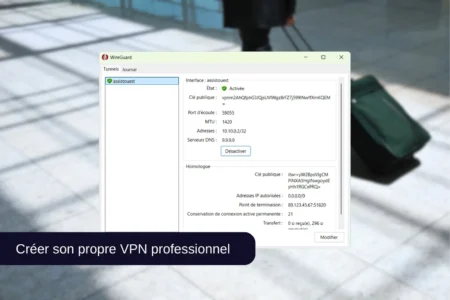
If your main need is to access your own network and secure your connections while away, this solution can also save you from paying for a VPN subscription every month. It does not replace every use of a commercial VPN, however, if you want to choose an IP address in different countries.
AdGuard Home to block advertising across the network
Since the PC is already running for WireGuard, you can entrust it with other lightweight services. AdGuard Home can turn the same machine into a DNS server that blocks some advertising, trackers and malicious domains directly at network level.
Filtering then applies to computers, smartphones, televisions and other devices that use this DNS server, without installing an ad blocker on each one.
The combination with WireGuard is especially useful when you are travelling. Your smartphone can connect to your home VPN and continue using AdGuard Home as its DNS server, even on a mobile network or public Wi-Fi.
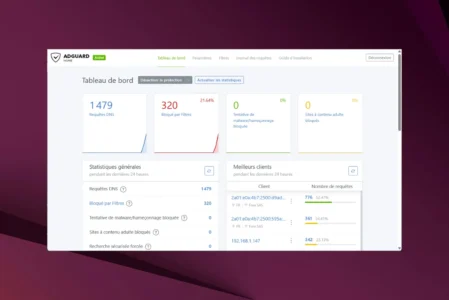
Pi-hole can also act as a filtering DNS server if you prefer it to AdGuard Home. Both solutions can block some advertising and unwanted domains directly at network level.
With WireGuard and one of these two DNS servers on the same machine, an efficient old PC can therefore provide several network services while remaining accessible remotely.
Turn your old PC into a home automation server with Home Assistant
Your old PC becomes the central server for your smart home with Home Assistant. It stays powered on and connected to the network, bringing together your light bulbs, smart plugs, sensors, thermostats and other compatible devices.
You can then create automations without relying solely on each manufacturer’s apps. For example, a light can turn on when a sensor detects movement as you enter your home.
Home Assistant OS can be installed directly on an old x86-64 PC. The machine needs a 64-bit processor, UEFI boot support and Secure Boot disabled. A small SSD and an Ethernet connection are enough for a home installation.
The installation replaces the operating system on the drive. The PC therefore becomes a dedicated Home Assistant machine that you administer from a browser on another device.
Erase your data before selling or giving away the PC
Before selling, giving away or recycling a computer, think about the drive it contains. Deleting your files or performing a quick format does not guarantee that they are unrecoverable.
The method also depends on the storage medium. An HDD can be overwritten, whereas an SSD uses different erasure mechanisms and should not be treated like an old mechanical drive.
If the PC no longer starts but the drive still works, you can also recover the old computer’s data.
Give away the PC if it still works
A computer that has become too old for your needs may still be perfectly suitable for someone looking for a machine to browse the Internet, work on documents or discover Linux.
Charities, reuse centres and refurbishment organisations collect computer equipment to restore or redistribute it. Collection conditions vary between organisations, particularly depending on the PC’s age, its condition and whether a laptop charger is included.
Simply remember to back up and erase your data before handing over the machine.
Recycle the PC when it can no longer be reused
When a computer can no longer reasonably be repaired, given away or used to recover components, it should enter the waste electrical and electronic equipment recycling stream.
You can take the PC to a recycling centre equipped to handle WEEE or use a collection point for electrical and electronic equipment. Some retailers must also offer a take-back solution under the conditions set by the regulations.
The equipment is then dismantled so that its components can be separated and some of the metals and other materials recovered for reuse.
We allow some readers to view our articles for free with an ad blocker. However, their number is currently too high for us to keep this access available to everyone.
You can disable your ad blocker to continue reading immediately, subscribe to enjoy all our content without ads, or come back a little later when the pressure has eased.
Access will be restored automatically as soon as the situation allows.