
Have you ever shut down your computer to fix a problem, only to find that it did not help, while a simple restart did the trick? In Windows 11, shutting down your computer and turning it back on does not have the same effect as restarting it. This difference comes from Fast Startup, which lets Windows save part of its state to speed up the next boot.
In this article
- Windows does not shut down completely when you shut it down
- How can you tell whether Windows has fully restarted?
- Shut down Windows completely without turning off Fast Startup
- How to turn off Fast Startup in Windows
- BIOS Fast Boot is different from Windows Fast Startup
- Should you turn off Windows Fast Startup?
Windows does not shut down completely when you shut it down
Since Windows 8, Microsoft has included Fast Startup, enabled by default on compatible computers, to reduce the time it takes Windows to load when you turn on your PC.
When you choose Shut down, Windows closes your apps and signs you out, but saves the state of the Windows kernel and drivers in a hibernation file hiberfil.sys, also used for Windows hibernation.
hiberfil.sys
The next time you power on, Windows restores this information instead of loading its kernel and drivers from scratch. This hybrid shutdown combines shutting down the computer with hibernation. Your computer is off, but Windows has a saved system state to speed up the next boot.
Restarting Windows reloads the system
Unlike a normal Fast Startup shutdown, the Restart command makes Windows go through a full boot cycle. The kernel shuts down, then loads again with the drivers and services the system needs.
With Fast Startup, Windows restores part of its previous state, along with any conditions that may be causing certain problems. That is why restarting your PC is a better way to fix some problems than shutting it down and turning it back on.
Some system changes also take effect only after Windows loads again, and Fast Startup can delay the completion of some updates. So when Windows asks you to restart, use the Restart command.
How can you tell whether Windows has fully restarted?
You can easily see the difference in Task Manager. Open it with the keyboard shortcut Ctrl + Shift + Esc, then go to Performance and select CPU.
At the bottom of this window, you will find Uptime since the kernel was initialized. It shows how long the system has been running since its last full boot. If Fast Startup is enabled, this time continues to accumulate even after you shut down and turn your computer back on several times.
When you choose Restart, however, the counter resets. Compare it after a normal shutdown and after a restart to see the difference.
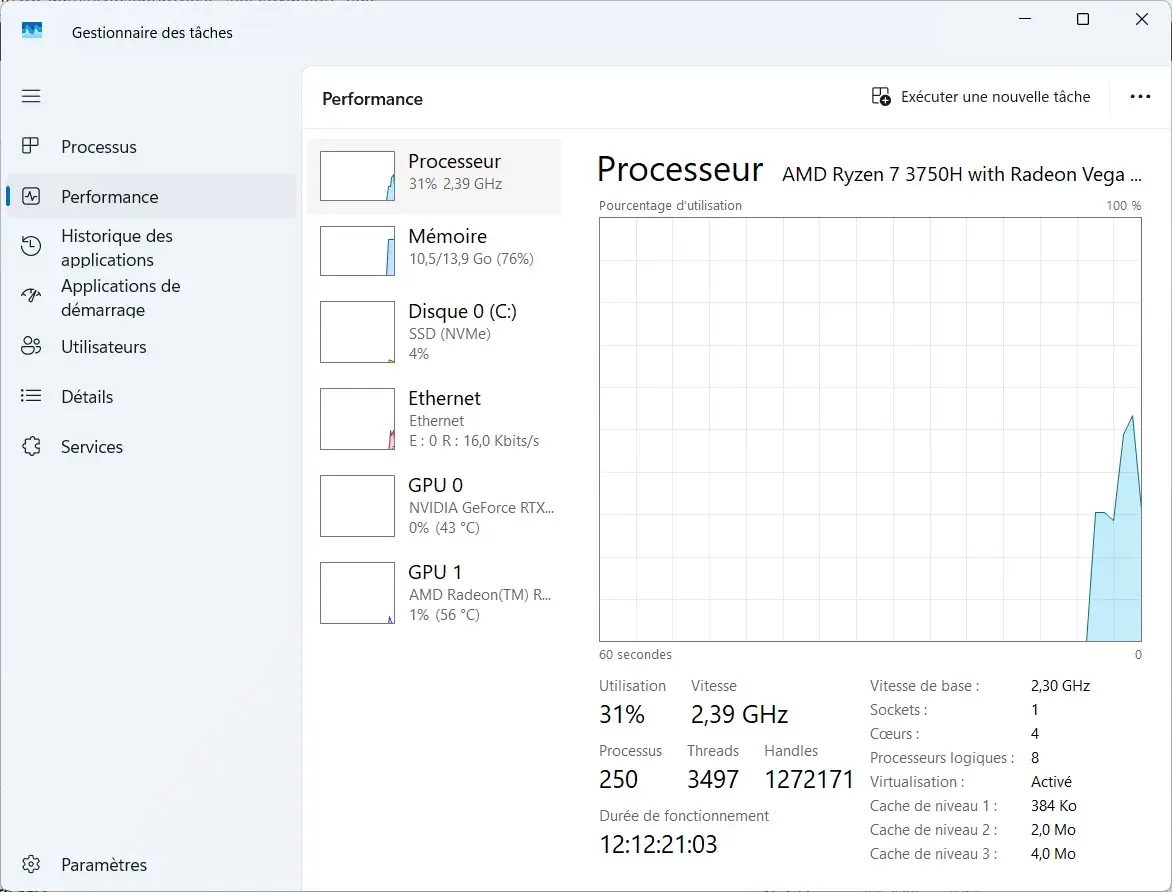
If the counter already resets to zero after every shutdown and power-on, Fast Startup may be disabled or unavailable on your computer.
Shut down Windows completely without turning off Fast Startup
If you only need to perform a full shutdown once, you can use a Windows command without changing your computer’s power settings.
Open Windows Terminal or Command Prompt, then enter this command after saving your work.
shutdown /s /t 0This command tells Windows to shut down immediately without using hybrid shutdown, fully closing the kernel session before the next time you power on.
You can also hold down the Shift key on your keyboard while selecting “Shut down” from the power menu to perform a full shutdown once.
If you use this command often, you can also create a desktop shortcut to shut down your PC without opening Terminal each time.
How to turn off Fast Startup in Windows
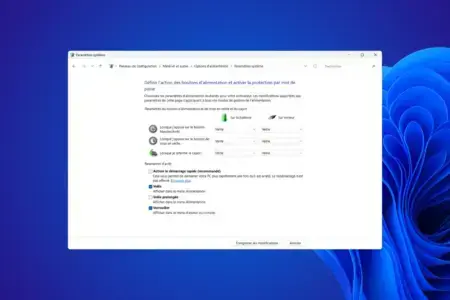
If you want Windows to perform a full shutdown every time you turn off your computer, you can permanently disable Fast Startup in Power Options.
Open the Control Panel, then go to Hardware and Sound, then Power Options. In the left menu, click Choose what the power buttons do.
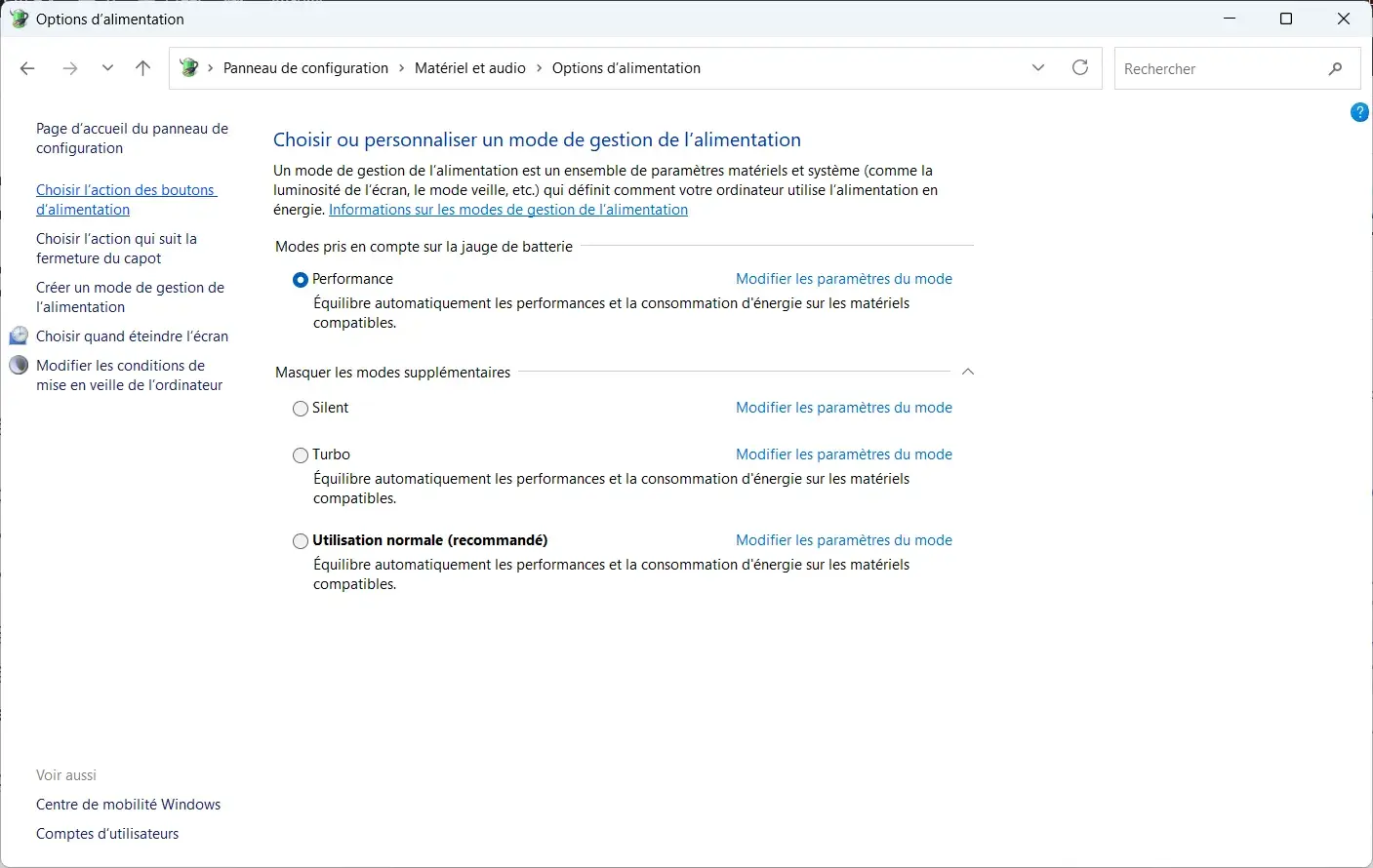
Next, select Change settings that are currently unavailable to unlock the shutdown options. You can then clear “Turn on fast startup (recommended)”, then click Save changes.
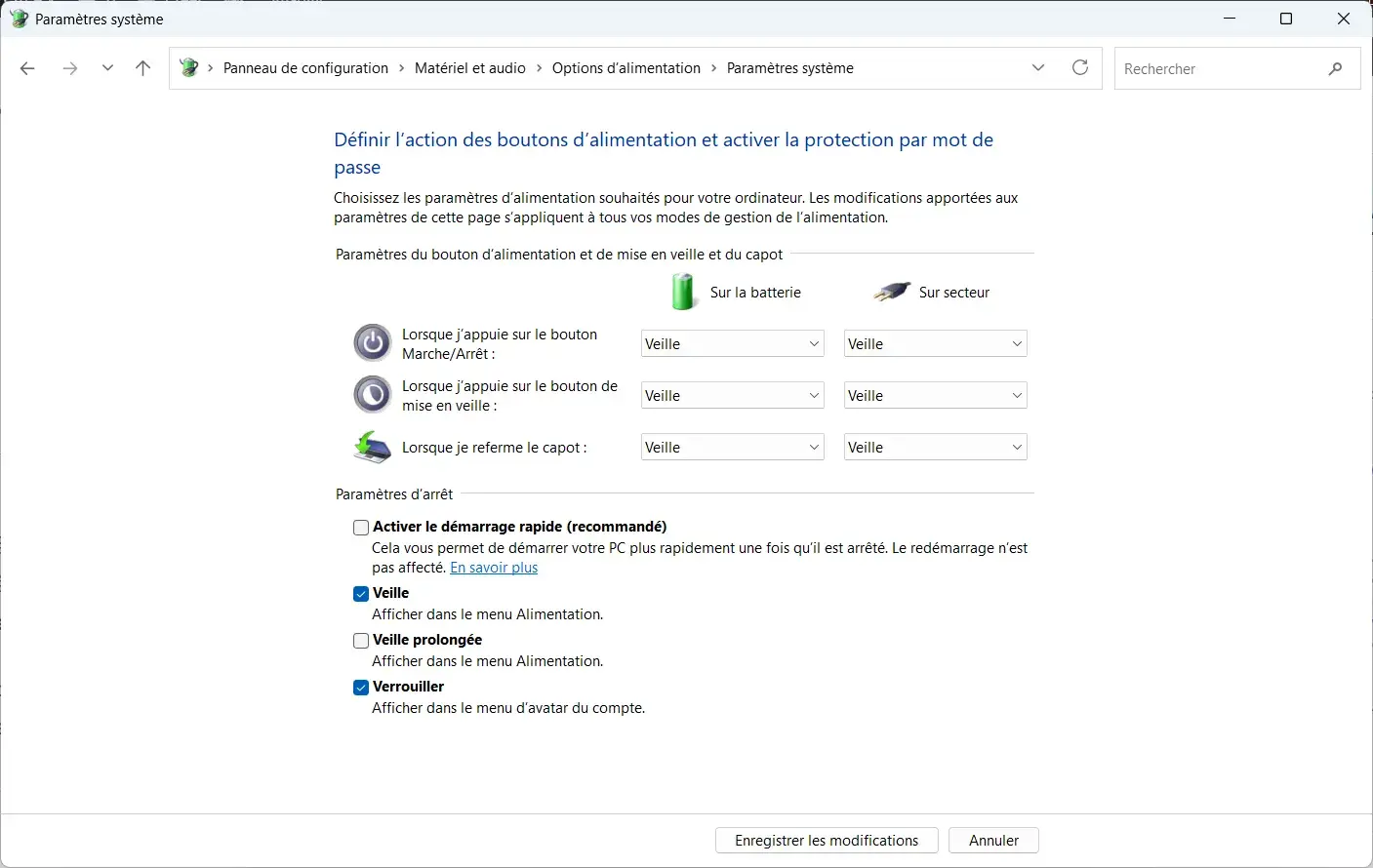
From then on, Windows will perform a full shutdown when you turn off your computer. The next startup may take a little longer because the system will load its kernel and drivers instead of restoring their saved state.
BIOS Fast Boot is different from Windows Fast Startup
Some computers also have a Fast Boot setting in BIOS/UEFI. Despite their similar names, the two features do different things.
UEFI Fast Boot speeds up the early stages of starting the computer, before Windows loads. The BIOS or UEFI initializes the hardware components, then hands control to the operating system.
This setting can make it harder to enter BIOS setup or prevent some USB devices from being available before the operating system loads.
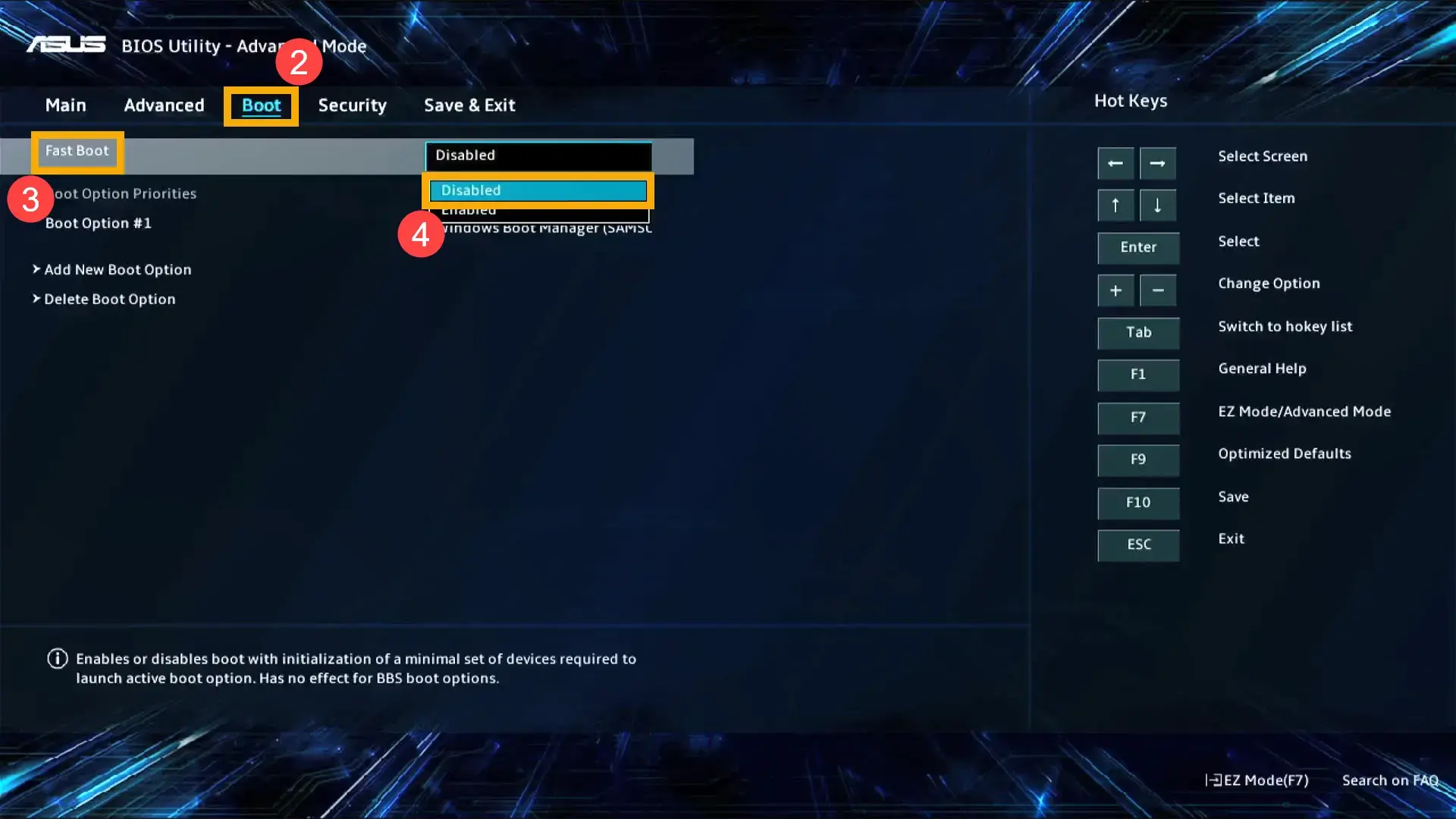
Turning off BIOS Fast Boot does not turn off Windows Fast Startup, and vice versa. To change hybrid shutdown behavior, use Windows Power Options.
Should you turn off Windows Fast Startup?
Fast Startup can help computers with a mechanical hard drive, where a full Windows boot may take longer. On newer PCs with an SSD, the benefit is less noticeable, although it depends on the system.
You do not need to turn off this feature if your computer works normally. However, if you regularly have driver, device, or startup problems, temporarily turning this setting off can help you determine whether it is causing the issue. It may also be useful on some dual-boot setups. When Windows shuts down with Fast Startup enabled, its NTFS partitions are locked for resume. If another OS, such as Linux, writes to them, this can corrupt data or leave the partitions read-only.
In most cases, the simplest option when troubleshooting Windows is to restart it. This reloads the system without making you turn off a feature that can save you time every day.